Connecting a company to an event
Last update · 4 min read
A company can organize an event instead of a person. Choose one company on the event's Organizer page, and everyone who manages that company can edit the event.
Before you start
You need to be an Owner, Admin or Manager of the company. The selector never lists a company where you are only a Member.
| What you can do | Owner | Admin | Manager | Member |
|---|---|---|---|---|
| See the company in the selector | Yes | Yes | Yes | No |
| Choose it as the event organizer | Yes | Yes | Yes | No |
| Edit every event the company organizes | Yes | Yes | Yes | No |
| Publish those events | Yes | Yes | Yes | No |
Any package works here. The Organizer page sits on every event.
When you create an event, the Company field is required. When you change an existing event, only Organizer Name is required.
Where the company field is
Open the event. Select Organizer under Event page in the event panel.
The page is titled Organizer and reads "Set the organizer's name, description, image, and company." The Company field sits at the top of it.
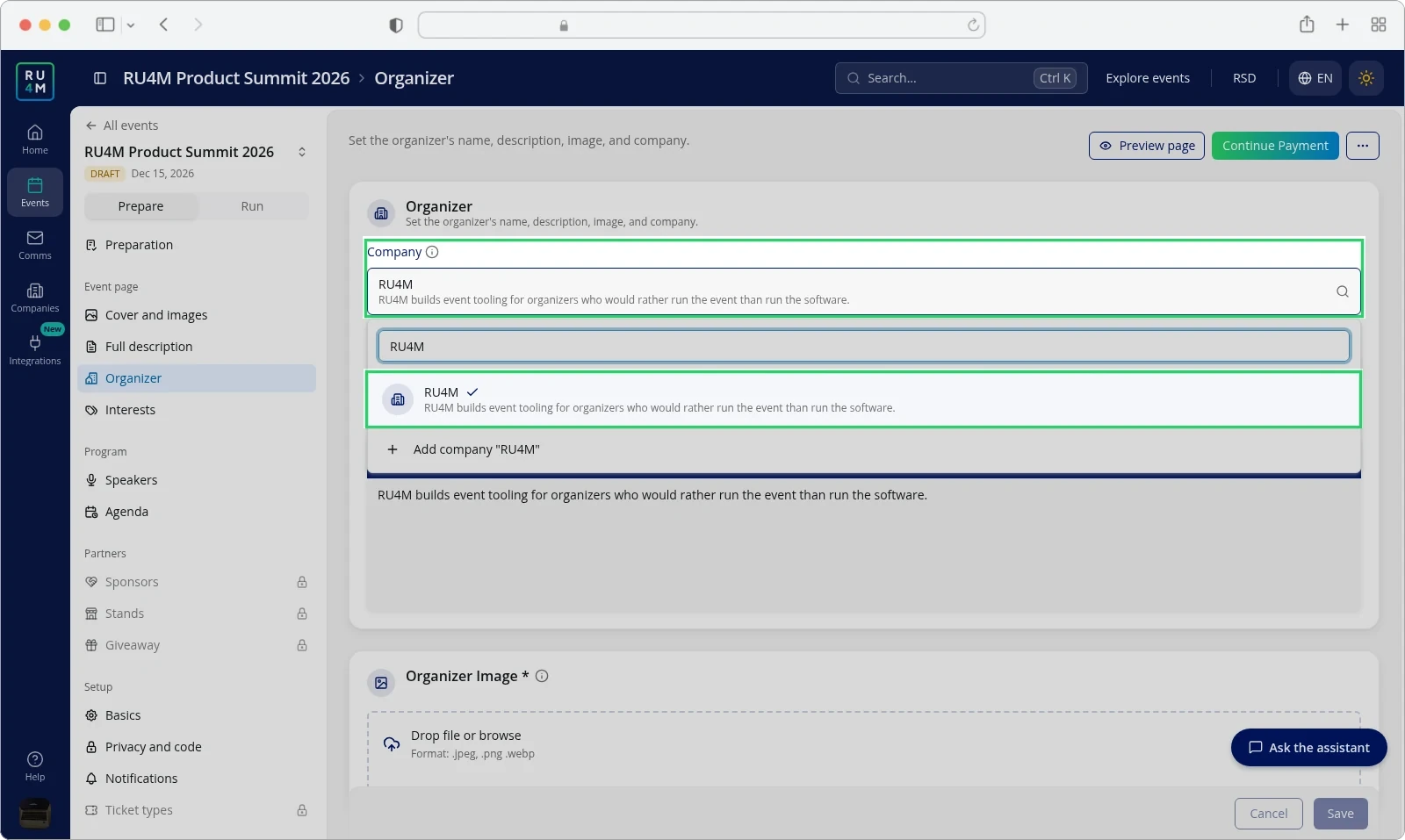
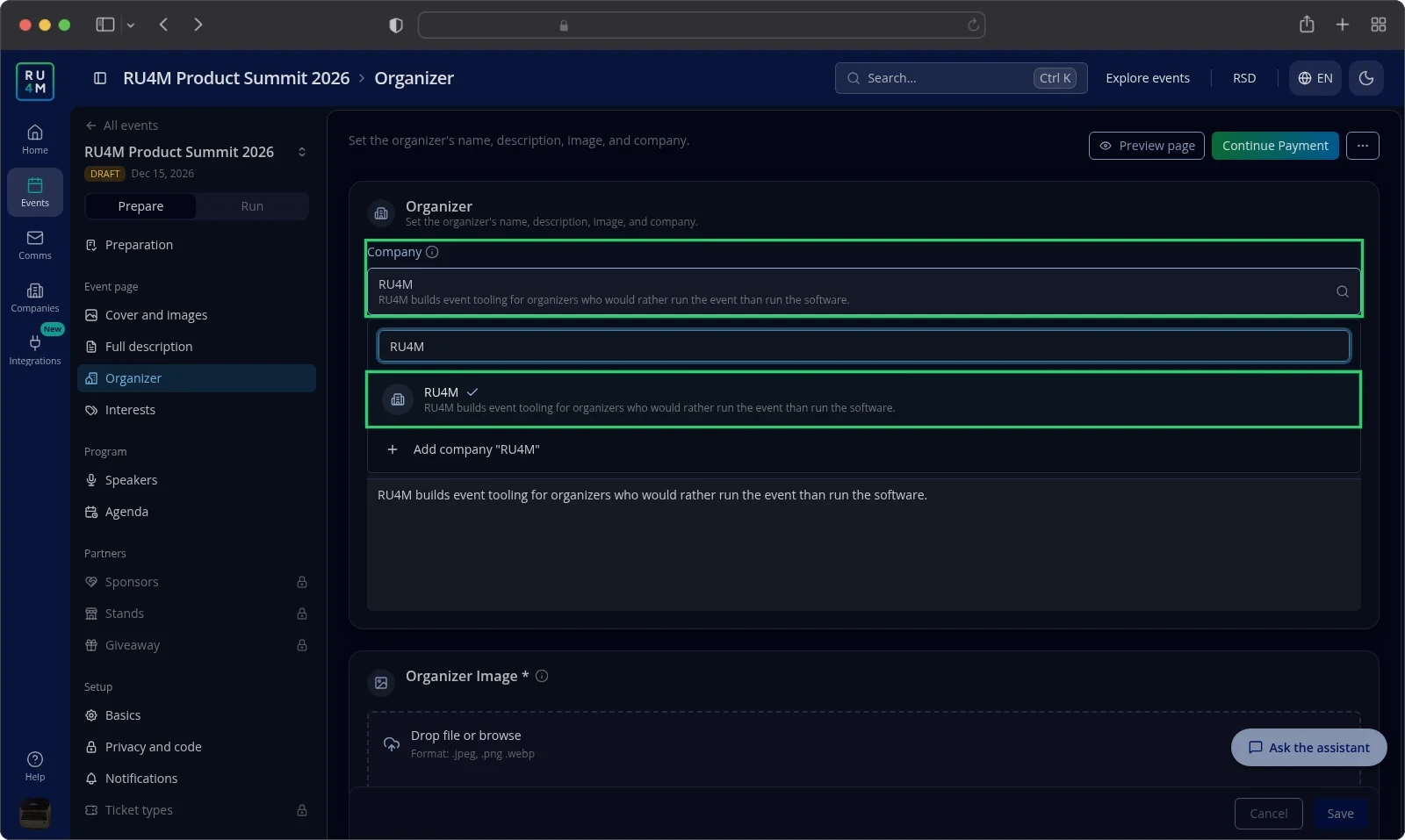
The green box marks the Company field and its list.
Choosing a company as organizer
- Open the event.
- Select Organizer under Event page in the event panel.
- Select the Company field.
- Find your company in the list.
- Select your company.
- Select Save.
The list immediately shows your companies. Type at least two letters to narrow the list.
What choosing a company fills in
Choosing a company fills Organizer Name, Organizer Description and Organizer Image from that company. You can still change every value for this event.
The Company field has an information button. Select it to read that the search covers only companies you manage.
When no company matches
The list shows up to ten companies. Search by name to shorten it.
- If you type at least two letters with no matching company, the list reads No managed companies found.
- If you manage no companies and leave the field empty, the list reads You do not have any managed companies yet. Type a name to add one.
Type at least two letters of a new company name. The list then shows Add company "{name}". Select it to create the company and choose it at once.
The company profile guide covers that dialog.
What your company role gives you
An Owner, an Admin and a Manager of the organizer company get the same rights on the event. You can open it, change its details and publish it.
Two things stay with the person who created the event:
- acting as the event's owner
- changing the event's ads
A Member of the organizer company gets no rights on the event.
These rights cover the event itself. Roles that give colleagues access to a single event work separately. The Team and roles guide covers them.
Changing the company later
You can change the Company on the Organizer page at any time. Everyone who managed the old company loses access, and everyone who manages the new one gains it.
Check who manages the new company before you save. A change can lock you out of your own event.
Troubleshooting
The app reports "You do not have permissions required to edit this event!" You cannot edit this event. You are not the person who created it, and you are not a Moderator on its team.
Ask the person who created the event for the Moderator role. See Team and roles.
The app reports "You do not have permission to perform this action in this company". The app refused the company you selected, or a change to the Organizer Image field on this page. Nothing was saved.
Check the role you hold in that company. Open the Company field again. Ask the Owner or an Admin for the role you need.
Your company is missing from the list. You are a Member, not an Owner, Admin or Manager. Ask the Owner or an Admin for a role with the permissions you need.
The list reads "No managed companies found." You typed the name of a company you do not manage. Clear the field to see your own companies.
The app reports "Failed to save your changes. Please try again." Nothing was saved. Try again.
The app reports "Failed to create company." The company was not created. Try again.
Related tasks
- Members, invitations and roles — give colleagues the Admin or Manager role.
- Creating and editing a company profile — the details a company fills in.
- Team and roles — colleagues who help at one event.
- Roles and permissions — every role in Backoffice.