Members, invitations and roles
Last update · 7 min read
As the company's Owner or Admin, you can invite colleagues by email and give each person the right role. You can also remove people who no longer need access.
Before you start
A company has four roles: Owner, Admin, Manager and Member. The company's Owner and Admin see the invite field and the menu beside each member. A Manager can edit the company and its events but cannot manage its members.
You become the company's Owner when you create it. Nobody assigns or removes the Owner role by hand, so the member menu never offers it.
| What you can do | Owner | Admin | Manager | Member |
|---|---|---|---|---|
| See the company in Backoffice | Yes | Yes | Yes | No |
| Edit its details, address and logo | Yes | Yes | Yes | No |
| Use it as an event organizer and edit its events | Yes | Yes | Yes | No |
| Confirm that a person works at the company | Yes | Yes | Yes | No |
| Invite members and create a new company from it | Yes | Yes | No | No |
| Make someone an Admin, Manager or Member | Yes | Yes | No | No |
| Remove a Manager or Member, or change their role | Yes | Yes | No | No |
| Remove an Admin or change their role | Yes | No | No | No |
| Set the company as primary | Yes | No | No | No |
| Delete the company | Yes | No | No | No |
| Leave the company | No | Yes | Yes | Not in Backoffice |
The Roles and permissions guide covers the same rights in more detail.
The Owner can add custom roles with fewer permissions. Read Company roles for the steps. The invite list and the Change role menu then offer those roles by name.
Where the team appears
- Select Companies in the rail.
- Select your company in the panel or in the My Companies list.
- Select Team members under People in the panel.
The Team members page reads "Invite people and choose the role each of them holds."
The page holds two things:
- an invite field, a role list and the Send invite button, which only an Owner or Admin sees
- a table with the columns Member, Role and Actions
Each row shows the person's name and a role badge. Your own row also carries a You badge. If you are an Admin or Manager, your own row's menu offers only Leave company.
A Manager sees no menu on other rows. The Owner row has no menu at all.
The table shows ten members at a time and has controls for moving between pages.
Inviting members
An invitation needs the email address of someone who already has an RU4M account with a confirmed email address. The app looks up the address and refuses invitations to addresses it cannot find.
- Open the company's page.
- Select Team members in the panel.
- Type your colleague's email address into Invite by email.
- Open the Invitation role list.
- Choose a role.
- Select Send invite.
The app shows Invitation sent successfully. The invite field clears.
Your colleague receives an email with your company’s name and an Accept invitation button. The email shows a date 30 days after you send the invitation, but your colleague can still accept after that date.
Your colleague accepts the invitation in the RU4M mobile app. The person joins with the role you chose in the Invitation role list. The list offers Admin, Manager and Member, and starts on Member.
The list never offers Owner. Change the role afterwards if the person needs different permissions.
The member list shows a new member only after that person accepts. The table does not show pending invitations.
You cannot cancel or resend an invitation. If your colleague missed it, ask them to find the email and accept it.
If the address already belongs to a member, the app reports User is already a member. If an unanswered invitation already exists for that person, it reports Invitation already pending.
Changing member roles
A role determines what someone can do in Backoffice. Use the table in “Before you start” to choose a role.
- Open the company's page.
- Select Team members in the panel.
- Find the member's row.
- Select Change role on that row.
- Choose Make admin, Make manager or Make member.
The menu shows only the roles you may assign to that person. It never offers the role the person already has. The change applies at once, and the app confirms Member role updated.
An Admin cannot change another Admin's role. Only the Owner can remove or demote an Admin. Nobody can change the Owner role.
Your own row offers no role choices, so you cannot change your own role here.
Removing members
Removing someone takes away the access their company role gave them. This includes access to events the company organizes.
The app sends no email when you remove a member. The person keeps any access they have independently of the company, such as access to an event they created or moderate.
- Open the company's page.
- Select Team members in the panel.
- Find the member's row.
- Select Change role on that row.
- Select Remove.
The member's row disappears at once, and the app confirms Member removed.
The app does not ask you to confirm, so check the row before you select Remove. To restore their company access later, invite the person again.
Leaving a company
An Admin or a Manager can leave a company from their own row. A Member does not see the company in Backoffice, so a Member cannot leave from here.
- Open the company's page.
- Select Team members in the panel.
- Find your own row, marked You.
- Select Change role on that row.
-
Select Leave company.
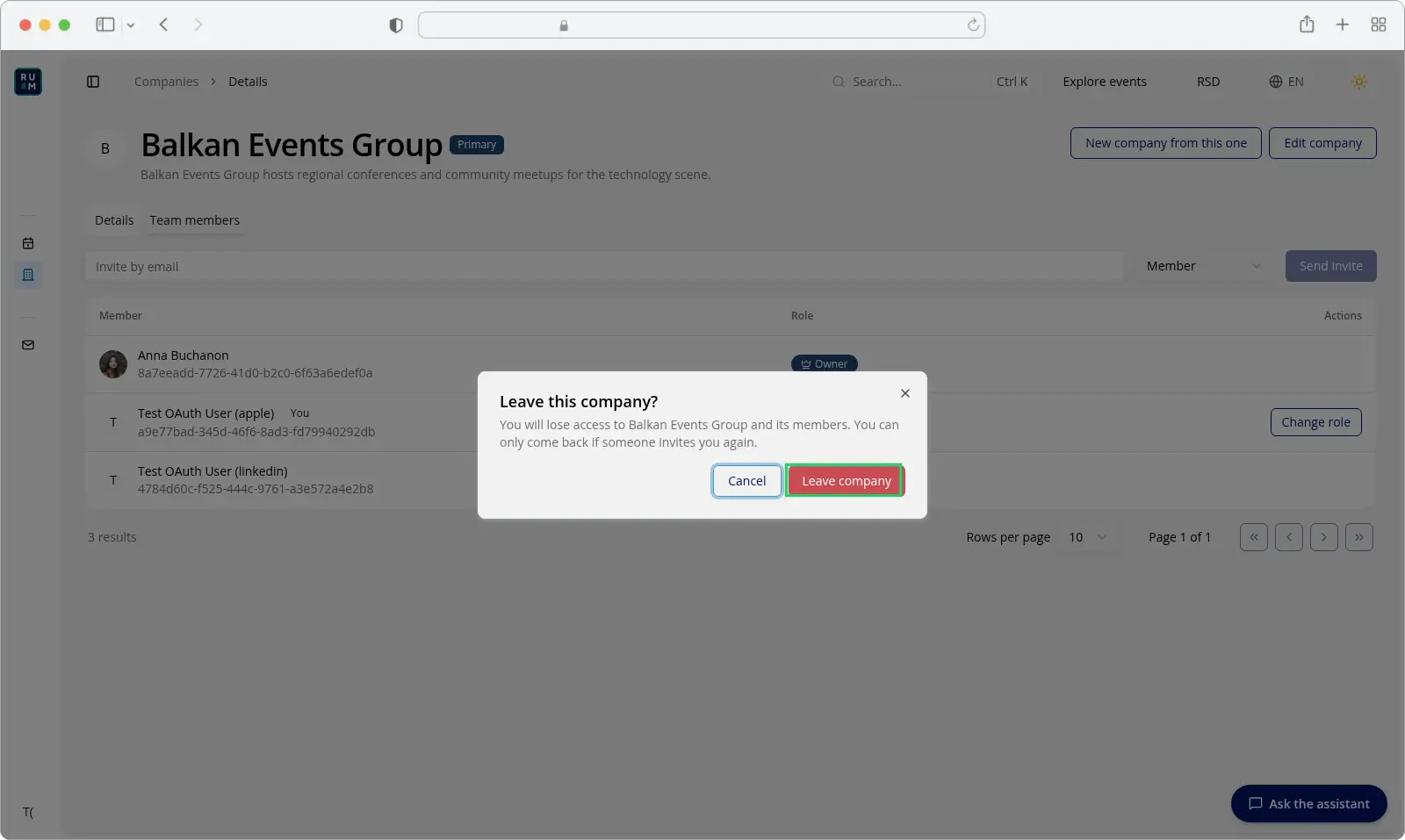
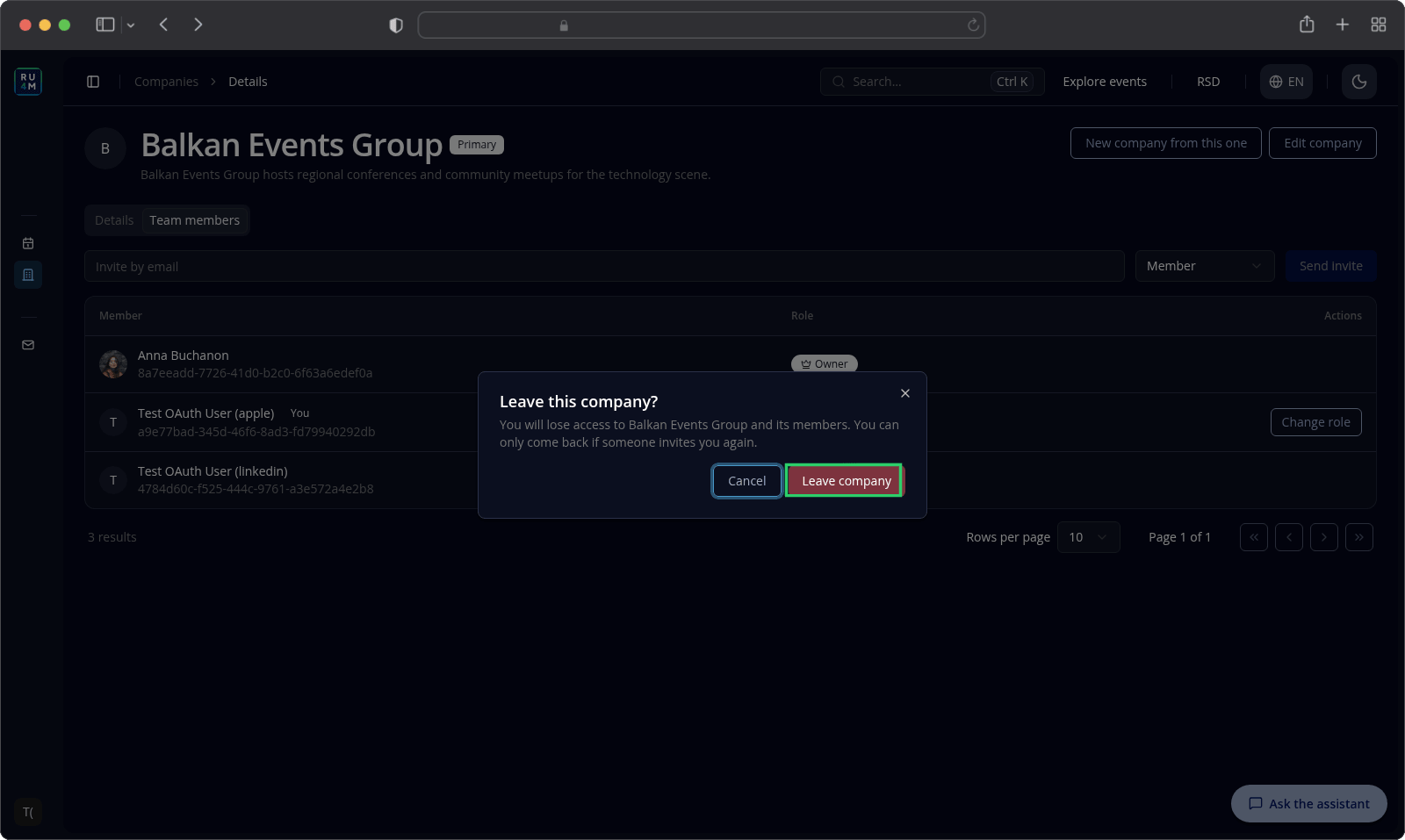
The app asks Leave this company? The dialog explains: "You will lose access to {company name} and its members. You can only come back if someone invites you again."
-
Select Leave company in the dialog.
Select Cancel instead to stay.
The app opens the My Companies list and confirms: You left {company name}. You lose the access your company role gave you, including on the events the company organizes. You keep access you have independently of the company, such as to an event you created or moderate.
To return, ask the Owner or an Admin to invite you again.
Two rules apply:
- The Owner cannot leave. The row has no menu. Ask RU4M support to transfer ownership to another person first; only RU4M support can do this.
- In a company without an owner, the last Admin cannot leave. The app reports Cannot kick the only admin and keeps you on the company page.
A company without an owner can be claimed by one of its members. Read Claiming a company without an owner. A member can also start the claim from the Integrations area.
When ownership changes
Only RU4M staff can move ownership. The people involved then get a notification.
- The previous Owner becomes an Admin and gets one notification.
- The new Owner gets one notification.
- Every Admin gets one notification.
Each notification arrives in the app and as a push message. The previous Owner, the new Owner and every Admin also get an email. The notification opens the company's members page.
When the Owner deletes their account, the company has no owner. Every remaining member gets a notification in the app and a push message. Each Admin also gets an email.
These messages say only that the company has no owner and that members can claim it with Claim company on My Companies. They never name the person who deleted the account. Roles stay as they are, and the notification opens the company page.
Troubleshooting
You cannot see an invite field or a menu beside a row. You are a Manager. A Member does not see the company in Backoffice at all.
Ask the Owner or an Admin to manage members. You can still leave the company with Leave company on your own row.
A member row has no menu. The row belongs to the Owner, or to an Admin while you are an Admin. Ask the Owner to change that Admin's role.
The app reports "Cannot kick the only admin". You are the last Admin of a company without an owner. Ask RU4M staff to set an owner, or make another member an Admin first.
The app reports "User does not exist." The person has no RU4M account yet, or has not confirmed their email address.
Ask someone without an account to register. If they already have an account, ask them to confirm their address using the same guide.
The app reports "Invitation already pending". The person has not answered an earlier invitation. Wait for their reply.
The app reports "User is already a member". The person is already on the member list. Change their role instead of inviting them again.
The list of invitation roles does not load. The page shows the error message and a Try again button. The Send invite button stays unavailable until the roles load.
Select Try again to load them again.
The app reports "Failed to send invitation". Nothing was sent. Try again.
The app reports "Failed to update member role". The change was not saved. Try again.
The app reports "Failed to remove member". The person is still a member. Try again.
An invited person is missing from the table. They have not accepted the invitation yet.
The page reports "Team members could not be loaded". The table did not load. Reload the page.
Related tasks
- Creating and editing a company profile — the company page this guide starts from.
- Connecting a company to an event — use the company as an event organizer.
- Deleting a company — remove a company you no longer need.
- Team and roles — colleagues who help at one event rather than in the company.
- Roles and permissions — what each role may do.