Creating and editing a company profile
Last update · 9 min read
A company holds the details that appear on your events. These include its name, description, website, phone, address and logo. Create one company or several, then connect them to your events as organizers.
Before you start
Any signed-in Backoffice user can create a company, so you can start here even without one.
To edit an existing company you must be its Owner, Admin or Manager, or hold a custom role that can edit the company. If you are a Member, you cannot see the company in Backoffice. Creating a company makes you its Owner.
The Roles and permissions guide covers every role in more detail.
Finding your company
Select Companies in the rail on the far left. The panel next to the rail lists your companies:
- All companies opens the My Companies list. The number beside it counts every company you manage.
- Owned by you lists the companies where you are the Owner.
- You help manage lists the companies where you hold another role.
The panel shows up to 20 companies. If you manage more, select See all {number} companies to open the full list.
The list holds only the companies where you are Owner, Admin or Manager, or hold a custom role that can edit the company. While the list is open, the top bar shows My Companies.
Each row shows the logo, Company Name, your Role, Description, Created and Status. Every listed company carries the Active badge. Your primary company also carries a Primary badge beside its name.
Select the company name to open its page. The Manage company arrow at the end of a row opens the same page. You can also select the company in the panel.
Type in Search companies by name... to narrow the list. If your search finds no companies, the table stays visible with a no-results message.
The Add Company button sits at the top of the list. It appears once you manage at least one company, or once you search.
When you manage no companies, Companies stays in the rail and the list shows No managed companies yet with its own Add Company button.
To see the events of one company only, read Show one company's events.
Moving around a company
When you open a company, the panel shows that company's menu:
- All companies at the top returns you to the list.
- The company's name below it opens a list of your companies. Search for another company and select it. You stay in the same section of the other company.
- Details shows the company's information.
- People holds Team members, Employment and Roles.
- Setup holds Company settings and Danger zone.
Each section is its own page, and the top bar shows the name of the page you are on.
A section your role cannot use stays in the menu, marked no access. If you open it, the page reads You don't have access to and the section's name, and asks you to contact the company owner or an admin. Select Open Details to go back to the company's details.
The buttons Set as primary, New company from this one and Edit company appear at the top of every section except Company settings, when your role allows them.
Creating a company
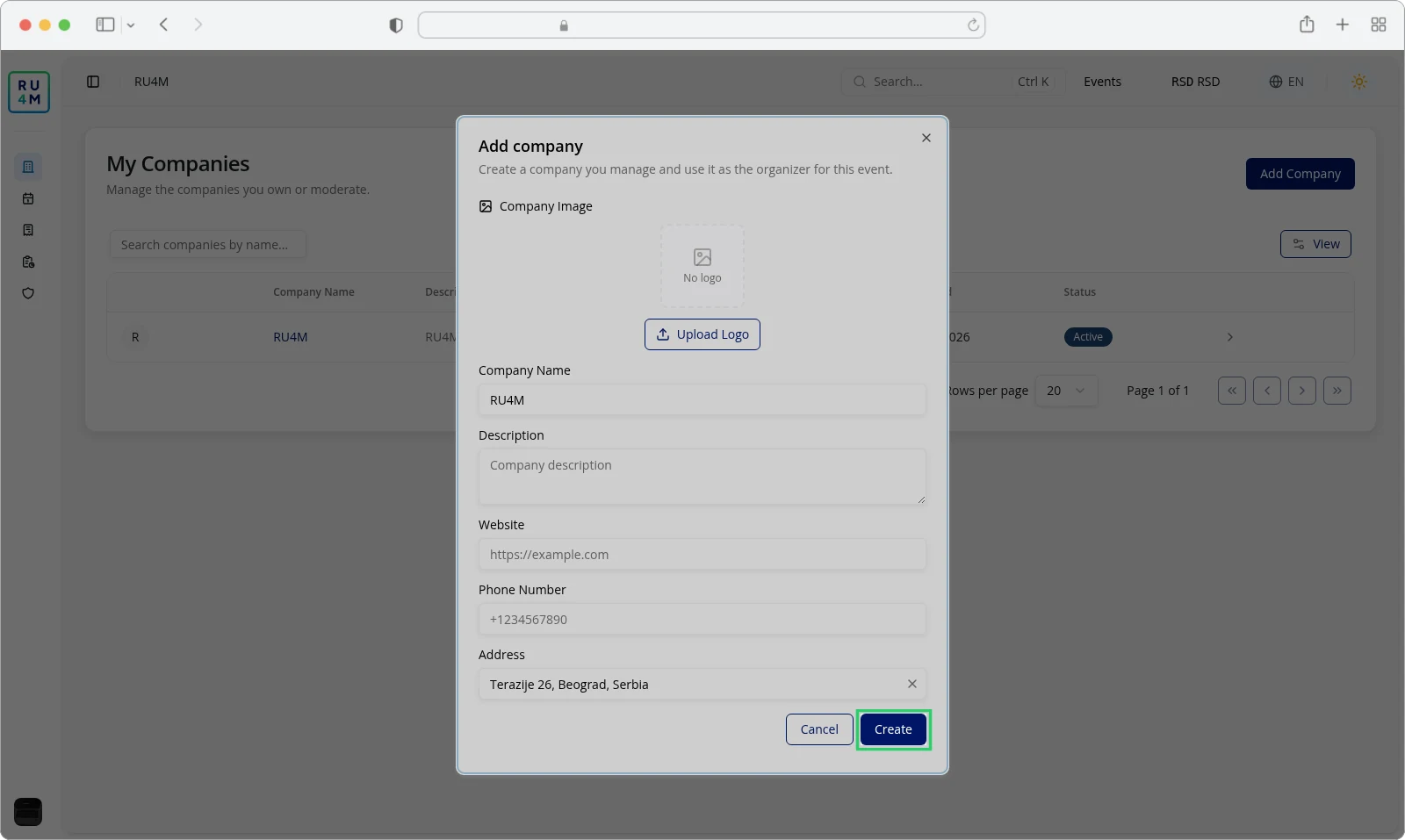
Select Add Company and the Add company dialog opens.
Only Company Name is required. Every other field is optional.
- Enter Company Name, up to 100 characters.
- Enter Description, up to 1000 characters.
- Enter Website as a full address, including
https://. - Enter Phone Number using digits and the characters
+ - / ( ). - Search for an address in the Address field.
- Select an address from the suggestions.
- Select a Company Image if you have a logo ready.
Select Create. While the app saves the company, the button reads Creating....
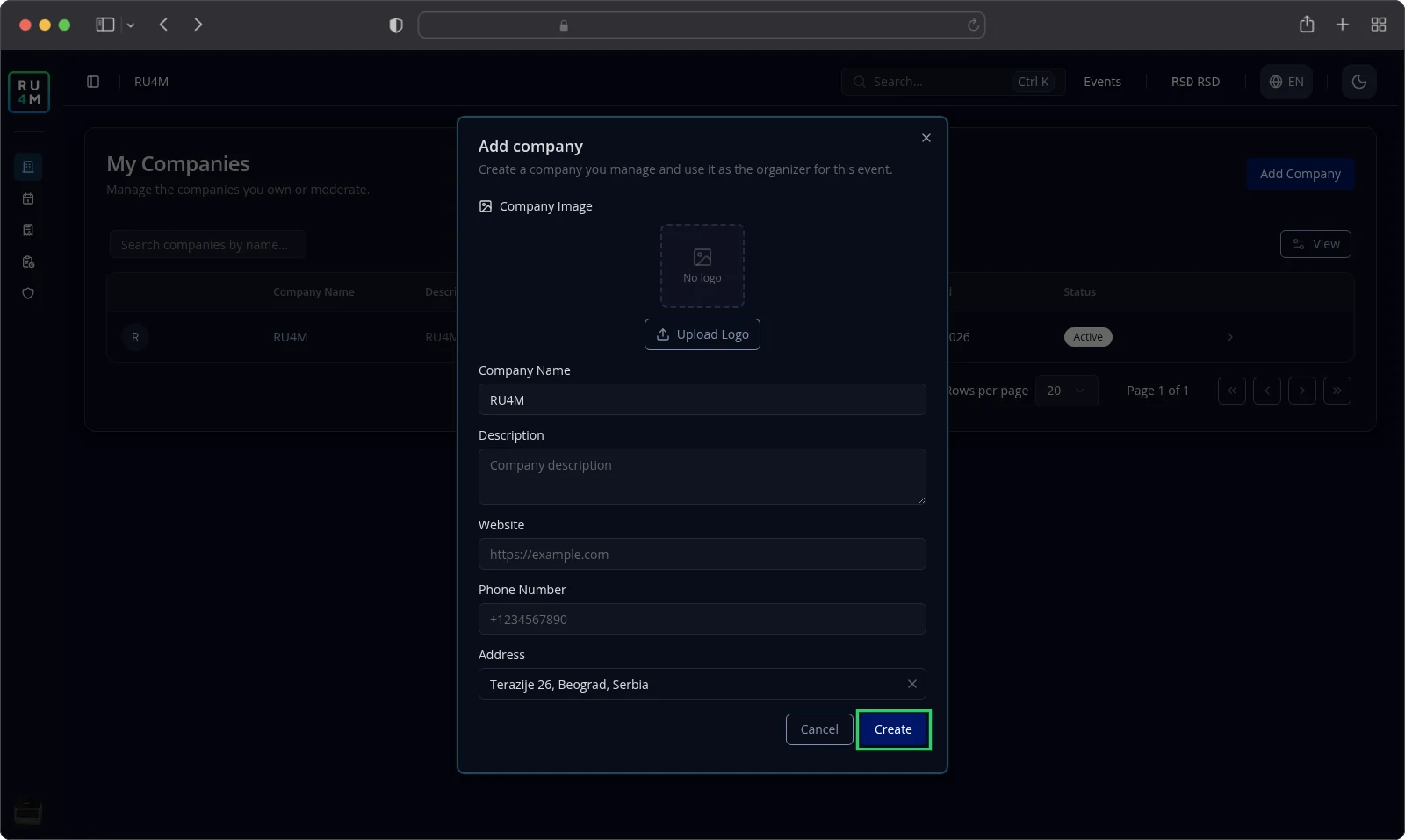
The company's page opens and the app confirms Company created and selected.
You become the company's Owner. Your first company also becomes your primary company.
You can also create a company while you set up an event, in the organizer part of the event wizard. Read Connecting a company to an event.
Editing details, logo and contact information
The company page opens on Details. The top bar shows the company's name. The page shows the logo, the Primary badge on your primary company and the description, followed by the Website, Phone, Address and Created date.
Every other part of the company has its own section and its own guide:
| Section | What it holds | Guide |
|---|---|---|
| Team members | members and invitations | Members, invitations and roles |
| Employment | requests from people who work at the company; usable only with permission to confirm employment | Confirming employment |
| Roles | built-in and custom roles | Company roles |
| Company settings | the editor for details, address and logo | this page |
| Danger zone | deleting the company; usable only by the Owner | Deleting a company |
Select Edit company, or Company settings in the panel. Only an Owner, Admin or Manager, or a custom role that can edit the company, can use the editor.
The top bar shows Edit and the company's name. The editor's fields appear on two tabs: Basic information and Address.
Basic information holds the logo, Company Name, Description, Phone and Website. Address holds the address search and the separate Street, Street number, City, Region, ZIP code and Country fields.
Save changes on each tab separately. Save basic information and Save address stay greyed out until you change a valid field on that tab.
After you save, the app confirms Company updated successfully and returns you to the company's page.
Select Cancel to leave the editor without saving.
Replacing the logo
- In the Company Logo card, select Upload Logo.
-
Choose an image.
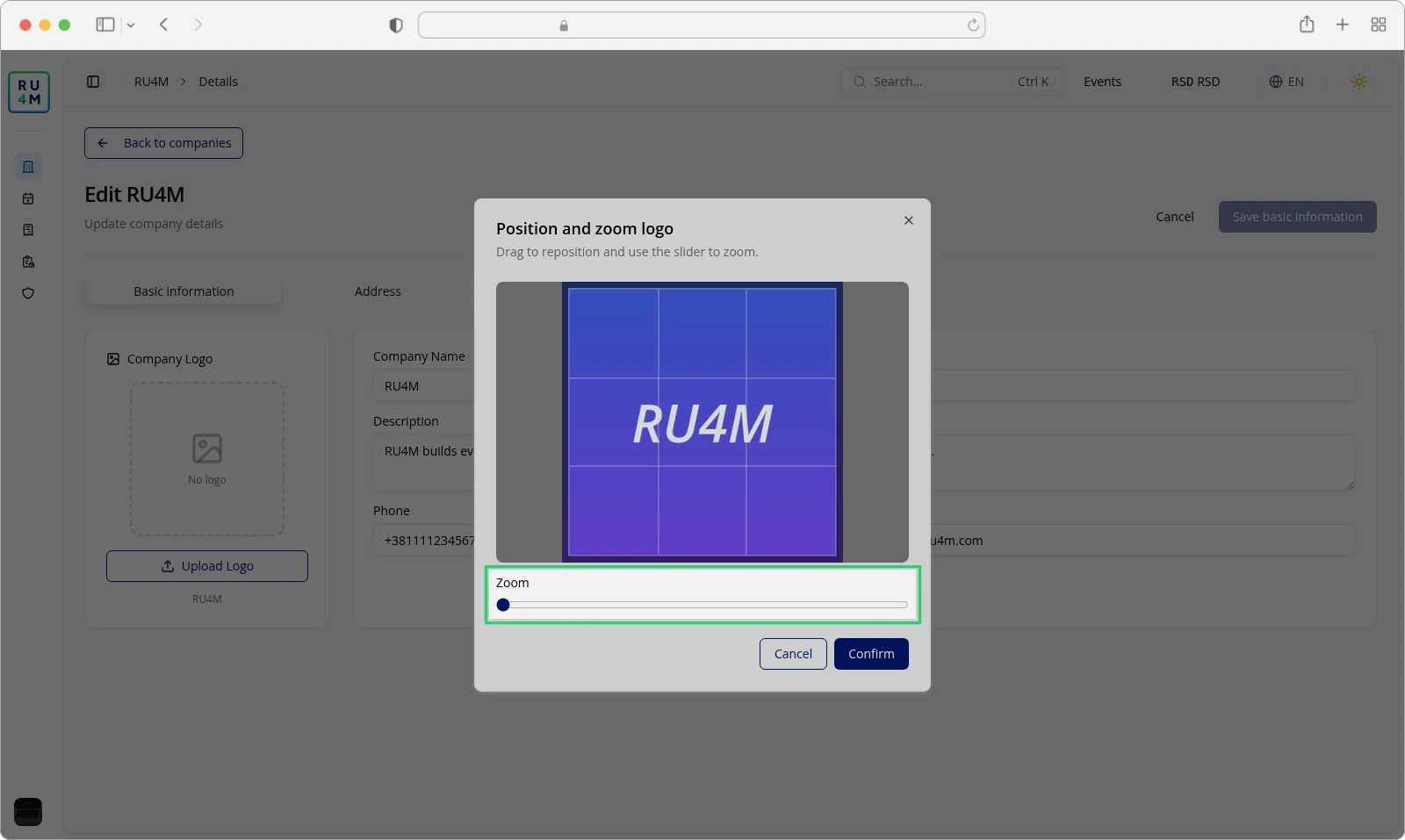
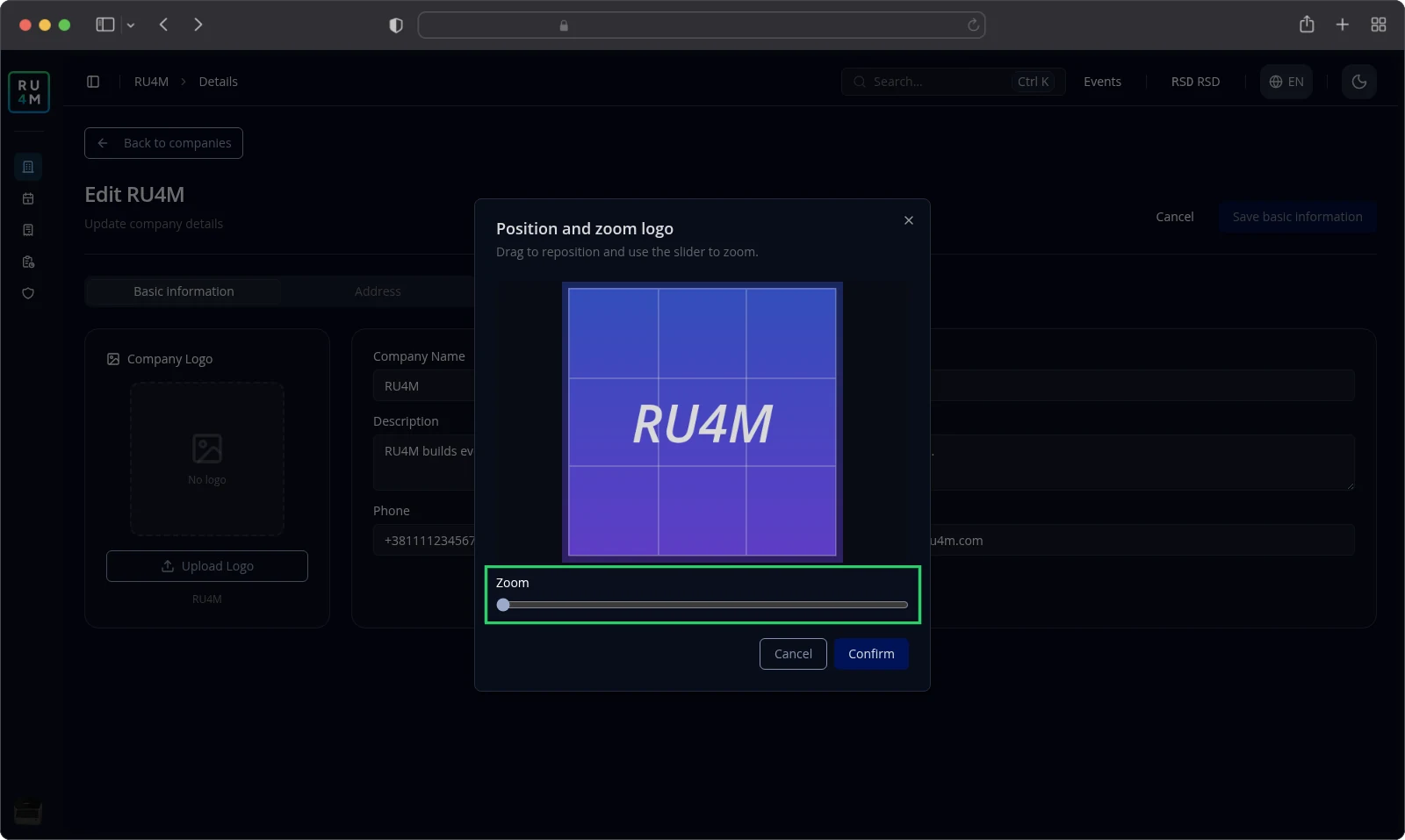
The Position and zoom logo dialog opens.
-
Drag the image to position it.
- Move the Zoom slider to set its size. The crop is square.
- Select Confirm to keep the image, or Cancel to discard it.
Select Save basic information to save the logo. Choosing an image enables that button.
Leaving with unsaved changes
If you switch tabs, pick another company in the company switcher, or leave the editor with unsaved changes, the app asks Leave without saving? Select Stay to keep your changes, or Discard changes to lose them.
Primary company
Your primary company is the one the app treats as your main company. It carries the Primary badge in the list and on the company page.
Your first company becomes primary automatically. Only the Owner can change it.
- Open the page of a company you own that is not your primary company.
- Select Set as primary.
- Confirm Set as primary company? with Set as primary.
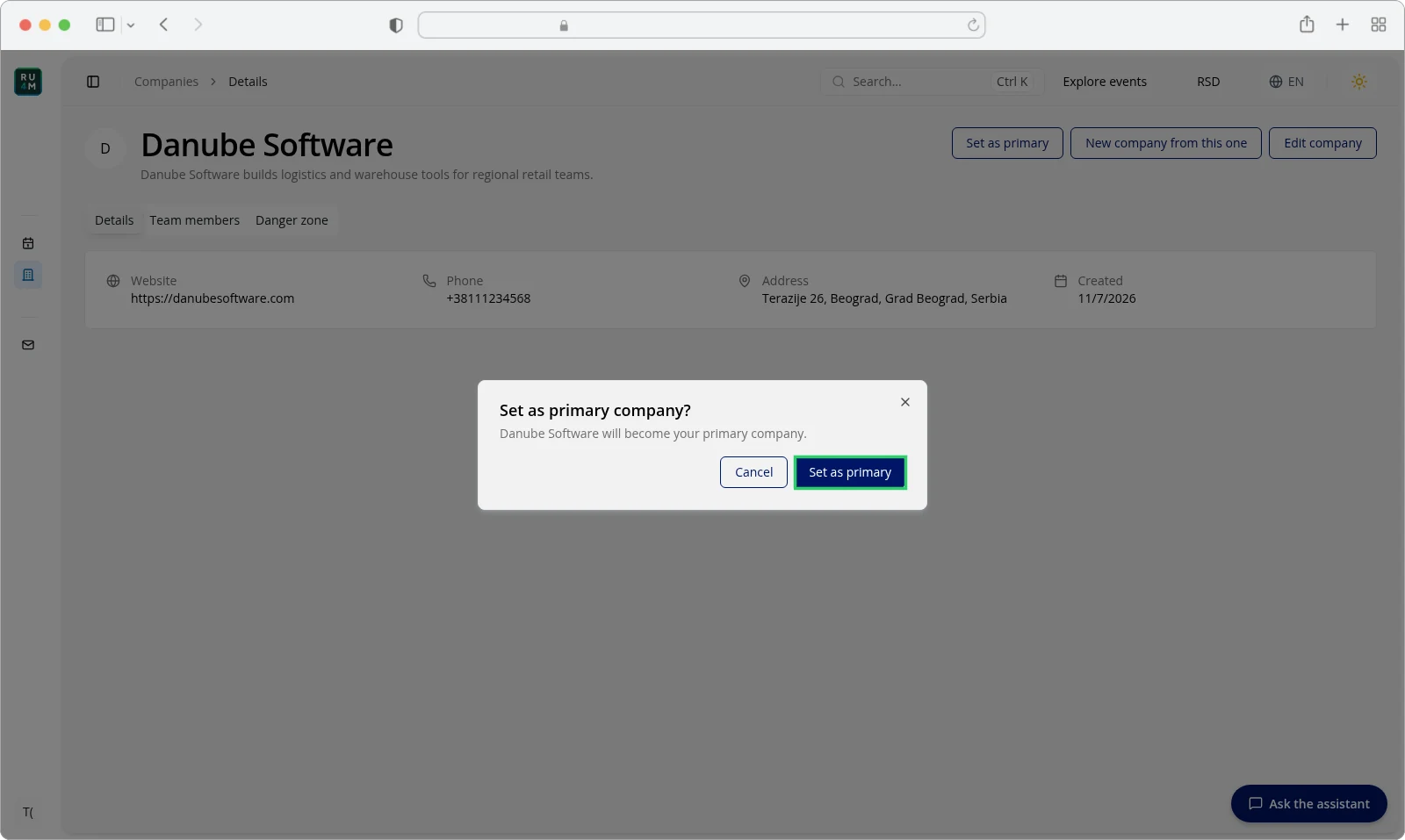
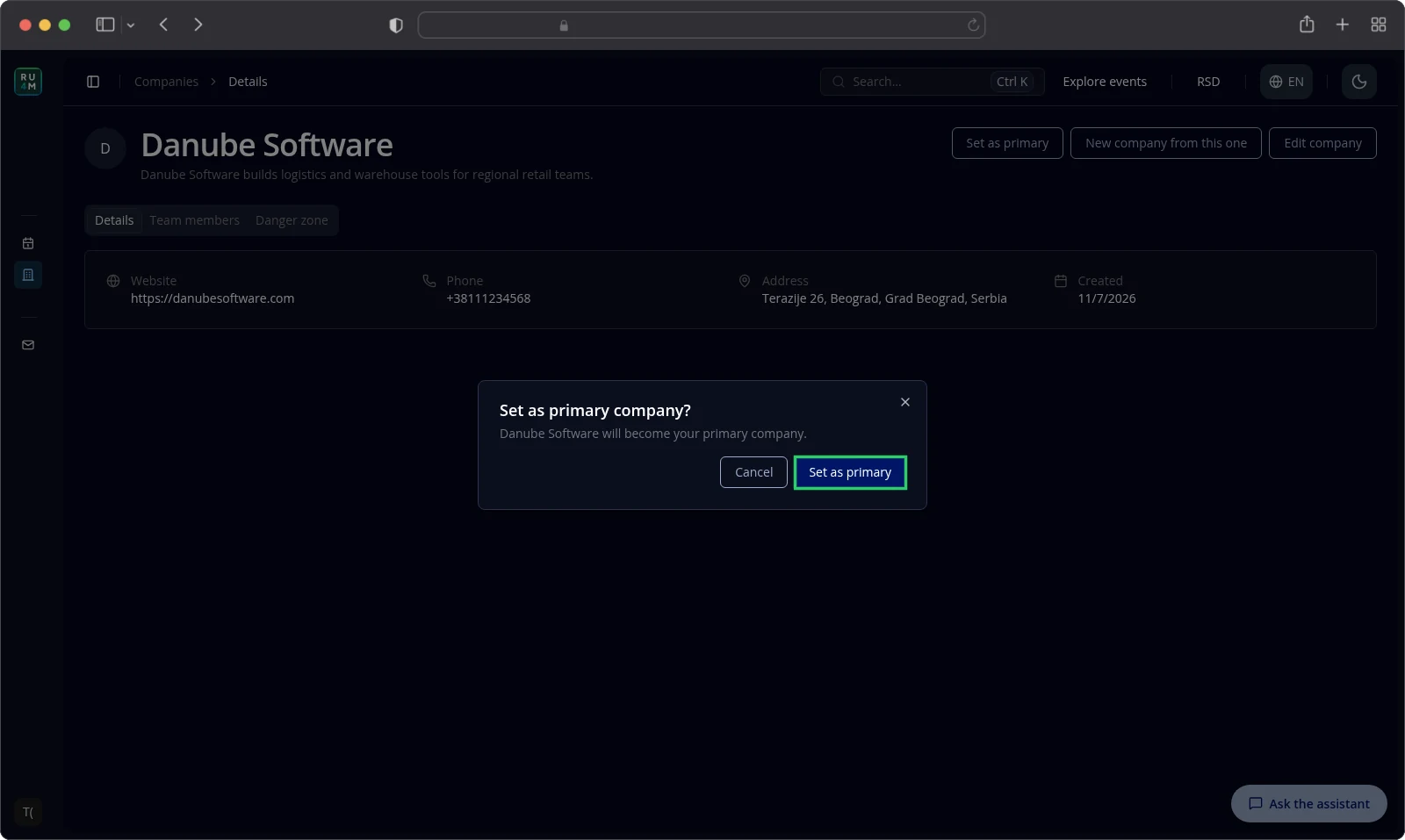
The app confirms Primary company updated. The previous primary company loses the badge.
The Set as primary button is missing on the company that is already primary, and on a company without an owner.
Creating a company from an existing one
Use New company from this one when you run several companies with the same owner. The dialog starts empty: it does not copy details from the existing company.
- Open the page of an existing company.
- Select New company from this one.
- Fill in the Add company dialog as described in "Creating a company".
- Select Create.
The new company's owner is the existing company's owner. An Admin who creates it becomes the new company's Admin, not its Owner. The new company's page opens.
Only an Owner or Admin sees the button, and only on a company that has an owner.
Claiming a company without an owner
Some companies have no owner. You can ask to become the owner.
- Open the My Companies list.
- Select Claim company.
- Type at least two letters of the company's name into Search companies by name.
- Select Claim beside the company.
- Write Your role and how to reach you. Add your role at the company and a phone number or email.
- Select Submit claim.
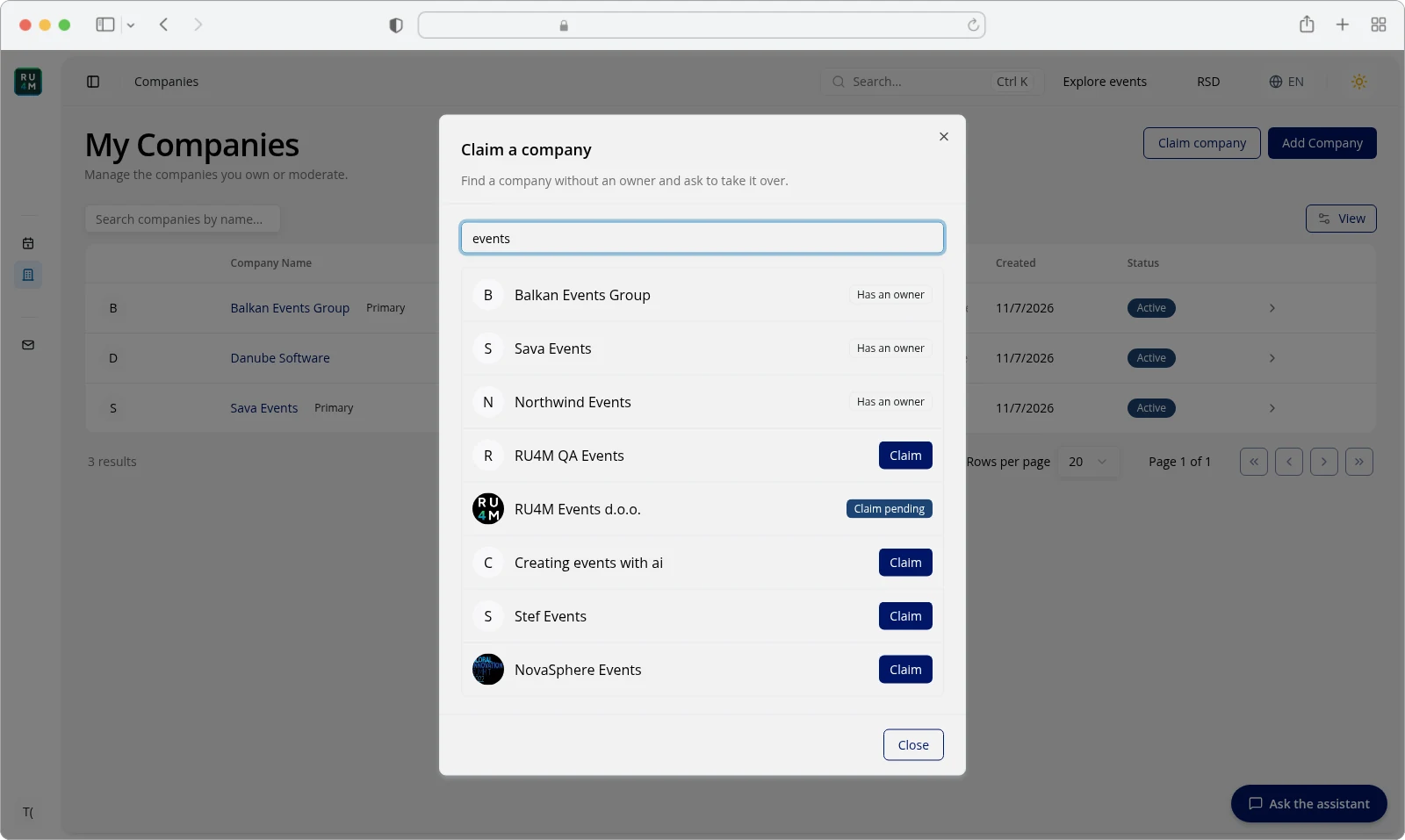
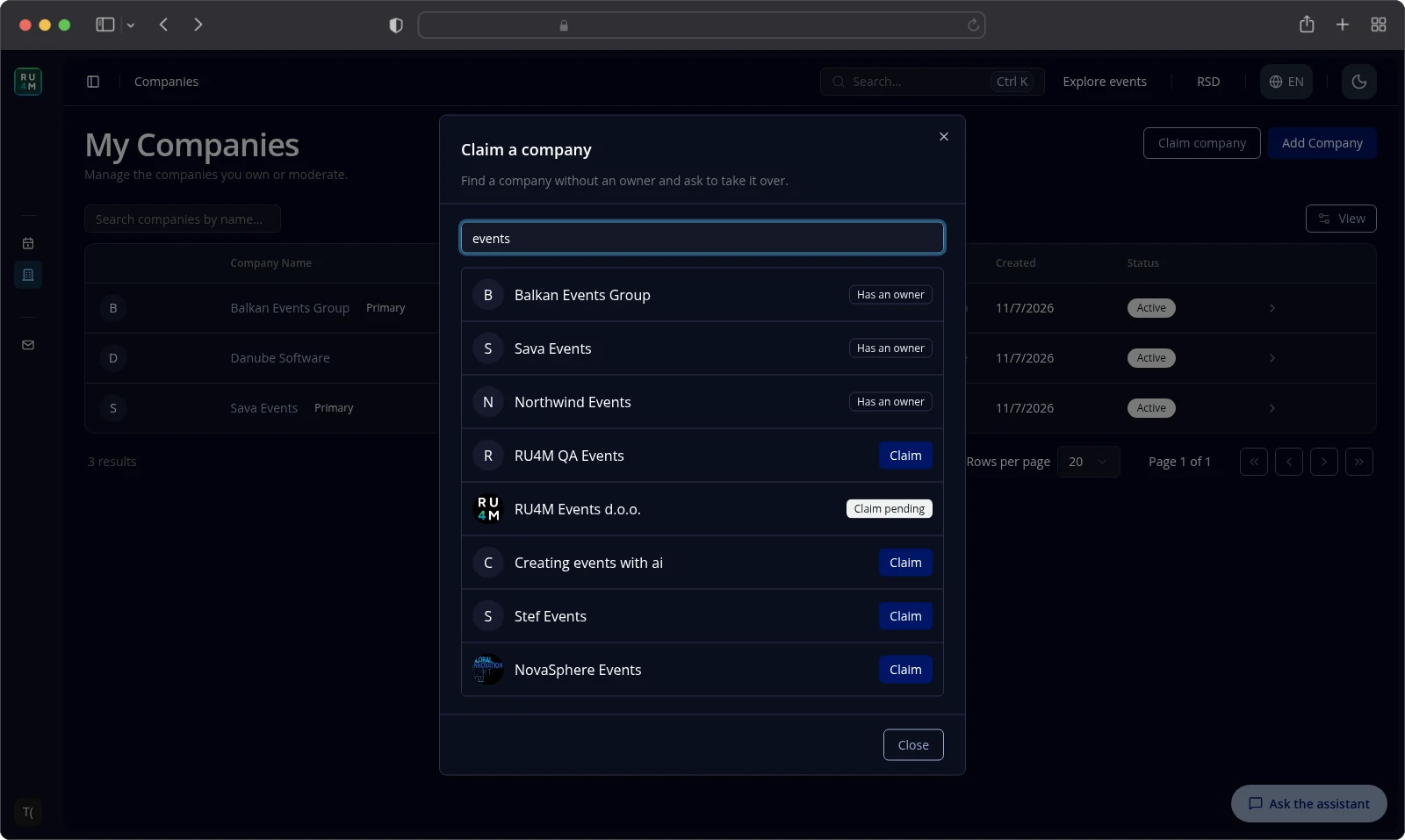
The app confirms Claim submitted. The row then shows Claim pending. Submitting the claim does not give you access to the company.
RU4M staff contact you using what you wrote, then approve or reject the claim.
You cannot send the claim without a message. Select Back to close the message field without sending.
Claiming from Integrations
If a company you belong to has no owner, the Integrations area shows the card {company} has no owner yet. Requesting access to integrations waits until the company has an owner.
-
Select Claim company on the card.
The Claim a company dialog opens with that company only. There is no search field.
-
Select Claim beside the company.
- Write Your role and how to reach you.
- Select Submit claim.
If the card reads Your company has no owner yet, it does not name the company. Claim company then opens the My Companies list, where you claim as described above. Read Requesting integration access for what happens after you become the owner.
Withdrawing a claim
Select Withdraw beside the row while it shows Claim pending. The app confirms Claim withdrawn. You can claim the company again at any time.
When a claim is decided
You get a notification in the app, a push message and an email.
- If RU4M staff approve the claim, you become the Owner of the company.
- If they reject it, the row shows Claim rejected and the reason, if they wrote one.
After a rejection you cannot claim the same company for 7 days. The row shows the date you can try again. Other companies stay open to you.
If RU4M staff approve a claim from another person on the same company, your claim is rejected and you get a notification. This does not start a waiting period.
A row that shows Has an owner cannot be claimed. Select Close to leave the dialog.
Troubleshooting
Your company is missing from the list. You are its Member, not a manager, or the company was deleted.
The Set as primary button is missing. You are not the Owner, the company is already primary, or it has no owner.
The app refuses the claim. Nothing was sent. The message names the reason, for example that the company already has an owner.
Search for the company again to see its current state.
The claim stays on "Claim pending". RU4M staff have not decided yet. Wait for the decision, or select Withdraw.
The app says you can claim again after a date. RU4M staff rejected your earlier claim for this company. Wait for that date.
A company is missing from the panel. The panel shows up to 20 companies. Select See all {number} companies under them, or open All companies.
A section is marked "no access". Your role does not include that section. Ask the company's Owner or an Admin.
The page reads "Company not found". The company does not exist, or you cannot manage it.
Nothing happens when you select a save button. It stays greyed out until you change a valid field on that tab.
Your edit disappeared after you left.
You chose Discard changes. Make the change again. Save it before you leave.
A website is refused. Enter a full address, including https://.
A phone number is refused. Use digits and the characters + - / ( ) only.
The address is not saved. Choose the address from the suggestions. Typing an address without selecting a suggestion does not save it.
The app reports "This company has no owner." The company you started from has no owner, so you cannot create a company from it. Refresh the company page and check who owns it.
The app reports "Company ownership changed while you were working. Please try again." The owner changed while you worked. Refresh the page and try again.
The app reports "You do not have permission to perform this action in this company". Your access to the company changed. Refresh the page and try again.
The app reports "Failed to create company". Nothing was saved. Try again.
The app reports "Failed to update company". The app did not save your change. Try again.
The logo cannot be processed. Choose a different image and try again.
Related tasks
- Members, invitations and roles — colleagues and what each of them may do.
- Connecting a company to an event — use the company as an event organizer.
- Deleting a company — remove a company you no longer need.
- Creating your first event — create a company while you set up an event.
- Roles and permissions — what each role may do.