Giveaways
Last update · 5 min read
A giveaway is a prize game you run inside your event. You set a title, describe the rewards, and write the rules participants follow. Participants join from the RU4M mobile app. The Backoffice is where you prepare the game. You decide how the winner is selected.
Before you start
You must be the person who created the event, one of its managers, or an Owner, Admin or Manager of the organizing company. Everyone else can open the event and read it, but cannot change it.
The Giveaway page opens fully only on Enterprise and Premium packages. Read Packages and payment first if Giveaway shows a lock.
Open your event from your events list. Select Giveaway under Partners in the event panel.
Setting up a giveaway
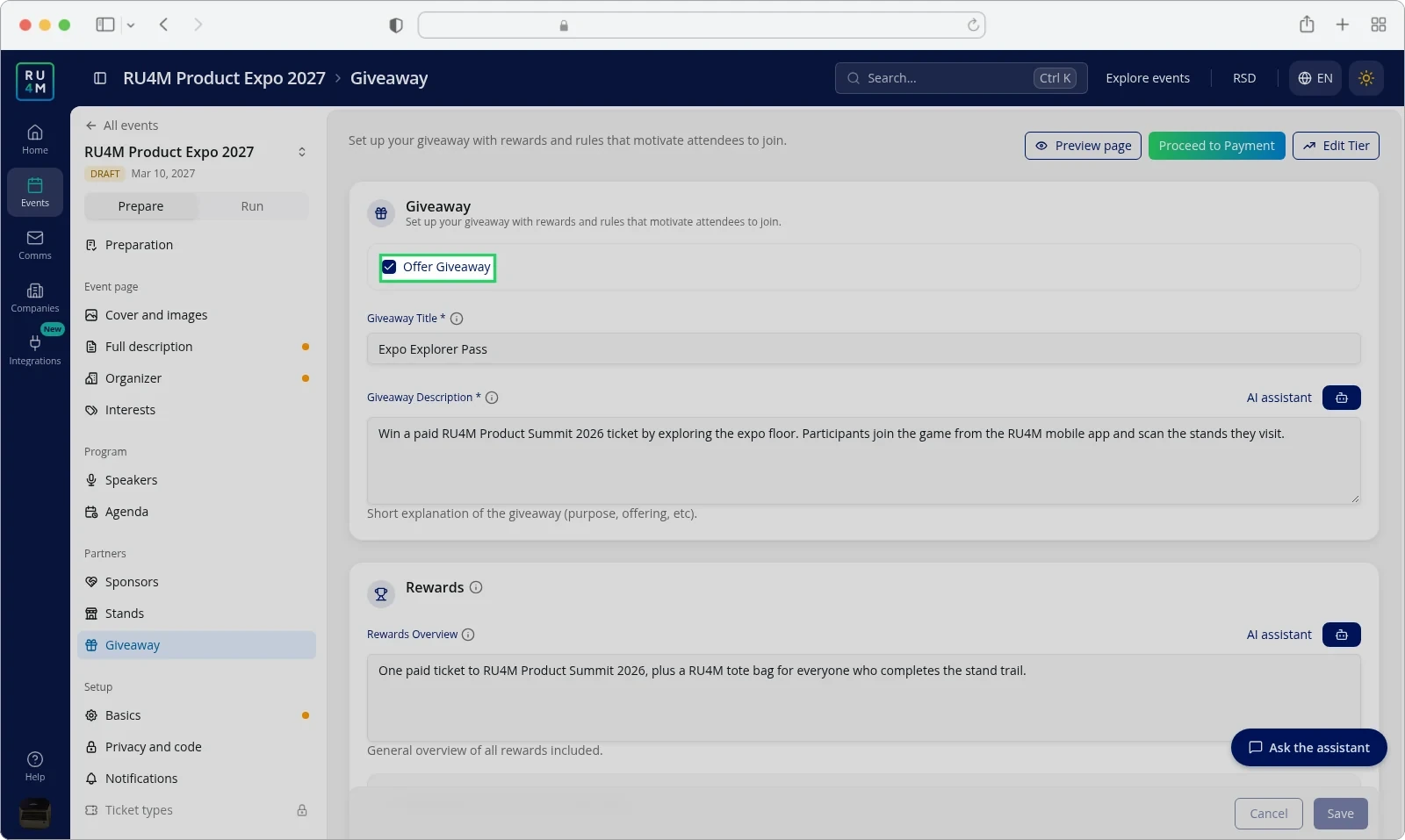
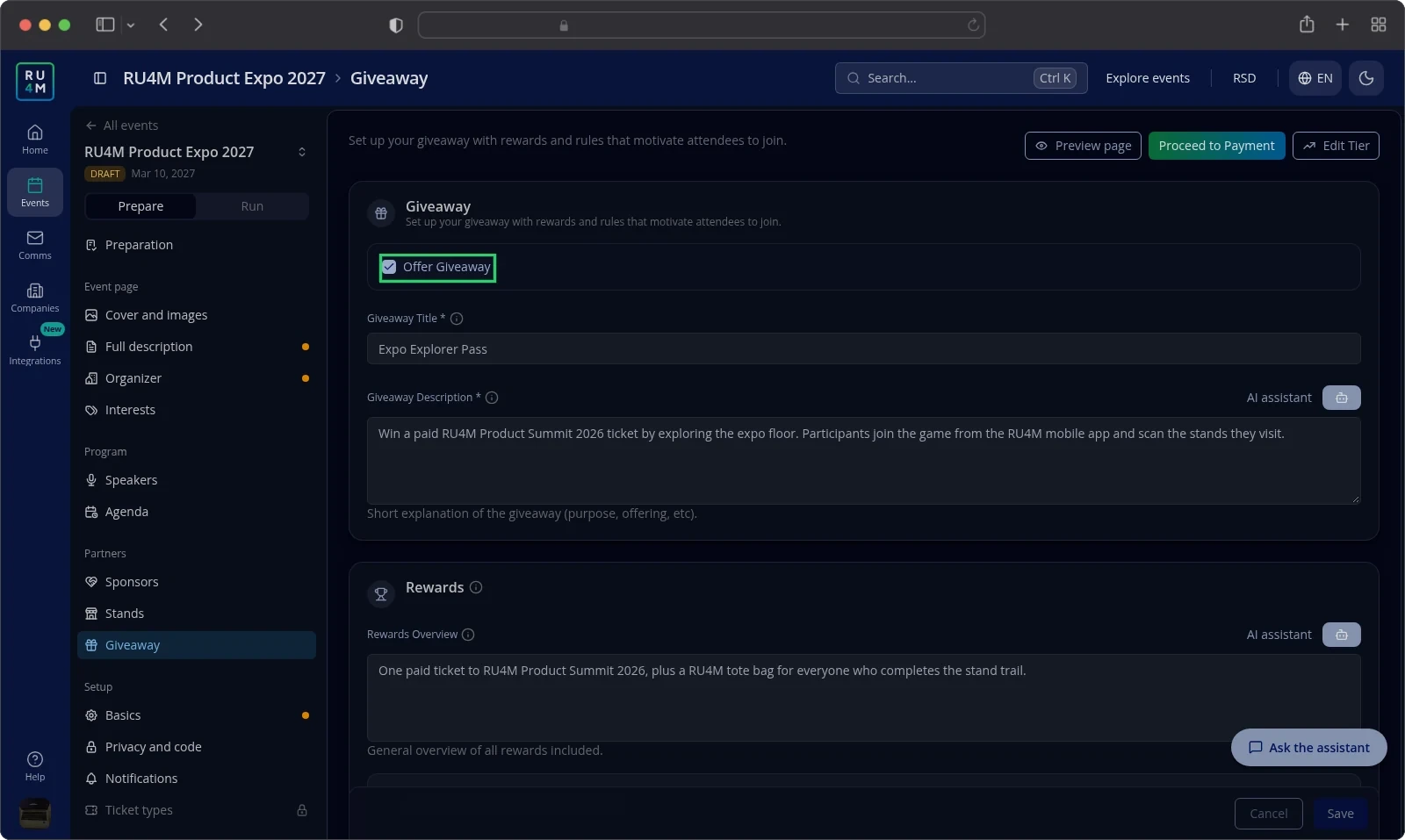
The page opens on Offer Giveaway, switched off. Everything below it stays hidden until you switch it on.
Turn the giveaway on
- Select Offer Giveaway.
- Enter Giveaway Title.
- Enter Giveaway Description.
- Select Save.
Giveaway Title is required and takes up to 100 characters. Giveaway Description is required and has no length limit.
Let the AI write the description
Beside Giveaway Description sits an AI assistant. It stays greyed out until Giveaway Title has text. Select it and the assistant writes a draft you can edit.
Write the rewards
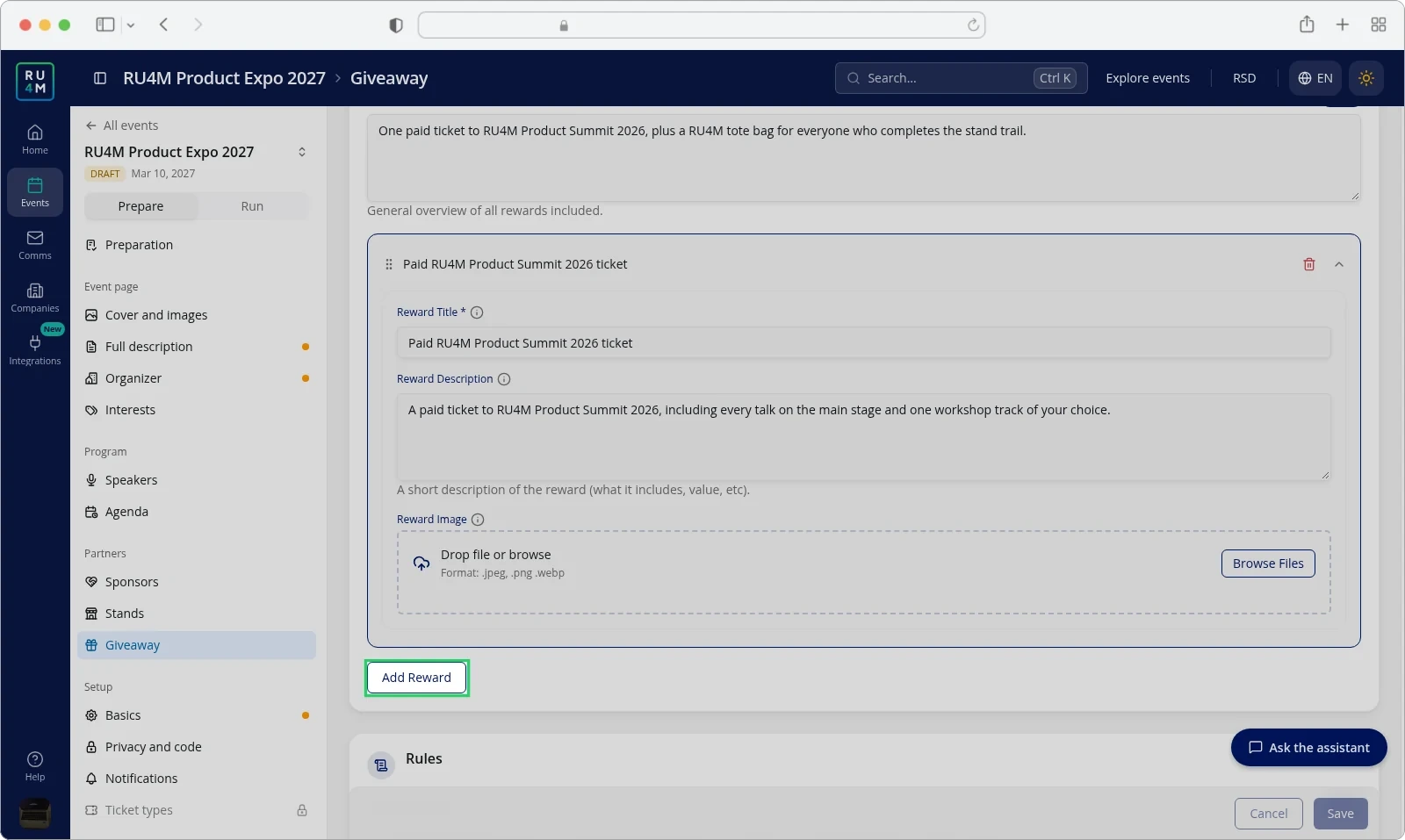
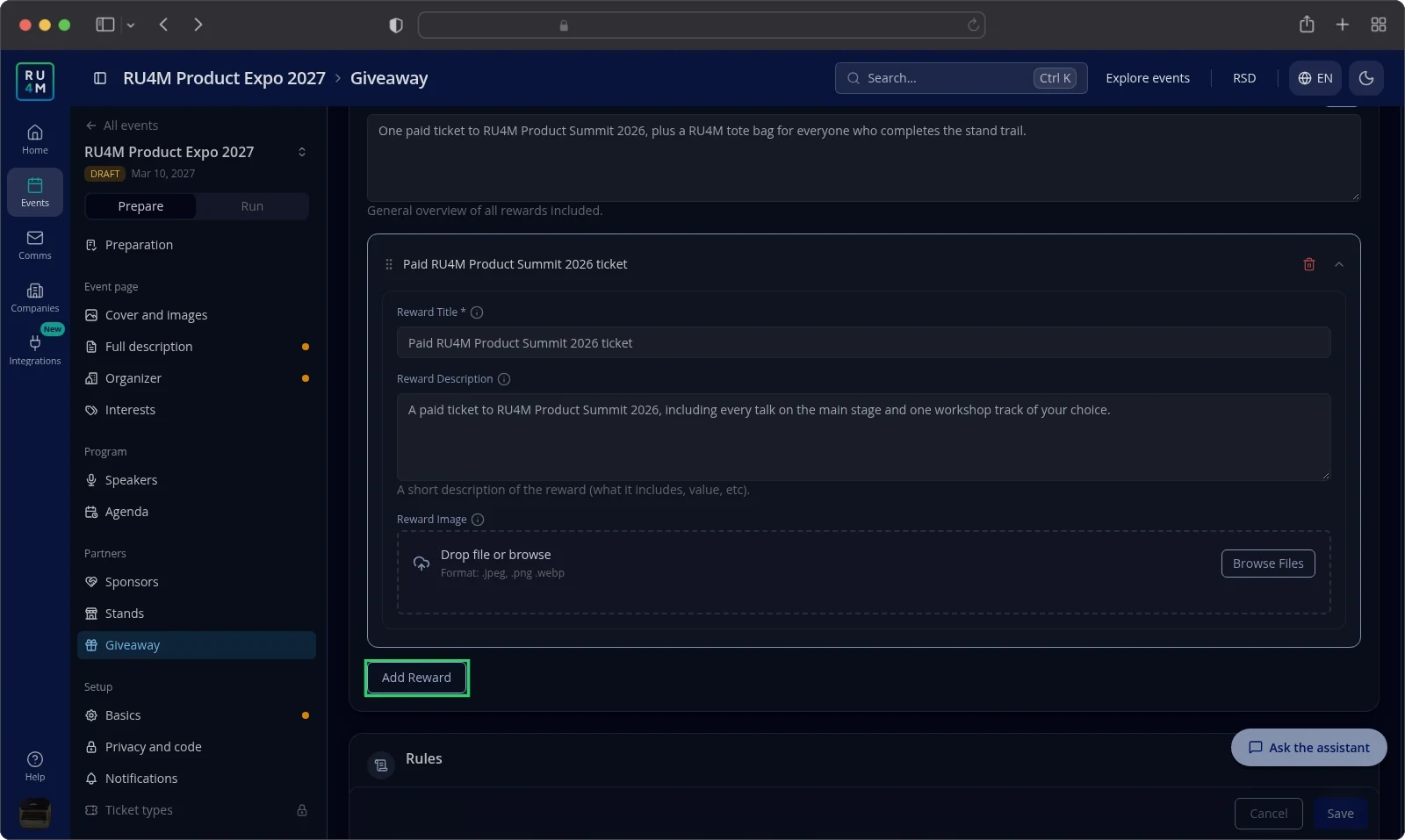
The Rewards section opens with Rewards Overview, a short summary of everything on offer. It is optional.
- Select Add Reward.
- Enter Reward Title.
- Enter Reward Description.
- Select Browse Files and pick an image.
- Select Save.
Every reward you add becomes its own card.
- Reward Title is required and takes up to 100 characters.
- Reward Description is optional.
- Reward Image is optional. The picker accepts .jpeg, .png and .webp.
Write the rules
The Rules section opens with Rules Overview, a short summary of what participants must do. It is optional.
- Select Add Custom Rule.
- Enter Rule Title.
- Enter Rule Description.
- Select Browse Files and pick an image.
-
Select Save.
-
Rule Title is required and takes up to 100 characters.
- Rule Description is optional.
- Rule Image is optional.
You need at least one custom rule. The rule requirement disappears once you turn on stand scanning.
Require a stand scan
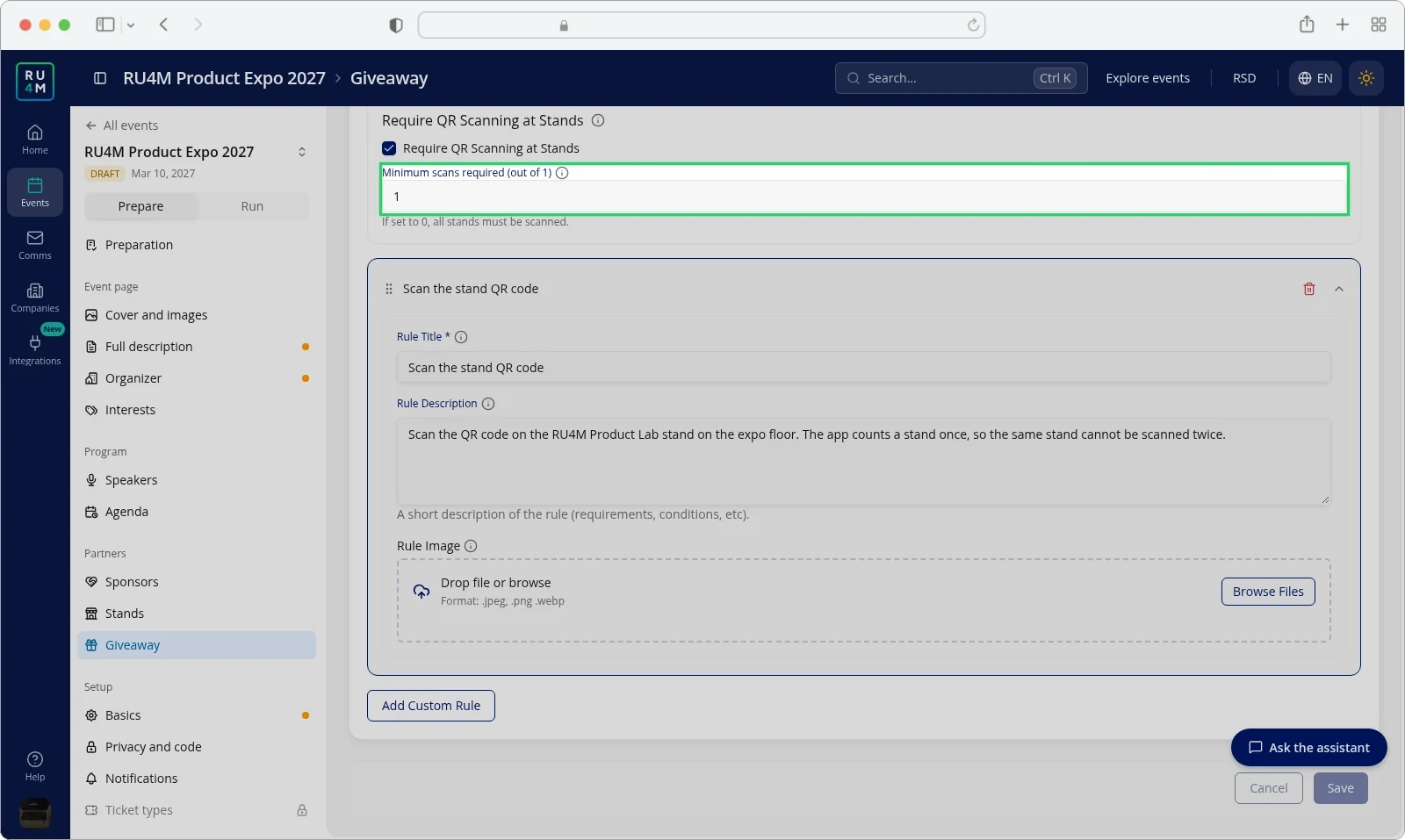
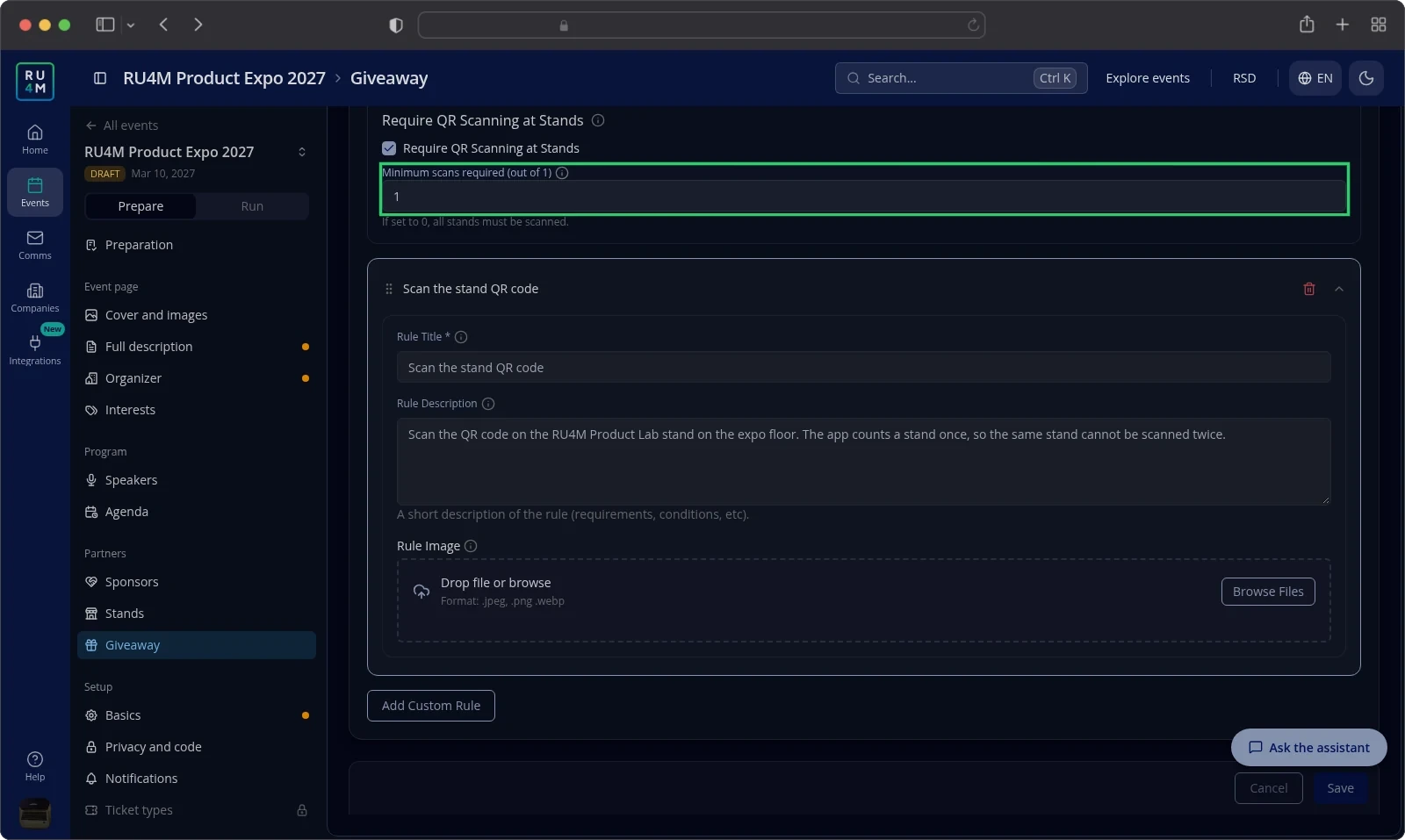
Stand scanning is a second way to set the entry condition. Instead of a written rule, you ask participants to scan stand QR codes during the event.
- Add at least one stand on the Stands page.
- Return to the Giveaway page.
- Select Require QR Scanning at Stands.
- Enter Minimum scans required.
- Select Save.
The label reads Minimum scans required (out of N), where N is the number of stands on your event. Set it to 0 and participants must scan every stand.
Without at least one stand the checkbox is greyed out, and the page says you must add stands in the 'Stands' step to enable this rule.
Editing giveaway details
Return to the same page to change anything you have already written.
- Open the event.
- Select Giveaway under Partners in the event panel.
- Change the field you need.
- Select Save.
Select a reward or rule card to open it. Select the card again to close it. Only one reward and one rule stay open at a time. Select Delete on a card to remove it right away.
Two details catch people out:
- Leaving the page with unsaved changes asks you to confirm first.
- Save sits in the save bar at the bottom of the page. Backoffice shows Changes saved afterwards.
Package availability
Enterprise and Premium include the Giveaway page. Professional and Free leave it out, so the page shows a lock and an upgrade action instead of the form.
Giveaway is also sold as a separate add-on on the other paid packages. Buying it does not unlock the page. The page opens only on the packages that include the feature.
An event that already carries a giveaway keeps its giveaway data after you move it to a package without the feature. The data stays where it is. See Packages and payment.
Troubleshooting
Giveaway shows a lock. Your package leaves it out. Only Enterprise and Premium include it.
Require QR Scanning at Stands is greyed out. The event has no stands. Add one on the Stands page first.
Save is refused and the rewards or rules are marked. A giveaway needs at least one reward, and at least one custom rule while stand scanning is off.
Save is refused and a title is marked. Giveaway Title, Reward Title and Rule Title are all required.
The AI assistant stays greyed out. Giveaway Title is empty. The three AI buttons all wait for that one field.
A field message appears in English. Validation messages on this page have no Serbian version yet.
Related tasks
- Packages and payment — what each package includes.
- Sponsors and stands — the stands you scan at, and sponsor cards.
- QR codes — where participants scan, and how scanning works.
- Editing basic details — the other fields on your event.