Event in the mobile app
Last update · 4 min read
Participants open your event in the RU4M mobile app. You decide which cards they see there, in which order, and whether a countdown runs before the event starts.
Before you start
You must be the person who created the event, one of its managers, or an Owner, Admin or Manager of the organizing company. Everyone else sees no access next to Widgets in the event panel. The page then says You don't have access to Widgets, and there is no read-only view.
Custom widgets come with the Premium package. On every other package, Widgets stays in the event panel marked needs a higher plan. The page shows Custom widgets with the Buy feature button, which opens the package upgrade. See Packages and payment.
The countdown belongs to every package, so you can switch it on without changing anything else.
Where Widgets is
- Open your events list.
- Select the event title.
- In the event panel, under Setup, select Widgets.
The Add widget button sits on the right, above the list of cards.
Cards, content and links
Every card becomes a tile on the event page in the app. The Widgets page lists your cards in the order participants see them, and shows the address each one opens.
Add a card
- Select Add widget.
- Enter Title.
- Enter Subtitle.
- Select Choose link and pick a destination.
- Select Save.
Title is required and holds 60 characters. Subtitle is optional and holds 140.
The dialog closes and a Saved notice appears. The card joins the list at the end.
Choose where a card leads
Choose link opens a search field over the screens of the app. Before you type, it lists Screens — Explore, My tickets, Notifications and Calendar settings — and Event, which opens the participant list of this event.
Start typing and the field also finds your other events, communities, people and companies. Every result carries the address it opens.
The link is required. Leave it out and Save prints Choose an in-app link under the field.
Set the size and the look
Width decides how much room the card takes. Two Half cards sit side by side, while a Full card takes a whole row.
Color offers Blue, Teal, Green, Yellow, Orange, Purple and White. Select the chosen colour again to clear it.
Under it, Surface style offers Default, Plain and Pastel. Plain needs a colour first, and Pastel applies once a colour is picked.
Shadow and Circles each offer Inherit, Off and On. Circles appears only after you pick a colour. Reset clears the whole look in one step.
Order, activation and the main call to action
Change the order
The arrows on the right of each card move it up or down. The first card cannot move up and the last cannot move down. The new order saves straight away.
Hide a card without losing it
Switch Active off on the card. Participants no longer see it, and it keeps its text, its link and its place in the order. Switch Active on to bring it back.
Make one card the main call to action
Open the card and switch Primary call to action on, then select Save.
Only one card at a time carries that switch. Saving a card with it on clears it from every other card on the event.
In the app, that card takes the place of the main button at the top of the event page — for people who have no ticket button there.
The card keeps that place only while Active is on. Switch it off and the card gives the main button up as well.
Edit or remove a card
Select the pencil on the card, change what you need, then select Save.
Select the bin and the Delete widget? dialog asks you to confirm with Delete. The card leaves the app and the Widgets page at once, and a Deleted notice appears.
Countdown display
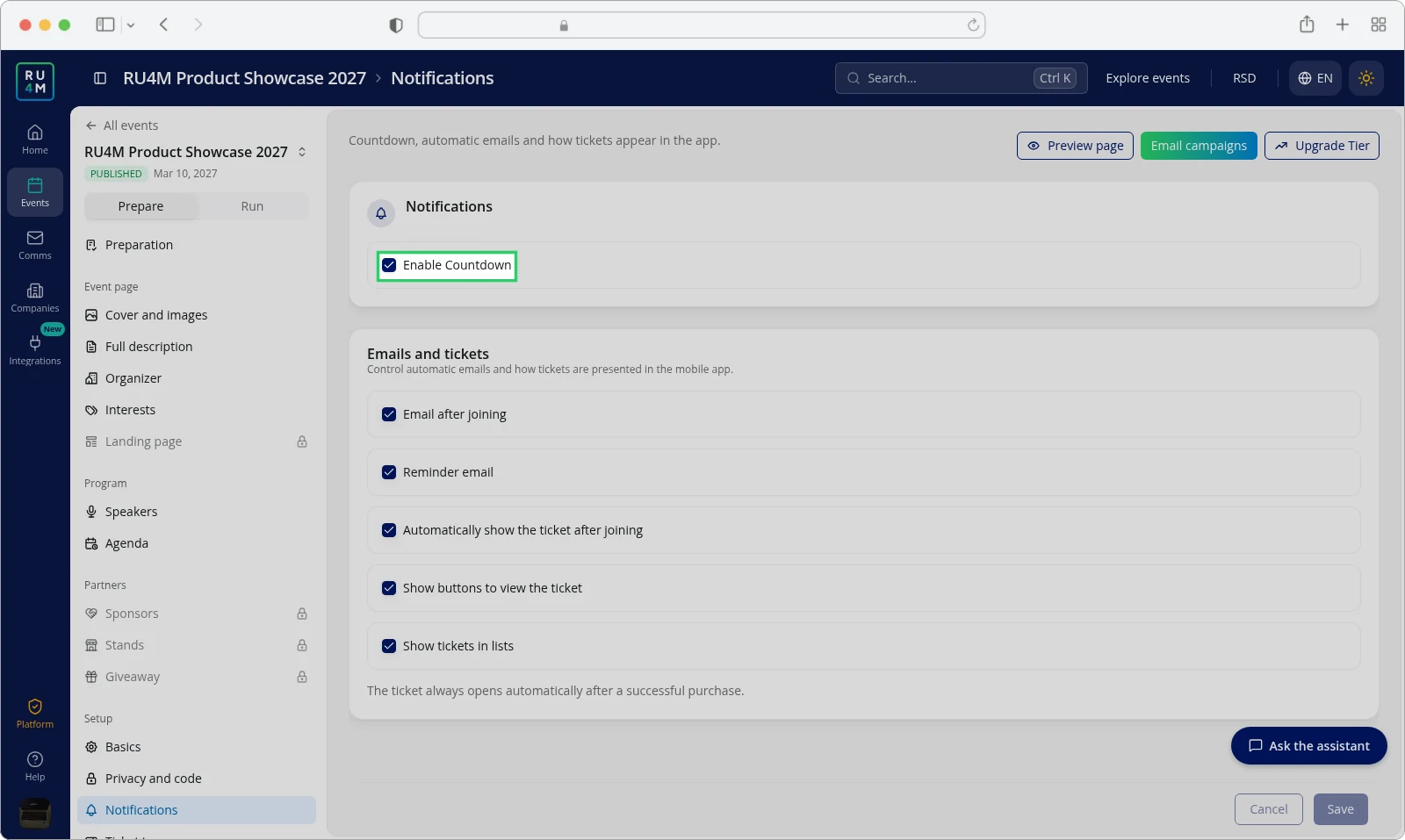
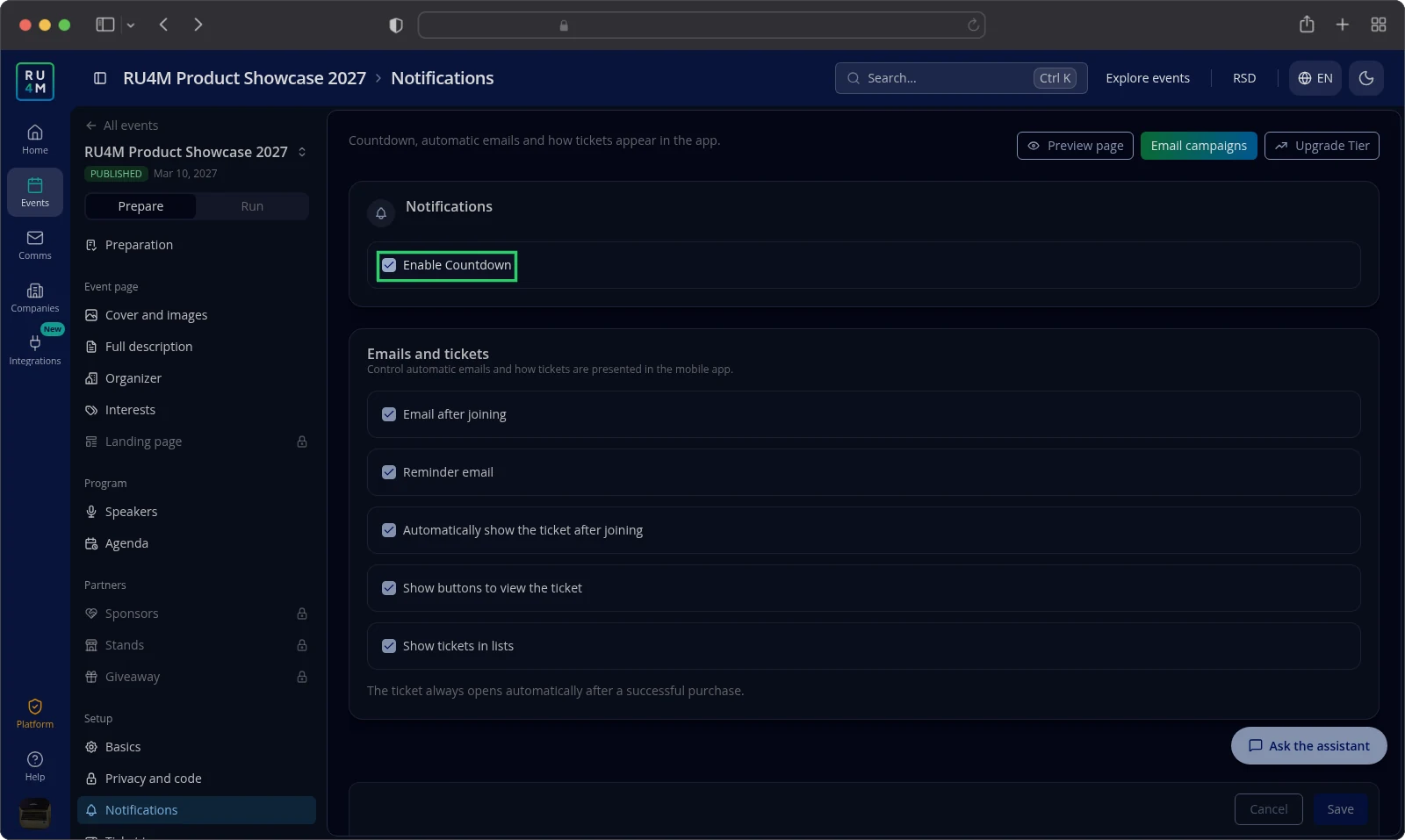
The countdown is a card on the event page that counts down to the moment your event starts. You switch it on from the Notifications page.
- Open the event.
- Select Notifications under Setup in the event panel.
- Select Enable Countdown.
- Select Save.
The countdown appears on the event page while the start time is still ahead. Once the event starts, the card is gone.
Clear Enable Countdown and save to remove it before then.
Troubleshooting
Widgets shows needs a higher plan. Your package does not include custom widgets. Only Premium includes them; select Buy feature to upgrade.
Widgets shows no access. You cannot edit this event. Ask the event owner or a manager of the organizing company to give you access.
Save is refused and the link is marked. Every card needs a destination. Pick one with Choose link.
Nothing changed after you edited a card. Your edits live only after Save.
A notice says custom widgets are available on the Premium tier. Your package no longer includes them. See Packages and payment.
A card will not move and a notice says Request failed. Edit the card and select Save from its dialog instead.
The main button in the app is not your card. Another card took that place, or your card is switched off with Active.
The countdown does not appear. It shows only before the start time, and disappears once the event begins.
Related tasks
- Packages and payment — what each package includes.
- Create and publish — the event before you add cards to it.
- Editing basic details — the rest of the event details.
- QR codes — the other place participants scan your event.