Organizer and speakers
Last update · 4 min read
Say who organizes your event and who is on stage, then attach each speaker to the sessions they present.
Before you start
You must be the event's creator or one of its managers. Other people can open the event and look, but they cannot change these details.
The Organizer page is always open. The Speakers page needs a package that includes speakers, so read Packages and payment first.
Open your event from your events list. In the event panel, Organizer sits under Event page, and Speakers and Agenda sit under Program.
Choosing the organizer
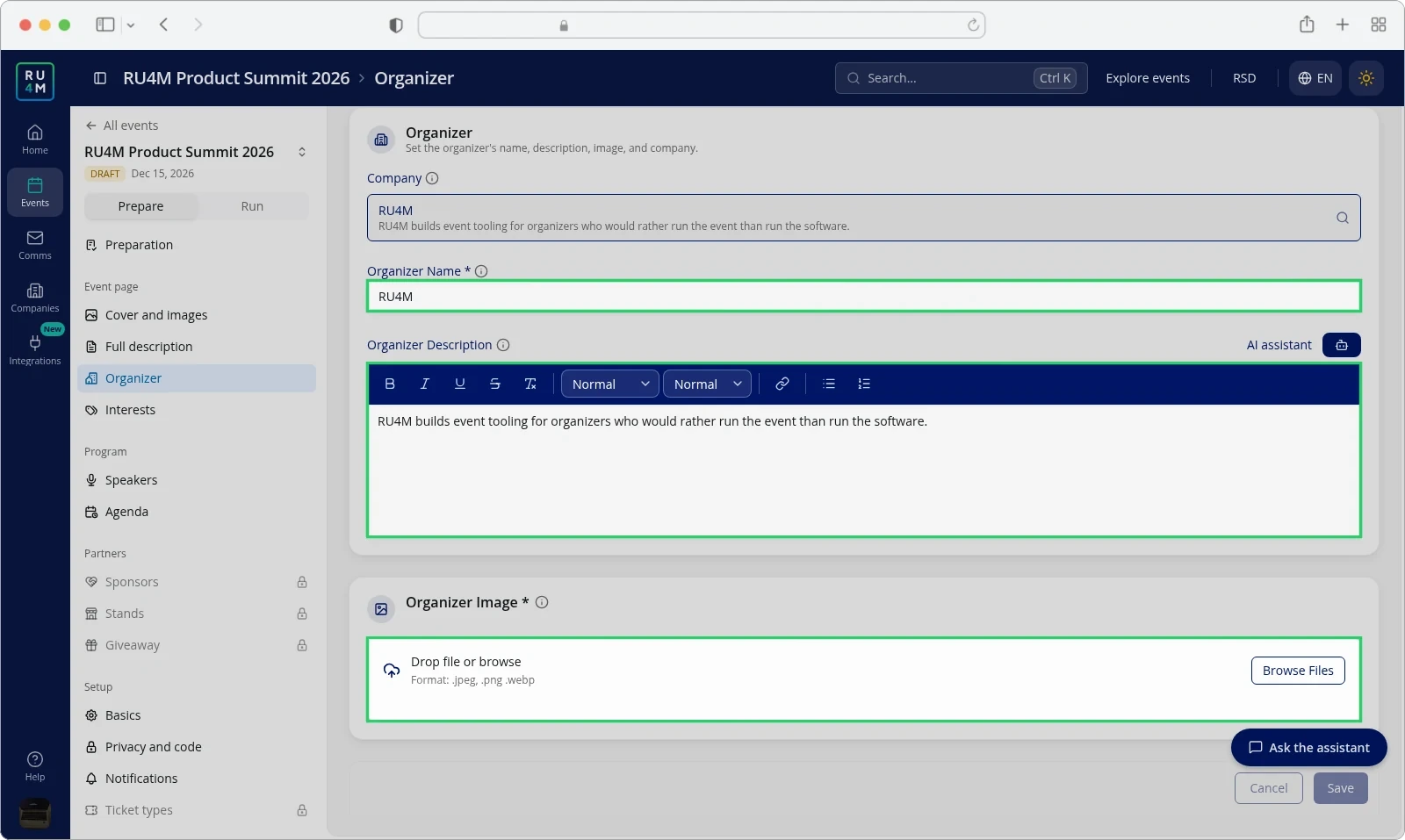
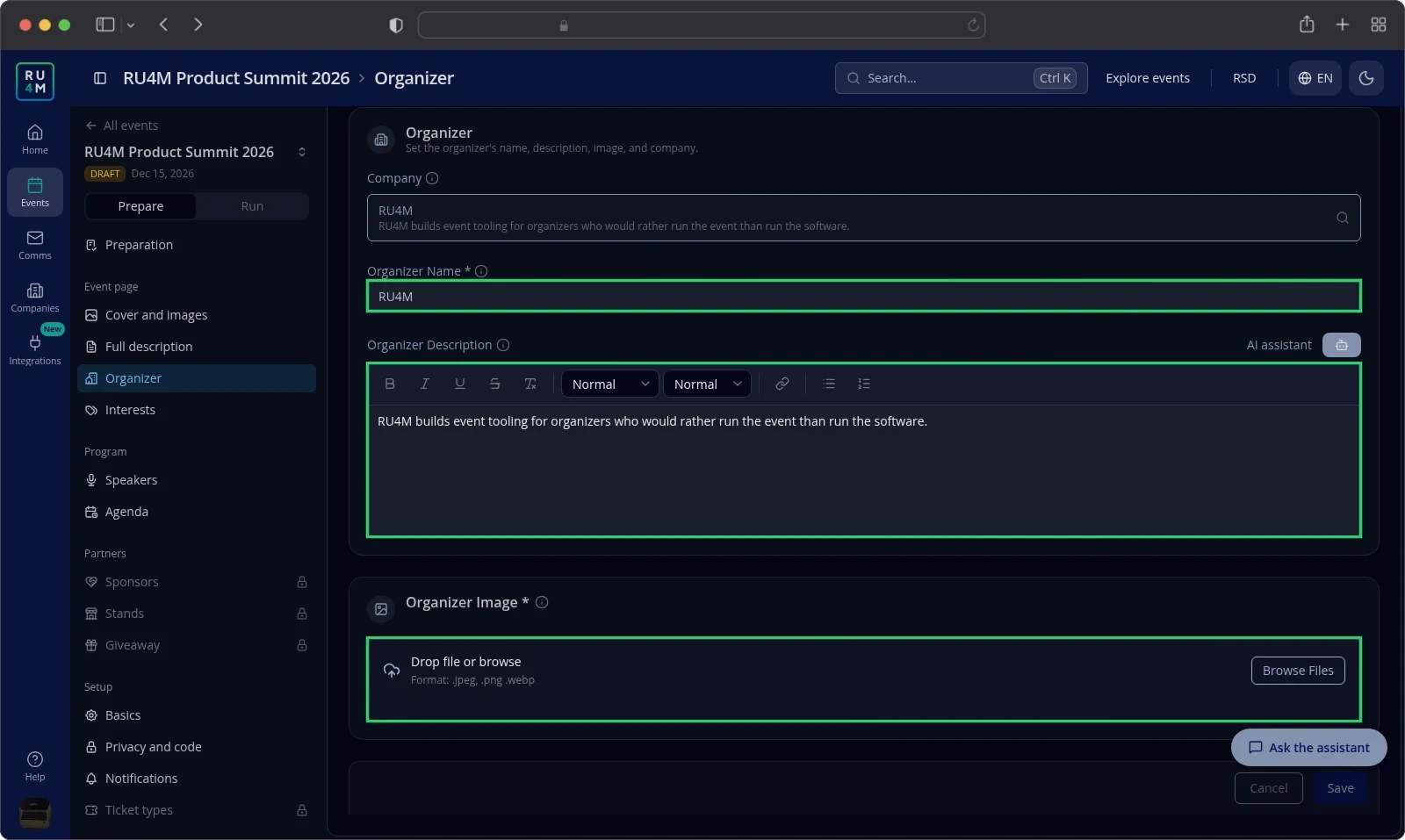
Attendees read the organizer to learn who is behind the event.
Start from a company
The Company field searches only the companies you manage. Choose one and the app fills the organizer name, description and image for you.
You can still change every value afterwards. The name and the description belong to this event only, while the image also becomes the company logo. Changing that logo needs an Owner, Admin or Manager role on the company.
Fill in the three fields
- Enter the Organizer Name.
- Enter the Organizer Description.
- Add the Organizer Image.
- Select Save.
Organizer Name is required and takes up to 100 characters. Organizer Description is optional and has no length limit. The AI assistant writes you a draft of up to 300 characters.
The AI assistant button stays greyed out until the name is filled in. Select it, then edit what it writes.
Organizer Image is required. The app crops the picture to a square, and accepts .jpeg, .png and .webp files.
The organizer is one of the pre-publish checklist items. See Create and publish for the whole publishing sequence.
Adding and editing speakers
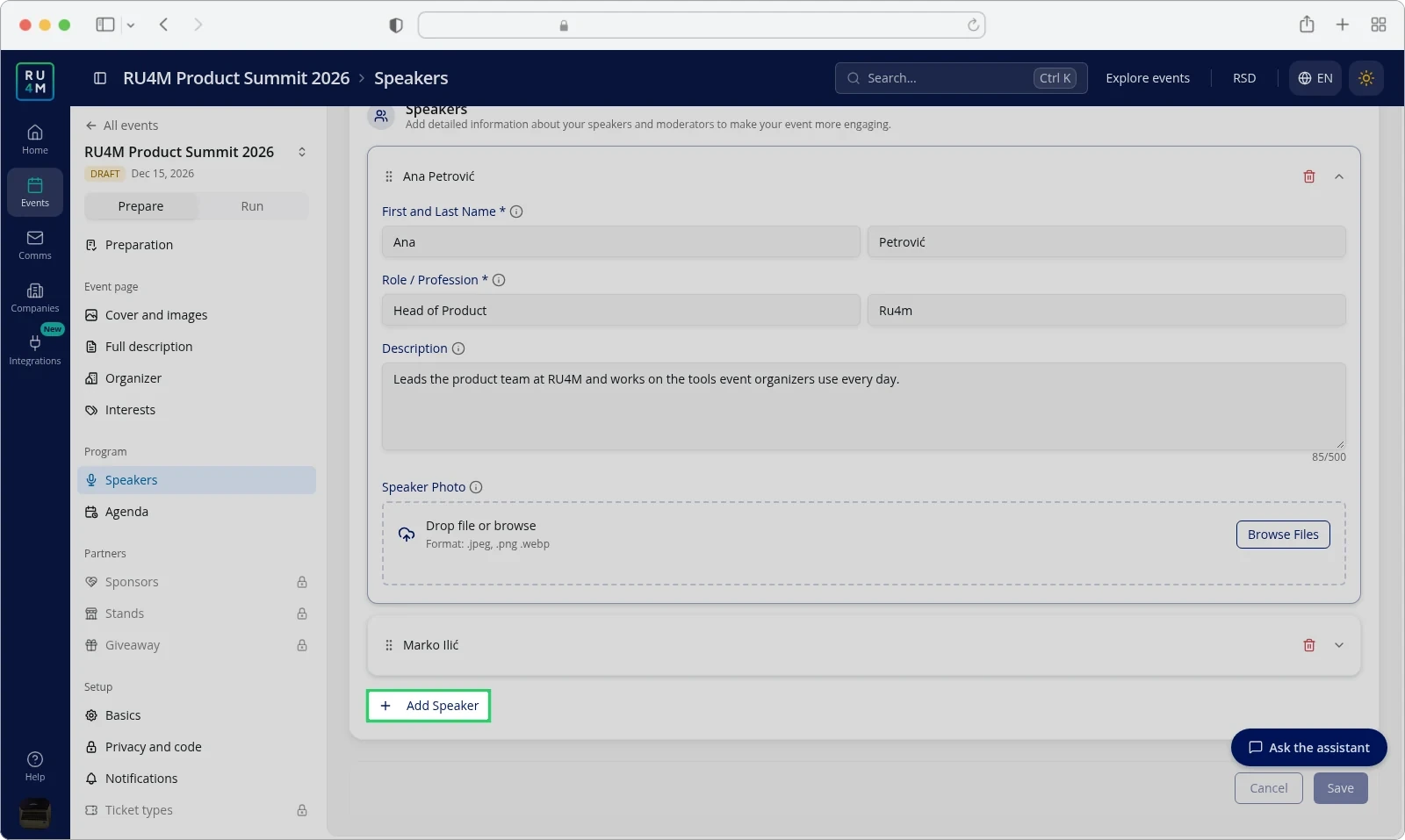
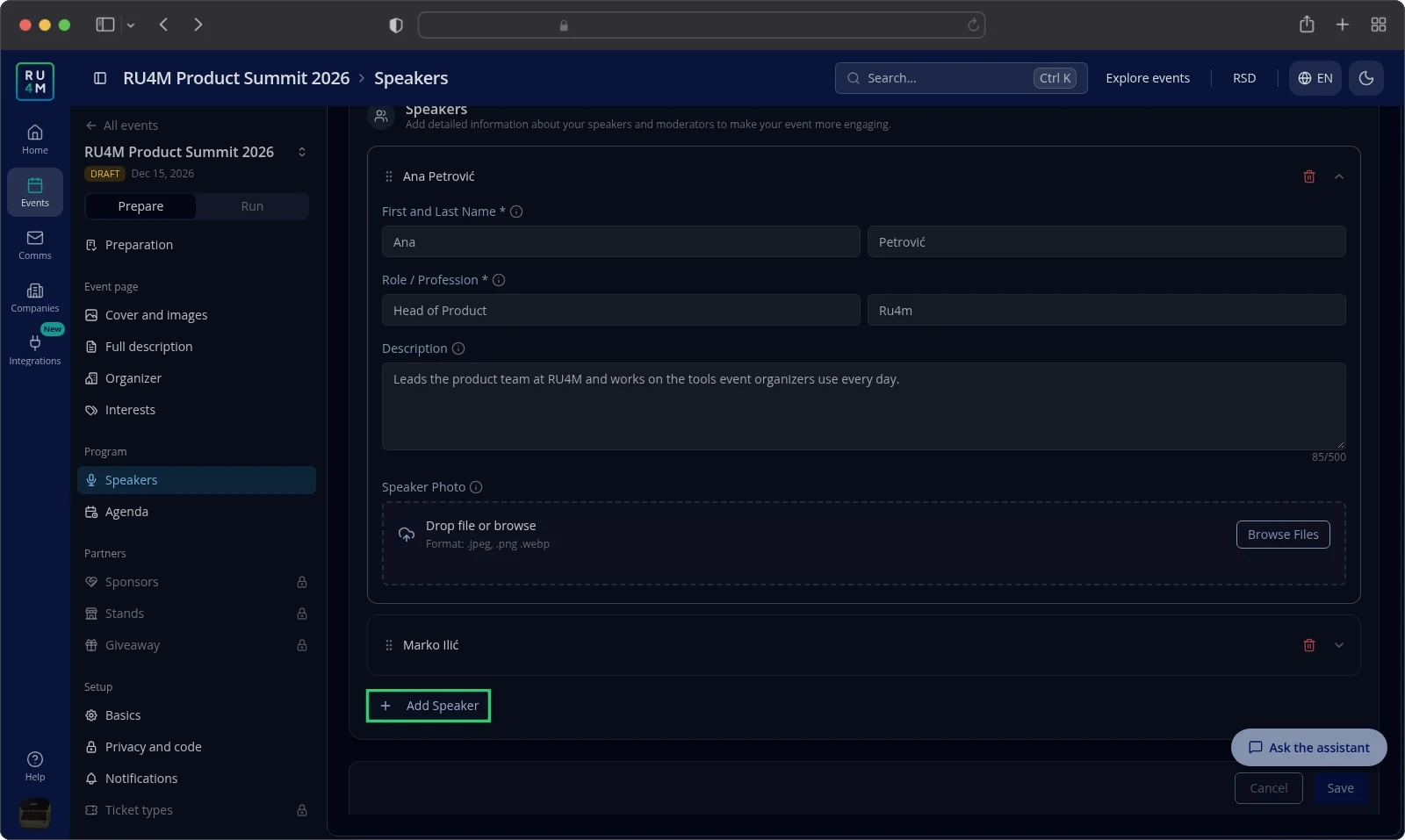
The page holds every speaker, moderator and guest who appears on your event page.
Add a speaker
- Select Add Speaker.
- Enter the First and Last Name.
- Enter the Role / Profession.
- Enter the Company.
- Enter the Description.
- Add the Speaker Photo.
- Select Save.
First and Last Name and Role / Profession are required. Each takes up to 100 characters, and Company takes 100 more.
Description is optional and takes up to 500 characters. Attendees see it on the speaker's profile.
Change the list
Select a speaker's name to open the card and change any field. Drag the card by its handle to move it up or down. Select the trash button to remove the speaker.
Save stores the whole list in one go, so you do not save one card at a time.
Connecting speakers to the program
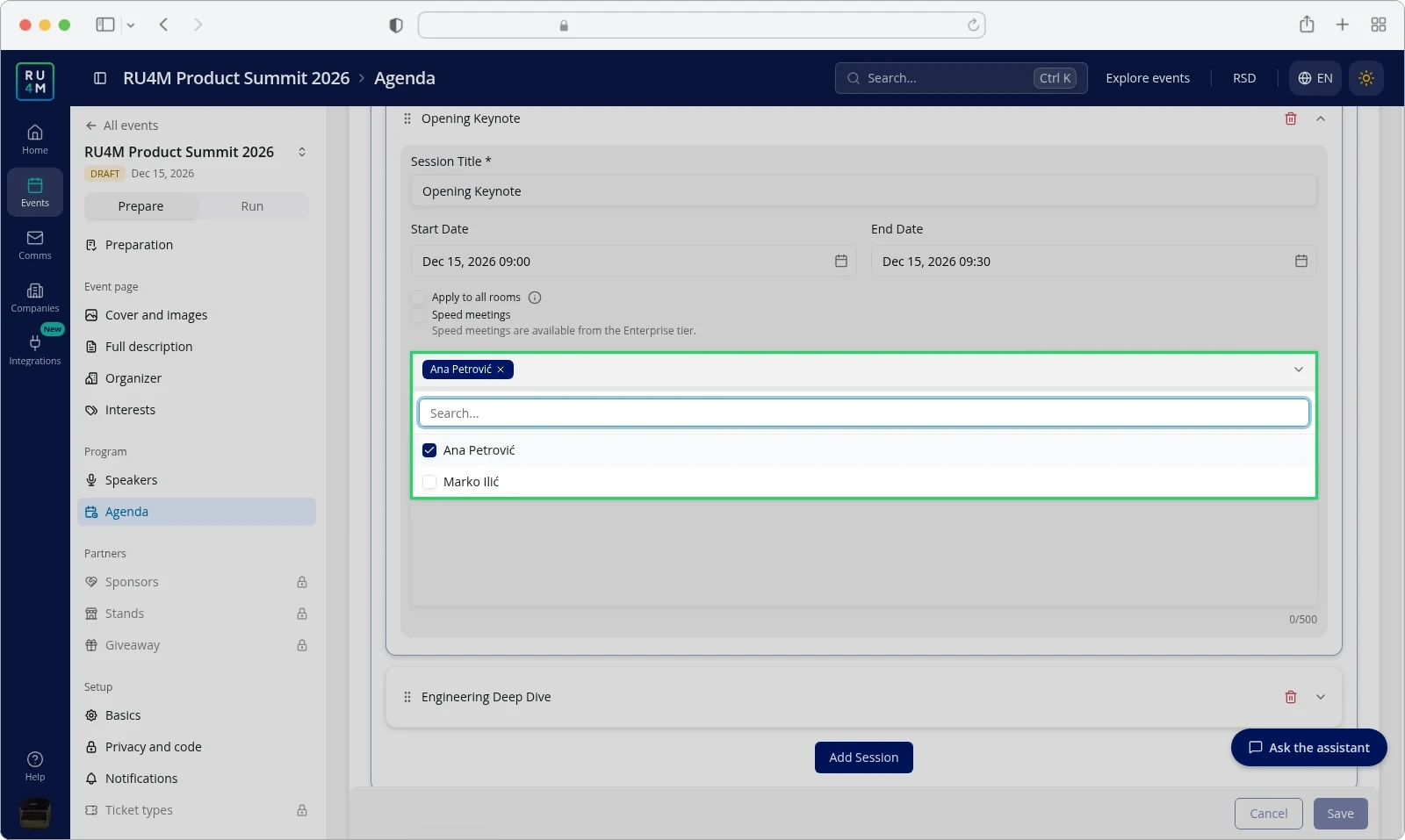
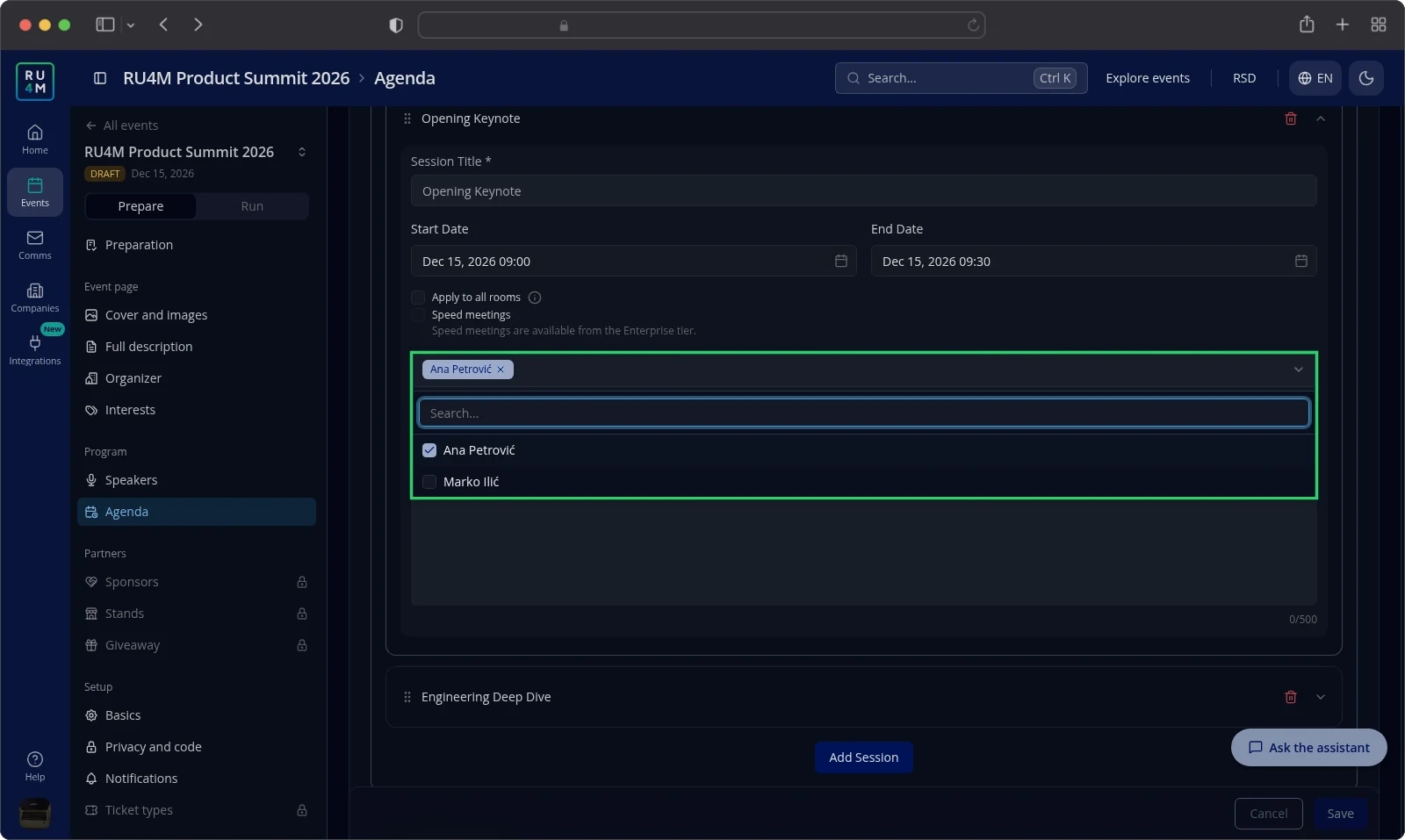
Every session carries its own Assign Speakers picker. It lists the speakers you saved on the Speakers page, so save them first.
- Open Agenda in the event panel.
- Open the session you want.
- Select Assign Speakers.
- Tick each speaker who presents there.
- Select Save.
A speaker can present in several sessions. Tick the same name in each picker they appear in.
See Program and sessions for rooms, sessions and speed meetings.
Troubleshooting
Speakers shows a lock. Your package leaves speakers out. Opening it shows what it adds and an upgrade action. See Packages and payment.
The Speakers page shows older speaker data but no form. Your package leaves speakers out. Move to a larger package to edit the speakers again.
Your company is missing from the Company field. The field searches only companies you manage. See Your company's events.
The AI assistant button stays greyed out. You have not entered the Organizer Name yet.
The app says you do not have permissions required to edit this event. You are neither the event's creator nor one of its managers.
A speaker is missing from Assign Speakers. You have not saved the Speakers page yet.
An image will not upload. Use a .jpeg, .png or .webp file.
Related tasks
- Packages and payment — what each package includes.
- Editing basic details — change what these two pages do not cover.
- Program and sessions — build the rooms and sessions you attach speakers to.
- Your company's events — connect a company to your events.
- Your company profile — change the company the organizer points at.
- Create and publish — finish the event and publish it.