Program and sessions
Last update · 7 min read
Build the rooms and sessions your attendees follow all day, move the event's dates without losing that plan, and offer bookable 1-on-1 speed meetings.
Before you start
You must be the person who created the event, one of its managers, or an Owner, Admin or Manager of the organizing company. Other people can open the event and read it, but cannot change it.
The Agenda page needs a package that includes an agenda. Read Packages and payment first if Agenda shows a lock.
Open the event from your events list. Select Agenda under Program in the event panel. This page is where you change the Speed meetings setting of an event that already exists.
Rooms and sessions
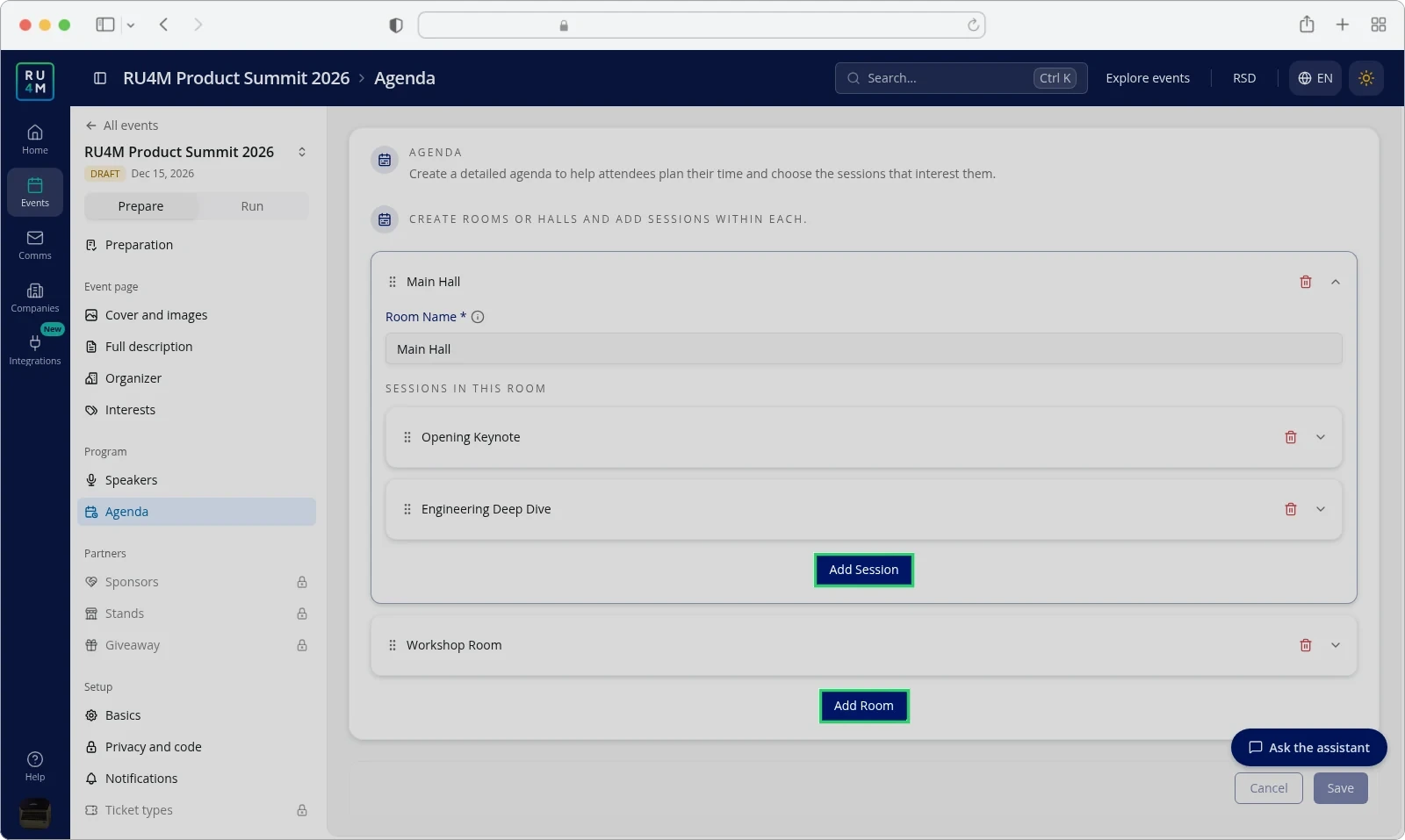
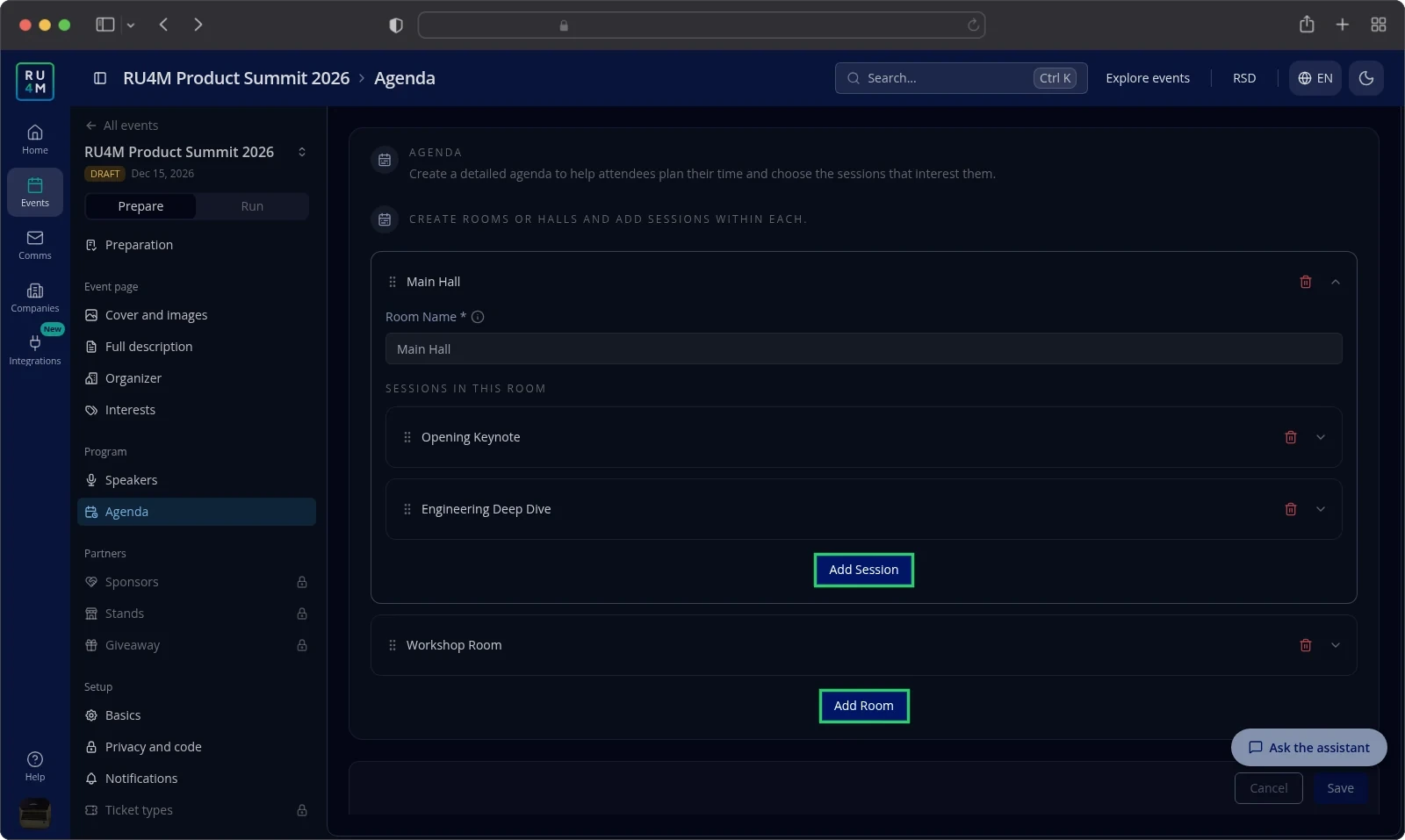
Rooms hold the sessions. Give each room a name, then fill it with sessions.
Add a room
- Select Add Room.
- Enter Room Name.
- Select Save.
Your new room appears in the list, ready for sessions.
Add a session
- Select Add Session inside the room.
- Enter Session Title.
- Pick Start Date and End Date.
- Add a Session Description if you want one.
- Select Save.
Session Title is required and takes up 100 characters. Session Description is optional and takes up 500.
Backoffice proposes a start time just after the session above it, so the two do not clash. Move the times when you want a different slot.
One room per space
A session belongs to the room you added it in. There is no room field on the session.
Tick Apply to all rooms for a session that belongs to no single room, such as an opening or a break. Backoffice then shows it in every room. A session shown in every room keeps the Speed meetings setting in every room too.
Two sessions cannot share a room and time
Backoffice refuses to save two sessions that overlap inside the same room. It tells you Session overlaps with another session in this room.
Back-to-back sessions are fine. One can start exactly when the other ends.
Attach speakers
Each session carries its own speakers. Select Assign Speakers on the session to choose them. See Organizer and speakers.
Find a session after a change
The buttons above the list count your sessions by state. Select one to narrow the list.
- Active counts the sessions still live.
- Overflow counts sessions pushed outside the event dates.
- Conflict counts sessions Backoffice flagged for your attention.
- Archived counts sessions set aside by a reconciliation.
A session that needs your attention carries a badge. Read Needs attention, Overflow or Archived on the session itself.
A finished event locks the page
Once a published event has ended, the page reads Locked for past published events and every field is greyed out. The Speed meetings checkbox is greyed out with the rest of the page. Create a new event to run another agenda.
Dates and schedule changes
The Basics page holds Start Date, End Date and Timezone. Editing basic details lists these fields. Here is what they do to sessions you already have.
Move the dates
Change Start Date or End Date and select Save.
The end date must fall after the start date. Backoffice refuses a start date in the past.
If a session no longer fits inside the new dates, Backoffice asks you how to fix it. Read the next section.
Widening the window raises no question, because every session still fits.
Change the timezone
Change Timezone and select Save.
Wall-clock times stay the same. A session at 10:00 is still at 10:00 in the new zone, so attendees keep the hour they read.
Backoffice warns you before you save. It asks you how to fix sessions whenever the event already has any.
Aligning sessions after a date change
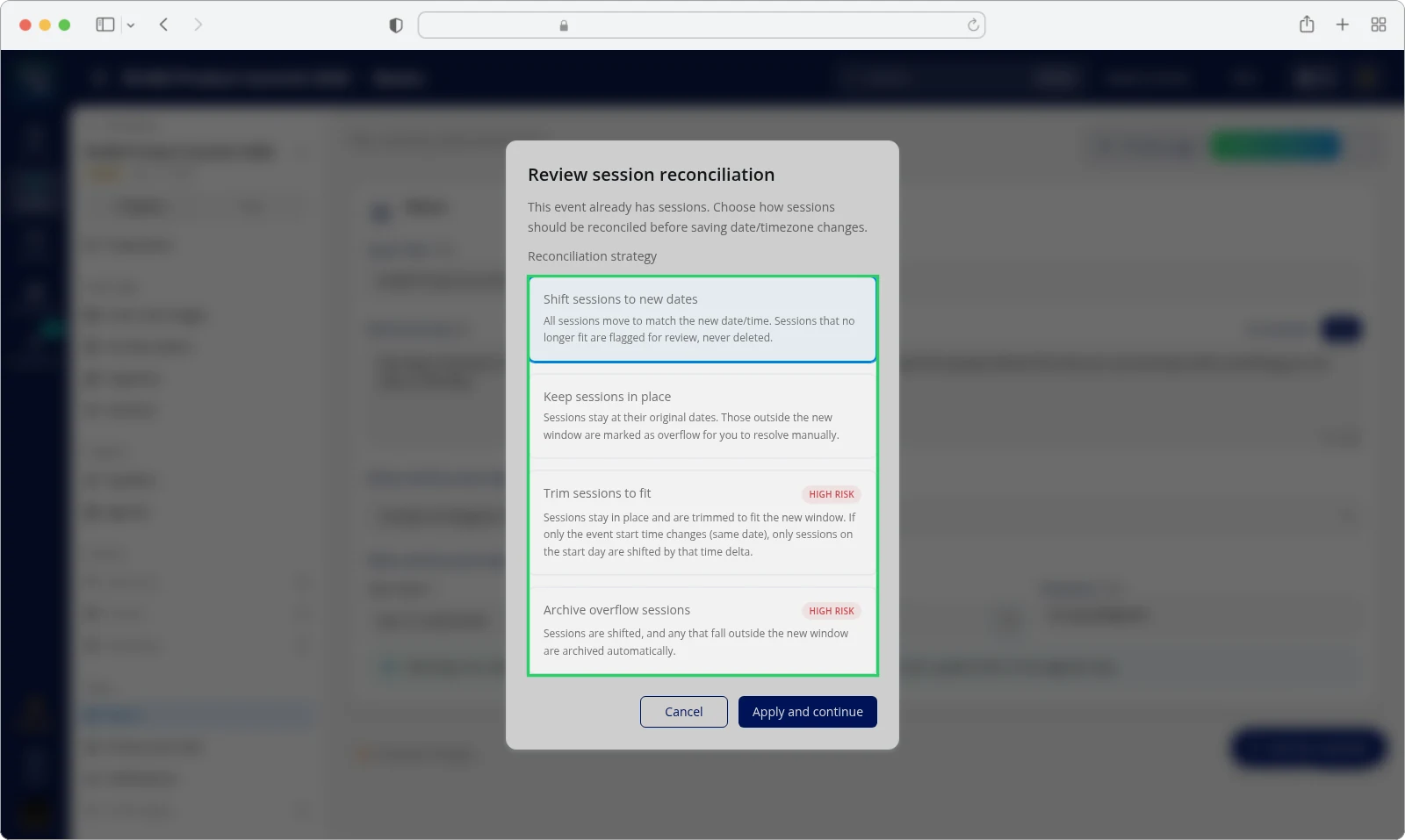
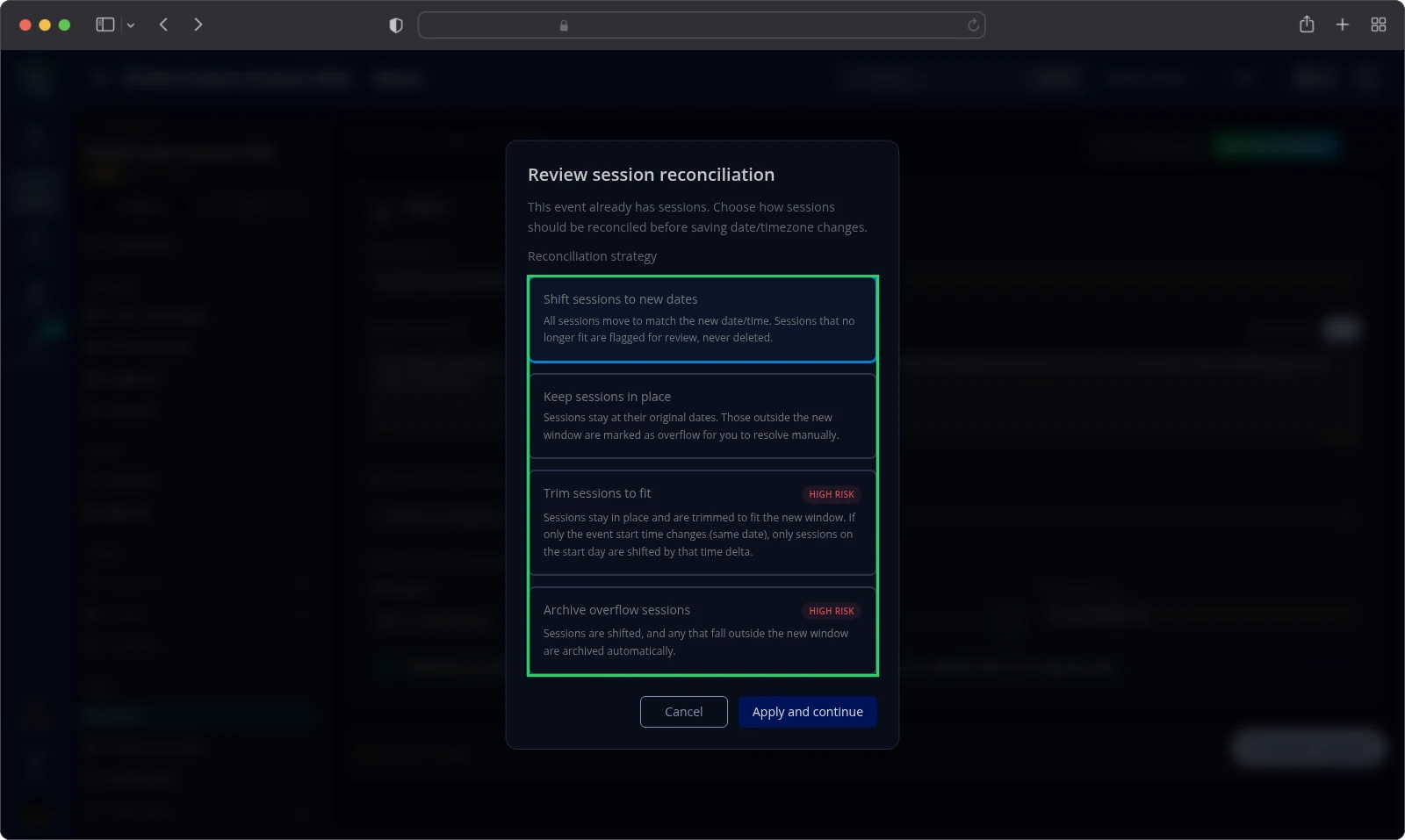
Backoffice never deletes your sessions on its own. It asks which of four strategies you want.
Read the four strategies
- Shift sessions to new dates moves every session by the same amount. Sessions that no longer fit are flagged for review.
- Keep sessions in place leaves the times alone. Sessions outside the new dates become overflow for you to resolve.
- Trim sessions to fit shortens sessions until they fit.
- Archive overflow sessions moves the sessions and sets aside the ones that cannot fit.
Badges sit on the cards. Recommended marks the safest choice. High risk marks a strategy that changes sessions more than you may expect. Not recommended for published events warns you before your attendees see the result. Blocked stops you from choosing it.
Confirm the change
- Select a strategy.
- Select Apply and continue.
- Select Cancel if you changed your mind.
When a strategy is high risk
Trim and archive ask you once more before they run.
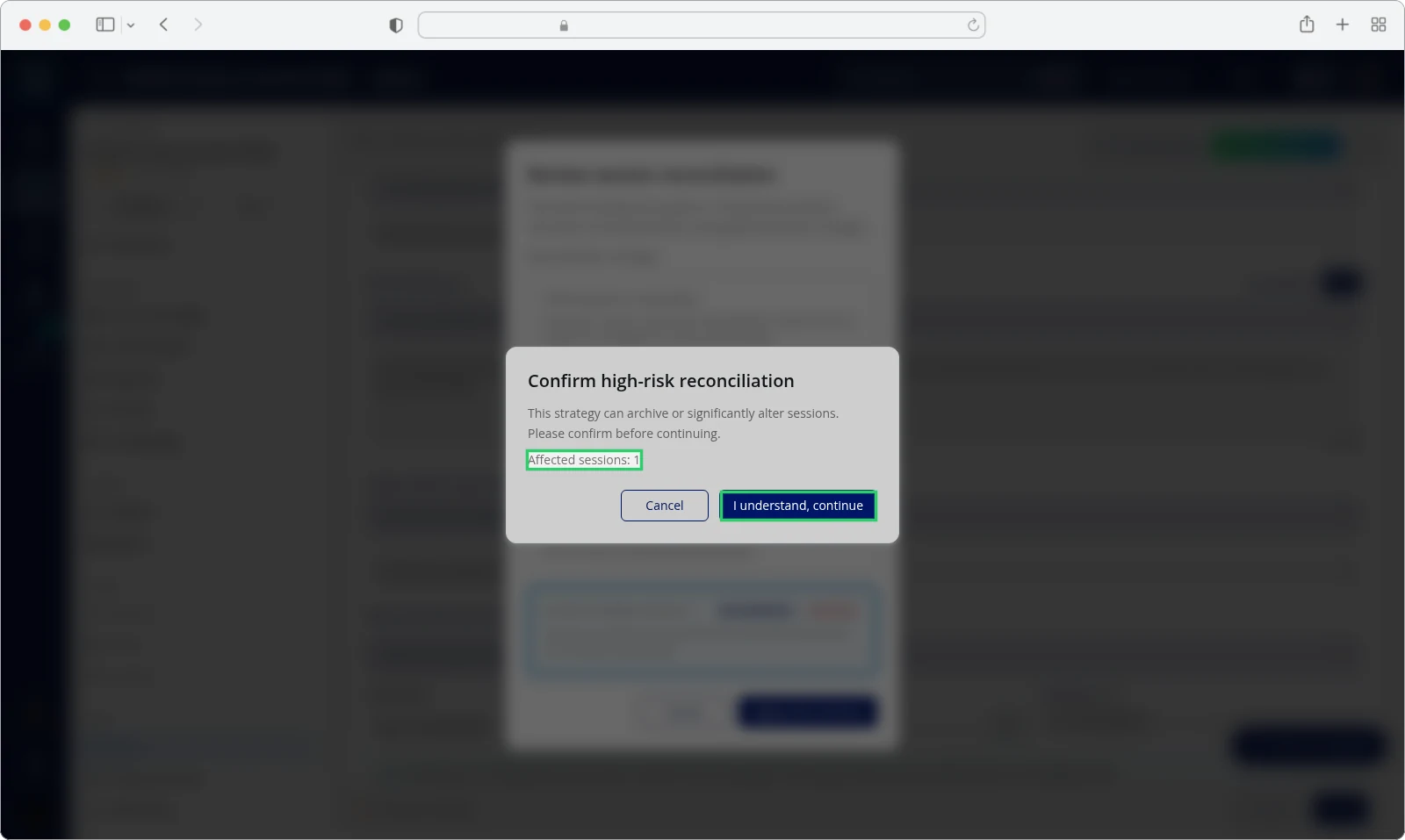
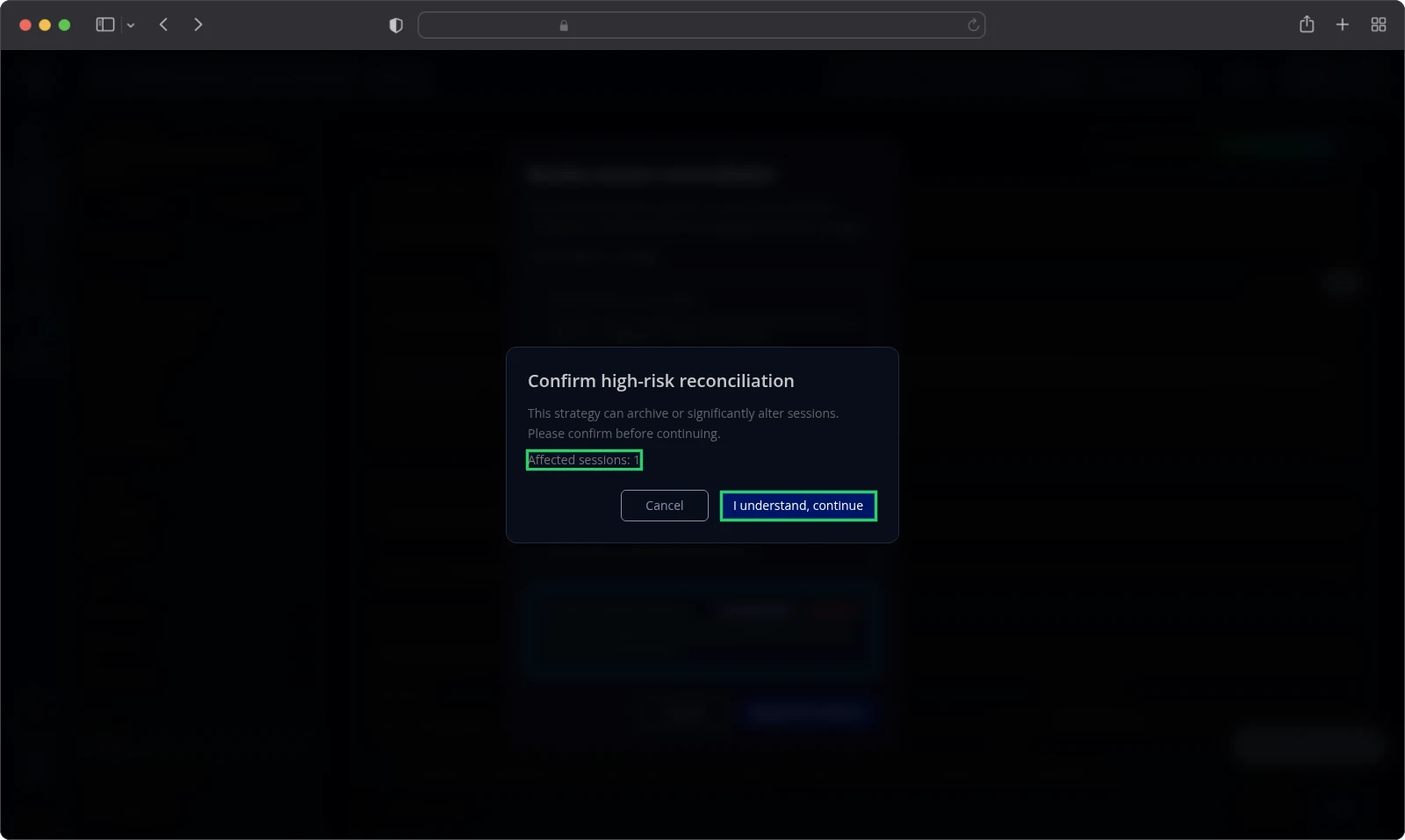
The dialog names the strategy's impact. Select I understand, continue to run it, or Cancel to go back to the four strategies.
When attendees already booked a slot
Speed meetings can leave a session that cannot move. Backoffice marks that strategy Blocked and warns you with Some sessions already have booked speed-meeting slots.
Keep those sessions inside the new event dates, or cancel the bookings first. See Speed meetings.
Check what changed
Open Agenda after a reconciliation. The page carries a Needs review badge until you look at it, and affected sessions carry their own badge.
Setting up speed meetings
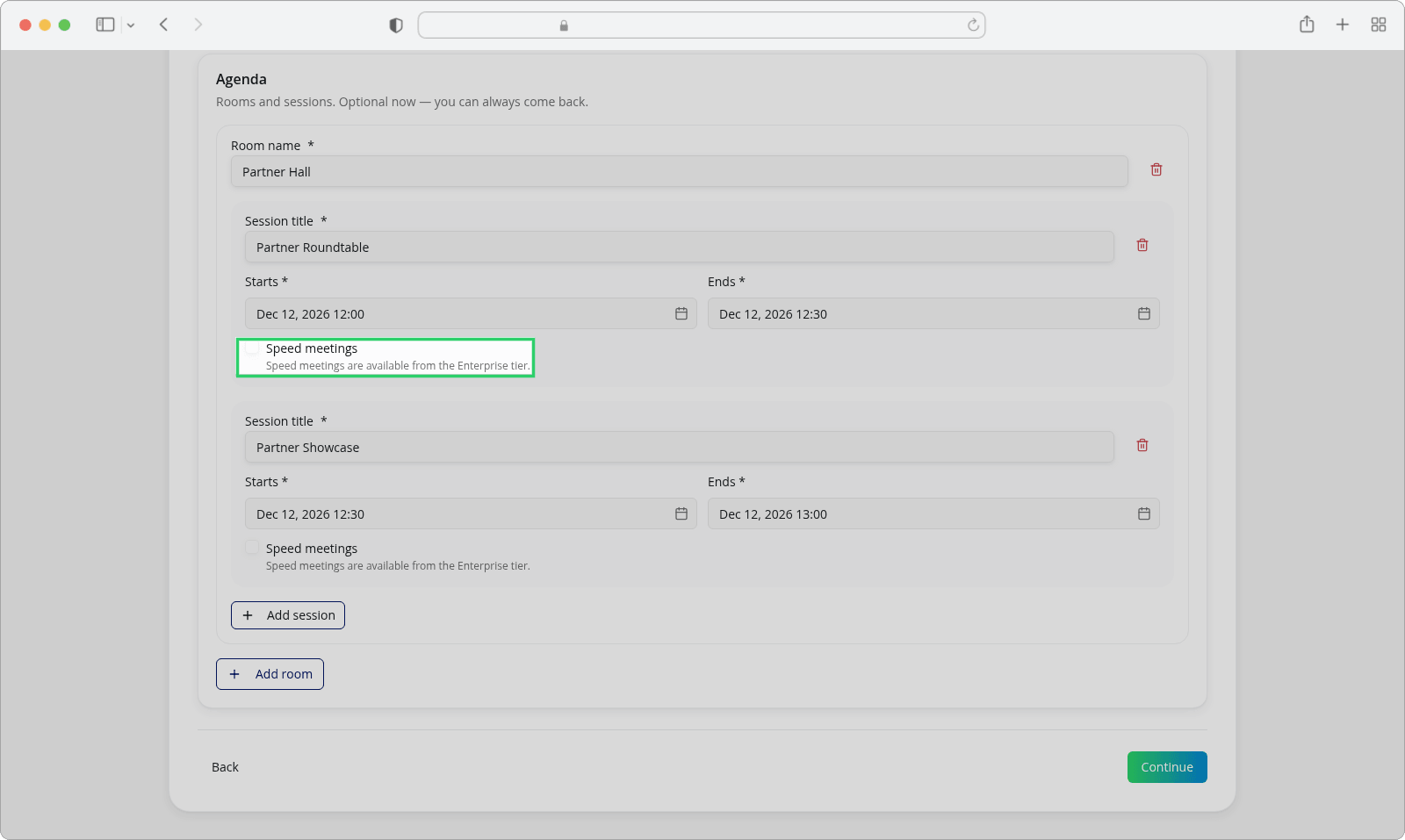
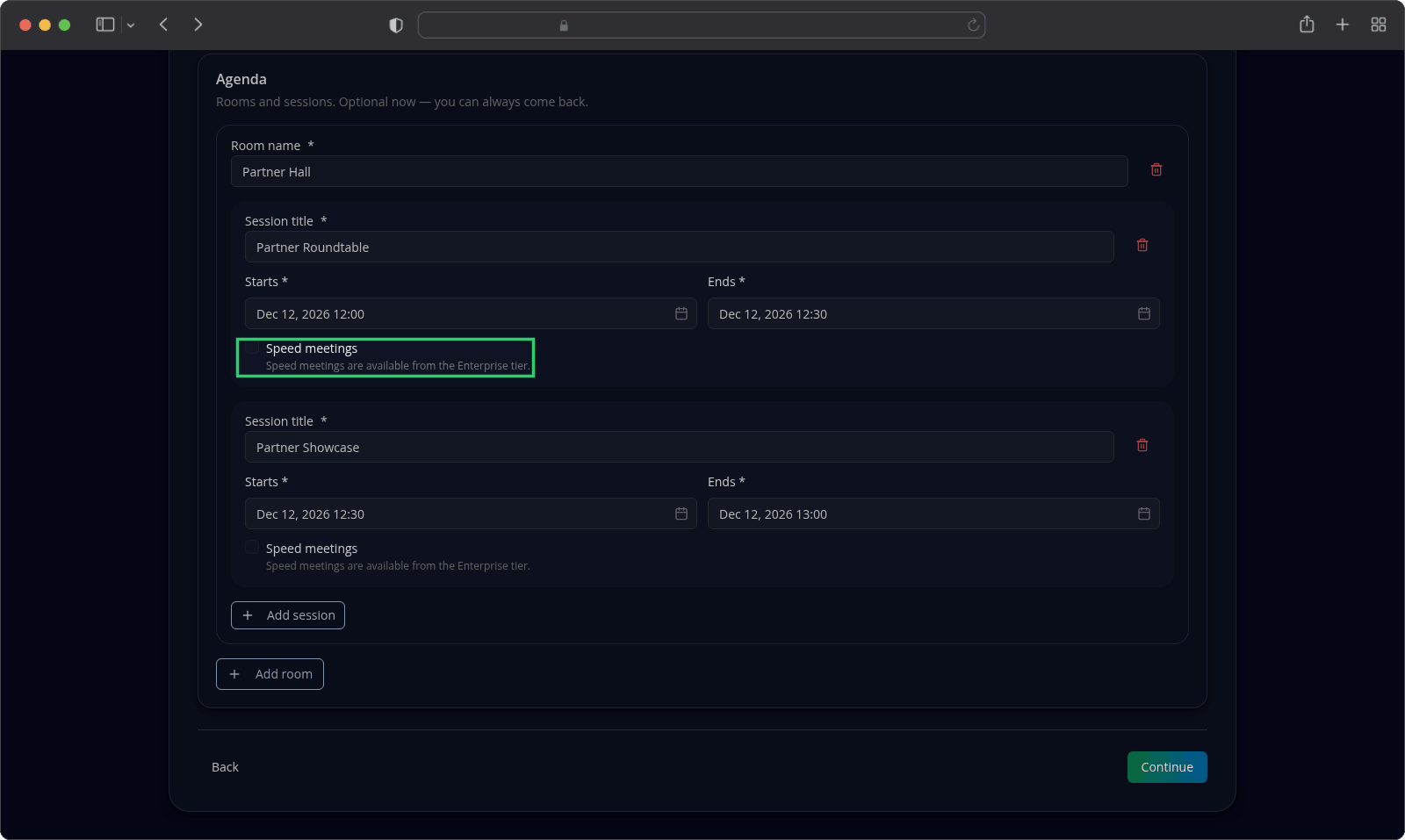
A speed meeting is a short one-to-one slot inside a session, which attendees book themselves.
Turn it on while you create the event, or change it later
The Speed meetings checkbox lives in the Program step of the event wizard. Tick it on a session and the session is split into bookable slots.
The same checkbox sits on the Agenda page, where you change the setting of an event that already exists. It splits the session into the same bookable slots.
- Open the event from your events list.
- Select Agenda under Program in the event panel.
- Expand the room.
- Expand the session.
- Tick Speed meetings.
- Select Save.
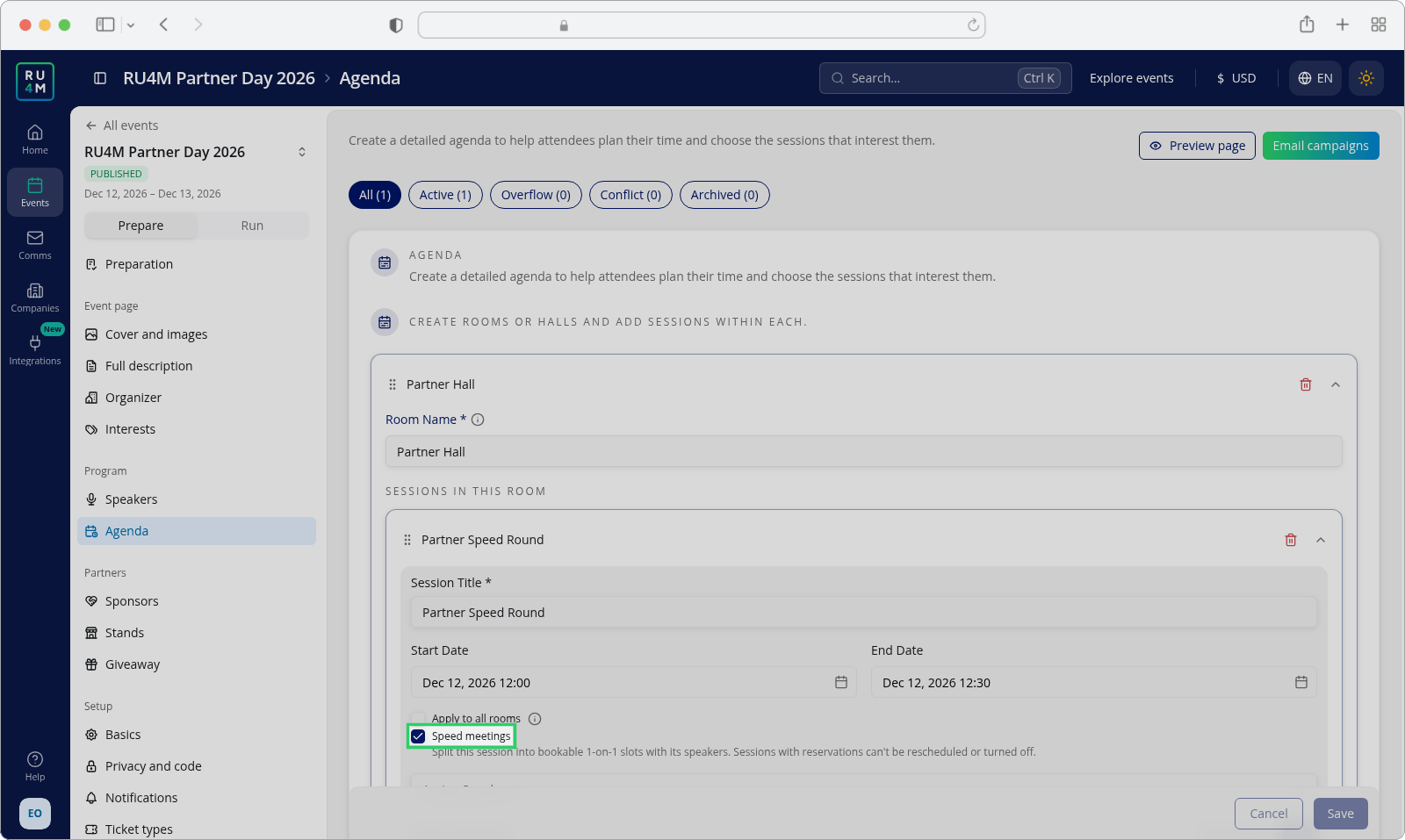
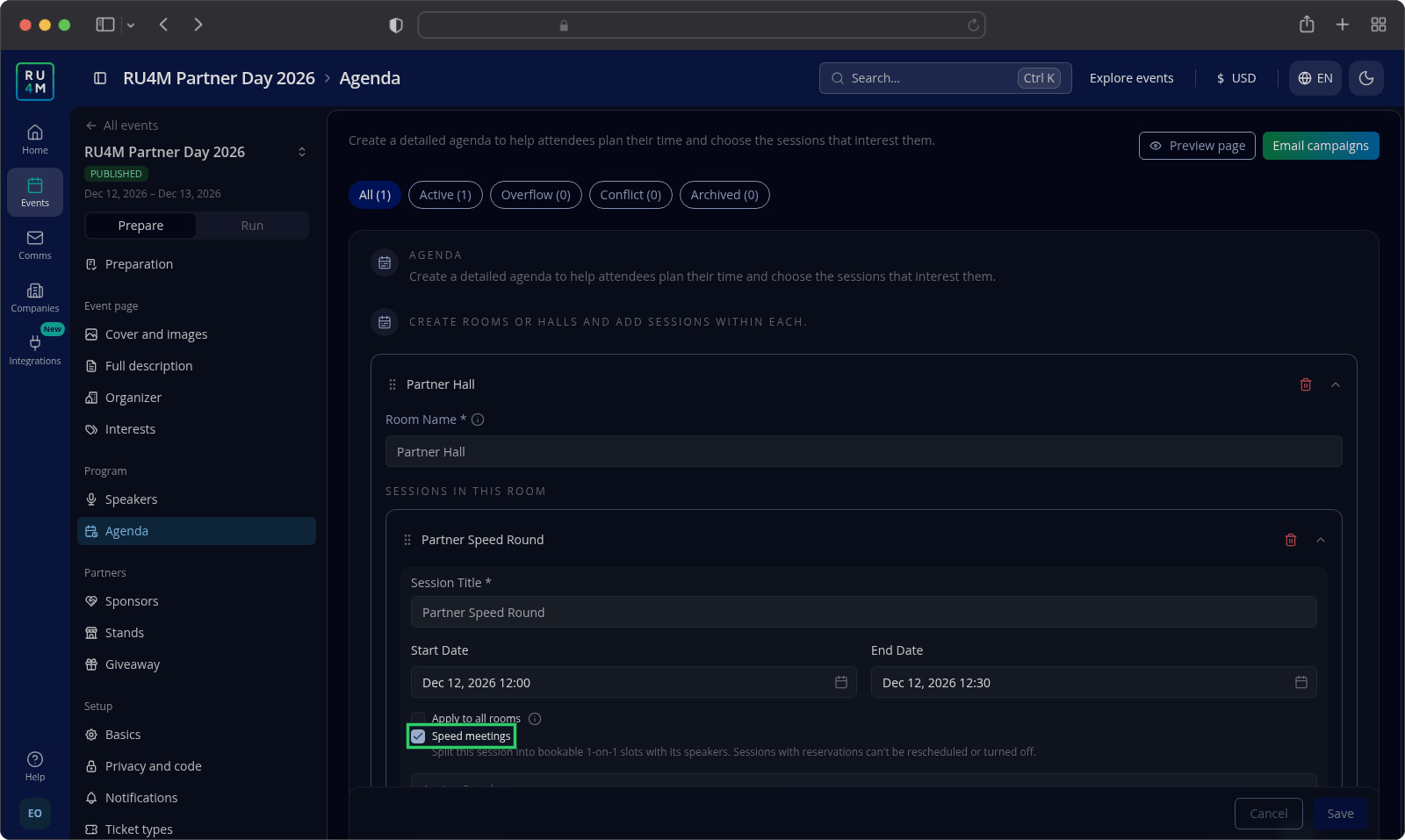
The tick belongs to that session alone. One session can be a speed meeting session while the session next to it is not. You can switch the setting off again, as long as the session holds no bookings.
Save in the save bar stores the agenda. It stays greyed out until you change something.
What the checkbox needs
The checkbox stays greyed out and unticked when your package does not include speed meetings. The Premium and Enterprise packages carry speed meetings. See Packages and payment for the full list.
On a package without speed meetings, Backoffice writes this under the checkbox: Speed meetings are available from the Enterprise tier. A package that carries them shows the help text instead.
Its help text reads: Split this session into bookable 1-on-1 slots with its speakers. Sessions with reservations can't be rescheduled or turned off. The Agenda page shows the same help text.
A session that is already a speed meeting session keeps its checkbox enabled, even on a package without the feature. You can still switch that setting off.
How long a slot is
Each slot lasts 8 minutes, and a 2-minute pause separates one from the next. A session 60 minutes long offers 6 slots.
A session shorter than 8 minutes offers none, because no slot fits inside it.
After attendees book
Reservations appear on the Speed meetings page under People in the event panel. See Speed meetings.
Once a session holds a booking, you cannot move it or turn the setting off. Backoffice refuses the save: the refusal reads Some sessions already have booked speed-meeting slots, and one line under it names each blocked session and counts its booked slots.
Keep the session inside the event dates, or cancel the bookings first.
Troubleshooting
Agenda shows a lock. Your package does not include an agenda. See Packages and payment.
The page says it is locked. The event is published and has already ended.
Backoffice refuses a save after you moved the dates. Work through the reconciliation dialog instead of saving again.
A strategy is greyed out. Attendees have booked slots in those sessions. Keep them inside the event dates, or cancel the bookings.
A session will not save. It overlaps another session in the same room. Move one of the times.
The Speed meetings checkbox is greyed out. The package does not include speed meetings. The line under it says so.
Backoffice refuses to switch the setting off. The session already holds booked slots. Each blocked session is named, with the number of slots booked in it.
Related tasks
- Packages and payment — what each package includes.
- Editing basic details — the other fields on your event.
- Organizer and speakers — who organizes the event and who is on stage.
- Create and publish — the wizard that sets the event up.
- Speed meetings — how attendees book and you run reservations.