Sponsors and stands
Last update · 4 min read
Sponsors and stands turn your event into an exhibition. Sponsors are the companies that support you. Stands are the booths they occupy on site. You add both in the event editor.
Before you start
You must be the person who created the event, one of its managers, or an Owner, Admin or Manager of the organizing company. Other people open the event and read it, but cannot change it.
Sponsors and Stands open fully only on the Enterprise and Premium packages. Read Packages and payment first if the two pages show a lock.
Open the event from your events list. Select Sponsors or Stands under Partners in the event panel.
Adding and editing sponsors
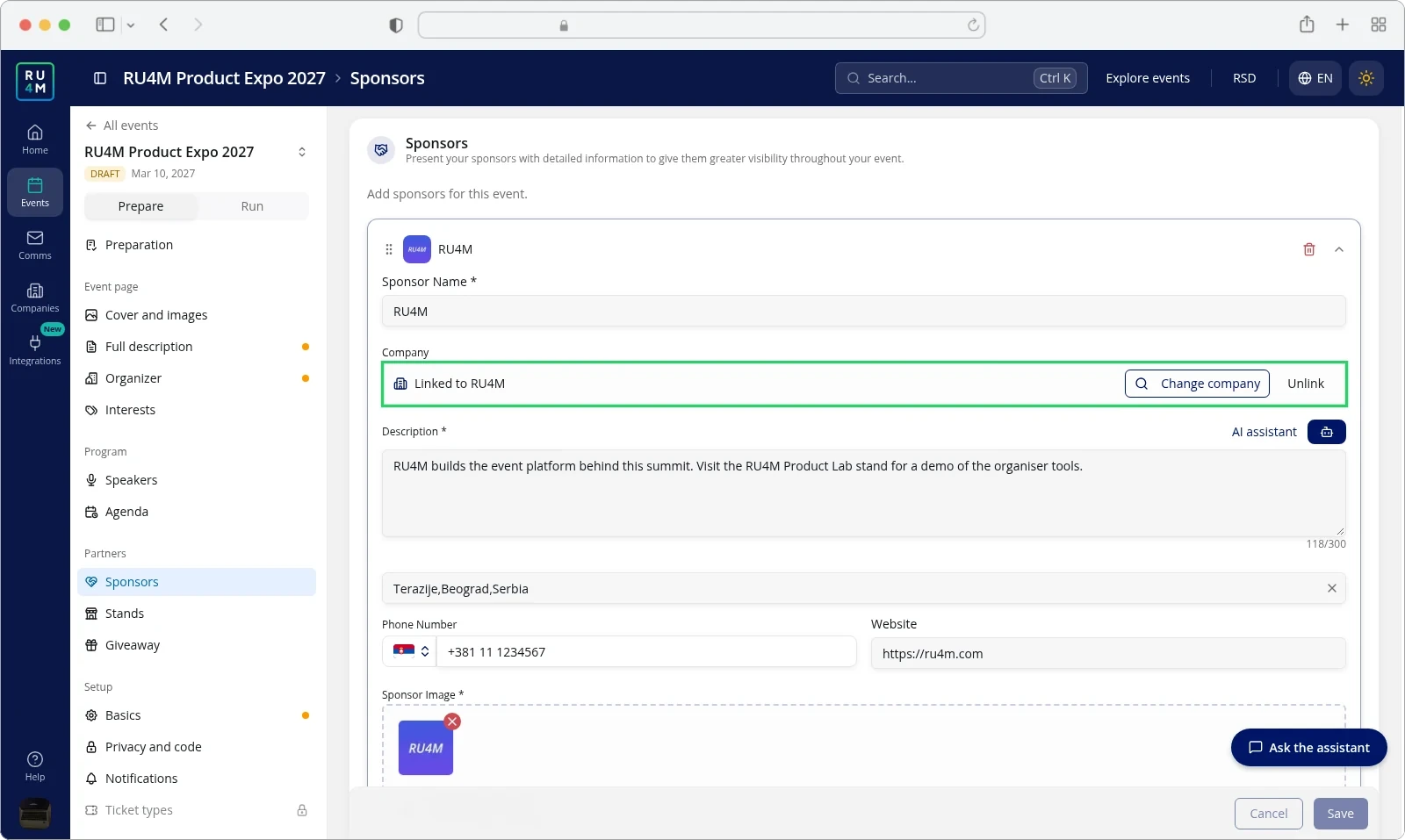
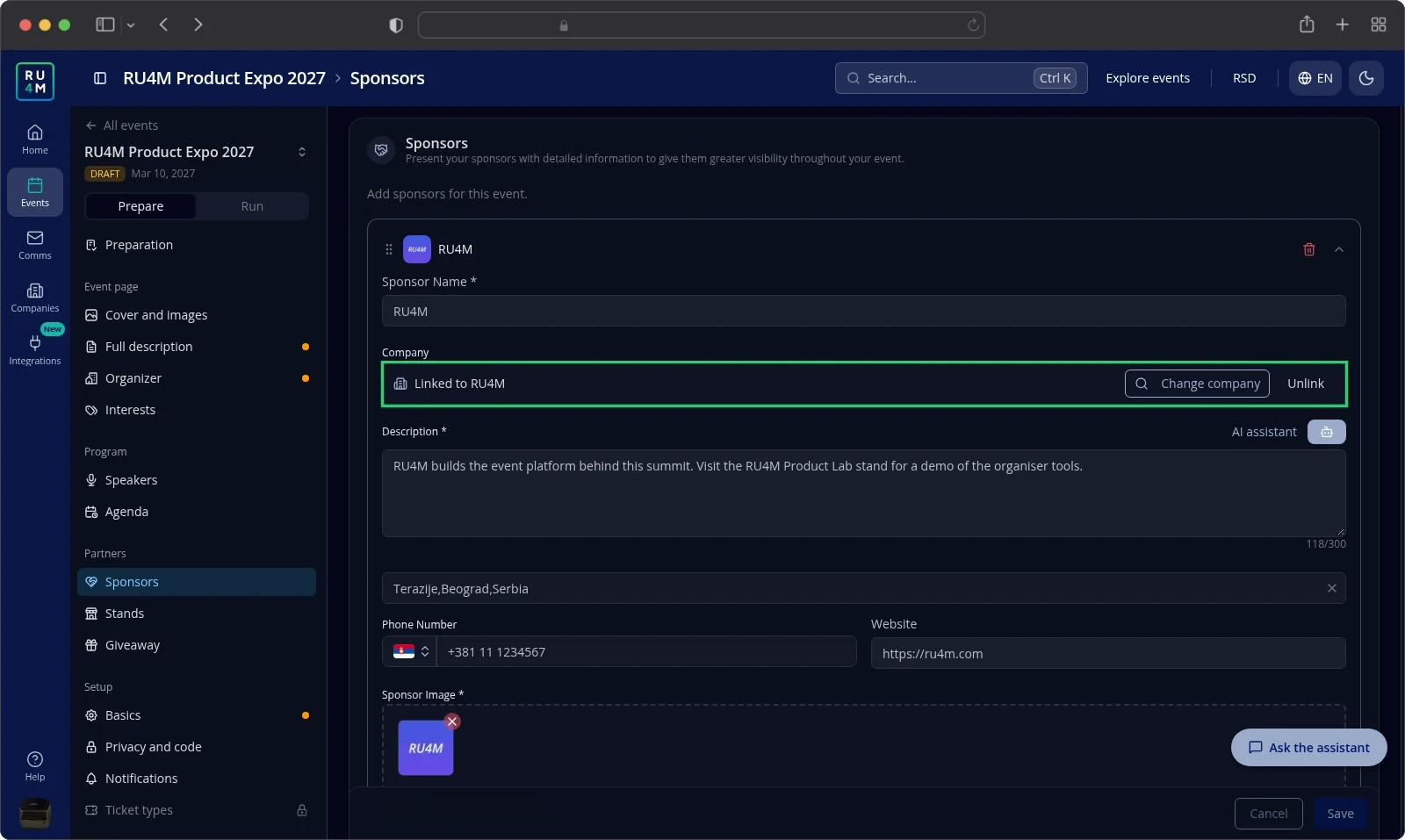
The section starts with Add Sponsor. Every sponsor you add becomes its own card.
Add a sponsor
- Select Add Sponsor.
- Select Link to existing company.
- Type the company name.
- Select the company in the list.
- Enter Description.
- Select Browse Files and pick an image.
- Select Confirm in the image cropper.
- Select Save.
Linking a company fills in Sponsor Name, the address, Phone Number and Website.
Search for a company
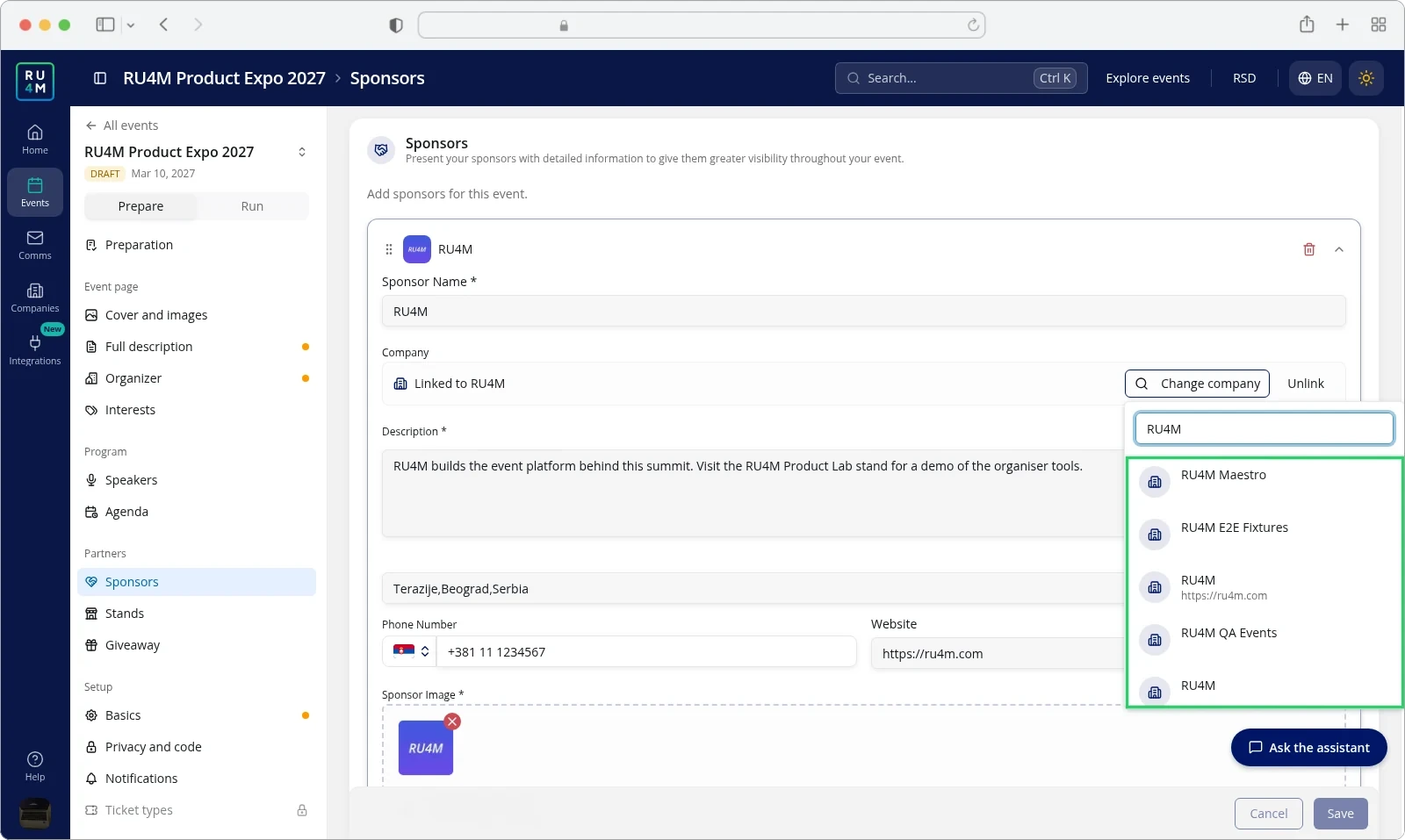
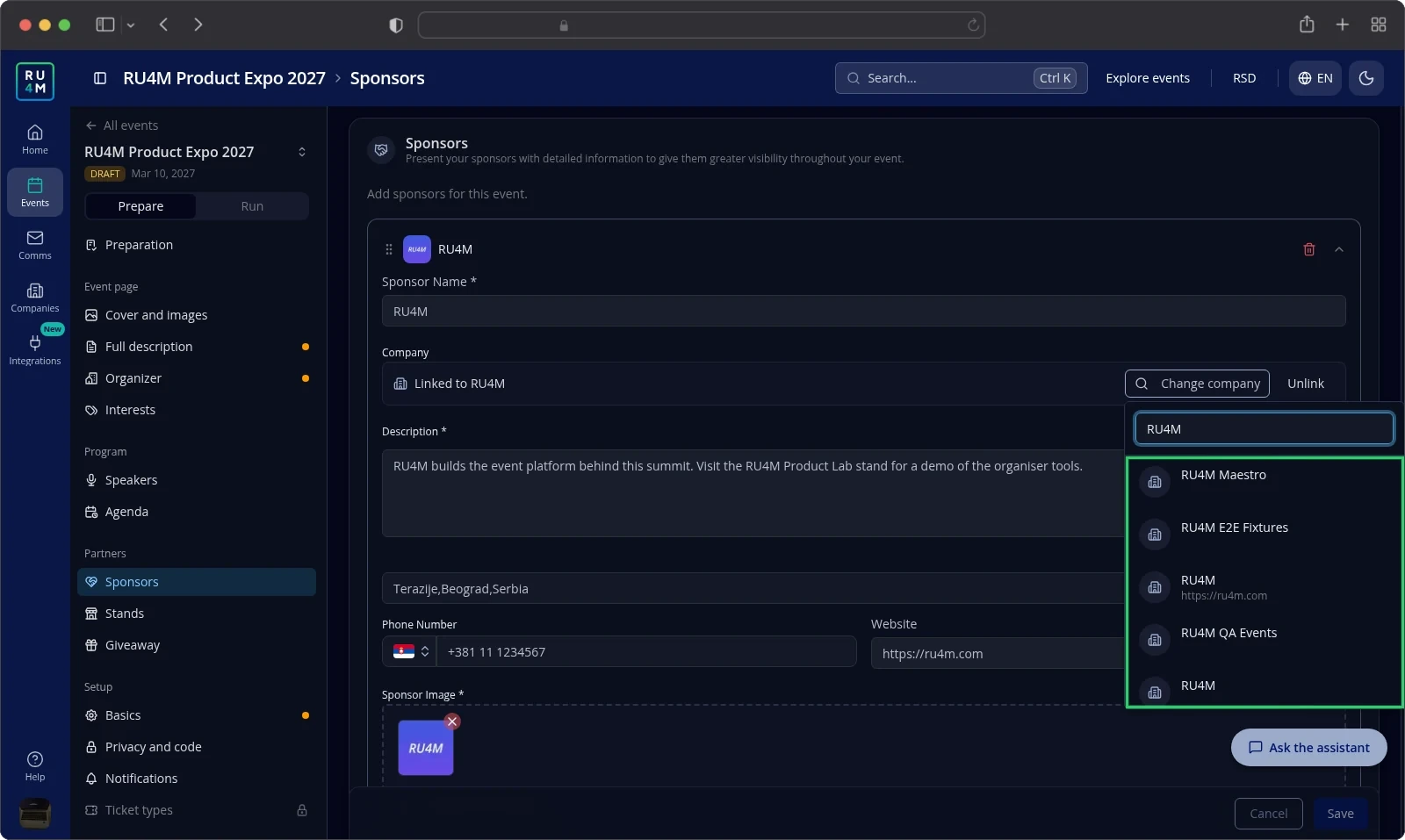
Type at least two letters to start the search. The list shows every company, not only the ones you manage.
Under two letters the picker reads Start typing to search companies. When nothing matches, it reads No companies found.
Write the description with AI
AI assistant writes the description from the name you typed. It stays greyed out until Sponsor Name has text.
What each field needs
- Sponsor Name is required and takes up to 100 characters.
- Description is required and takes up to 300 characters.
- Sponsor Image is required. The picker accepts .jpeg, .png and .webp.
- Phone Number is optional.
- Website is optional and takes up to 250 characters.
Change or remove the company link
Change company opens the search again. Unlink removes the company and leaves the sponsor as its own entry.
A company may be missing details
When the company has no logo or address on record, Backoffice warns you. The link still goes through, and you can fill the gaps in the company later.
Edit or remove a sponsor
Select the sponsor card to open it, change what you need, then select Save.
Select Delete on the card to remove the whole sponsor at once.
Adding and editing stands
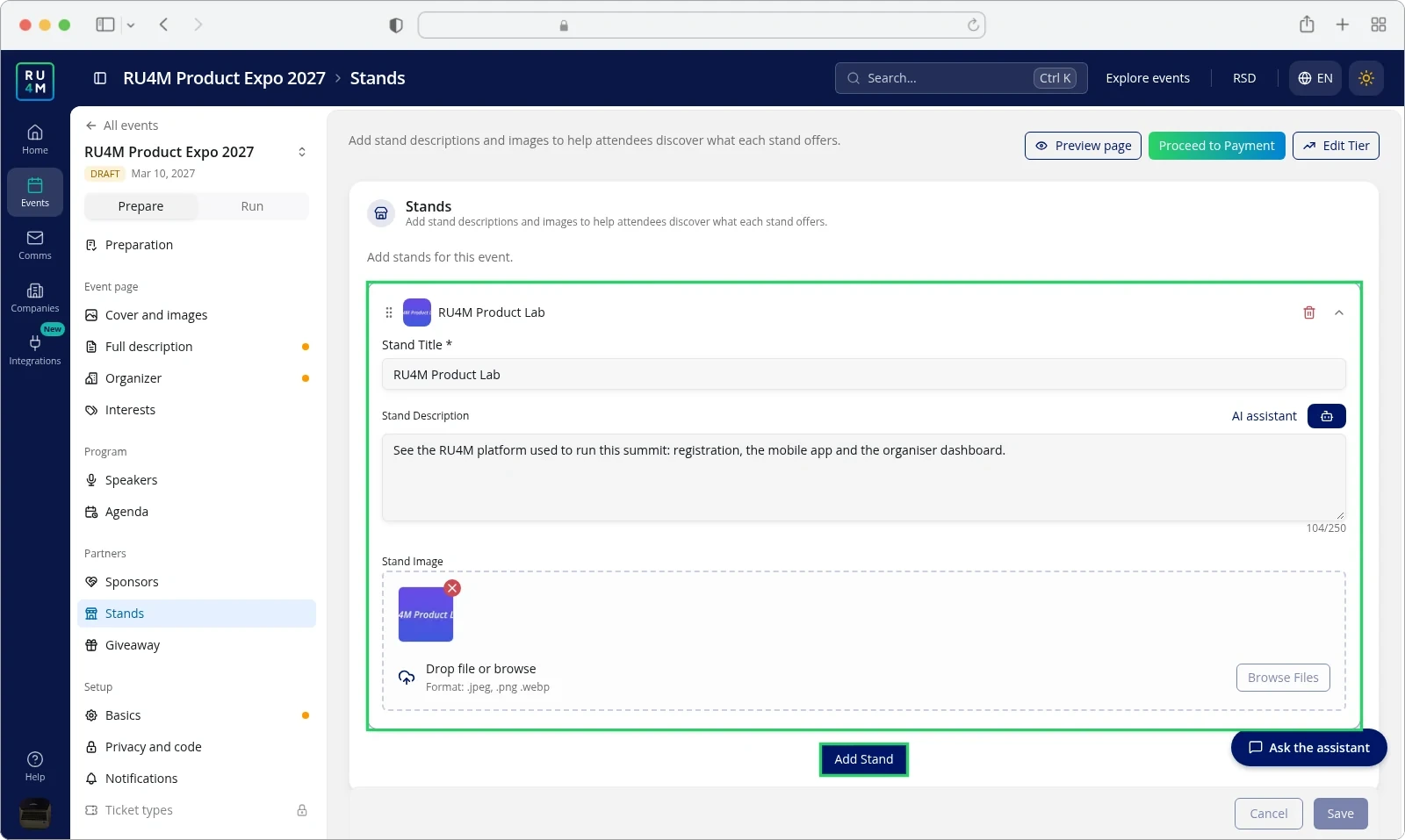
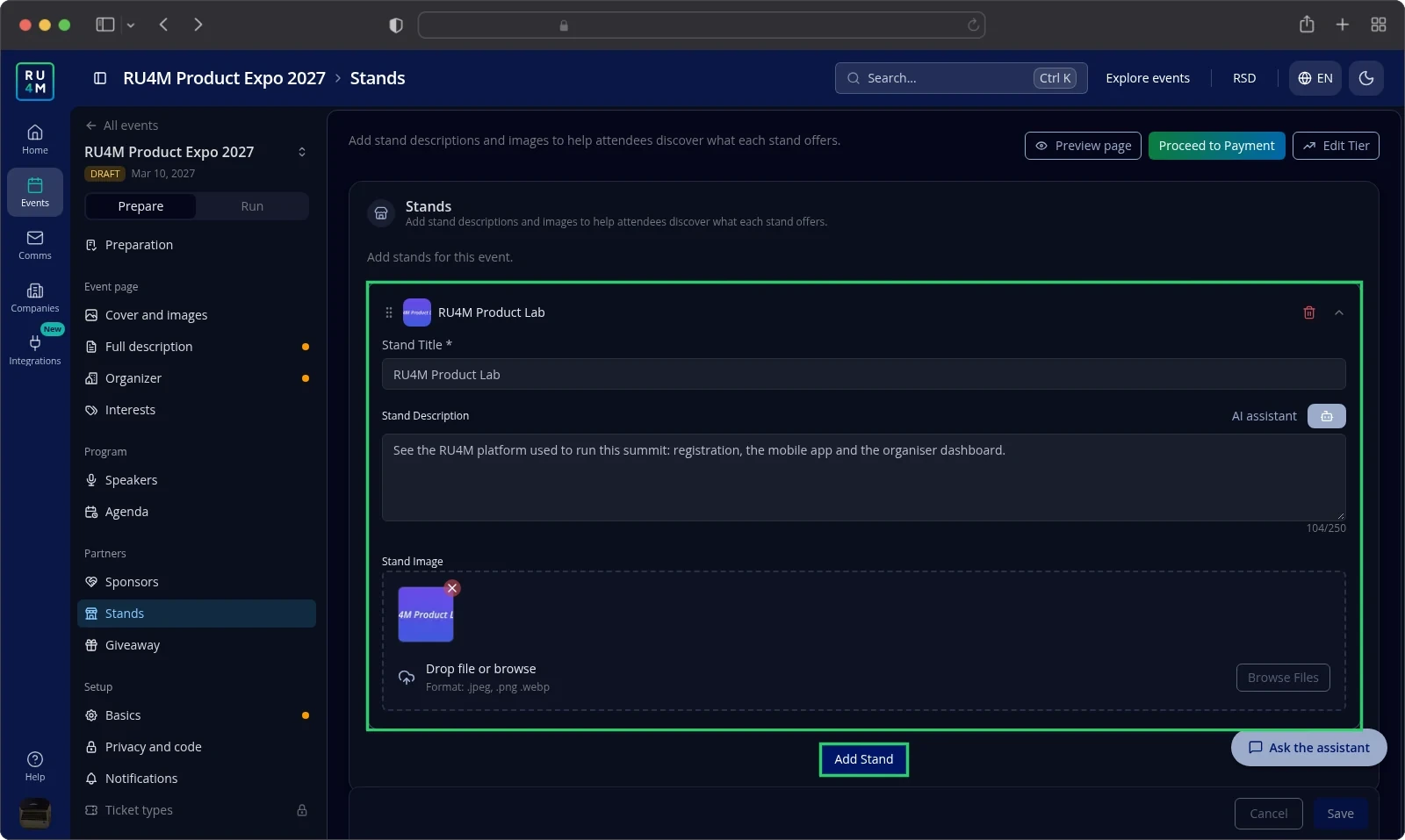
Add a stand
- Select Add Stand.
- Enter Stand Title.
- Enter Stand Description.
- Select Browse Files and pick an image.
- Select Confirm in the image cropper.
- Select Save.
What each field needs
- Stand Title is required and takes up to 100 characters.
- Stand Description is optional and takes up to 250 characters.
- Stand Image is optional.
AI assistant writes the description from the title. It stays greyed out until Stand Title has text.
Sponsors and stands stay separate
A stand does not belong to a sponsor. Attendees see two separate lists, and you manage them on two separate pages.
Edit or remove a stand
Select the stand card to open it, change what you need, then select Save.
Select Delete on the card to remove the whole stand at once.
Package availability
Enterprise and Premium include Sponsors and Stands. Every other package leaves both out, so the two pages show a lock in the event panel.
An event that already has sponsors or stands keeps its data when it moves to a smaller package. The pages stay in the panel with a lock. Opening one shows what it adds and an upgrade action instead of the form.
Moving to a larger package unlocks both pages and lets you edit again. See Packages and payment.
Troubleshooting
Sponsors or Stands shows a lock. Your package leaves them out. Only Enterprise and Premium include them.
The page shows an upgrade action instead of the form. The event moved to a smaller package that leaves sponsors or stands out. Move to a larger package to edit again.
Sponsor image/logo is required. The sponsor has no image yet. Upload one and save again.
A company warns about missing details. It has no logo or address on record. The link still works, and you fill the details in the company later.
No companies found. Nothing matches what you typed. Try a shorter name.
A field message appears in English. Most validation messages on these two pages have no Serbian version yet.
Related tasks
- Packages and payment — what each package includes.
- Editing basic details — the other fields on your event.
- Organizer and speakers — who organizes the event and who is on stage.
- Event in the mobile app — how the event reaches attendees on their phones.