Tickets
Last update · 6 min read
Use ticket types to choose what participants can receive or buy. Set the types, prices and number of tickets available. You also choose how tickets appear in the RU4M mobile app.
Check what attendees see on the event page.
Before you start
You need to be the event's creator or one of its managers. An Owner, Admin or Manager of the organizing company can also change tickets. Everyone else can view the event but cannot make changes.
Configure tickets on the Ticket types page, under Setup in the event panel. The page is available for PUBLISHED and PAYMENT COMPLETED events, and events with the Free package. Before then, or after the event ends, you see Ticket types aren't available yet.
Manage Tickets in the menu beside an event in your events list opens the same page.
The event panel also lists Tickets under Sales. That page needs a permission that only RU4M staff hold, so organizers see no access there.
Your package determines what you can sell. Free gives you registration tickets only. Paid packages let you set a price.
Ticket types, prices and capacity
On the Ticket types page, you see Add, edit, or remove ticket types for this event.
- Open your event from your events list.
- Select Ticket types under Setup in the event panel.
- Select Add ticket.
- Type the ticket name.
- Choose the type.
- Enter the price.
- Enter the number of tickets available.
- Select Save.
Use these fields to configure each ticket type.
| Field | What it sets |
|---|---|
| Ticket name | The name participants see. Use a unique name for each ticket type in the event. |
| Type | Standard, or Bundle for several tickets in one purchase. |
| Price | What one attendee pays. |
| Total tickets available | The number of tickets available for this type. |
| Tickets included in bundle | The number of individual tickets in one Bundle. You see this field only for a bundle. |
You see Total value once you enter both Price and Total tickets available. You see this value for every ticket type, not only bundles. For a bundle, the value is the price multiplied by the number of tickets in the bundle.
You can select Save only after making a change. Select Cancel to restore the tickets you last saved. After saving, you see Tickets saved successfully.
On a Free package
The notice Free tier uses free registration tickets appears at the top. Attendees still join and receive their tickets automatically.
The Price field stays disabled and shows 0.00. Select Upgrade Tier to move to a paid package. See Packages and payment.
Capacity
Above the tickets, you see <package> tier capacity, followed by your total and the limit, such as 0 / 50.
If your ticket total exceeds the limit, you see Exceeds tier ticket capacity and cannot save. Lower a Total tickets available value or remove a ticket.
Currency
You see All ticket prices are in RSD. The currency comes from your account settings.
If you changed currency after entering prices, a warning tells you that saving converts them. Read it before you save. You can select Save to convert the prices without changing a ticket.
Check the price on the event page
Attendees read the event page before they buy a ticket. After you save your ticket types, open that page to see the price you set. Anyone can open the event page, so no account is needed to read the price.
The Event Details card on the event page shows one price row. It uses the price of your first Standard ticket. A ticket with no type counts as Standard.
If you have no Standard ticket, the row uses your first ticket. If that first ticket is a Bundle, the row shows the price of the bundle. Tickets keep the order you created them, so the displayed price is not always the lowest.
The row appears only when that ticket has a price above zero and a currency. With no tickets, no price, no currency or a price of zero, the row stays hidden. You do not see a Free row instead.
Visitors who are not signed in see the price in the currency of your tickets. Signed-in visitors see the price in the currency they chose.
If that conversion fails, the page keeps the ticket currency. The amount uses the number format for the page's language and currency.
The price row does not depend on the number of remaining tickets, ticket display switches or whether the event has ended. A visible price does not mean that attendees can buy a ticket or join the event.
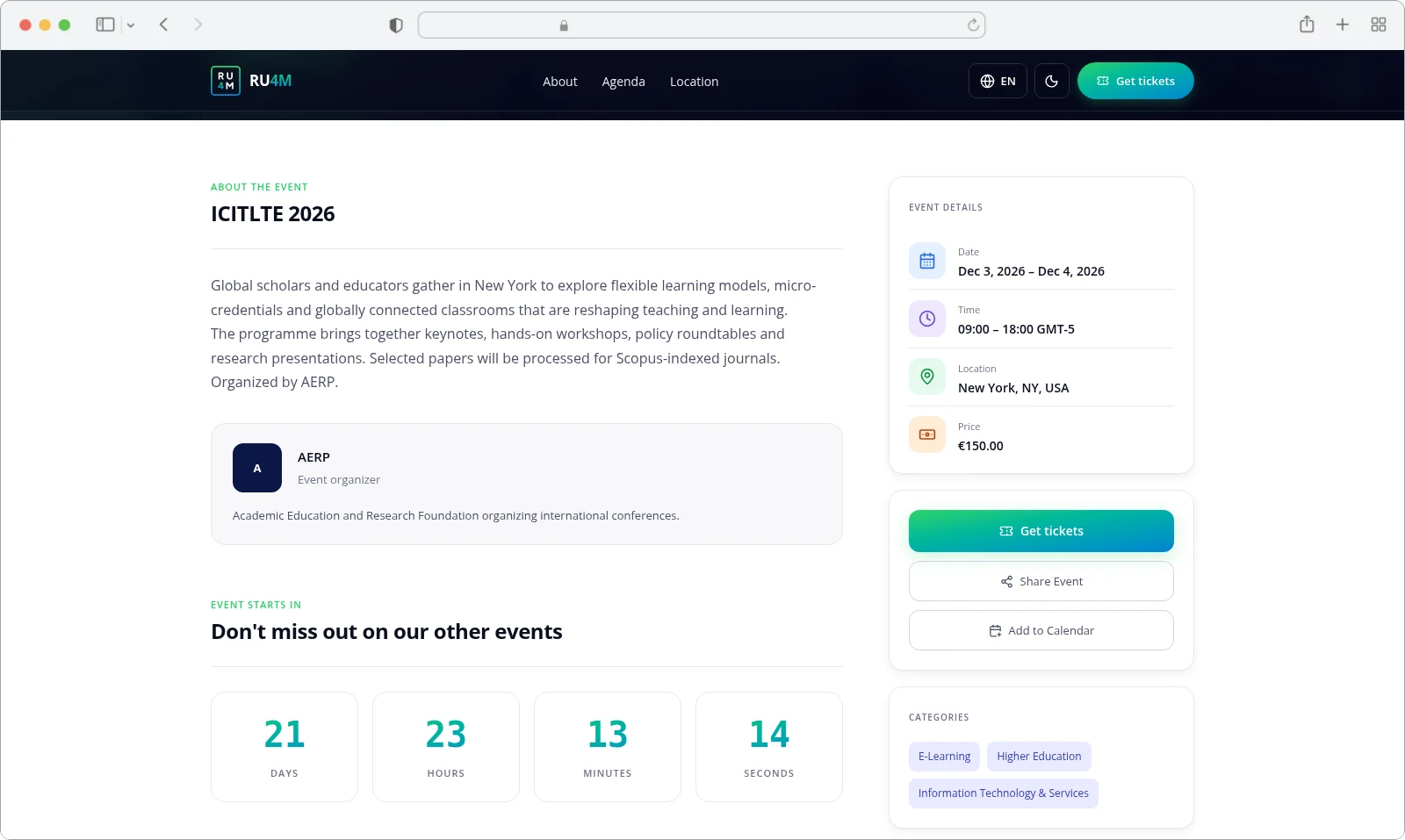
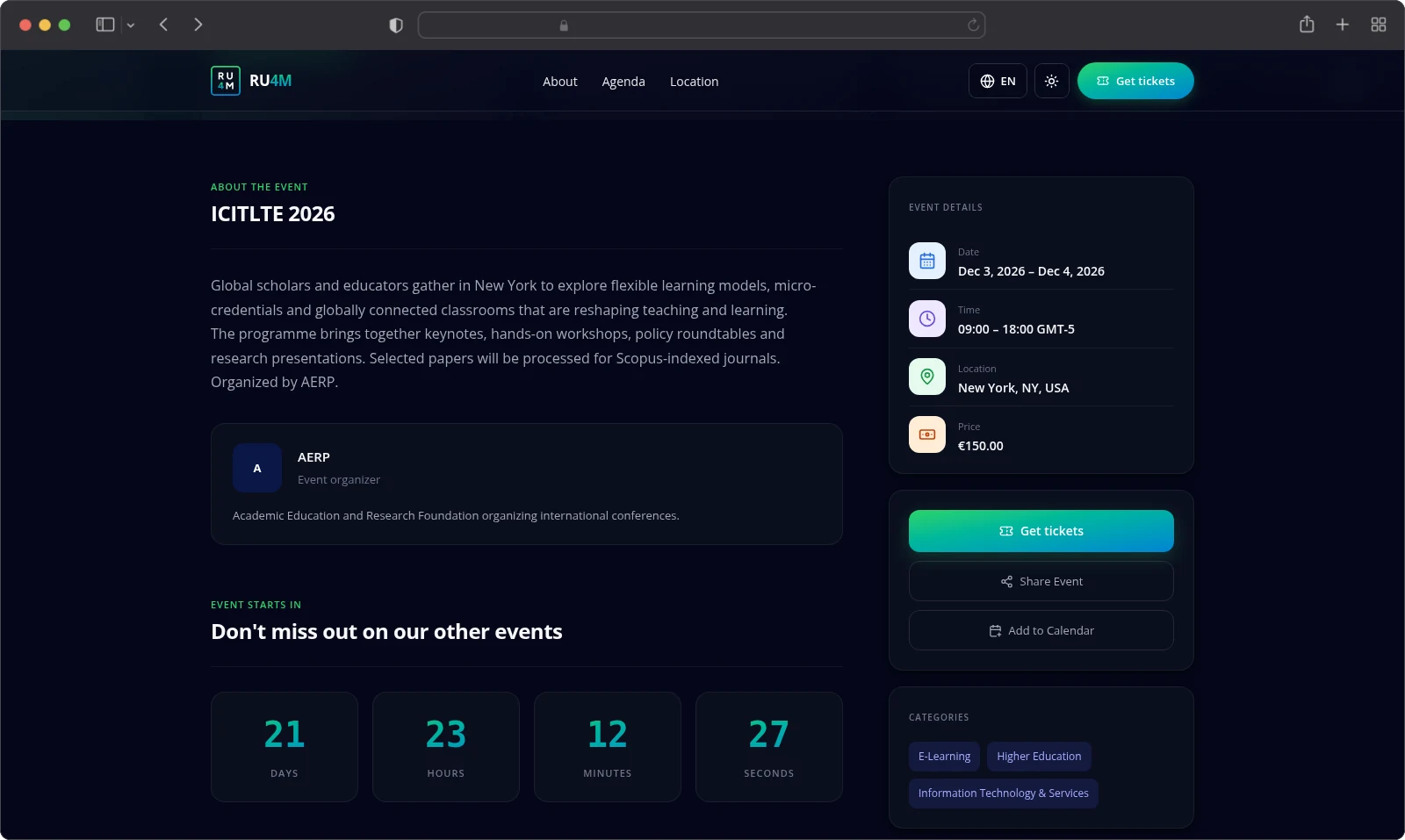
- Open your events list.
- Open the menu beside the event.
- Select View.
- Scroll to the Event Details card.
- Read the amount next to Price.
The card shows one ticket price, not every available ticket or price.
Ticket display settings
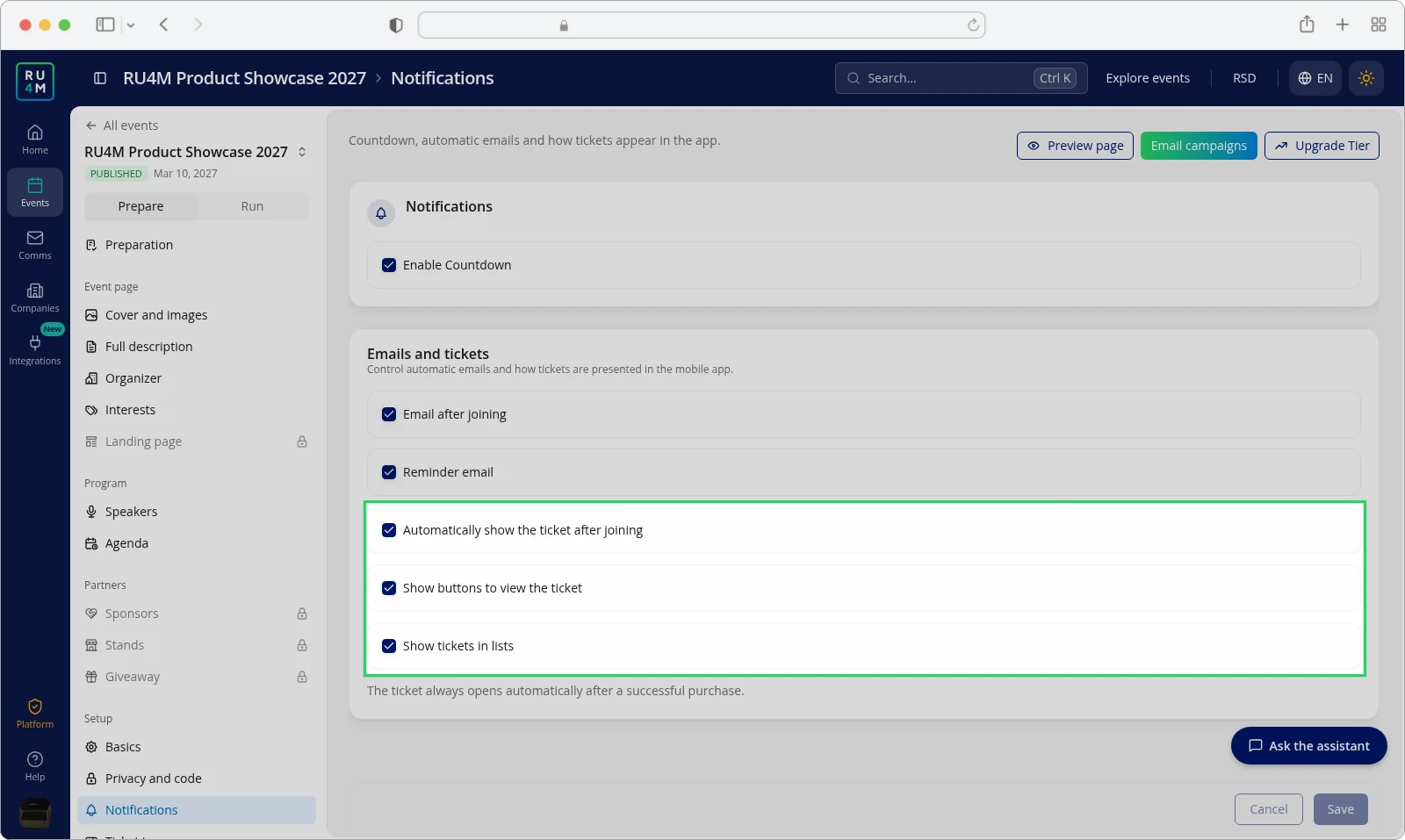
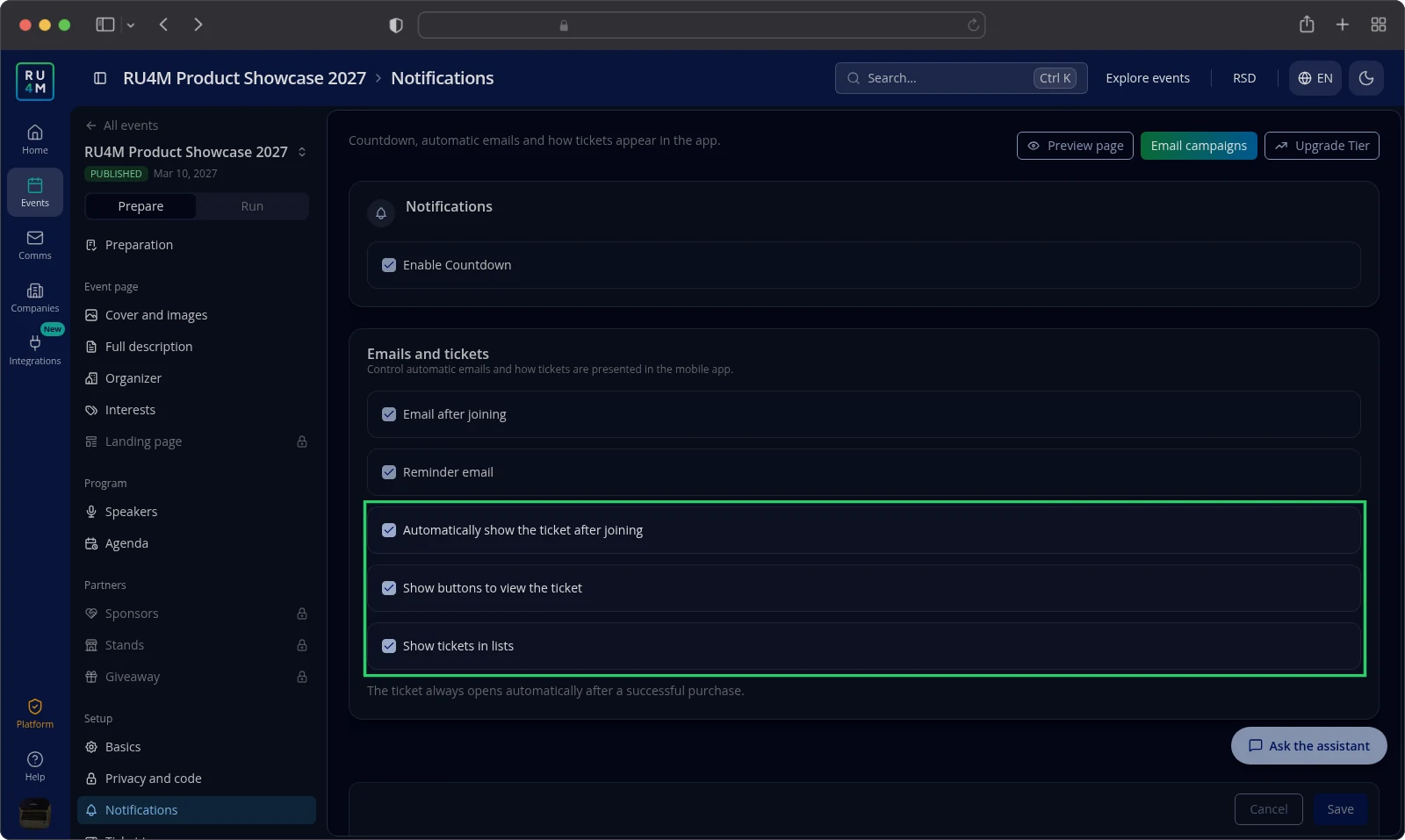
The Emails and tickets section of Notifications has five switches. Two control emails, and three control ticket display in the mobile app.
| Switch | What it changes |
|---|---|
| Automatically show ticket after joining | A participant's ticket opens as soon as they join. |
| Show buttons to view ticket | Buttons that open the ticket appear in the app. |
| Show tickets in lists | Tickets appear in the lists participants browse. |
- Open your event.
- Select Notifications under Setup in the event panel.
- Scroll to Emails and tickets.
- Turn the switch you need on or off.
- Select Save.
Two email switches appear above the ticket switches: Email after joining and Reminder email. See Automatic emails.
A ticket opens automatically after a successful purchase, regardless of these switch settings.
Troubleshooting
Ticket types reads "Ticket types aren't available yet". The event is a draft with an unpaid package, or the event has ended.
A notice says the package does not include ticket sales. Pay for a package that includes them.
Price is required. You left a ticket's price field empty on a paid package.
Exceeds tier ticket capacity. Your tickets total more than the package allows.
You cannot set a price on Free. Only paid packages sell tickets.
Saving warns that prices change currency. Your account currency no longer matches your ticket currency.
The event page shows no price. The event has no tickets, or the displayed ticket has no price, no currency or a price of zero.
Set that ticket's price above zero. Then save your changes.
An older link to the event page shows no price. The price row appears only in the current event page layout. Open the event again from your events list.
The event page reads "Page not found". The address does not point to an existing event. Open the event from your events list.
Related tasks
- Packages and payment — what each package lets you sell.
- Create and publish — publish the event before it sells tickets.
- Automatic emails — configure the two email switches above the ticket switches.
- Participants — see who holds a ticket.
- Event statuses — what PUBLISHED and PAYMENT COMPLETED mean.