Account access
Last update · 8 min read
Use this guide to create a RU4M account, confirm your email address, sign in and recover a forgotten password.
Before you start
You do not need an account, a company, an event or a paid package to follow this guide. You can open every screen in it without signing in.
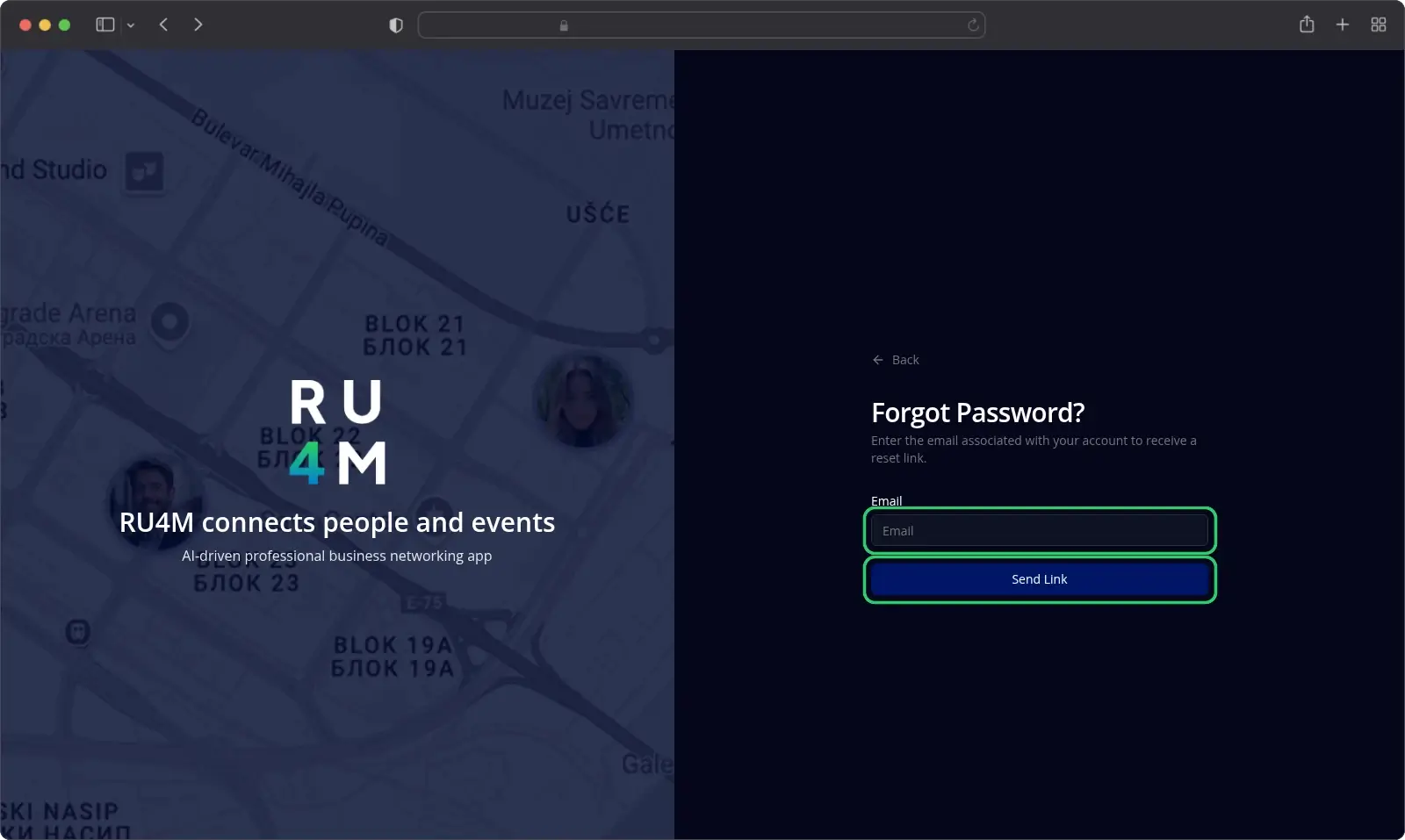
Backoffice takes its language and colour theme from your browser. The screenshots follow the light or dark theme you choose for this guide.
Registration and email confirmation
Create your account
-
Open the registration page in your browser.
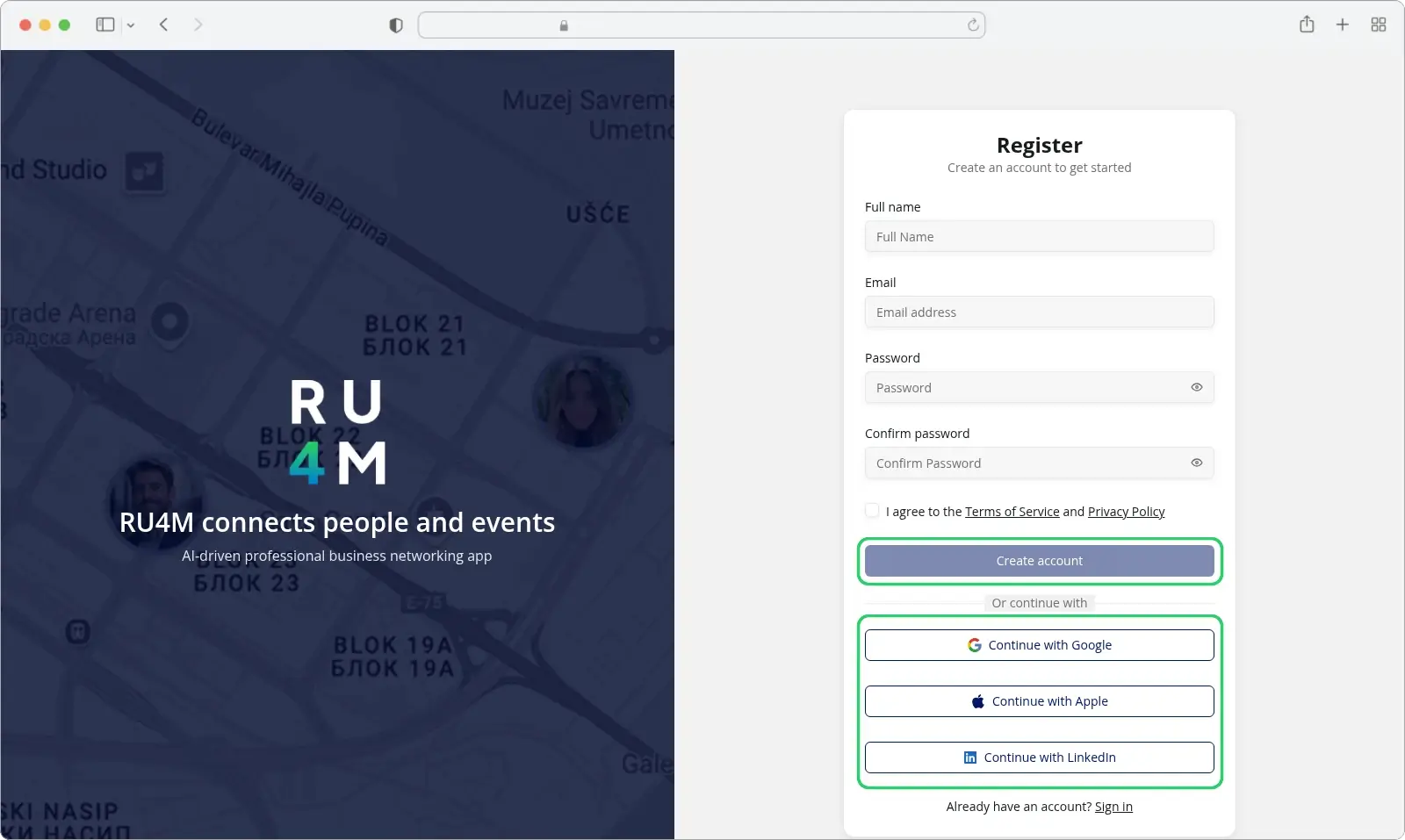
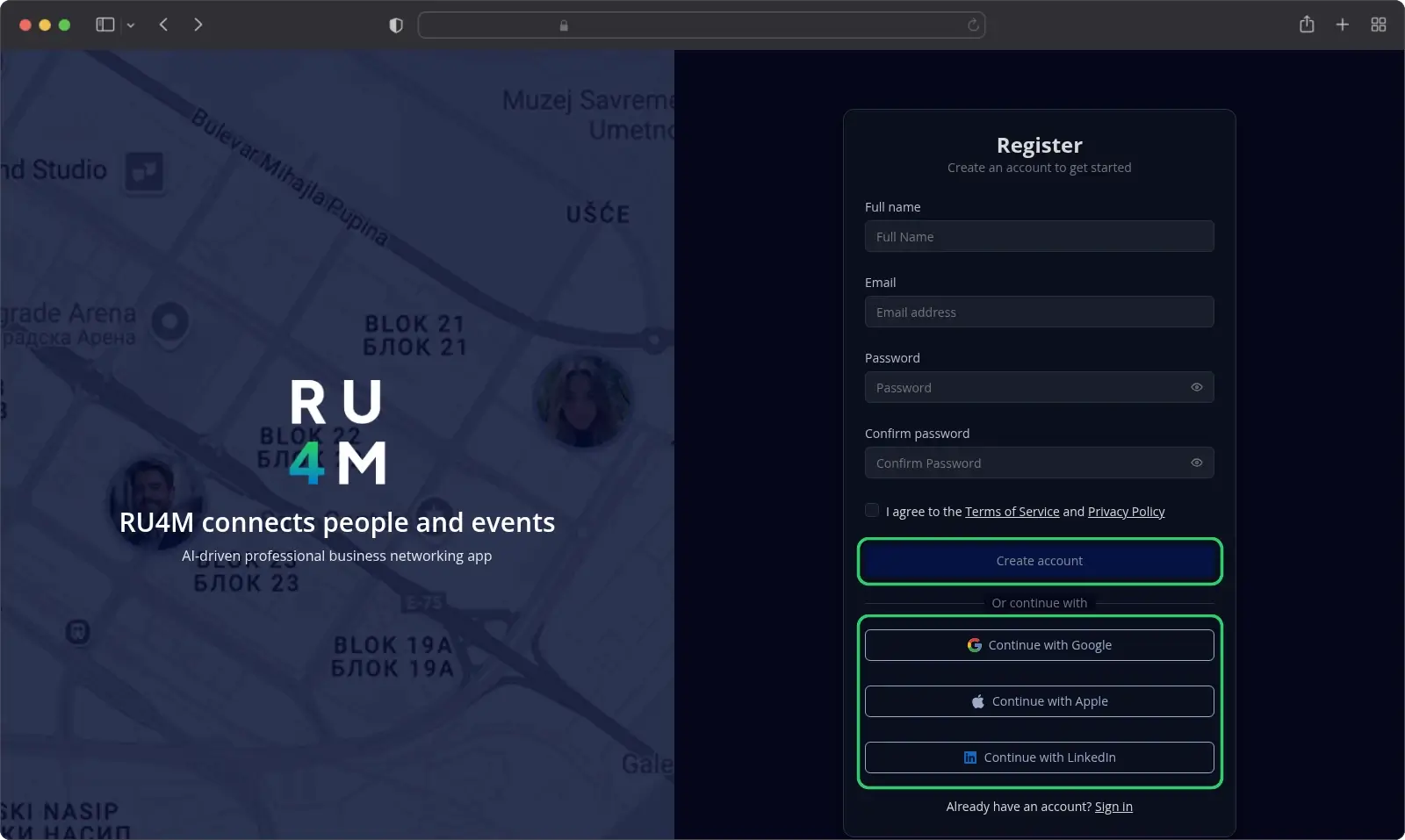
-
Enter your Full name. Use at least two words, with letters, numbers and spaces.
- Enter your Email. Use the address you want to use for RU4M.
- Enter a Password of at least 8 characters.
- Enter the same password again under Confirm password.
- Tick the box to accept the Terms of Service and Privacy Policy.
- Select Create account.
The Create account button stays greyed out until you fill in every field correctly.
Password rules differ between screens
The registration form requires at least 8 characters. Additional password requirements apply when you set a new password through password recovery. See Set a new password.
To register with Google, Apple or LinkedIn instead, select its button under Or continue with.
What happens next
Backoffice signs you in straight away and opens the Check your email screen.
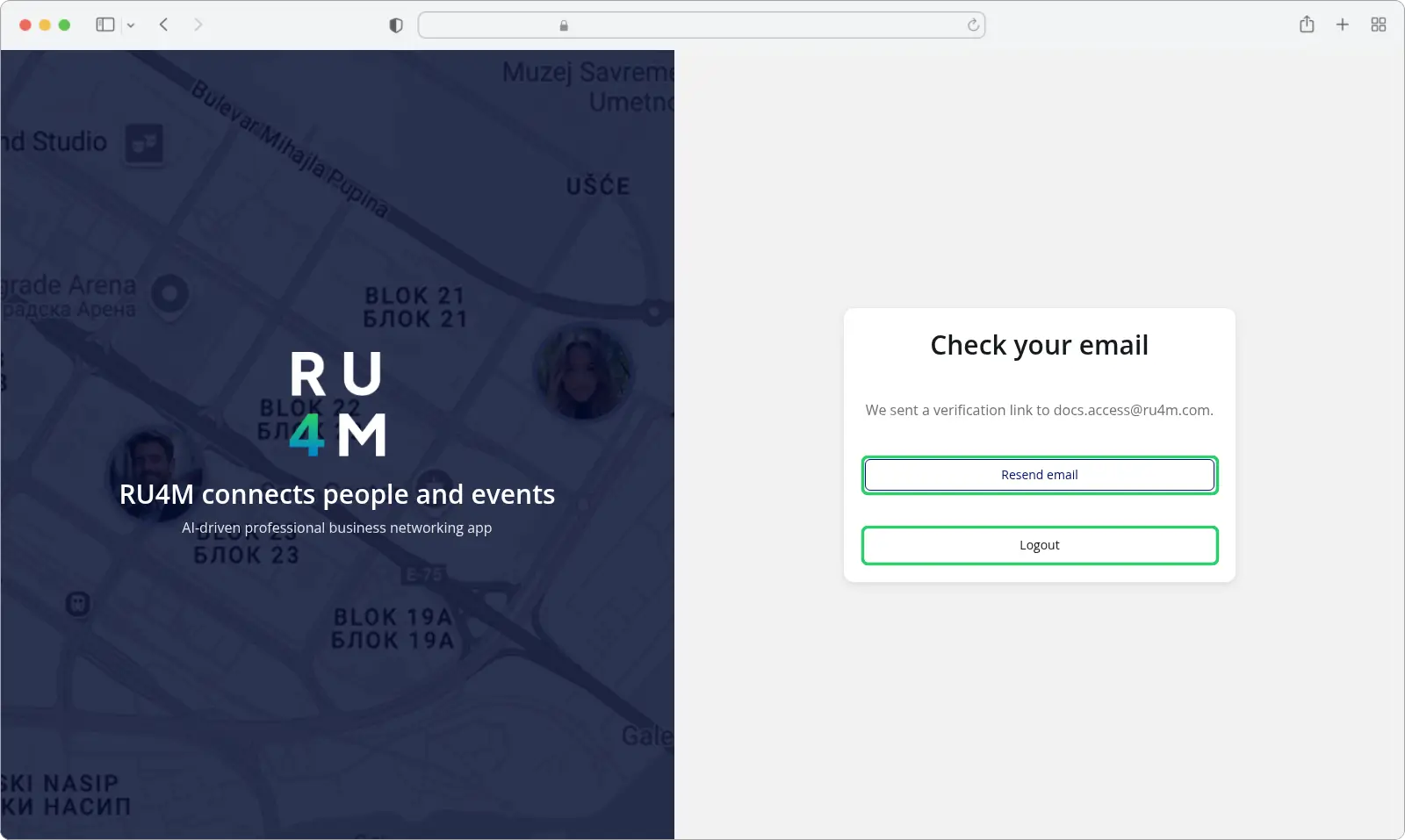
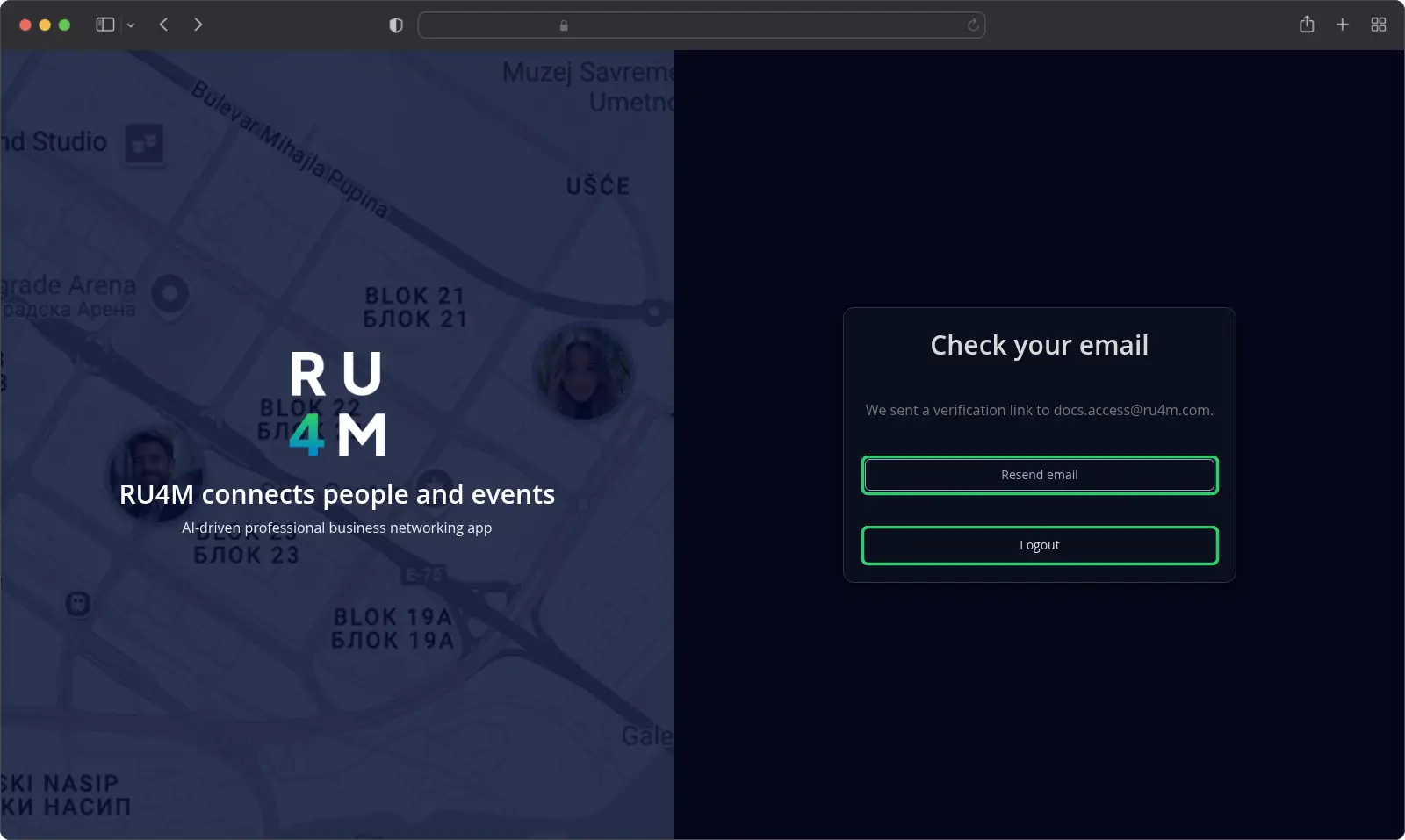
Backoffice keeps you on this screen until you confirm your address. Until then, every other page sends you back here, including the page for creating a new event.
If you entered the wrong address, select Logout and register again.
If the message has not arrived, select Resend email. The button then counts down for 60 seconds before you can use it again.
If the address is already registered
Backoffice tells you when an address already has an account.
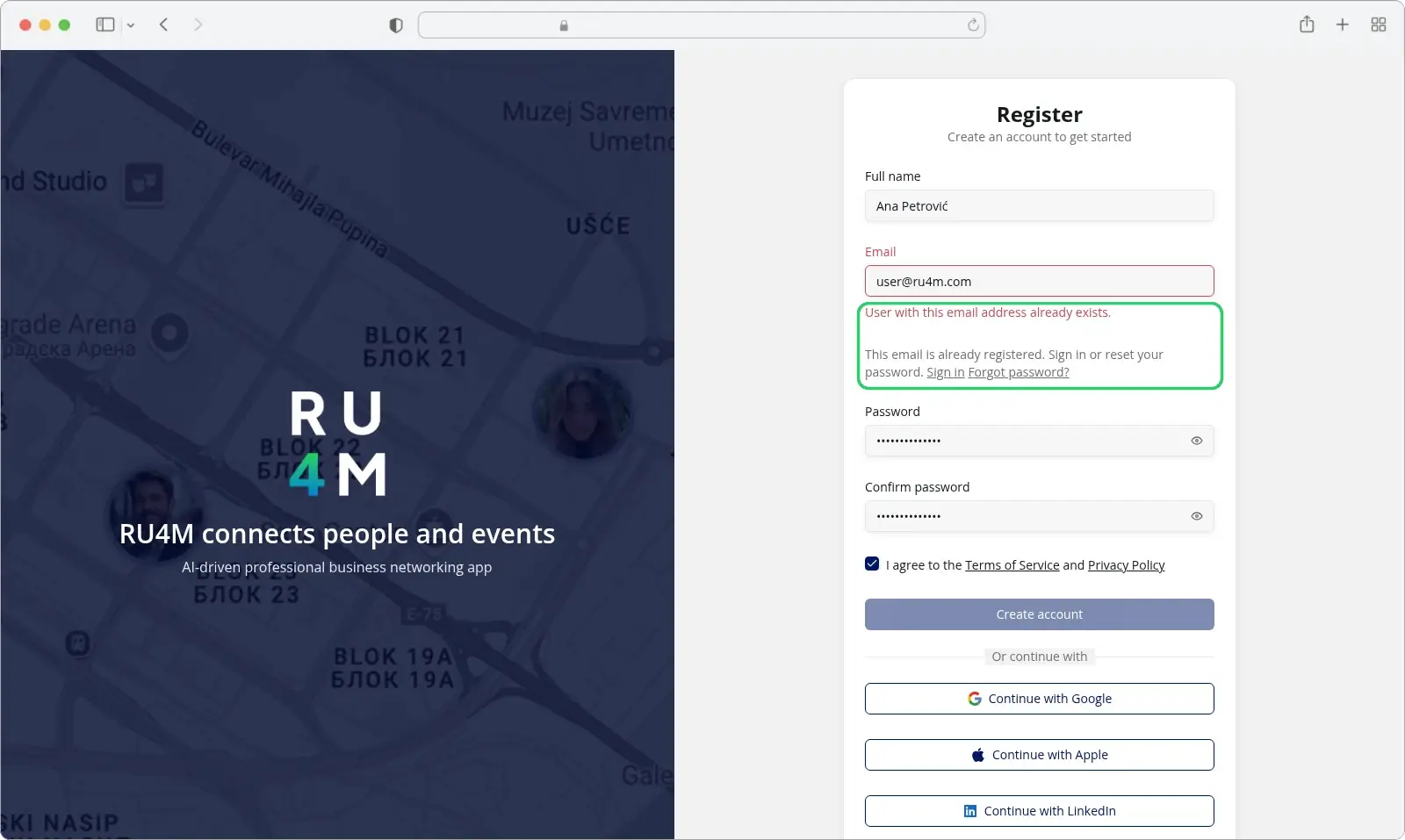
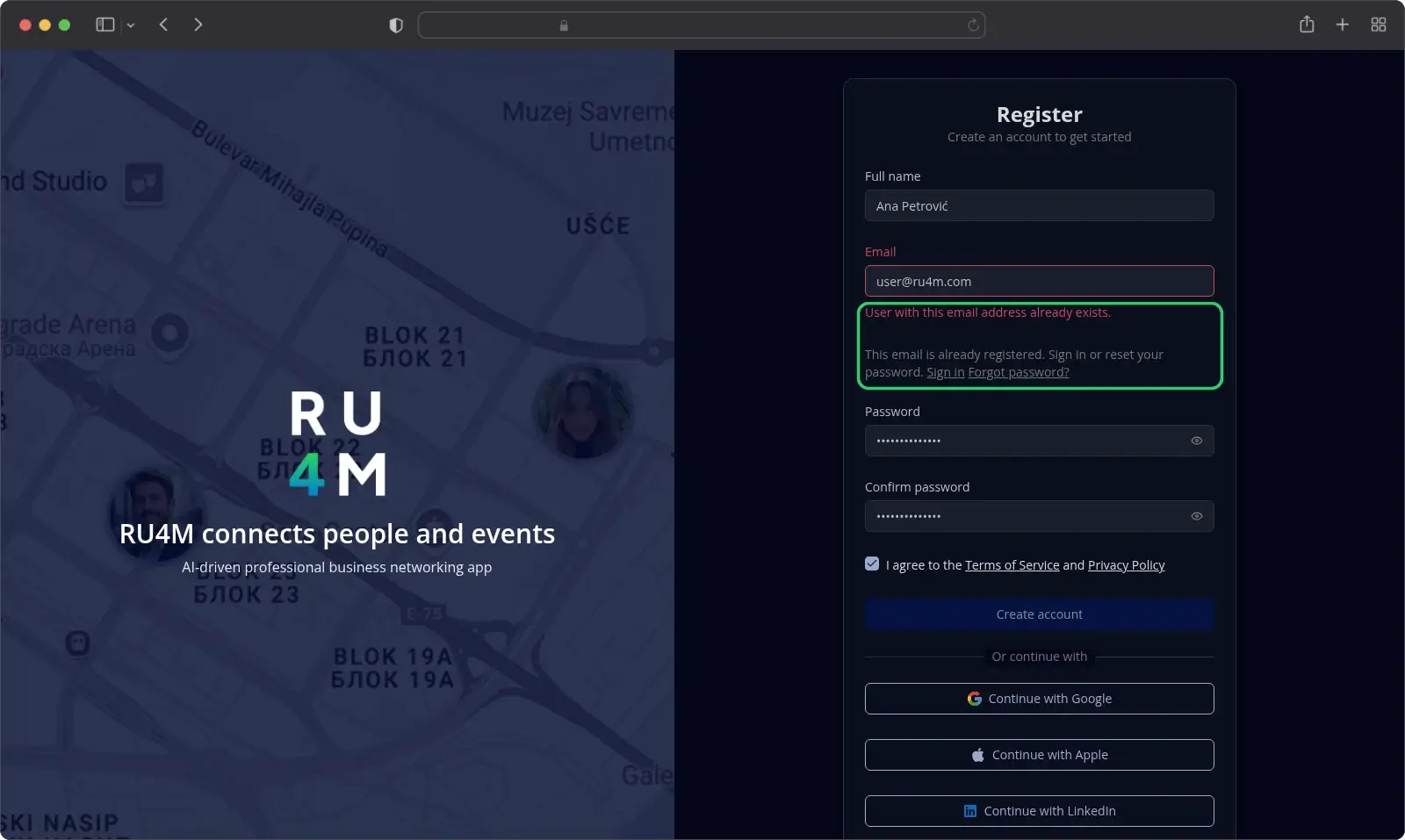
Two messages appear under the Email field. The second one offers two links:
- Sign in — takes you to the sign-in screen.
- Forgot password? — takes you to password recovery.
Confirm your email address
Backoffice sends a confirmation email right after you register.
- Open the email with the subject Verify your email address.
- Select the Verify email button in the message.
If the button does not work, open the link below the button in the email.
If you requested the email from Backoffice, the button opens the Verify email screen in your browser. Backoffice confirms your address on this screen, without opening a separate confirmation page.
If you requested the email from a supported RU4M mobile app, the link may open the installed app. If it opens in a browser, Backoffice handles the confirmation.
If you are signed in to Backoffice in your browser, you continue to the requested page or to your home page. If you are signed out in your browser, Backoffice asks you to sign in first.
Signing in to the mobile app does not sign you in to the browser. The browser also asks you to sign in if you used Logout on the Check your email screen.
Language of the confirmation screen
A link requested from Backoffice opens in your default language. A supported mobile app can request a link that opens Backoffice in the email language. You can change language when the screen opens.
The confirmation link did not work
When the link does not work, the Verify email screen reads Verification link is invalid or expired. Backoffice shows this message when the link is incomplete or Backoffice no longer accepts the link.
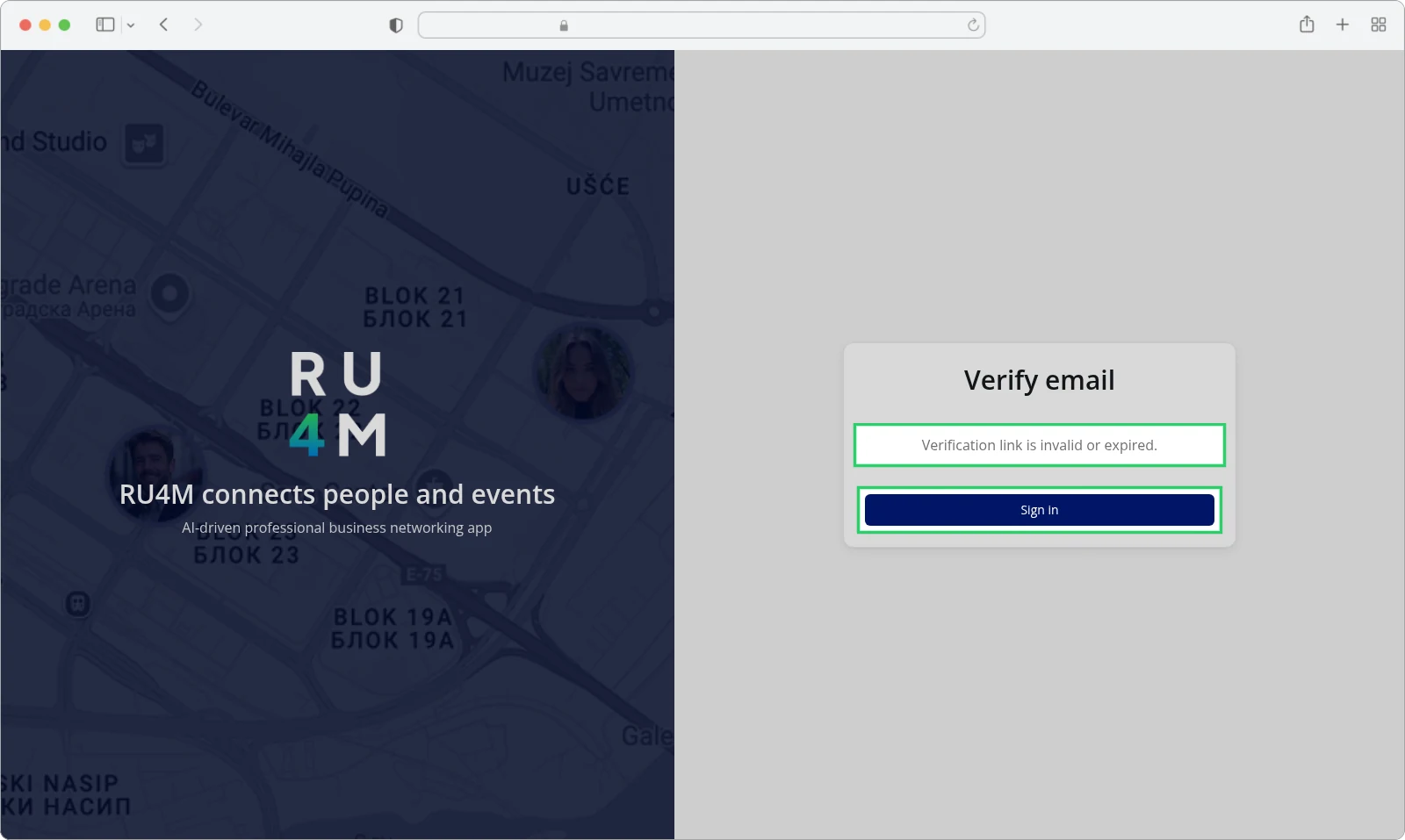
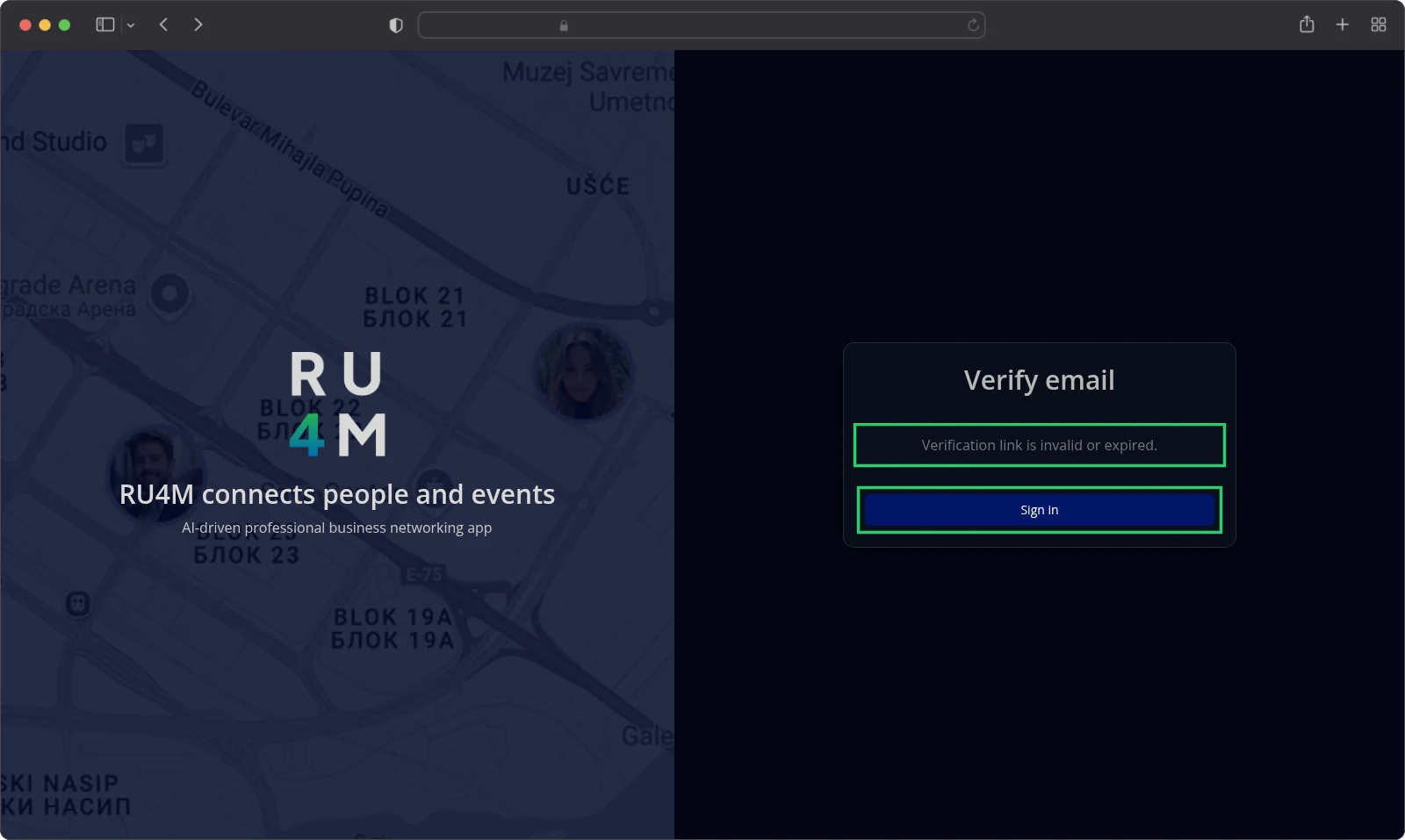
A link you already used still opens your home page or the sign-in screen.
If you are still signed in, select Resend email. Backoffice sends a new email with the same subject. The button then counts down for 60 seconds before you can use it again.
Select the button in the new email.
If you signed out, select Sign in to open the sign-in screen. After you sign in, confirm your email address.
Backoffice can also show one of these messages when it cannot verify your address:
- We could not verify your email right now. Check your connection and try again. — select Try again once your connection is back.
- Your email has been verified. — Backoffice confirmed your address, but the page did not update. Select Try again.
An invalid link never confirms your address.
Sign-in
Open the sign-in page to sign in. Backoffice also sends you here when you open a page that needs an account. After you sign in, it returns you to that page. Without a requested page, Backoffice opens your home page.
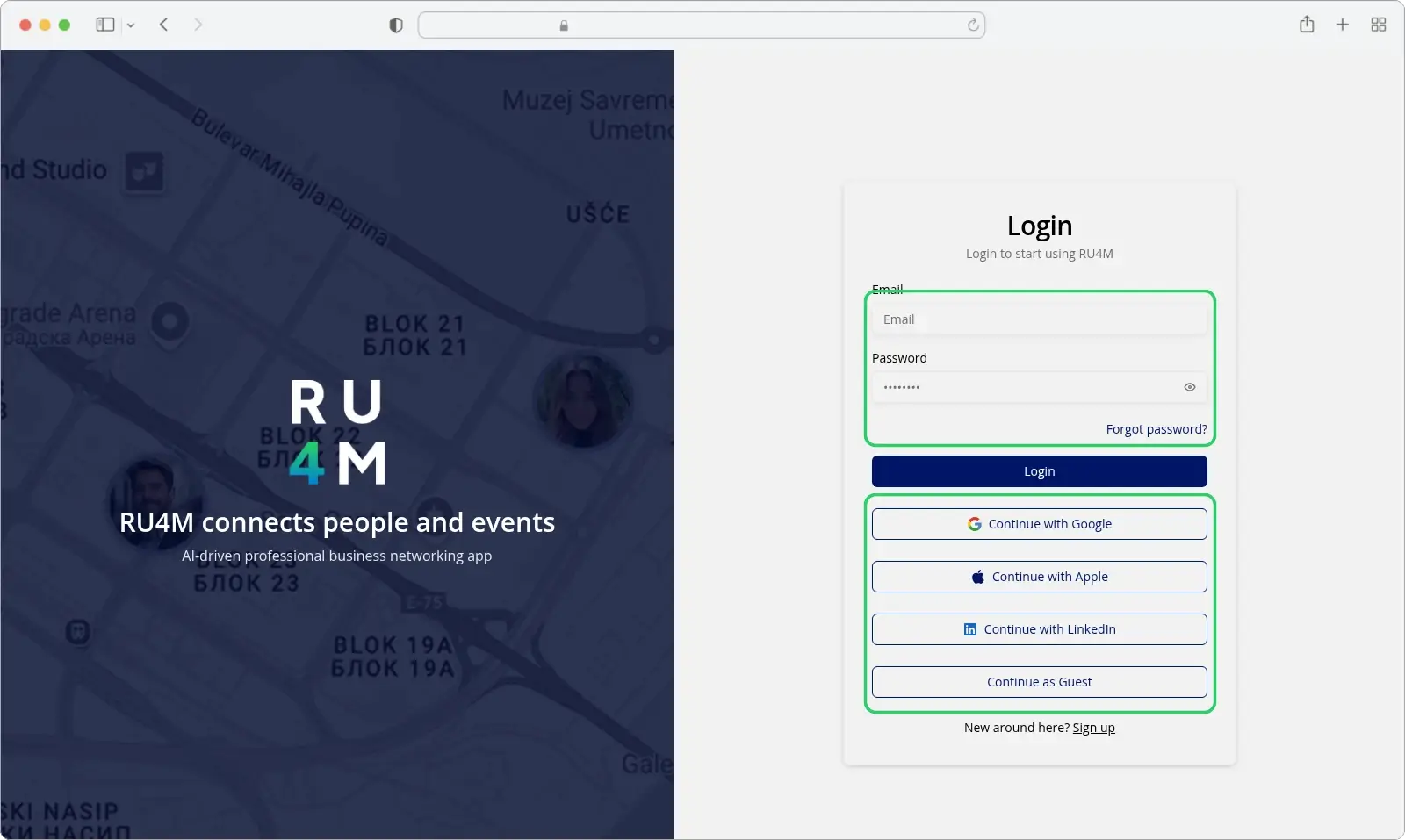
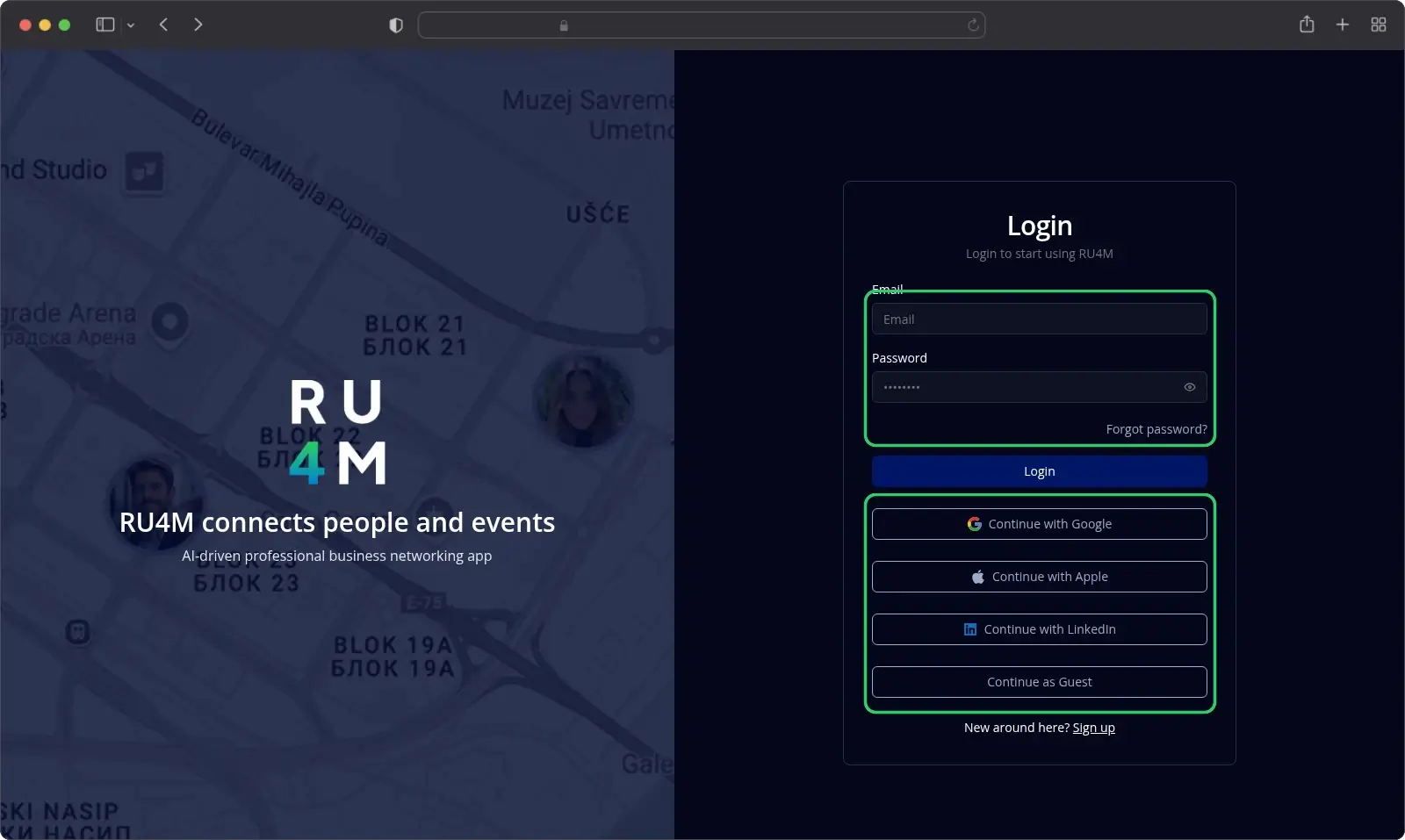
- Enter your Email.
- Enter your Password.
- Select Login.
Select the eye icon next to the password to see what you typed.
You can also sign in with Google, Apple or LinkedIn. They lead to the same page as the form. Select Continue as Guest to browse public event pages without an account.
Sign out
- Select your picture or initials at the bottom of the left bar. On a phone, select them at the right end of the bottom bar.
- Select Logout.
Backoffice returns you to the sign-in screen. See Sign out for everything the account menu holds.
Password recovery
Recover from a locked-login warning email
If your password-based account is temporarily locked, you may receive a warning email. You can recover your password while signed out, without an event, company or paid package.
- Select Reset password in the warning email.
- Request a code as described in Request a reset code.
- Set a new password as described in Set a new password.
The warning email opens the password request form in your browser. It does not contain a reset code or fill in your email address. The form uses the language saved for your account, or English if that language is unavailable.
Changing your password does not end an active login lock. Wait until the displayed lock interval ends before you try to sign in again.
Request a reset code
-
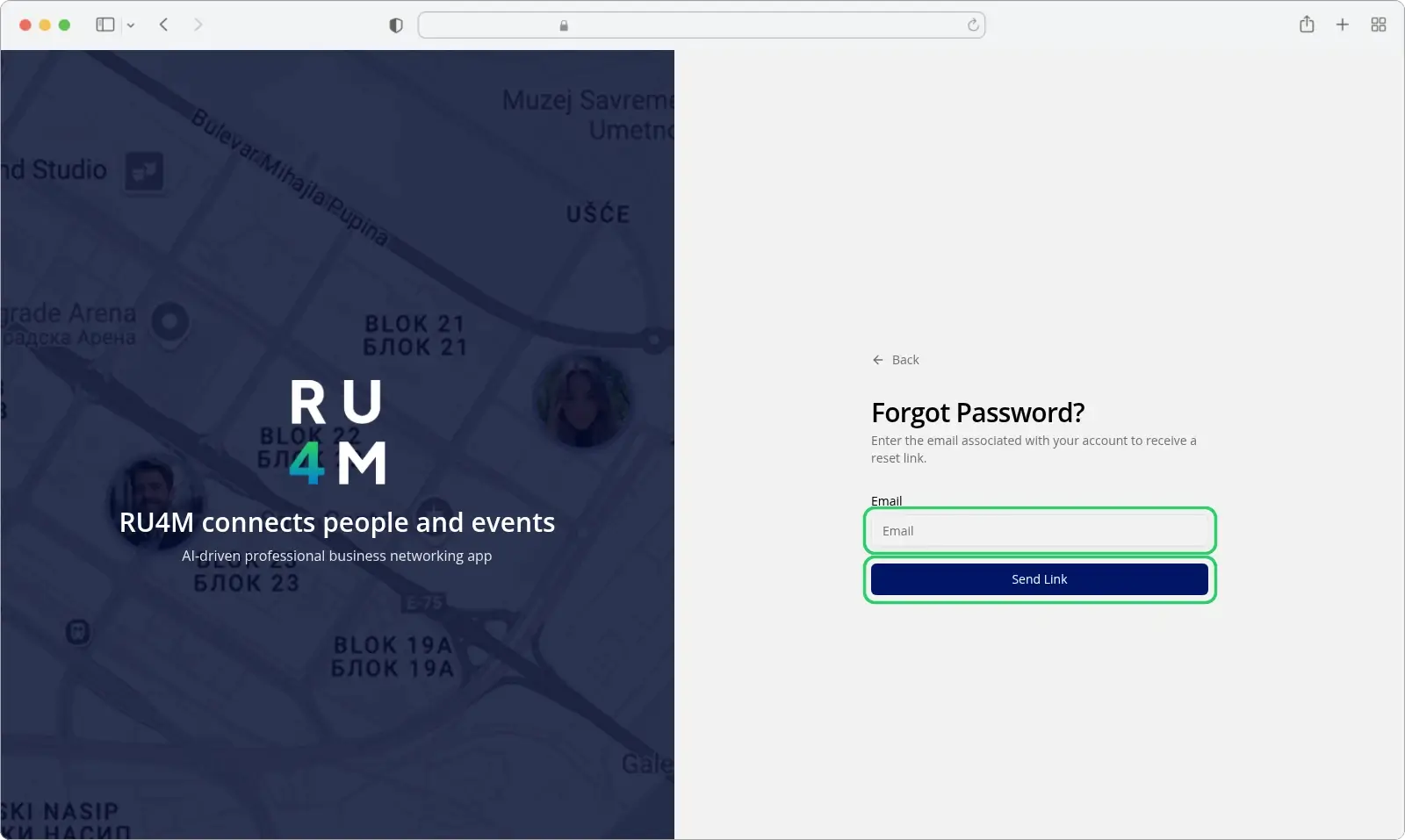
Open the password reset page.
-
Enter the email address of your account.
- Select Send Link.
Backoffice shows a Check your email panel.
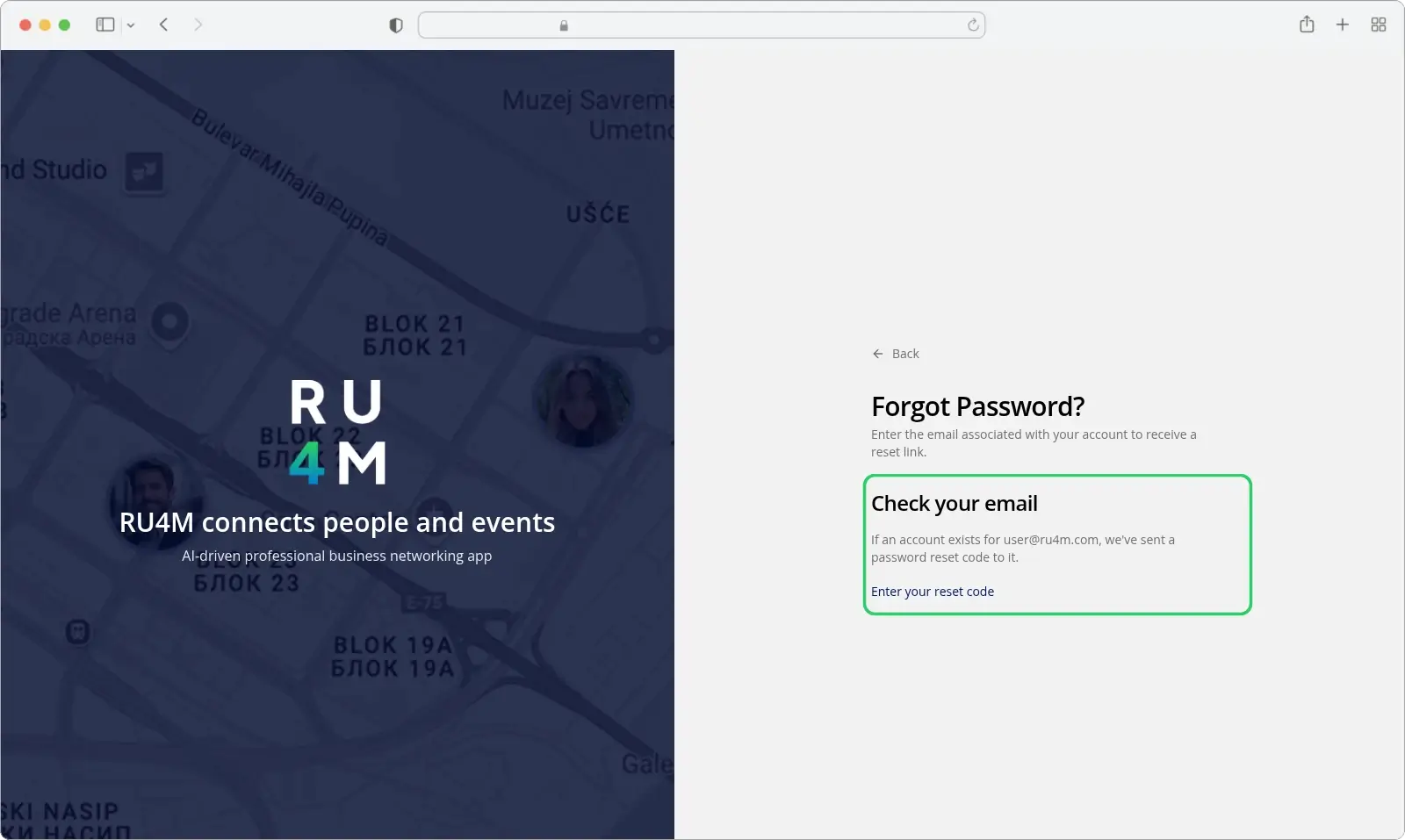
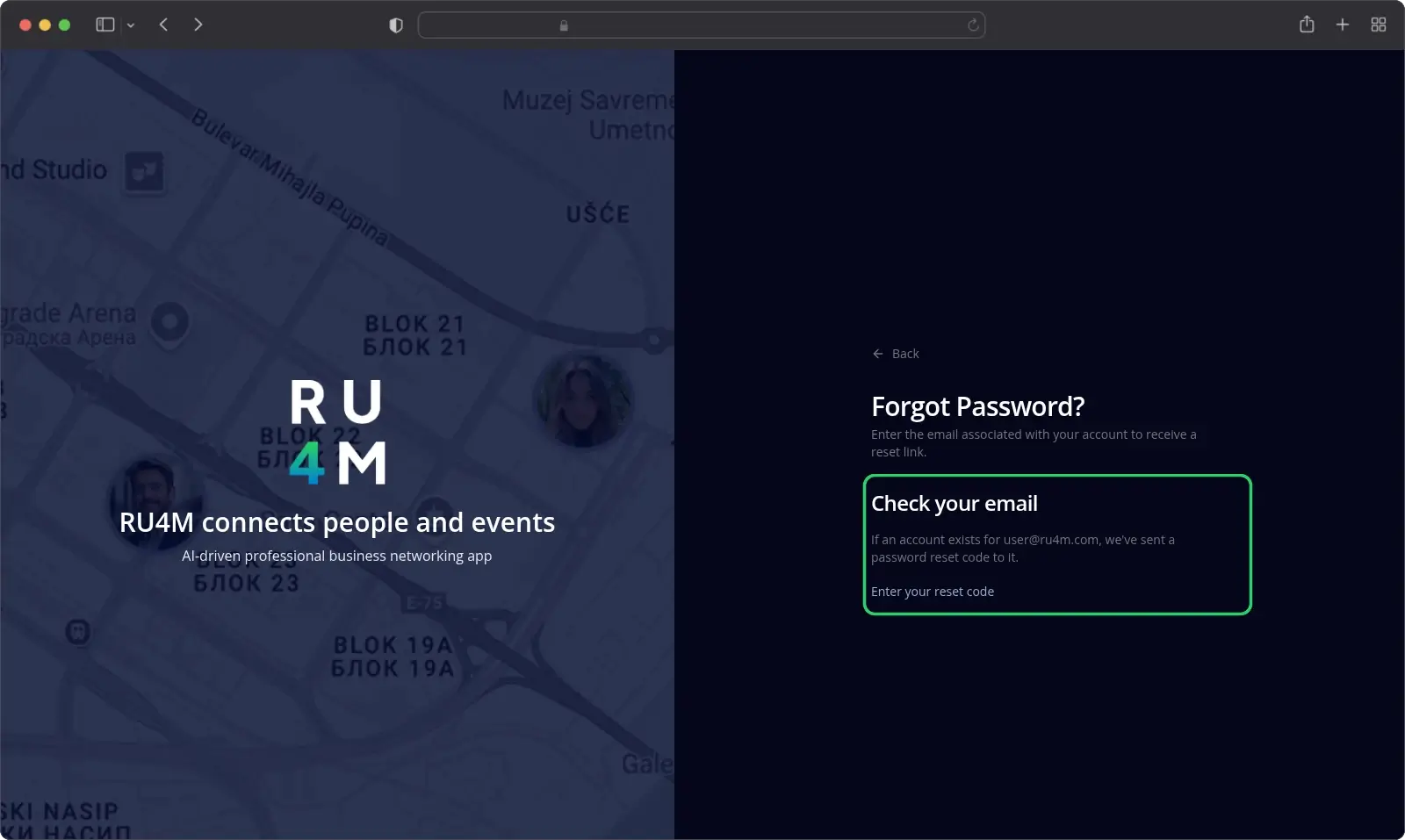
The button says Send Link, but the email carries a code
The button and the description on this screen say "link". However, the email contains a 6-character code. You type it on the next screen.
Select Enter your reset code to continue.
Set a new password
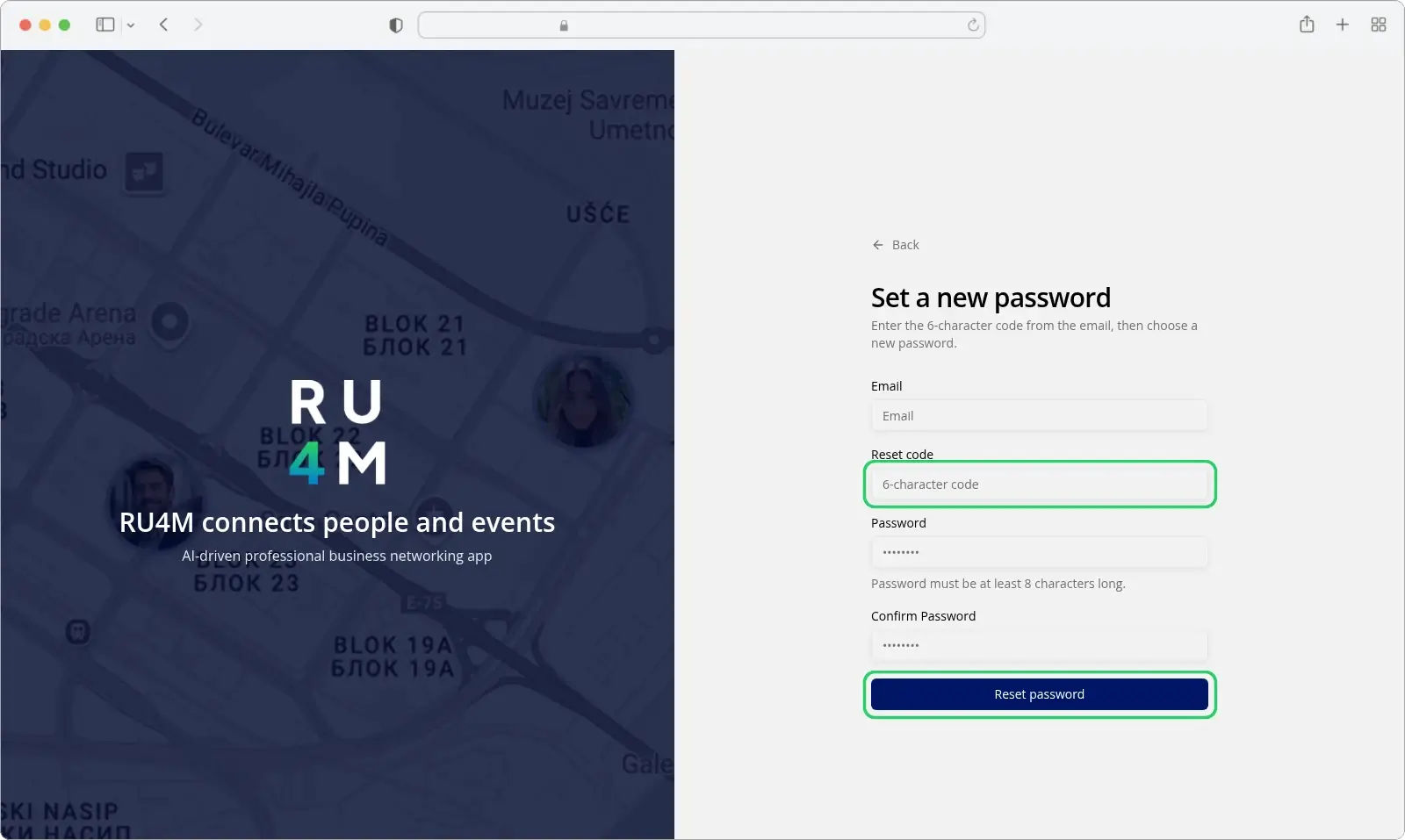
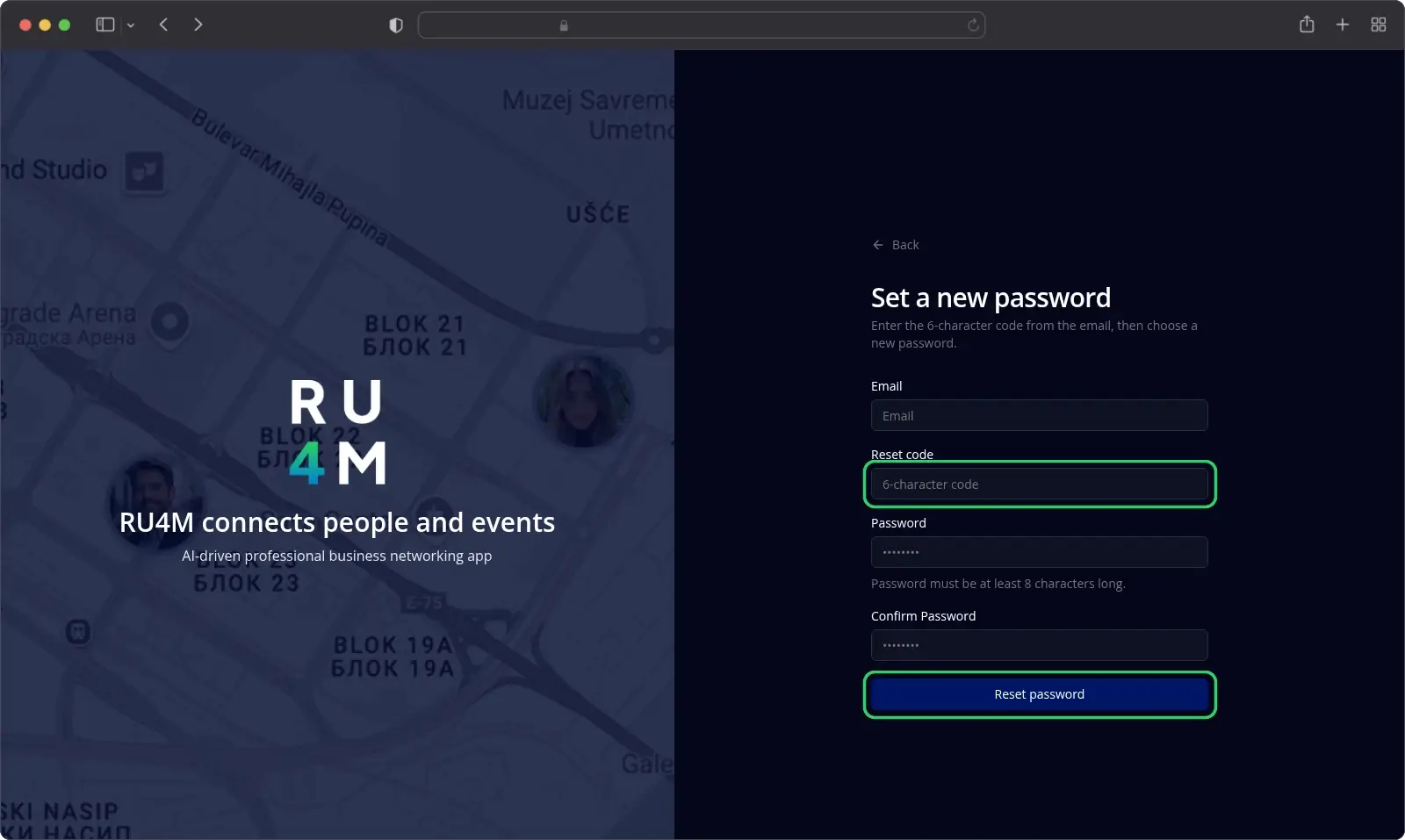
- Enter your Email again. The screen does not remember it for you.
- Enter the Reset code from your email.
- Enter your new Password.
- Enter the new password once more under Confirm Password.
- Select Reset password.
The code is 6 characters from 0-9 and A-F. You can type it in lower case. Each code works once and expires after one hour.
When you request a new code, the previous one stops working.
Your new password must contain:
- at least 8 characters,
- one uppercase letter,
- one lowercase letter,
- one digit,
- one special character, such as
!or#.
Your password must not contain spaces.
What happens next
Backoffice confirms the change and returns you to the sign-in screen. Your old password stops working. Backoffice also confirms your email address.
Troubleshooting
The confirmation email never arrived.
Look in your spam folder for a message titled Verify your email address. On the Check your email screen, select Resend email to request another message. You cannot open Backoffice until you confirm your address.
The screen says Send Link, but the email contains a code.
This is expected. Type the 6-character code on the Set a new password screen.
The reset code is rejected.
Request a new code and use the newest one. Codes expire after one hour, and each code works only once. A wrong code, an expired code and an unknown address all produce the same message, so request a new code first.
Backoffice rejects your new password.
Check that your new password has at least 8 characters, an uppercase letter, a lowercase letter, a digit and a special character. It must contain no spaces. An underscore is not a special character.
You already have an account with this email address.
Select Sign in or Forgot password? in the message under the email field.
The confirmation link does not work.
The screen reads Verification link is invalid or expired. Select Resend email to receive a new email.
If you signed out, select Sign in. Use the new link to confirm your address. See The confirmation link did not work.
An error appears in English on the Serbian form.
Some messages come from the server and are only available in English. The rest of the screen stays in Serbian.
Related tasks
- Your home page — what Backoffice shows right after you sign in.
- Finding your way and your events — move around Backoffice after you sign in.
- Language, currency and theme — change the language and the theme of the interface.
- Your first event — create your first event.
- Back to Get started