Finding your way and your events
Last update · 14 min read
Use this guide to move around Backoffice and find a specific event.
Before you start
You need a signed-in Backoffice account with a confirmed email address. Backoffice sends unconfirmed accounts to Check your email first.
You do not need a company, an event or a paid package to follow this guide.
Backoffice takes its language and colour theme from your browser. The screenshots on this page match the light or dark theme of this documentation site.
Navigation in Backoffice
Every dashboard page uses the same frame. You see the left bar with the main areas, the top bar across the page and the page content under it. Some areas add a panel between the left bar and the content.
The main areas
The left bar lists the main areas of Backoffice:
| Item | Takes you to |
|---|---|
| Home | Your home page, with what needs your attention |
| Events | Your events, on the events list |
| Comms | The Email Analytics page with your campaign results; see Email campaign results |
| Companies | Your companies and each company's workspace; see Companies |
| Integrations | API keys and webhooks for your companies; see Integrations |
| Help | This guide, in a new browser tab |
Integrations carries a New badge until you open it for the first time. The left bar highlights the area you are in. Select the RU4M logo at the top of the left bar to return to Home.
On a phone, the main areas sit in a bottom bar instead. The bottom bar has no logo, and Help moves into the account menu.
The top bar
One bar runs across the top of every dashboard page. There is no second header row, and pages have no visible title. The page content starts right under the top bar.
The left end of the top bar holds two things:
- The panel button, shown only where the page has a panel. See Open and close the panel.
- The location path, which shows where you are.
The location path shows the name of the page or view. On the events list it shows All events, Upcoming, Drafts or Past. On Home it shows Dashboard, and on Comms it shows Email Analytics.
Inside an event, the path shows the event title and the section, for example the event title, then Participants. Earlier parts of the path that lead somewhere are links. The last part is plain text.
The right end of the top bar holds these controls:
- Search…, which opens the command palette.
- Explore events, which opens the public event pages. It is hidden on narrow screens.
- The currency button.
- The language button.
- The theme button.
See Language, currency and theme for the last three controls.
Open and close the panel
A panel lists the pages of one area. Panels exist on these pages:
- The events list, as long as you are on the list itself.
- Inside an open event.
- In Companies, on the list and inside one company.
- In Integrations.
Home, Comms and other pages have no panel. A panel has no heading; it starts directly with its items.
| Panel | What it holds |
|---|---|
| Events list | All events, Upcoming, Drafts and Past with their counts, then Explore events, Live now and By company |
| Inside an event | The event's sections in groups; see Event workspace and overview |
| Companies list | All companies, Owned by you, You help manage and, when you have more than 20 companies, a link such as See all 25 companies |
| Inside a company | All companies to go back, a switcher for your other companies, then Details, People (Team members, Employment, Roles) and Setup (Company settings, Danger zone). A section you cannot use shows no access. See Companies |
| Integrations | Overview, API keys, Webhooks, Deliveries and Audit |
Before RU4M approves integration access, the Integrations panel shows its items with Available once RU4M approves access.
To open or close a panel:
- Select the panel button at the left end of the top bar.
- Select it again to close the panel.
You can also press Ctrl B on Windows and Linux, or ⌘B on a Mac. The button and the shortcut work only where a panel exists.
Backoffice remembers whether the panel was open for 7 days. On a phone, the panel slides over the page and closes after you pick a destination.
Open the command palette
Use the command palette to open another Backoffice area without a mouse.
- Press Ctrl K on Windows and Linux, or ⌘K on a Mac. You can also select Search… in the top bar.
- Type the name of a destination.
- Select the destination to open that screen.
The palette lists its destinations under Navigation: Events, Companies, Email Campaign Analytics and Integrations.
The palette does not search for events or list individual companies. To find an event, use the search box in the events table.
Ask the assistant
The Ask the assistant button sits in the bottom right corner of the screen. On a phone, it sits just above the bottom bar. It opens the RU4M assistant panel. The assistant answers questions about using Backoffice and links to the guide pages it used.
You need a signed-in Backoffice account with a confirmed email address. Your role, package and event status do not restrict access. Every confirmed account sees the same button.
If the assistant is not set up in the Backoffice you use, pages open without the button.
See Troubleshooting when the button is missing.
Where the button is
The button is on every page of the dashboard and on every step of the event wizard.
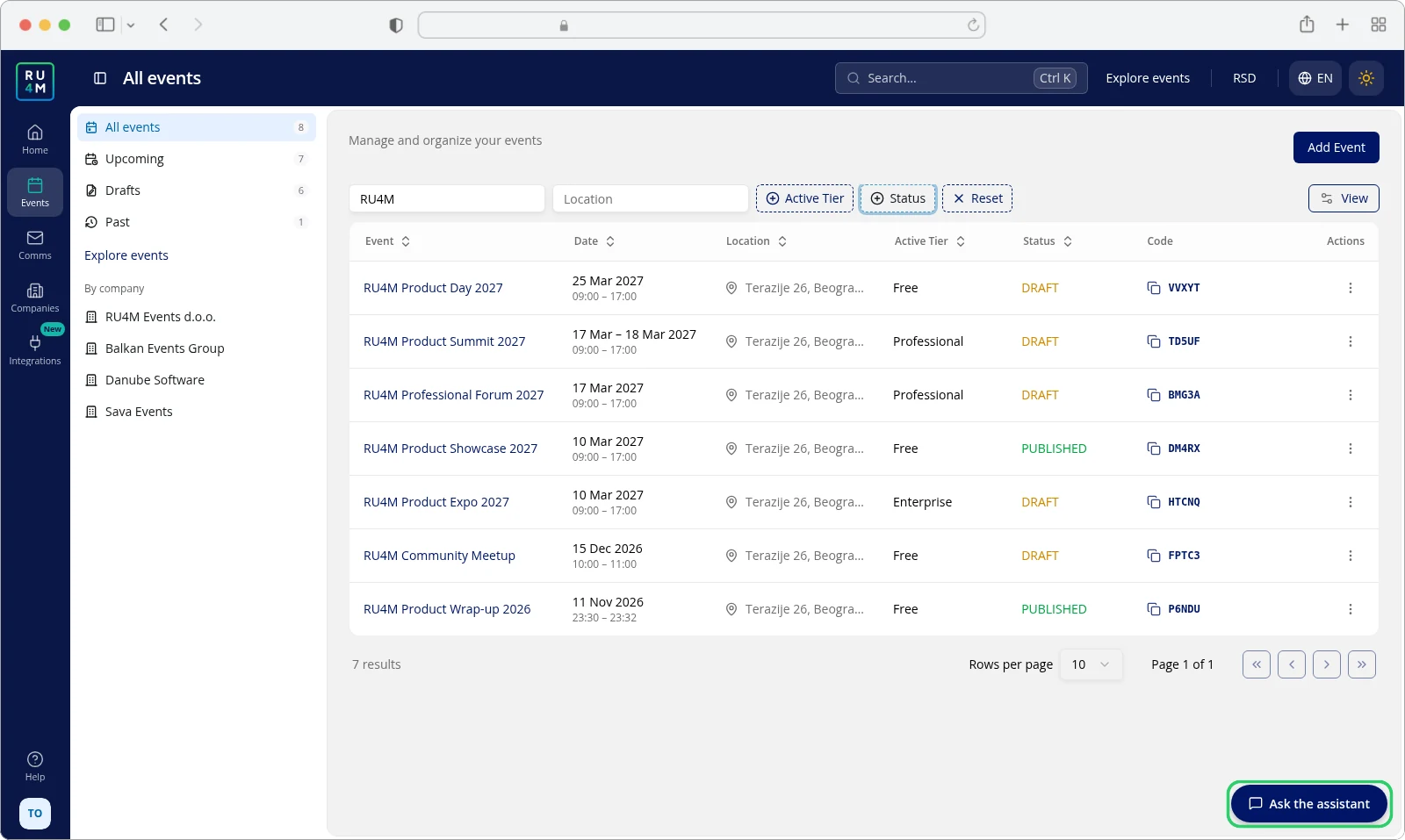
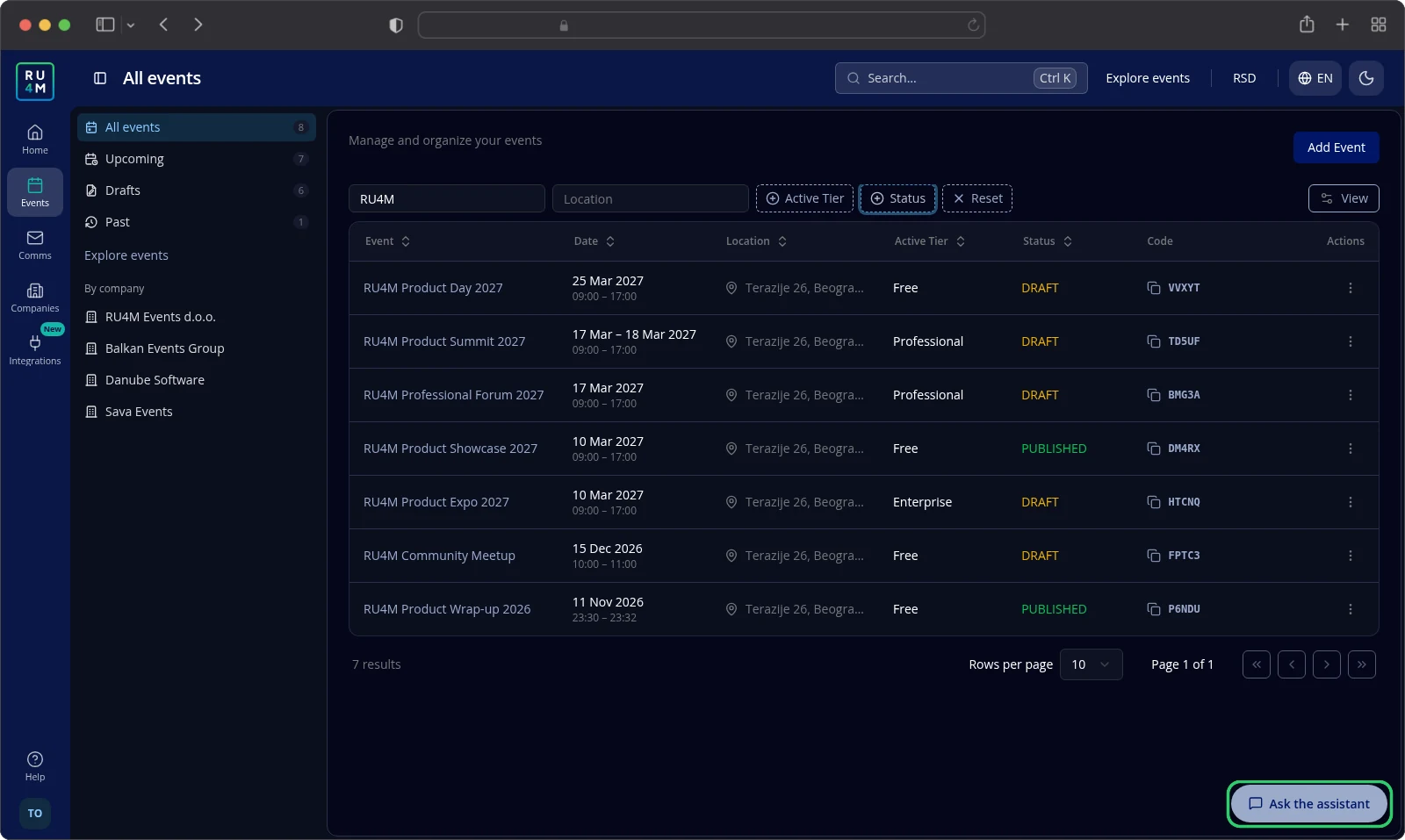
It is not on the payment pages, the public event pages, the sign-in page or the sign-up page. For wizard-specific help, see Get help while you create.
Ask a question
- Select Ask the assistant. The panel replaces the button in the bottom right corner.
- Type a question in Ask a question…, or select one of the three starter questions.
- Press Enter to send the question, or Shift+Enter for a new line.
- Read the answer in the panel.
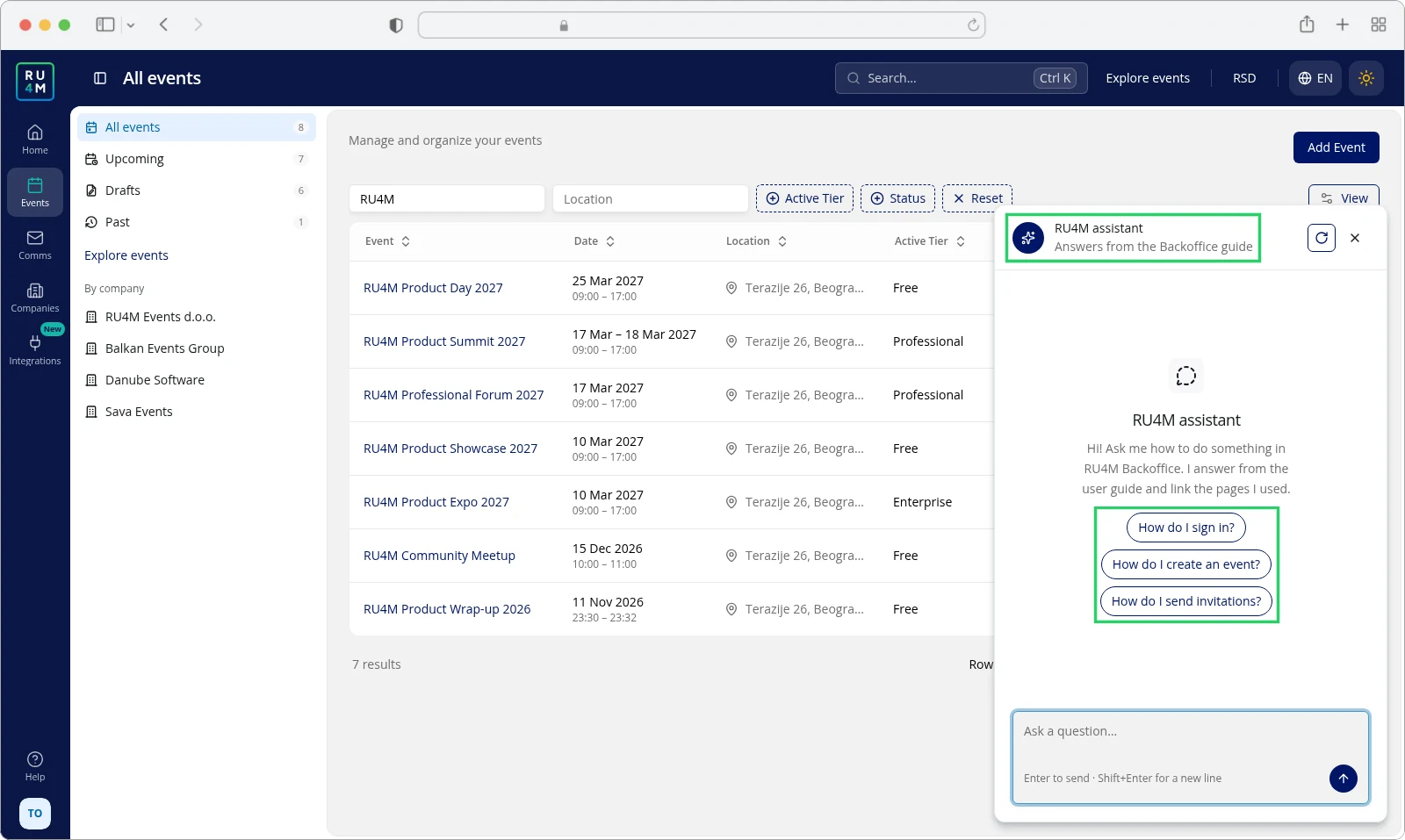
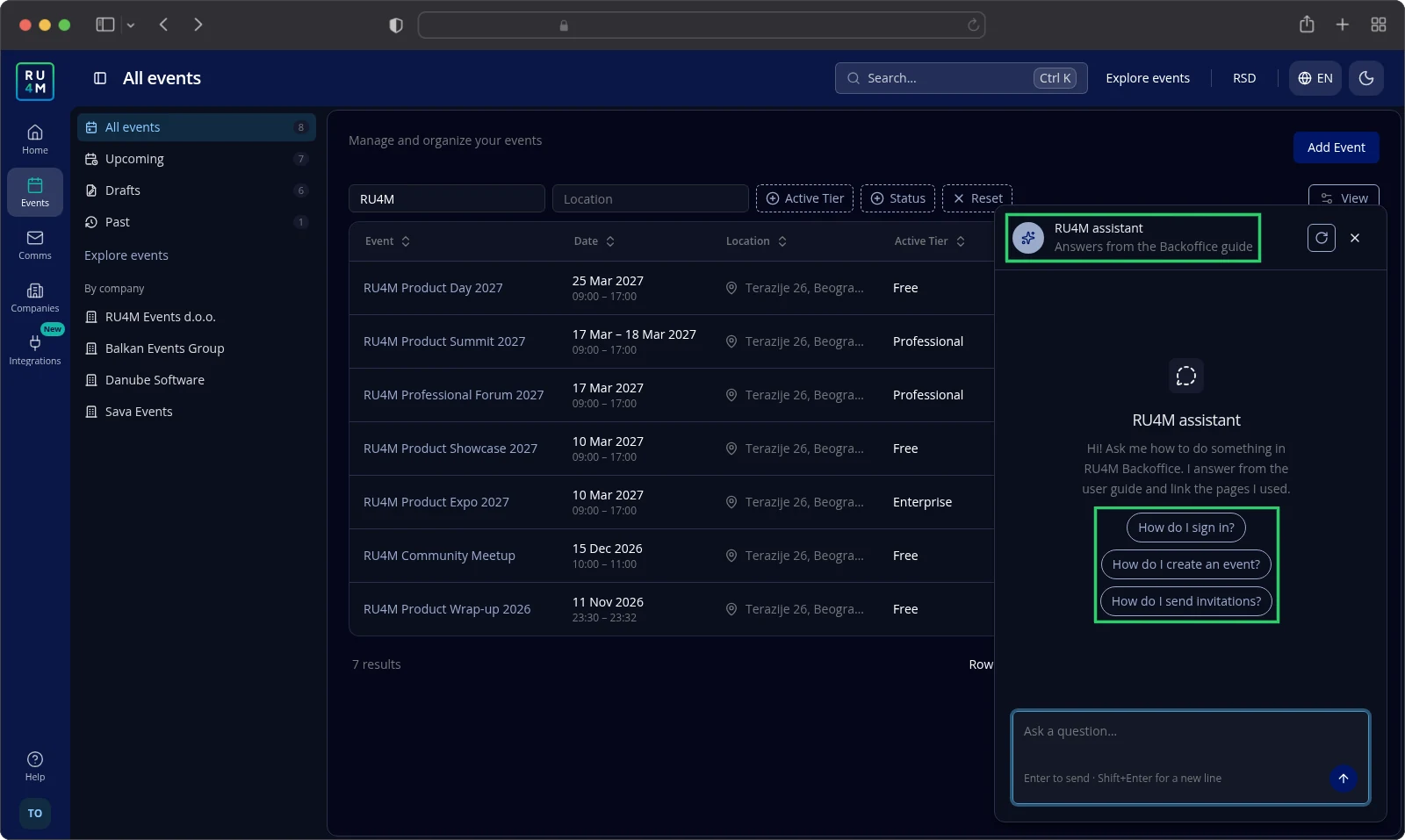
The panel shows the title RU4M assistant and the line Answers from the Backoffice guide.
You can select one of three starter questions:
- How do I sign in?
- How do I create an event?
- How do I send invitations?
In the event wizard, the panel offers three questions for your current step instead. The wizard may also show a bubble above the button with the same questions. Select a question to open the panel and send it.
Select No, thanks to dismiss the bubble.
See Get help while you create for the wizard's questions and bubble.
You can enter up to 2000 characters. The send button is greyed out while you wait for an answer. The line under the field reads Enter to send · Shift+Enter for a new line.
The answer arrives in the panel, and the guide pages it used appear under Sources. Select one of them to open that page in a new browser tab.
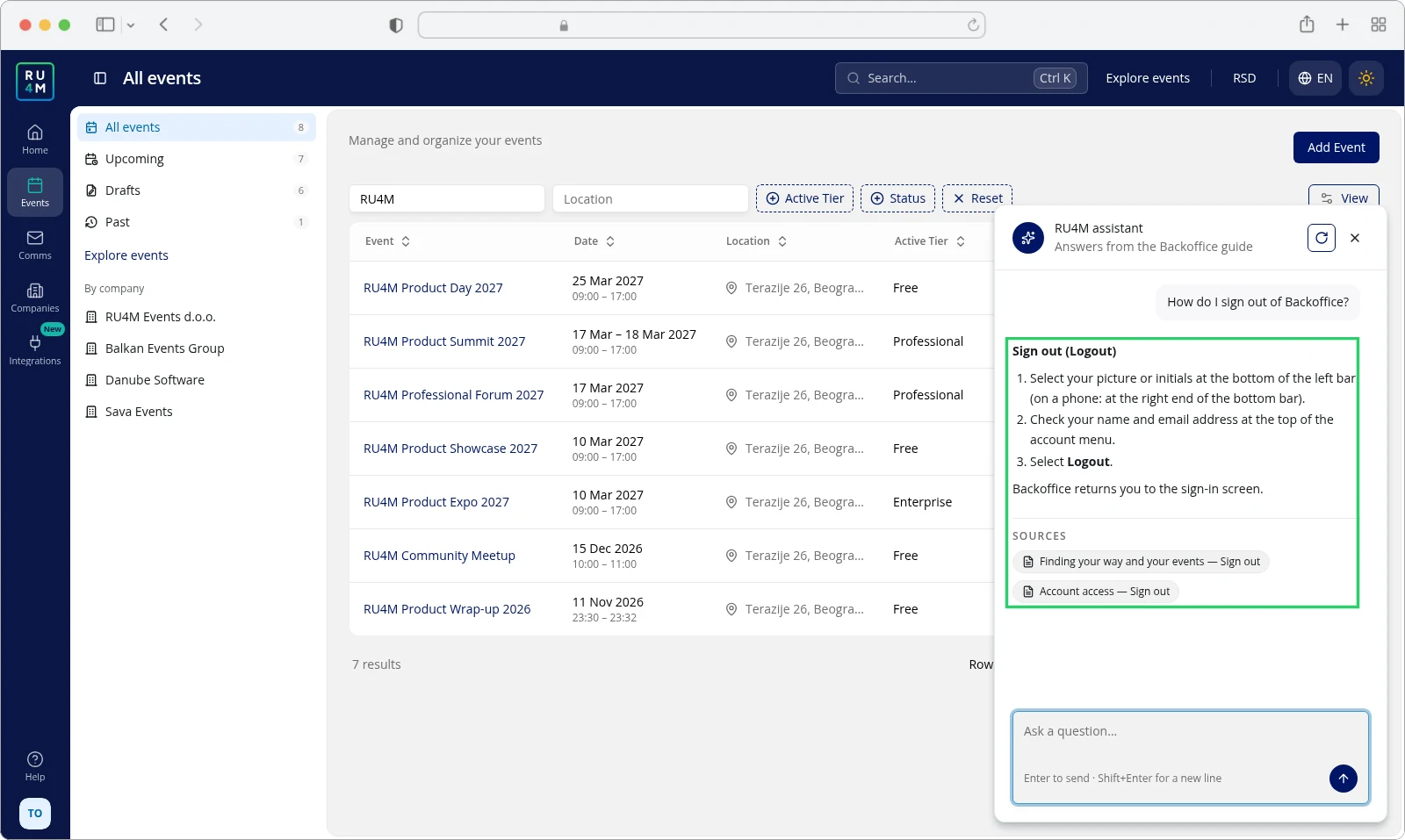
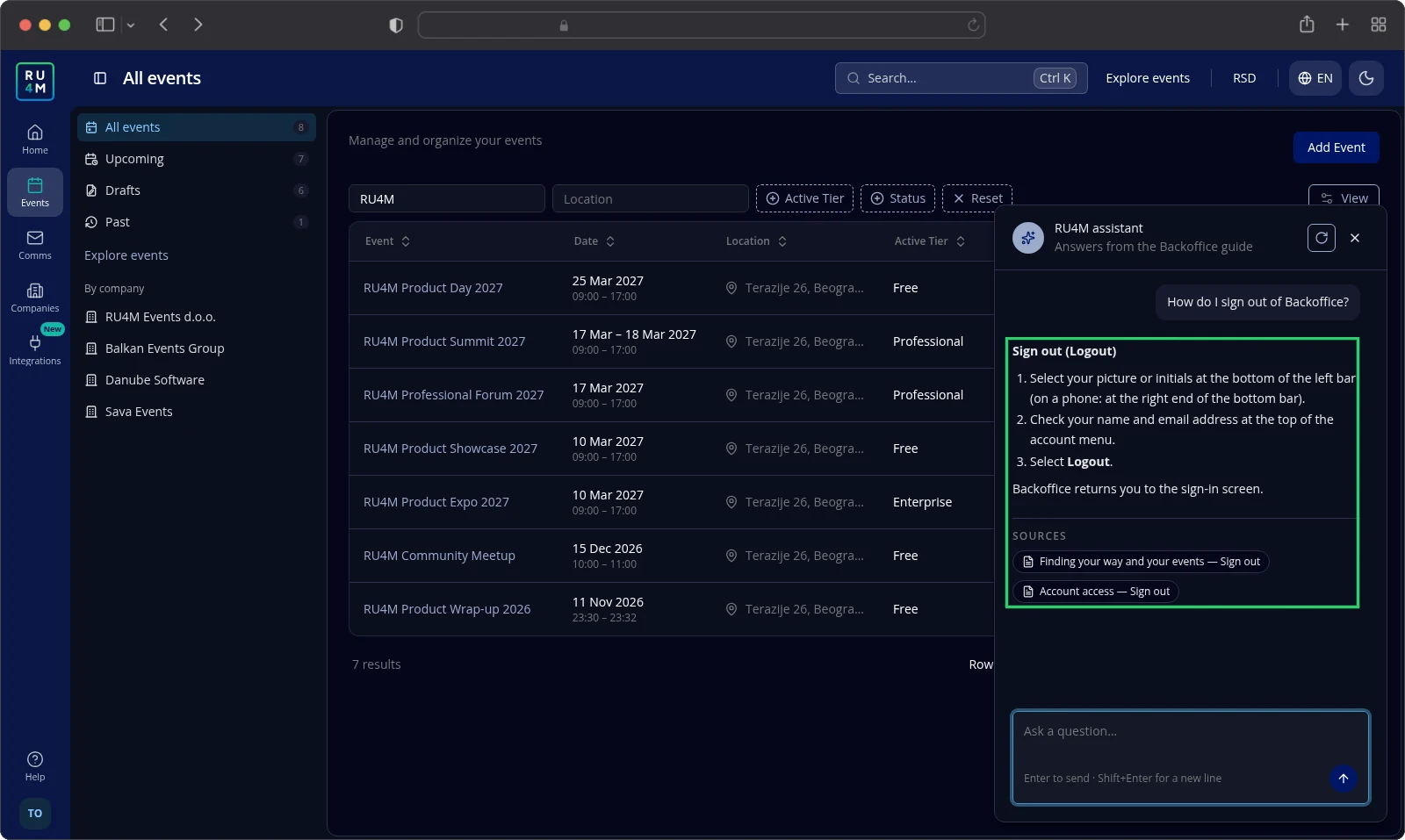
The panel's labels use the language of Backoffice. The answer follows the language of your question, so ask in the language you want to read.
Keep the conversation going
The panel keeps your questions in the same conversation and uses your earlier questions for context. The conversation stays in that browser tab.
New conversation clears your messages and answers and starts a new conversation. Closing the panel only hides it. Your messages and answers remain when you open it again.
What the panel cannot do
The panel reads this guide. That is all it can read.
It cannot see your event, your company, your account or your tickets, and it cannot change anything in Backoffice.
It is not a support channel. Support staff do not reply here, and the assistant does not create a support request.
The RU4M assistant keeps a record of your question, so the panel is not a private conversation. For anything that needs a person, see Contacting support.
When the panel does not answer
The error message tells you what went wrong.
Too many questions at once. Wait a moment and try again.
The service is busy. Wait a moment, then send the question again.
I can't answer right now. Please try again.
The request failed. Send the question again. If it keeps failing, send RU4M support the exact error message.
A third note is not a failure: The previous conversation expired, starting a new one. The panel starts a new conversation and answers again by itself.
See Troubleshooting for more help.
Sign out
- Select your picture or initials at the bottom of the left bar. On a phone, select them at the right end of the bottom bar.
- Check your name and email address at the top of the account menu.
- Select Logout.
Backoffice returns you to the sign-in screen. On a phone, the account menu also holds Help.
Finding your events
After you sign in, Backoffice opens your home page. Select Events in the left bar to open your events list.
The page opens with a short description on the left and Add Event at the top right. The location path in the top bar shows the view you are in. The table footer shows how many events match your search and filters.
Choose a view
The Events panel offers four views. Each view shows how many events it holds.
| View | What it shows |
|---|---|
| All events | Every event you can see |
| Upcoming | Events that have not ended yet, including events running right now |
| Drafts | Events with the DRAFT status, including free-package events that show DRAFT |
| Past | Events whose end date has passed |
- Open the Events panel. If it is closed, select the panel button at the left end of the top bar.
- Select a view.
The top bar then shows the view's name. Selecting a view clears your search, filters, sort and page. A company you chose under By company stays selected.
The view counts ignore your search and filters, so a count can differ from the number of rows in the table.
See what is live
Each event that is running right now appears twice:
- Under Live now in the Events panel. Select the event to open it.
- As a green card marked Live Now above the table.
View Event on the card opens the event. Manage Attendees appears only when you can edit the event, and it opens the event's mailing lists. Your home page shows the same cards.
Show one company's events
By company in the Events panel lists the companies where your role can edit company details: Owner, Admin, Manager, or a custom role with Edit company details. A Member, or a custom role without that permission, does not see the company here.
- Select a company under By company.
- Select a view if you want to narrow the list further.
The list then shows only that company's events. The address keeps the company, so you can bookmark it. The event switcher inside an event keeps the same company; see Event workspace and overview.
By company shows your first 20 companies. When you have more, select All companies to open the companies list.
Select Explore events in the panel to open the public event pages.
Read the events table
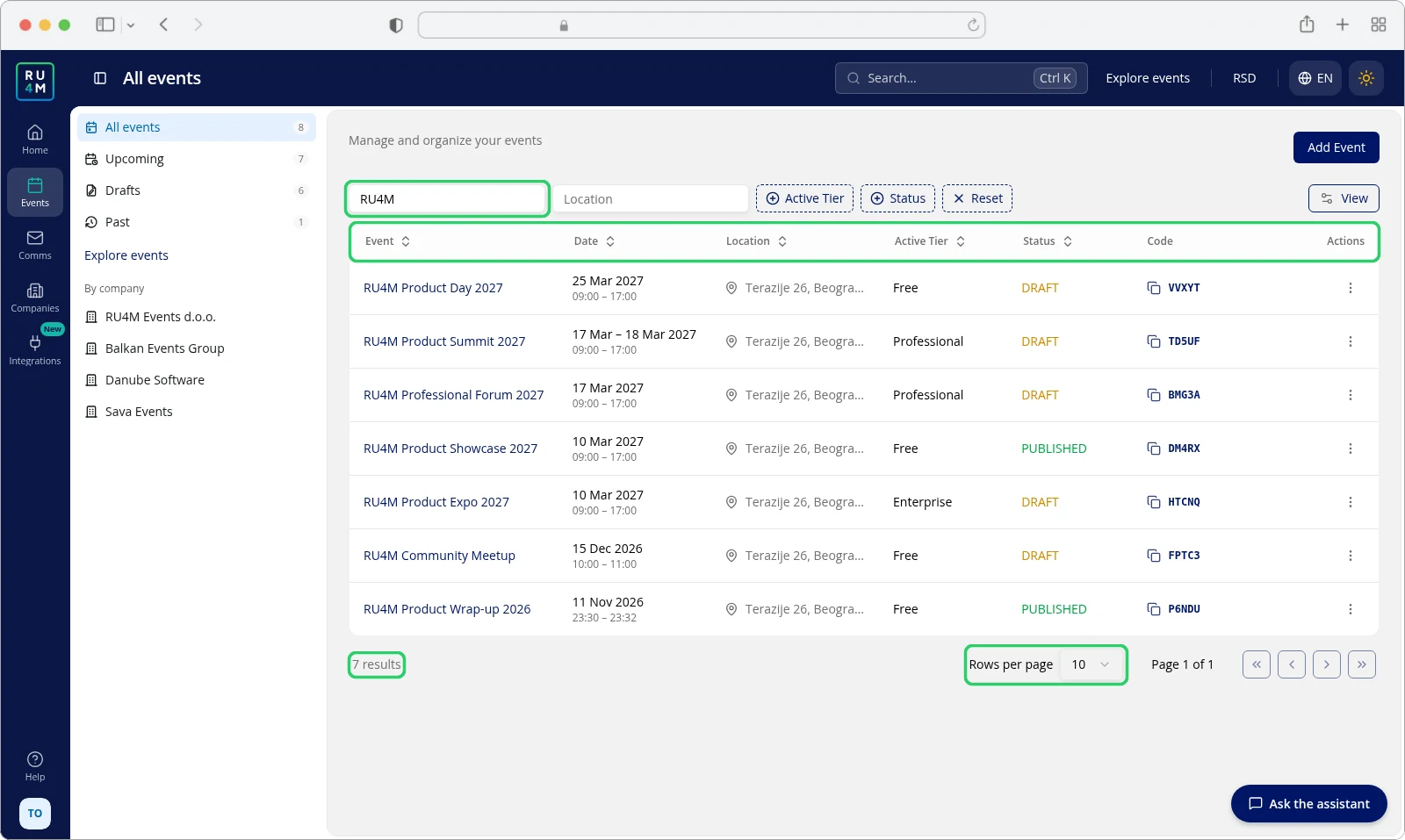
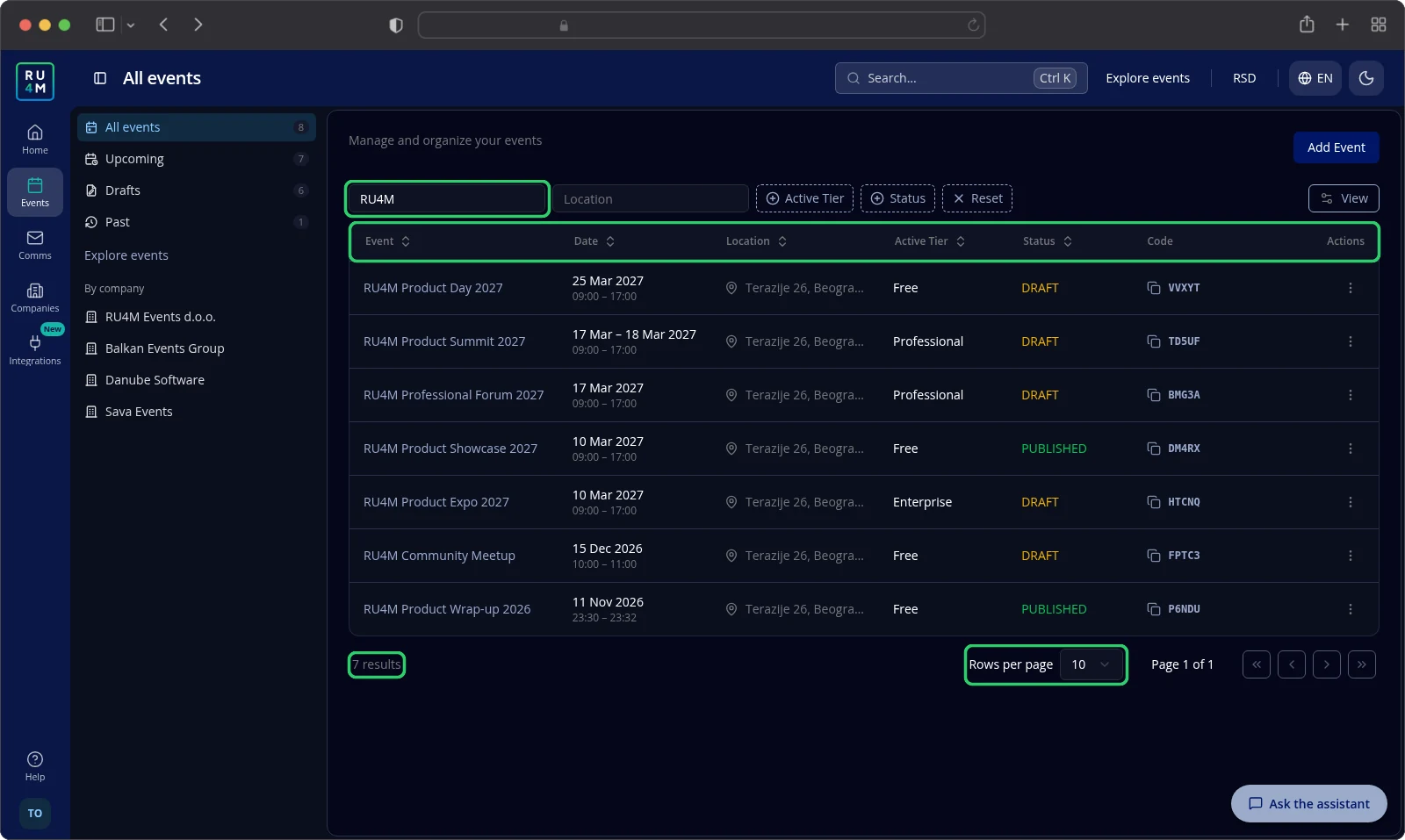
The table has these columns:
| Column | What it shows |
|---|---|
| Event | The event's title |
| Date | The event date and time range |
| Location | Where it takes place |
| Active Tier | The package the event currently uses |
| Status | How far the event has progressed |
| Code | The short code for the check-in desk |
| Actions | What you can do with this event |
When an event has no date yet, the Date column reads TBA. The same happens for a missing location. When an event has no package, you see a dash instead.
The table shows dates as day, month and year, for example 15 Dec 2026. This order is the same in every language.
The table does not show how many people attend, and it does not switch between different layouts.
Open one event
Select the event's title. Backoffice opens the event's Overview when you can edit the event, otherwise its Participants.
Selecting the empty space in the row does nothing. You have to select the title itself.
Understand the status
Each status has its own colour:
| Status | Colour | Meaning |
|---|---|---|
| DRAFT | Amber | You are still preparing the event |
| PENDING | Grey | Backoffice does not set this status, so it does not appear on your events |
| PUBLISHED | Green | The event is visible to attendees |
| PAYMENT COMPLETED | Blue | The package has been paid for |
These four status names stay in English even when you read Backoffice in Serbian.
An event on a free package shows DRAFT instead of PAYMENT COMPLETED. A free package needs no payment, so its event never reaches PAYMENT COMPLETED.
Actions on one event
The Actions column offers View, Edit, Invite, Edit Tier, Upgrade Tier, Publish, Unpublish and Delete.
You only see the actions you are allowed to use. An event you cannot edit offers no actions at all.
When the list is empty
When you have no events, no live events and no active filters, you see a first-event panel instead of the table. The panel does not show a table or result count.
Select Create your first event to start creating an event. The panel also offers a first-event guide link, which opens a new tab.
If the guide link does not open, read Your first event here instead.
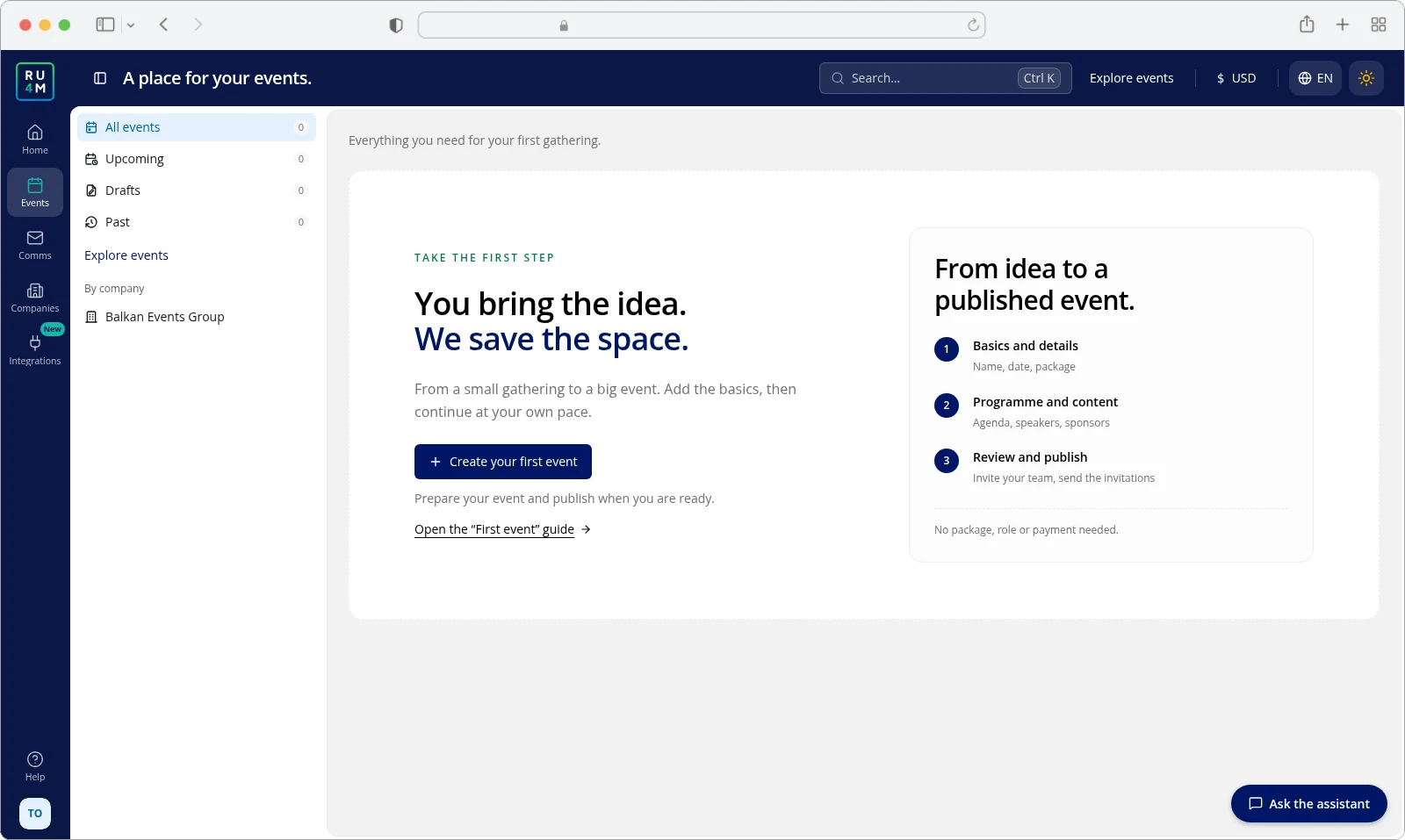
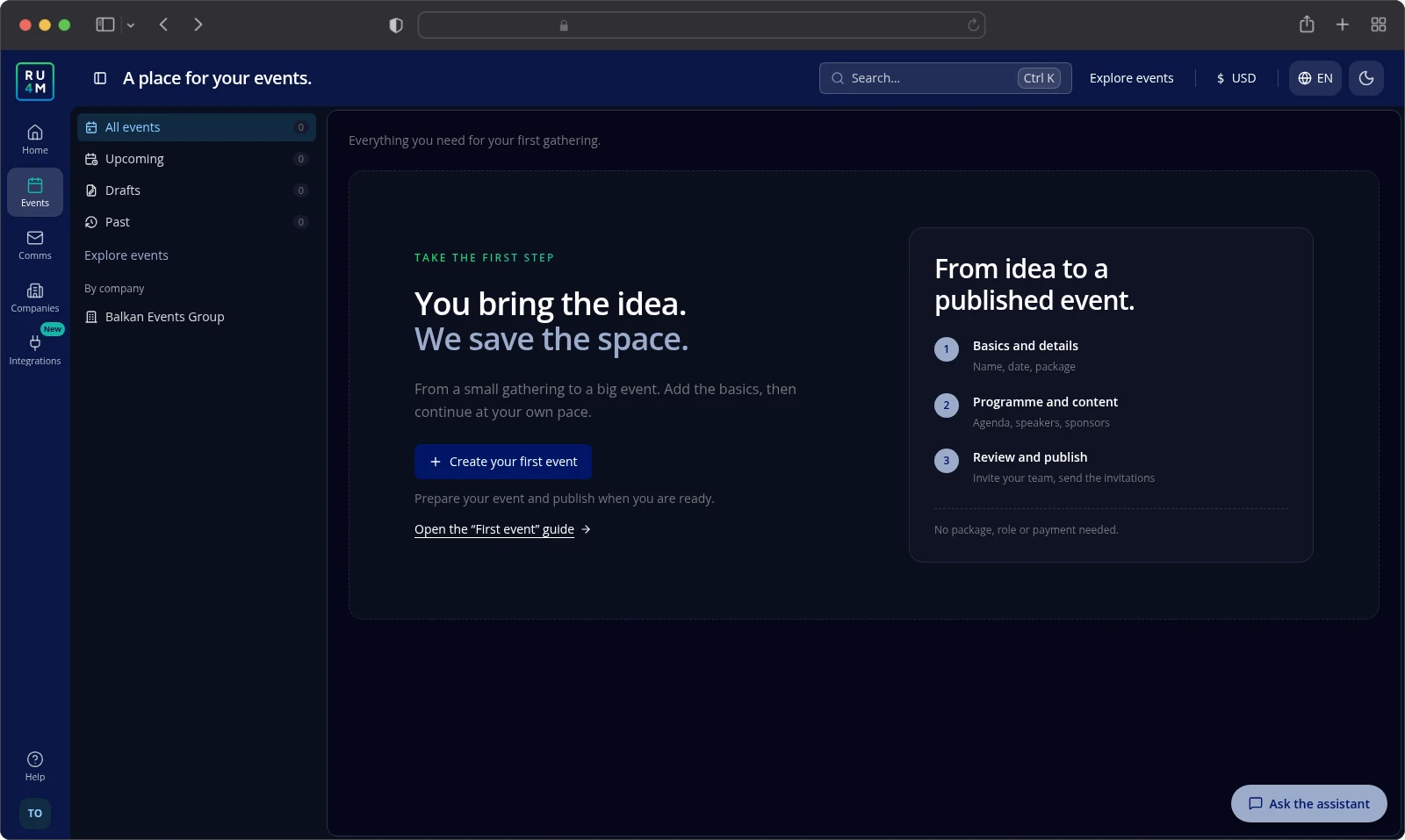
If a search or filter matches nothing, the table stays and shows No results. instead.
When a view or a company holds no events, the page shows No events in this view. Select All events under the message to see your whole list.
Events that are missing from the list
Backoffice shows you the events you moderate, plus the events whose organizer company you manage.
An event disappears from your list when you no longer moderate it and no longer manage its company.
Search and filters
Search by title
The search box at the left of the toolbar is labelled Search events....
- Select the search box.
- Type part of an event's title.
- Stop typing. After a moment, the table shows only the matching events.
Search looks at the title and nothing else. It ignores the location, the date, the package and the status.
If a search does not find an event, the event may still be in your list. Try the Location filter instead.
Search ignores accents. You can also find an event titled Riječ by typing Rijec.
Filter the list
Three columns carry a filter: Location, Active Tier and Status.
- Select Active Tier or Status above the table.
- Tick the values you want.
- Close the menu. The table shows only the matching events.
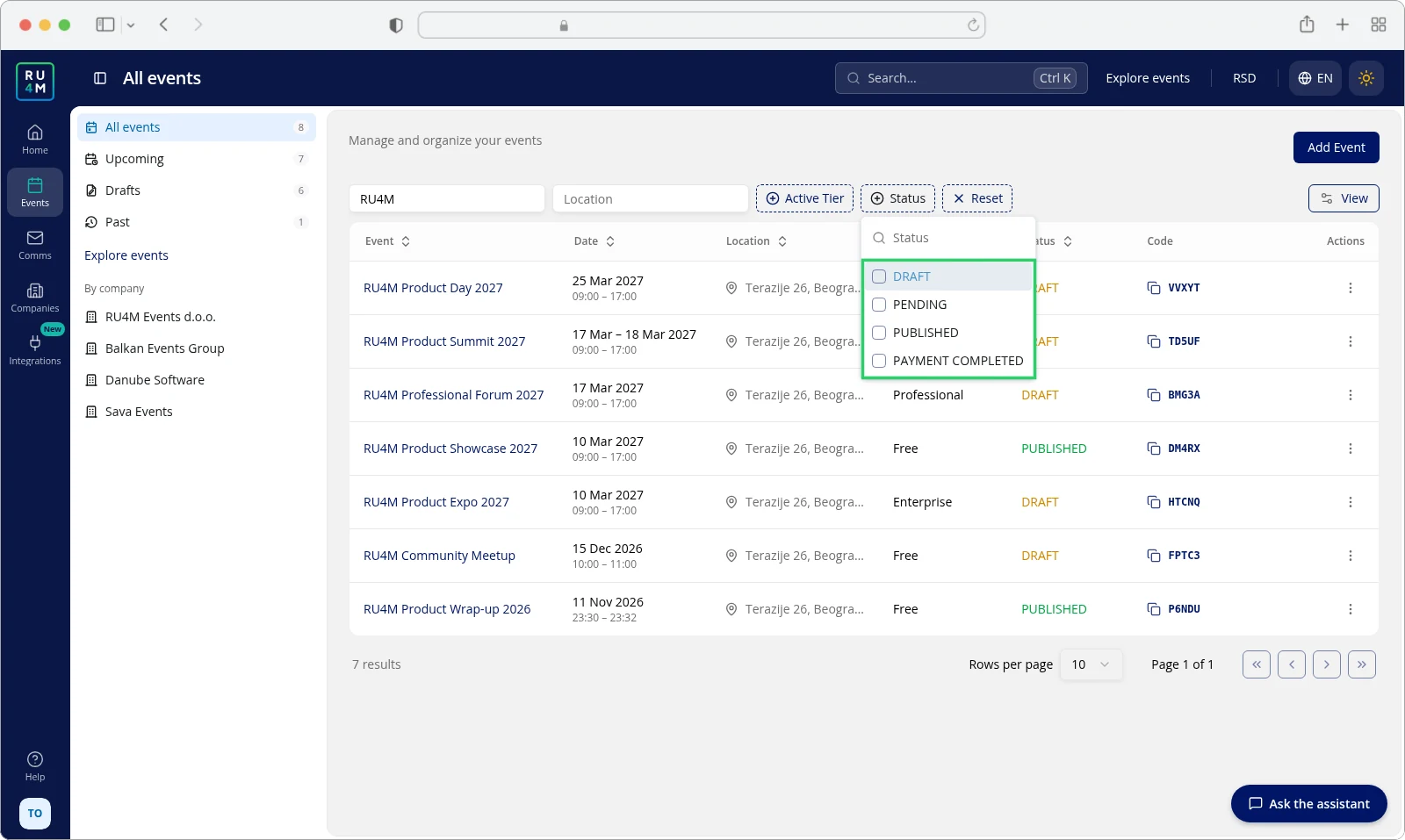
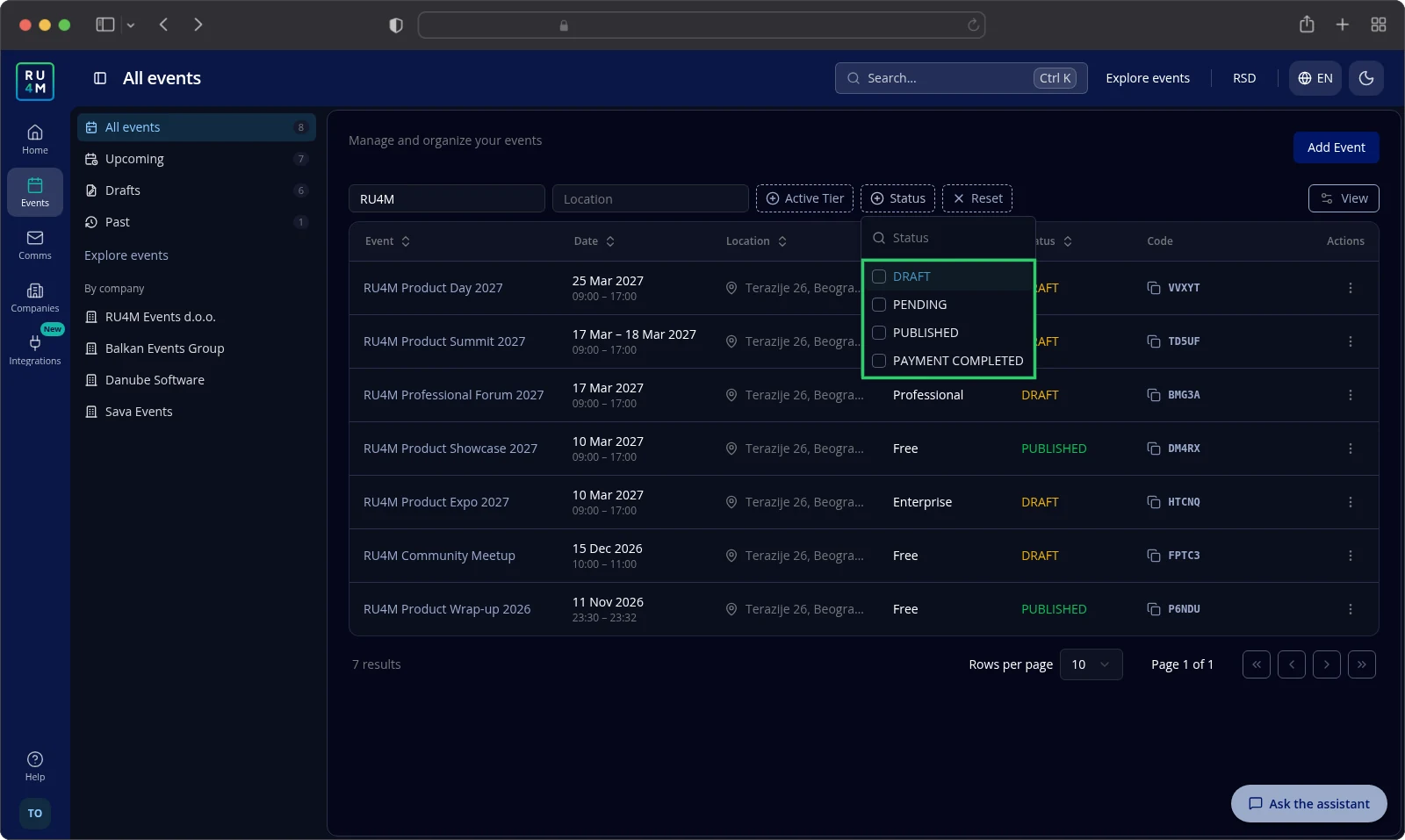
- Location is a text box, not a menu. Type part of a place name into it.
- Active Tier offers the packages your own events use, so your list may differ from someone else's.
- Status always offers exactly four values: DRAFT, PENDING, PUBLISHED and PAYMENT COMPLETED.
The Drafts view and the DRAFT status filter work together. The Drafts view sets the Status filter to DRAFT. Filtering Status to DRAFT alone highlights the Drafts view. Choosing Upcoming or Past clears the Status filter.
Shortcuts from Home
The Needs attention rows on your home page open this list for you. Drafts to publish opens the Drafts view. Awaiting package payment and Paid, not published yet open the list filtered to PENDING and PAYMENT COMPLETED.
A Reset button appears whenever a search or filter is active. Select it to clear everything and see your full list again.
Filters and search cover all your events, not only the page you are looking at.
Sort the columns
Select a column heading to open its sort menu.
Choose Asc for ascending order, such as oldest first, or Desc for descending order, such as newest first.
An arrow beside the heading points up for ascending order and down for descending order.
Choose Reset in the menu to remove the sorting.
You can sort by Event, Date, Location, Active Tier and Status. You cannot sort Code or Actions.
The table sorts by one column at a time.
Change the page size
The table footer has two controls.
Rows per page sets how many events appear at once. Choose 10, 20, 30, 40 or 50. The default is 10.
Page 1 of 5 shows where you are. The four buttons next to it jump to the first, previous, next and last page.
Choose the columns you see
The View button at the right end of the toolbar opens the list of columns.
- Select View.
- To find a column in a long list, type its name in Search columns....
- Untick the columns you want to hide.
Your choice lasts only while the page stays open. Backoffice does not save it.
Share a filtered view
Backoffice writes your view, company, search, filters, sort and page into the address bar.
You can bookmark the address, send it to a colleague, or reload the page without losing your view.
Troubleshooting
Selecting the row does nothing. Select the event's title instead. Only the title opens the event.
The search box finds nothing. Search checks event titles only. Clear the search, then use the Location filter to look for the event.
A filter hides one of my events. Filters cover all your events. Select Reset to clear them and see the full list.
An event I created is missing. Backoffice lists the events you moderate and those whose company you manage. Check whether you still have either role.
A row has no actions. You cannot edit that event. Ask the person who created the event, or an Owner or Admin of the organizing company, to give you access.
The panel button is missing, and Ctrl B does nothing. This page has no panel. Panels exist on the events list, inside an event, in Companies and in Integrations.
Help is missing on my phone. Select your picture or initials at the right end of the bottom bar. Help is in the account menu.
A company is missing under By company. Your role in that company cannot edit company details: you are a Member, or your custom role lacks Edit company details. Otherwise the company is past your first 20 companies. Select All companies to see the full list.
A view count differs from the rows in the table. The counts ignore your search and filters. Select Reset to clear them.
My event shows DRAFT, not PAYMENT COMPLETED. The event uses a free package, which needs no payment. PAYMENT COMPLETED appears only for a package that needs payment.
Related tasks
- Account access — create your account and sign in.
- Your home page — what Backoffice shows after you sign in.
- Language, currency and theme — change the language, currency and theme.
- Your first event — create your first event.
- Event workspace and overview — the event panel and its sections.
- Companies — manage your companies and their members.
- Back to Get started