Language, currency and theme
Last update · 4 min read
Change the language, currency and theme from the Backoffice top bar. You can read Backoffice in your own language and see prices in the currency you pay in. You can also switch between light and dark themes.
Before you start
You need a signed-in Backoffice account with a confirmed email address. All three controls are open to every signed-in account, so you need no package, role or payment.
The three controls sit together at the right end of the top bar. The top bar runs across every dashboard page, in every area of the left bar. From left to right they are the currency button, the language button and the theme button.
After you sign in, Backoffice opens your home page. The three controls are already in its top bar. On a phone, Explore events hides, but the three controls stay in the top bar.
Choosing a language
The language button shows a globe and the code of your current language in capital letters, such as EN.
The menu offers seven languages: English, Serbian, German, Italian, French, Spanish and Turkish.
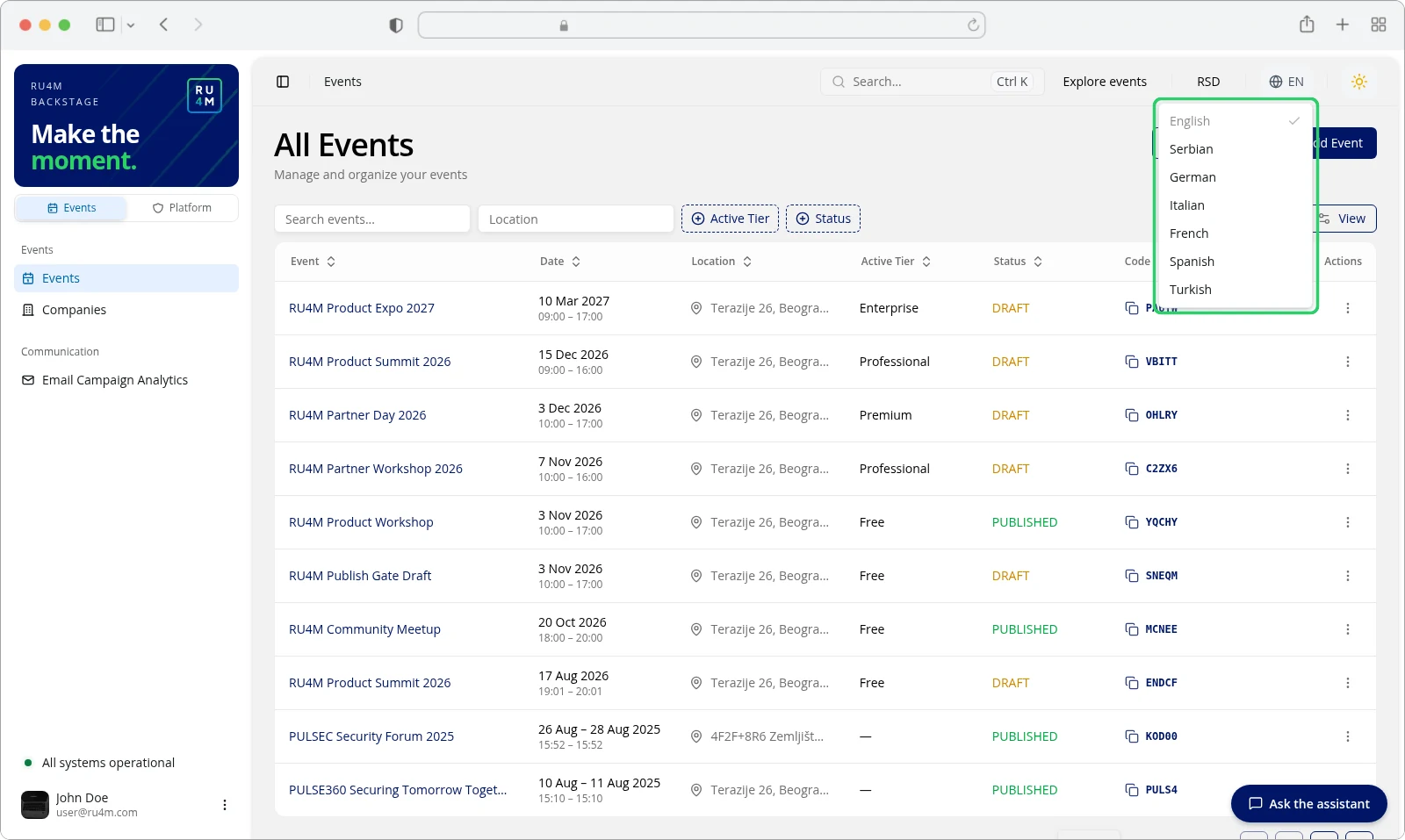
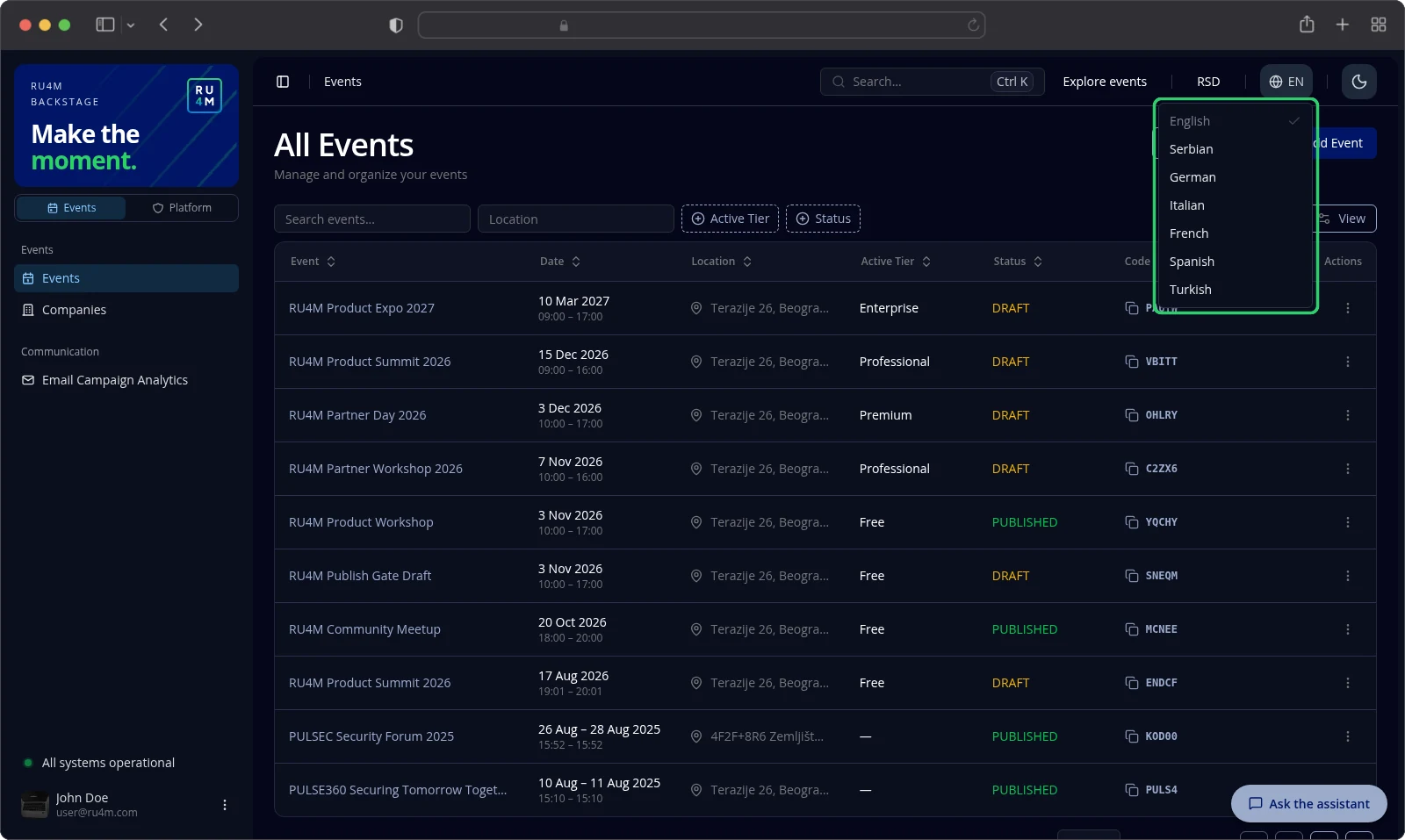
- Select the globe button, the second of the three controls.
- Select the language you want from the menu.
Backoffice switches to that language at once. The address in your browser changes with it, so /en/dashboard/events becomes /sr/dashboard/events. You stay on the page you were reading.
Your current language is greyed out and marked with a tick. You cannot select your current language again.
Choosing a currency
The currency button shows the code and, when different, the symbol. For example, it shows RSD or $ USD. On a narrow screen it shows the code alone.
The menu offers 23 currencies. Each row shows the symbol and code, such as RSD RSD. The currency you use sits on a grey background.
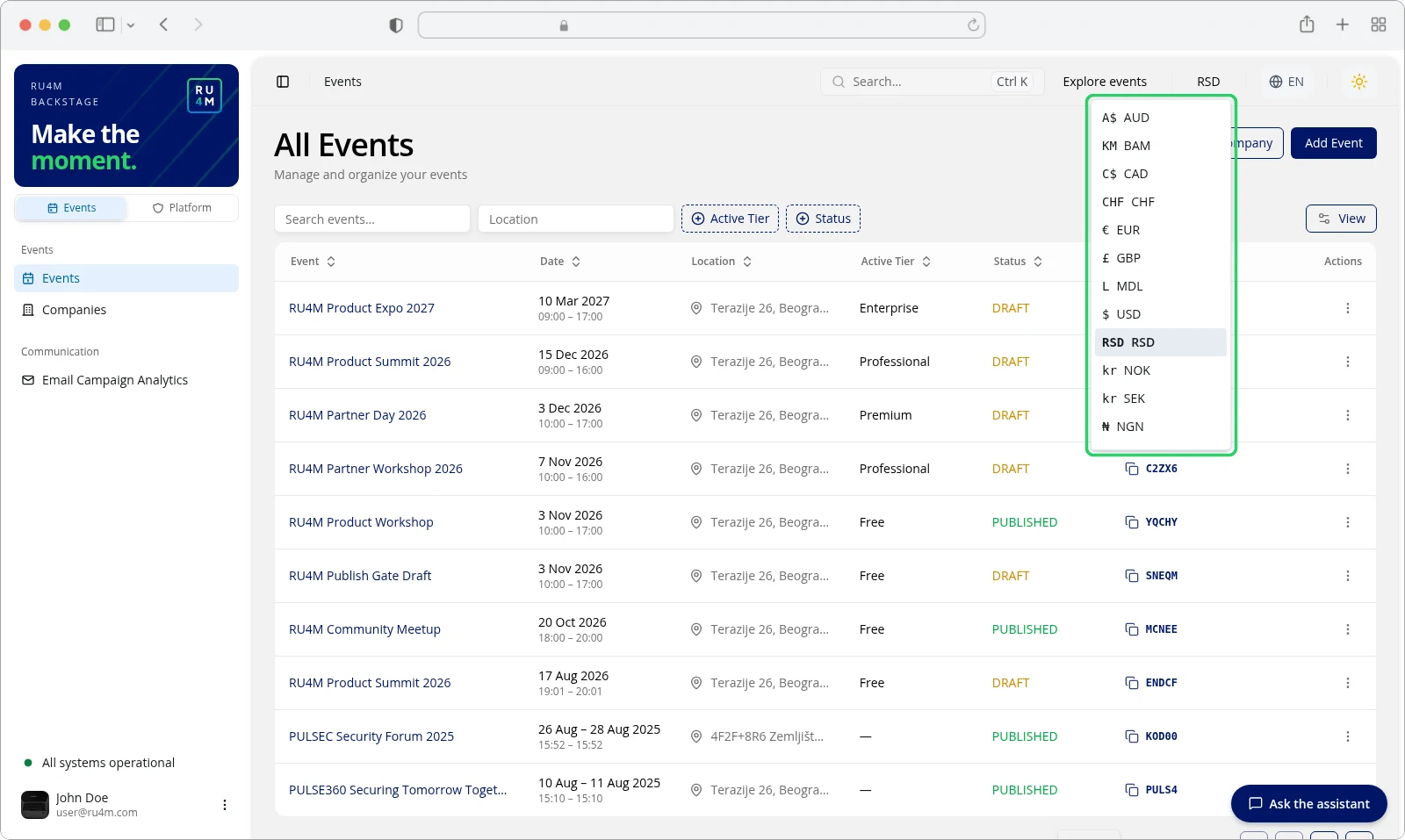
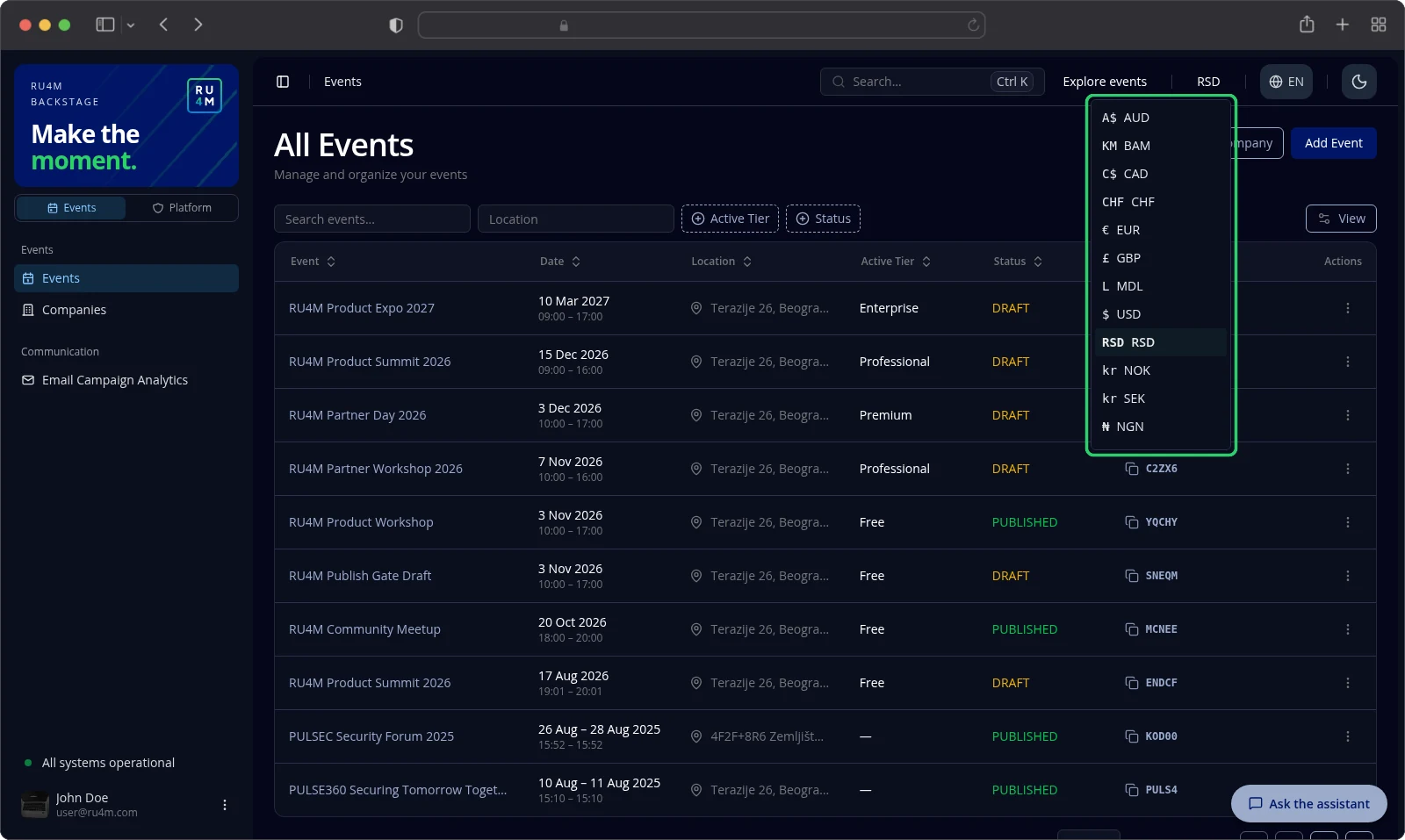
- Select the currency button, the first of the three controls.
- Select the currency you want from the menu.
Backoffice saves your choice and shows Currency updated successfully. Backoffice then shows event package prices in that currency.
The currency button is not in the header of the public event catalogue. Open Home or any other dashboard page to change your currency.
Light and dark themes
The theme button is the last of the three controls. It shows a sun while the screen is light and a moon while the screen is dark. The button offers only light and dark themes.
Until you select the theme button, Backoffice follows the light or dark setting of your device. Your choice then applies to every Backoffice page you open in that browser.
- Select the theme button at the right end of the top bar.
- Select it once more to switch back.
Each time you select the button, the screen switches between light and dark, and the icon changes between the sun and the moon.
The theme button sits in the header of the public event catalogue as well, so you can change the theme there.
Troubleshooting
I cannot select the language I am reading in. It is greyed out and carries a tick. You are already reading Backoffice in that language.
Some words stay in English after I switch language. Event statuses such as DRAFT and PUBLISHED stay in English in every language.
I cannot find the currency button. It sits at the right end of the top bar, left of the globe button. The public event catalogue has no currency button, so open Home or any other dashboard page.
The currency button still shows the code I had before. Open the menu again. The row on the grey background is the currency in use.
Nothing happened after I chose a currency. Wait for the Currency updated successfully message. Once Backoffice saves your choice, the button shows the new code.
Related tasks
- Account access — create your account and sign in.
- Your home page — what Backoffice shows after you sign in.
- Finding your way and your events — move around the Backoffice and find your events.
- Your first event — create your first event.
- Companies — manage your companies and members.
- Back to Get started