Troubleshooting
Last update · 13 min read
Find the cause when something does not work as expected.
Before you start
When a control is missing, one of three conditions usually explains why. Check them in this order before you look for a fault.
| Condition | Ask yourself | What it decides |
|---|---|---|
| Role | Are you the person who created the event, one of its managers, or an Owner, Admin or Manager of the organizing company? | Event sections, editing, the team, Q&A and Marketing |
| Package | Does the event's package include the feature? | Editor pages, event sections, custom widgets, paid tickets, email invitations |
| State | Is the event a draft, published, paid, or already over? | Publishing, QR codes, editing pages, Q&A and speed-meeting slots |
Two of these conditions trigger a message when they block access. The third often hides the control without a message.
Some messages appear only in English, regardless of your chosen language. This page quotes those messages in English.
Sign-in and access
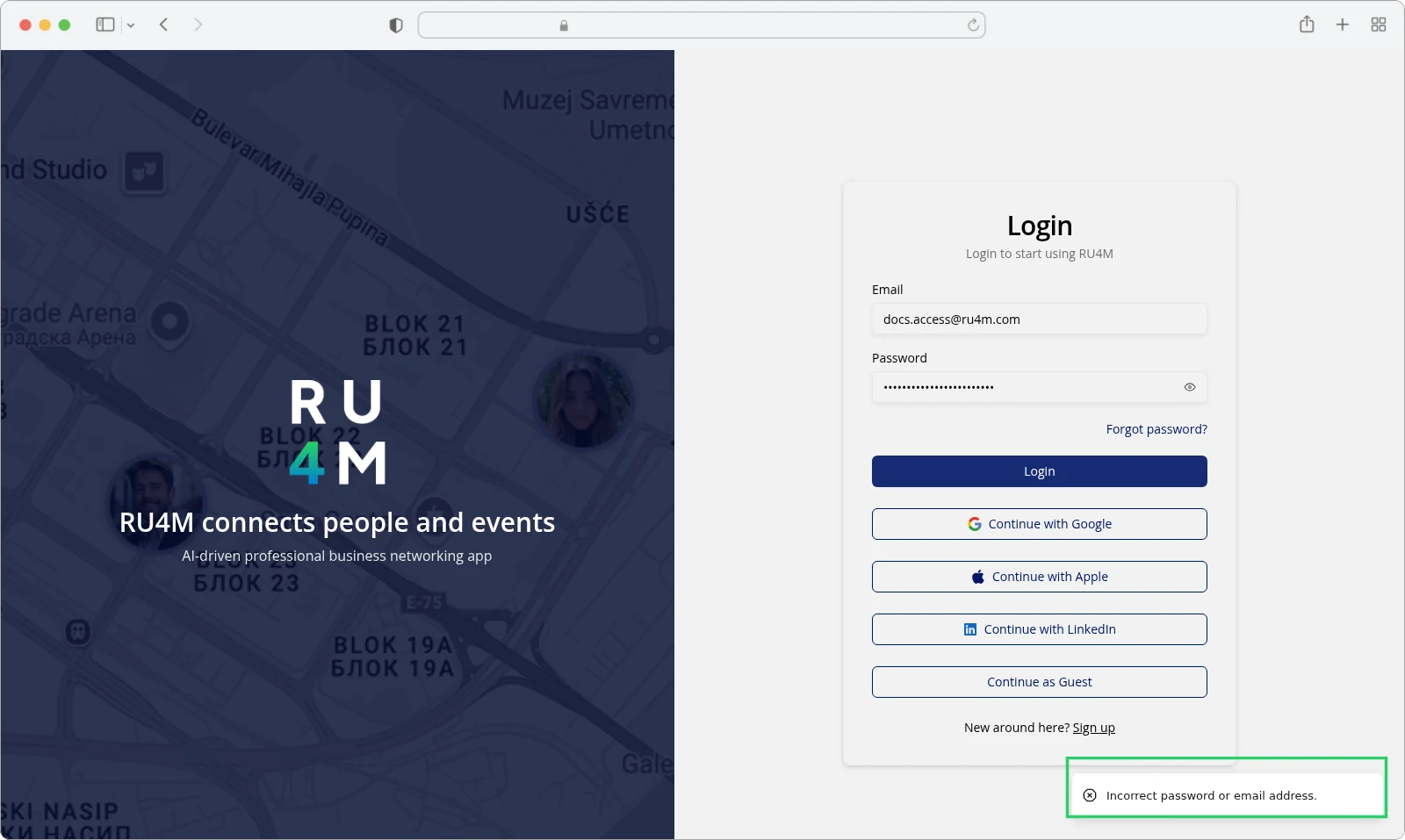
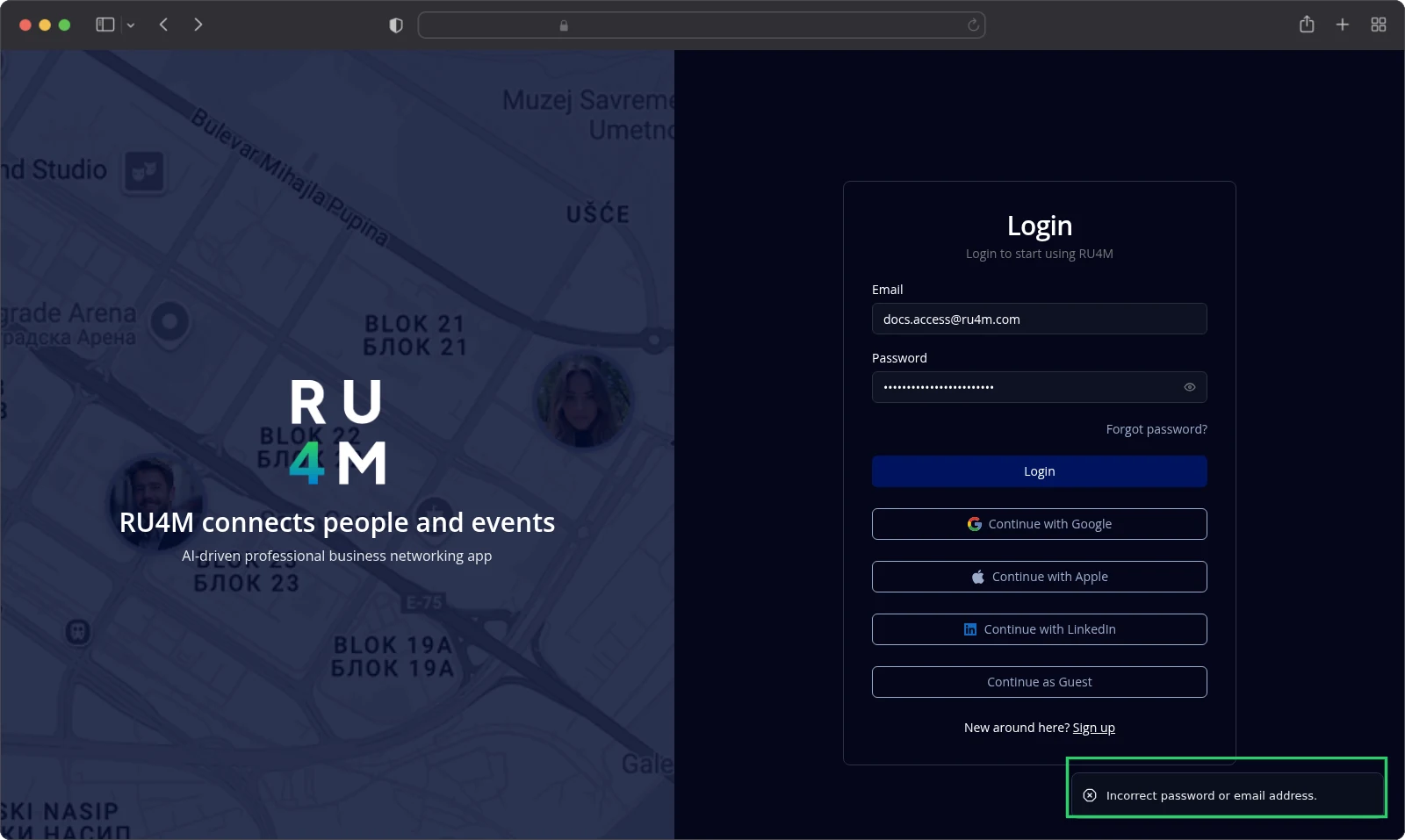
The login form gives one message for two different mistakes.
It answers Incorrect password or email address. for both a wrong address and a wrong password. The app cannot tell the two apart, so check the address first.
The full sign-in guide is in Account access.
The Forgot password? form accepts any address and reports success either way.
You see the same confirmation whether an account exists for the address or not. You cannot tell whether you mistyped the address or the message is still on its way. Wait for the code before you try again.
An account made with Google, Apple or LinkedIn has no password to type.
You get This account was created using Apple, Google, or LinkedIn sign-in. Please use "Forgot Password" to set a password for email login. Use the sign-in button for that provider instead.
Five wrong passwords lock the account for a minute.
The wait then doubles with every further attempt, so the account stays closed longer each time. You cannot sign in with the correct password while the account is locked. Wait, then sign in once carefully.
A Google or Apple sign-in that fails returns you to an empty login form.
No message explains the failure, and nothing marks the button you pressed. Try another provider, or reset your password instead.
When your session ends, RU4M returns you to the sign-in page without a message.
Nothing tells you the session expired, and the page you wanted is gone. Sign in again and RU4M returns you to your events.
Your new account stops at the Check your email screen.
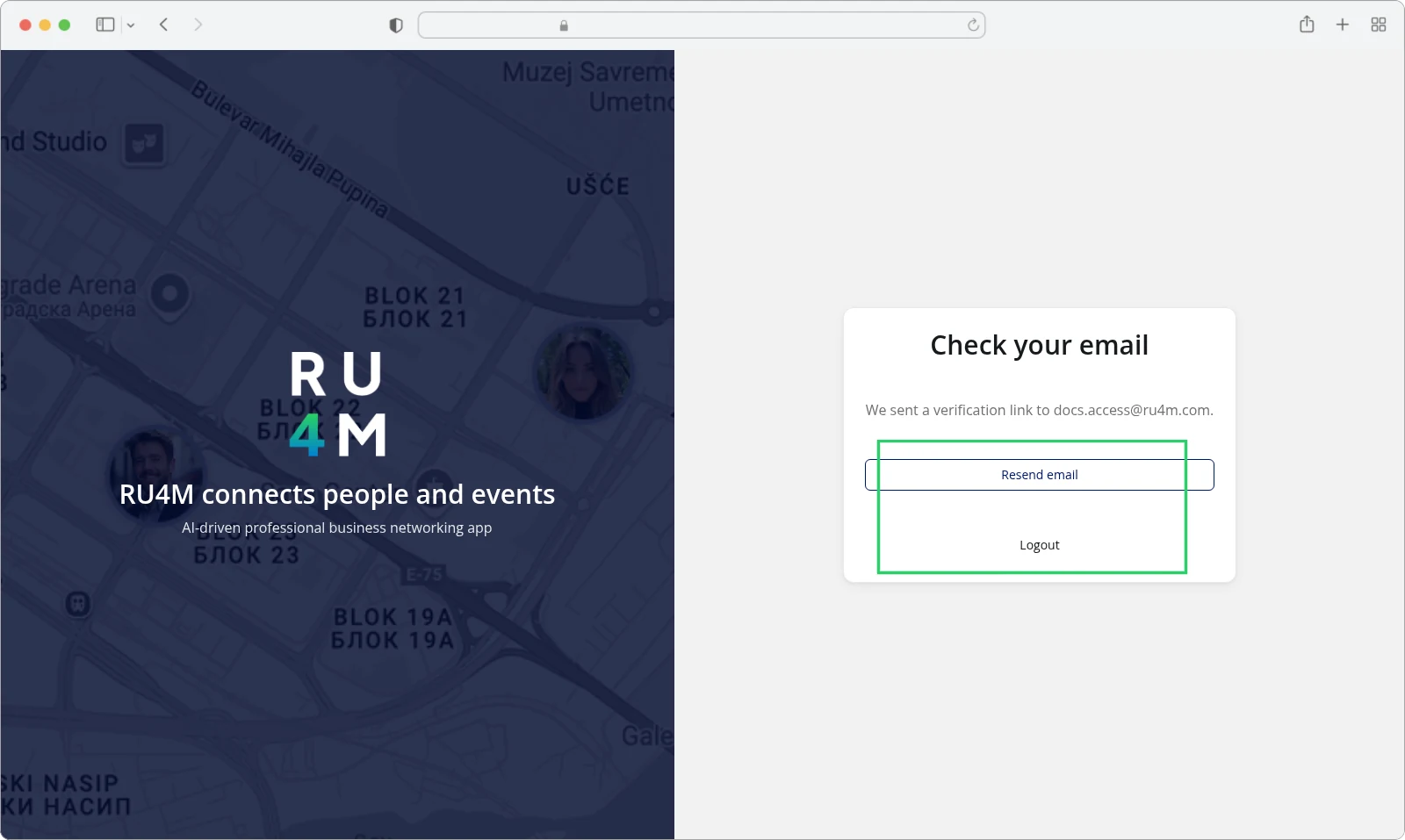
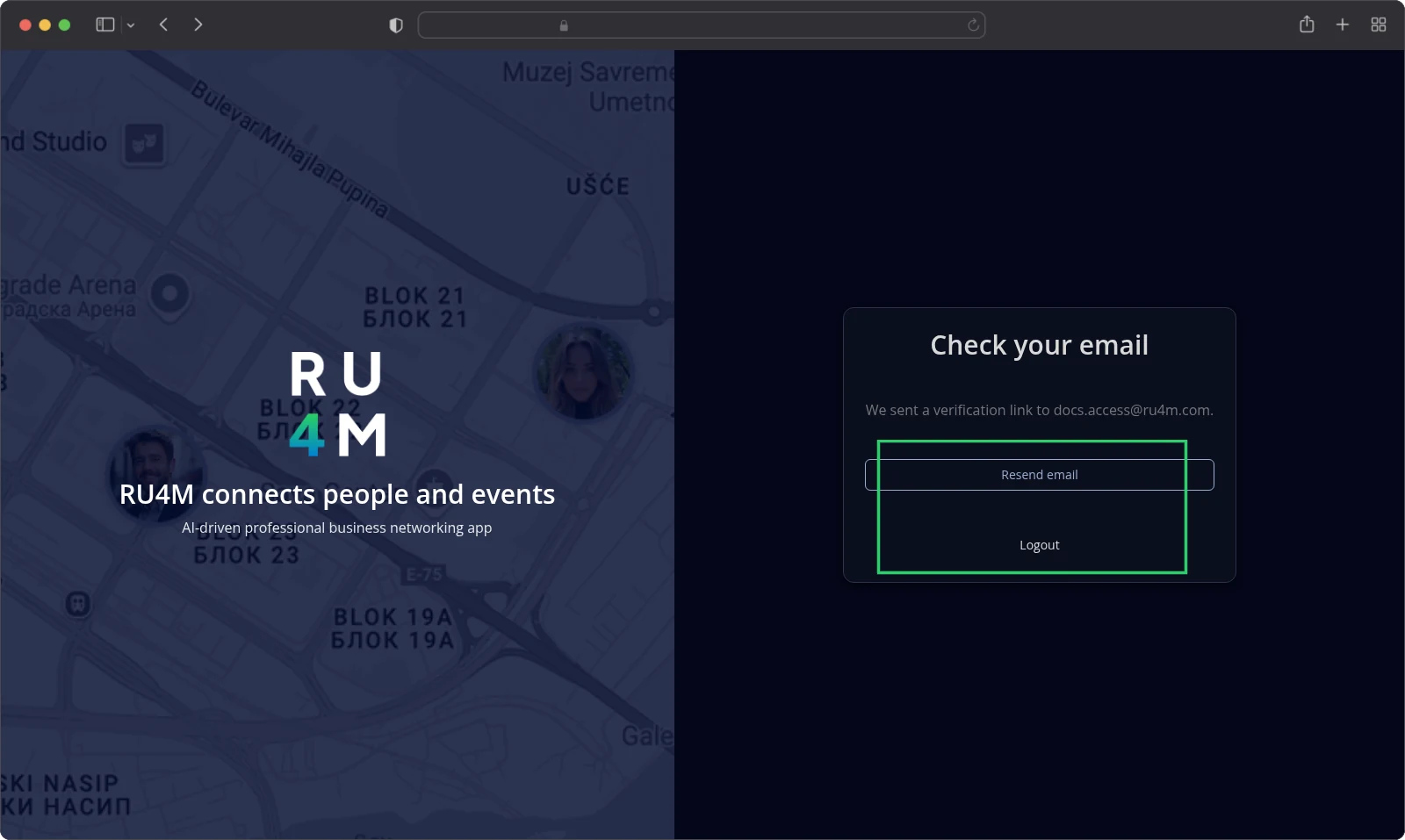
The screen shows only Resend email and Logout. If you sign in again, Backoffice does not send another email or open your account. Open the link in the confirmation email.
Follow the steps in Account access.
The confirmation link does not work.
The screen reads Verification link is invalid or expired. Select Resend email to receive a new email. If you signed out, select Sign in.
Follow the steps in Account access.
Nothing marks an account as banned or suspended.
RU4M has no such state. If you cannot sign in at all, follow the recovery steps rather than looking for a status message.
A missing event, feature or button
Check your role, package and event state first. This section explains how each condition affects what you see.
Every section of an event stays in the event panel. A section you cannot open shows a short label next to its name. Each label points to a different cause. Locked sections shows what each lock page looks like.
A section is marked no access.
Your role does not open that section. Overview, Q&A, Speed meetings, Marketing, Widgets and the editing pages open only if you can manage the event. Tickets and Payments are for RU4M staff only.
The page reads You don't have access to and the section name. Ask the event owner or a manager of the organizing company. Read Roles and permissions.
A section is marked needs a higher plan.
The event's package does not carry the feature. This can happen on Speed meetings, Marketing and Widgets.
The page names your package, for example Not in your Free package, and offers Buy feature to start the upgrade.
Seven features depend on the package: agenda, giveaway, speakers, sponsors, stands, speed meetings and custom widgets. The full comparison is in Packages and payment.
A section is marked not available yet.
The event's state does not allow the section yet. QR Codes opens once the event is published. An editing page reads This event can't be edited right now while the event's state does not allow changes.
A company section is marked no access or primary company.
In the company panel, Employment shows no access when you may not confirm employment. Company settings shows it when you may not edit the company. Danger zone shows no access to everyone except the Owner, and the page reads Ask the company owner or an admin to give you access.
On the primary company, the Owner sees primary company on Danger zone and the page Your primary company can't be deleted. Make another company primary first, as Deleting a company explains.
An editor page shows a lock in the event panel.
Pages such as Speakers or Agenda follow the same package rules as the event sections above. Opening one shows what it adds and an upgrade action.
A refusal you did not expect.
When you try to change something you cannot, the app answers You do not have permissions required to edit this event! Some refusals arrive only in English.
A refusal that shows nothing at all.
A hidden control or a role check may leave the page without an error message. If no message explains the problem, check your role, package and event state.
An old link opens a different page than you expected.
Old event links that end in ?tab= and a tab name open the matching section page. An unknown ?tab= value stays on Overview, without a message.
A section name typed after the event address must match an existing section. Otherwise the address does not open an event page at all.
A company page opens to nothing.
You see Company not found because the company was deleted or you no longer have permission to manage it.
The Companies list is empty.
The list shows only the companies where you are Owner, Admin or Manager, or hold a custom role that may edit the company. A company where you are only Member does not appear there. If the list is empty, you see No managed companies yet.
Companies is always in the left bar.
Every signed-in account with a confirmed email address sees Companies in the left bar. Select it to open My Companies.
The panel lists the companies you own under Owned by you and the ones you help manage under You help manage. Select a company name to open that company. Read Finding your company for the full steps.
The panel button or Ctrl B does nothing.
The panel button sits at the left end of the top bar. It shows only on pages that have a panel: the events list, an event, Companies, a single company and Integrations. Home and Comms have no panel, so the button is not there. The Ctrl B shortcut (⌘ B on a Mac) works only on the same pages.
A person who joined the company can do nothing there.
A Member has no management permissions. The company is missing from their list, and a link to it shows Company not found. Read Members, invitations and roles.
An event list, participant list or team list is empty.
These messages describe empty lists, not errors: No participants yet and No team members yet. Members join through the mobile app, so a fresh event starts empty.
The RU4M assistant does not answer
The RU4M assistant answers questions from this guide. Your role, package and event state do not affect access to the assistant. Every signed-in account sees the same panel.
Read Ask the assistant for how the panel works.
The assistant button is not on the screen.
The environment settings control whether the panel is available, not your role or package. Where the panel is switched off, the page opens without the button.
Nothing is greyed out and no message appears. Nothing is wrong with your account. Read the rest of this guide, or write to RU4M support.
The assistant says it cannot answer right now.
The error message tells you what went wrong.
Too many questions at once. Wait a moment and try again.
The service is busy. Wait a moment, then send the question again.
I can't answer right now. Please try again.
The request failed. Send the question again. If it keeps failing, send RU4M support the exact error message.
My question is gone.
The panel keeps the conversation while it stays open.
New conversation clears the displayed conversation and starts a new one. Reloading the page also clears the displayed conversation, but the conversation itself carries on. The next question still has the earlier context.
One note in the panel is not a failure: The previous conversation expired, starting a new one. The panel starts a new conversation and answers again by itself.
Creating, editing and publishing
Nothing saves on its own.
RU4M stores a change only when you select Save.
Save and Cancel are greyed out on an editor page.
Both stay greyed out until you change something on that page. After you save, the app shows Changes saved.
An editor page shows its rules in English while the rest of the page is Serbian.
The event editor writes most of its own validation text in English, whatever language you chose. Organizer, Speakers, Sponsors, Stands, Agenda and Giveaway all behave this way. On the other pages, only the event code and image rules are in English. The fields and their limits are in Editing an event.
Changing the dates of an event that has sessions opens a dialog before anything saves.
In Review session reconciliation, choose whether to move sessions, keep them in place or shorten them to fit. You can also archive sessions outside the event dates.
A session with a booked speed-meeting slot cannot move, and those strategies are marked Blocked. Read Program and sessions.
The publish button is greyed out but the checklist says you may publish.
Four checklist entries control the Publish button:
- Short summary added
- Full description
- Organizer set
- Cover image uploaded
Basics completed is not one of them. Check those four entries rather than the sentence below the checklist.
Publishing is refused.
The notification names the missing part:
- Event description is required before publishing.
- Event organizer is required before publishing.
- A cover image is required before publishing.
You can only reach this refusal from a Free draft. A draft with a paid package shows Proceed to Payment instead of Publish. Pay for the package before publishing.
An event that has already ended cannot be published.
The events list says Cannot publish events that have already ended in English in every language. The event's action row offers a translated version of the same refusal.
The whole page is English on one screen.
Some messages, such as the logout notice, appear only in English.
Packages and payment
For the package comparison, prices and upgrade steps, read Packages and payment. This chapter covers only what goes wrong.
The payment dialog will not let you continue.
Create Payment Session stays greyed out until you tick I accept the Terms of Purchase. You only need to select that checkbox to enable the button.
A package change is refused.
A pending payment, an unsuitable event state or an ended event can block a package change. Each has its own message.
Do not quote the refusal, because one of those messages is broken in Serbian. Instead, describe what you were trying to do and ask through Contacting support.
A payment you started is still open.
The event's action row offers Continue Payment to finish it.
The menu behind the three-dot button, More actions, offers Cancel Pending Payment to drop the attempt and start again.
The page you return to after payment keeps showing a pending payment.
The heading reads Payment confirmation is pending. RU4M checks for confirmation for about 25 seconds, then stops checking. Come back later and open the event again.
A failed payment sends you to a page you cannot open.
The return page points at My Transactions, which is available to RU4M staff rather than to organizers. Write to RU4M support instead.
You finish a payment and land on an English page.
The return address is fixed to the English path, whatever language you started in. Your event is still there under your events list.
CSV import and sending emails
For the column format and sending steps, read Contact lists and CSV import and Sending invitations.
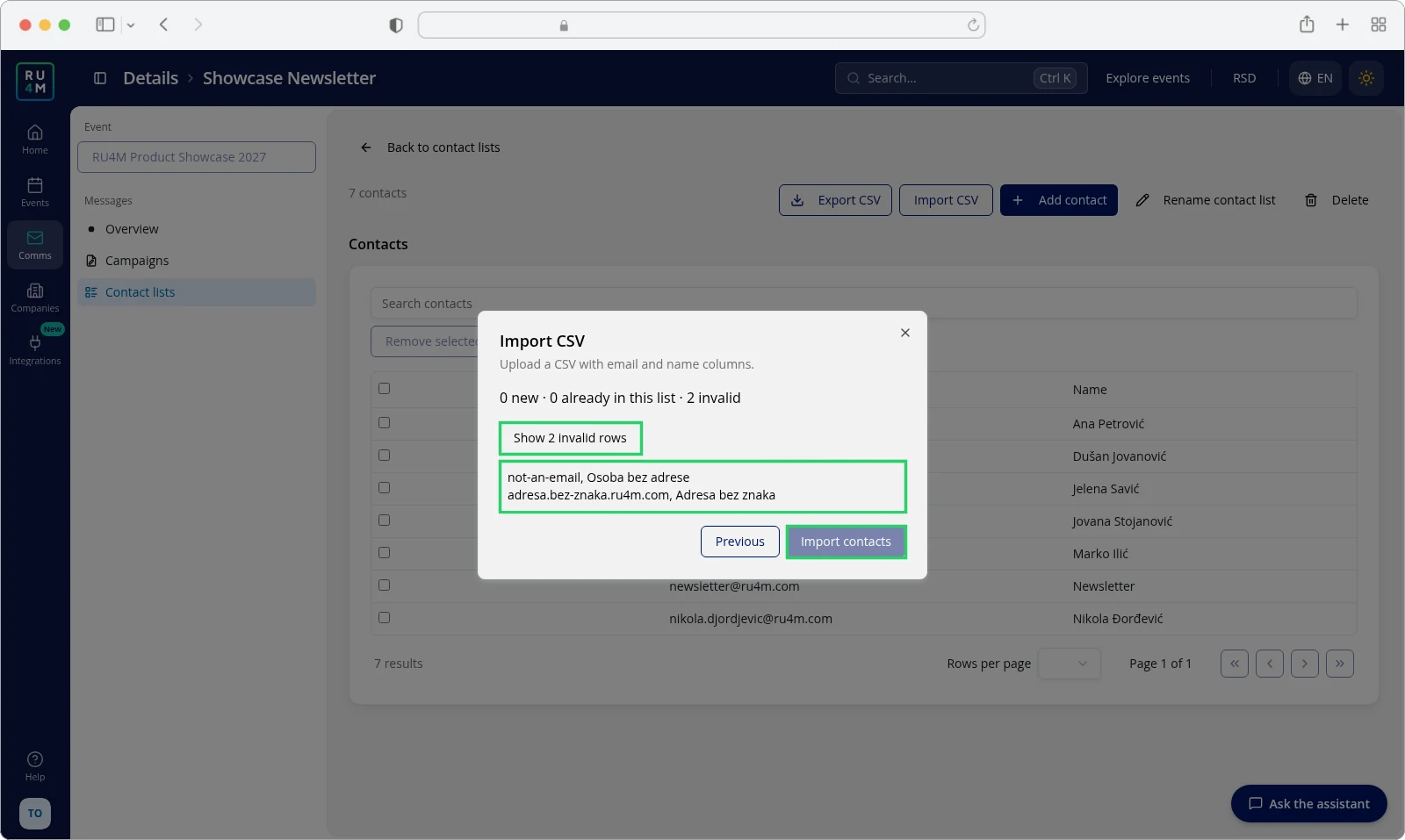
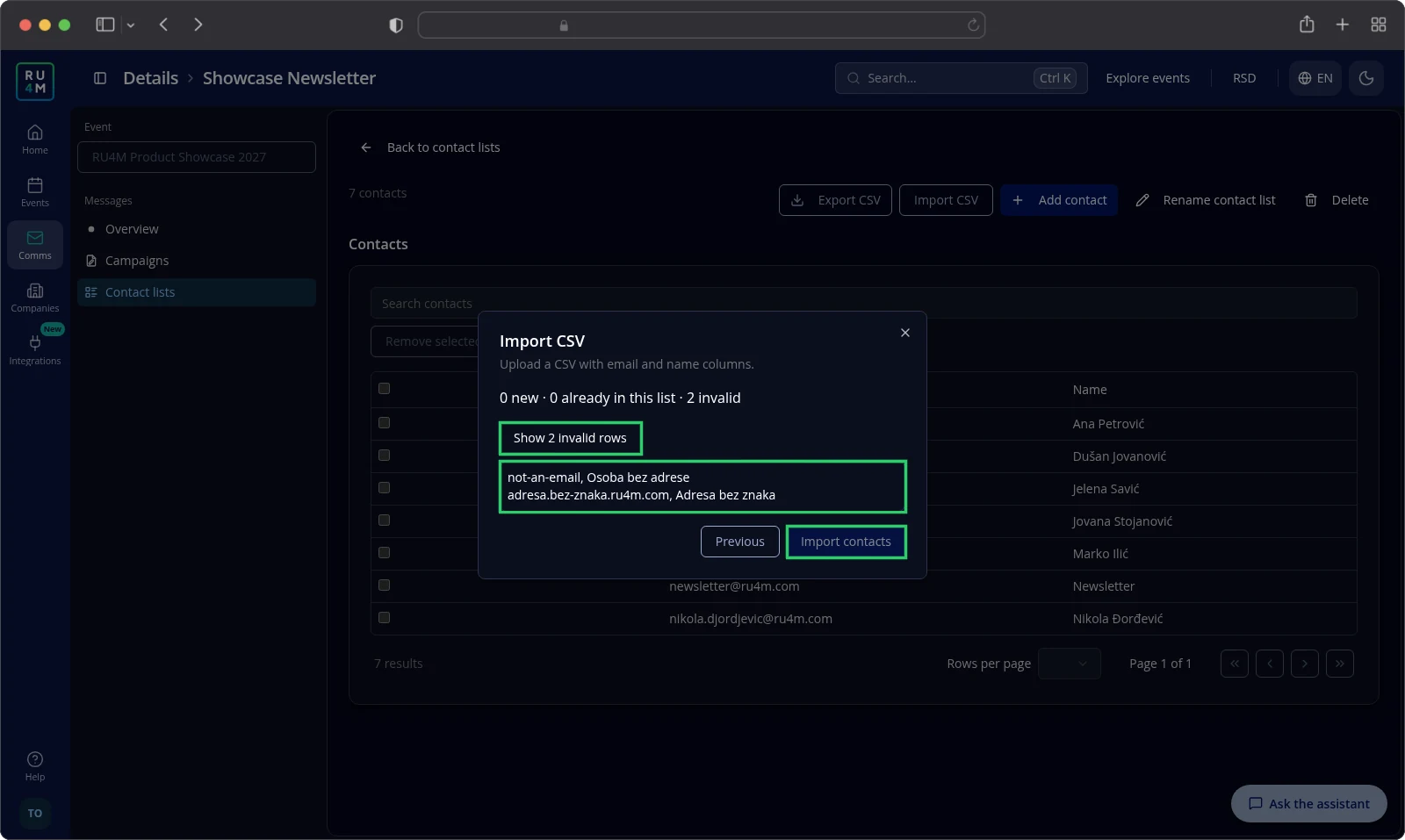
A CSV imports fewer people than you expected.
The address must come last in the row. Use an address alone, Name,address, or a name and address in one column. For example, enter Marko Ilić <marko.ilic@ru4m.com>.
The app skips anything it cannot read. It does not display a message.
The import refuses the whole file.
You see No valid contacts found. The three counters below the message always use English:
- Rows parsed:
- Valid unique emails:
- Net new members detected:
Sending is blocked before you press send.
The send button stays greyed out. Below the list selector, the email editor shows the recipient count or one of these messages:
- Publish the event before sending email invitations.
- Email invitation limit reached for this event.
A limit names what is left, not what you have.
The message reads You selected 151 recipients, but your current tier allows 150 email invitations. The second number is the allowance you have not spent yet. It drops as you send, and the panel beside the email editor climbs from 0 of 150 emails used.


A sending attempt fails with a generic message.
The app shows Failed to send email regardless of the cause, except when it rejects the template. Check the three reasons above first.
A reminder names the template that is missing.
Choose Organizer reminder in the email editor. If the template is unpublished, the app shows This email template is not published on the sending domain. Ask the person who manages your sending domain, as Manual reminders explains.
Adding a person who has no RU4M account is refused.
The app answers User does not exist. Read Members, invitations and roles and Account access.
QR codes, Q&A and speed meetings
QR codes wait for publishing.
In the panel, QR Codes reads not available yet until you publish. Anyone who can open the event can view the page, but the codes wait for publishing.
Some QR codes are still missing.
The alert reads Some QR artifacts are still missing and counts what it could not make. Its text and every Retry message around it are written in English in both languages.
A stand or session list is absent.
The reason is stated: the event has no stands or no sessions in its agenda yet. See Sponsors and stands and Program and sessions.
Q&A shows a status badge for each room.
The badge reads Not configured or Unavailable.
Q&A is not a package feature. You need to be able to manage the event, and each session needs Q&A turned on. If you cannot manage the event, the panel marks Q&A as no access.
The panel says Q&A is not configured for this session yet. Save the settings to enable it.
A Q&A action is refused.
Look for one of these messages:
- Q&A is not available for this session.
- You do not have permission to manage Q&A.
- Another moderator changed this session in the meantime. The latest state is shown.
The speed-meeting table is empty.
Look for one of these messages:
- No sessions are set up for speed meetings yet.
- This session has no slots yet. A session shorter than one slot produces no slots.
- Event timezone is missing — times are shown in UTC.
Analytics without data
Most reports of wrong numbers are reports of an event that is not in the right state.
A draft shows a placeholder, not figures.
The block reads This is where your event analytics will appear.
A published event with no members shows zeroes and empty blocks.
The meeting block reads No meetings in this period, and the benchmarks read Not enough data yet until the event has ten members.
A rate with nothing to divide by shows an em dash.
It never reads 0%, so a missing value is not a measured zero.
Analytics is not a paid feature.
No package controls it. Your role does: you open Overview only if you can manage the event.
You are waiting for figures that no screen promises.
RU4M states no delay for analytics anywhere, so do not expect a message about one. The figures themselves are in Event analytics.
Still stuck?
Before you write to RU4M, note four things:
- The event.
- The screen you were on.
- The exact message you saw.
- Roughly when it happened.
That is usually enough to find the cause. Then read Contacting support.
Related tasks
- Roles and permissions — who can change what on an event.
- Event and payment statuses — what DRAFT, PUBLISHED and PAYMENT COMPLETED mean.
- Glossary — the terms used across the Backoffice.
- Account access — registration, confirmation and password recovery.
- Packages and payment — the package comparison and upgrade steps.
- Contacting support — where to ask for help.
- Help — the other Help guides.