Promotional banners
Last update · 4 min read
A promotional banner is one image that RU4M repeats for you in two places: the invitation email you send to your mailing lists, and the ticket PDF your participants receive.
You place one banner per placement. The banner can promote a sponsor, a partner or your own company; you upload its image yourself. RU4M serves the banner as a static image, so it never changes after you save it.
Before you start
Two conditions decide whether you can place a banner.
- You manage the event. You created it, you hold the Moderator role on its team, or your role in the organizing company includes Manage events.
- Your package includes Sponsors. Read Packages and payment for what each package includes.
When one of the conditions is missing, Marketing still appears in the event panel, but the page shows a notice instead of the banner controls. When Marketing is locked explains both notices.
Where the placements are
- Open the event from your events list.
- Select Marketing under Communication in the event panel.
The page opens with the line Place a promotional banner in the ticket PDF and invitation email. One banner per placement, served as a static image. Below it, two cards hold the placements.
- Ticket PDF ad — the banner on the ticket PDF.
- Invite email ad — the banner inside the invitation email.
The Preview panel on the right shows how the banner looks. Switch between Ticket PDF and Invite email.
A card shows Not set while it holds no banner, and Active once you save one.
Adding a banner to an invitation
Open the Invite email ad card. On an empty card, select the dashed area that reads Add banner · 1200 × 300.
A dialog named after the card opens with four fields.
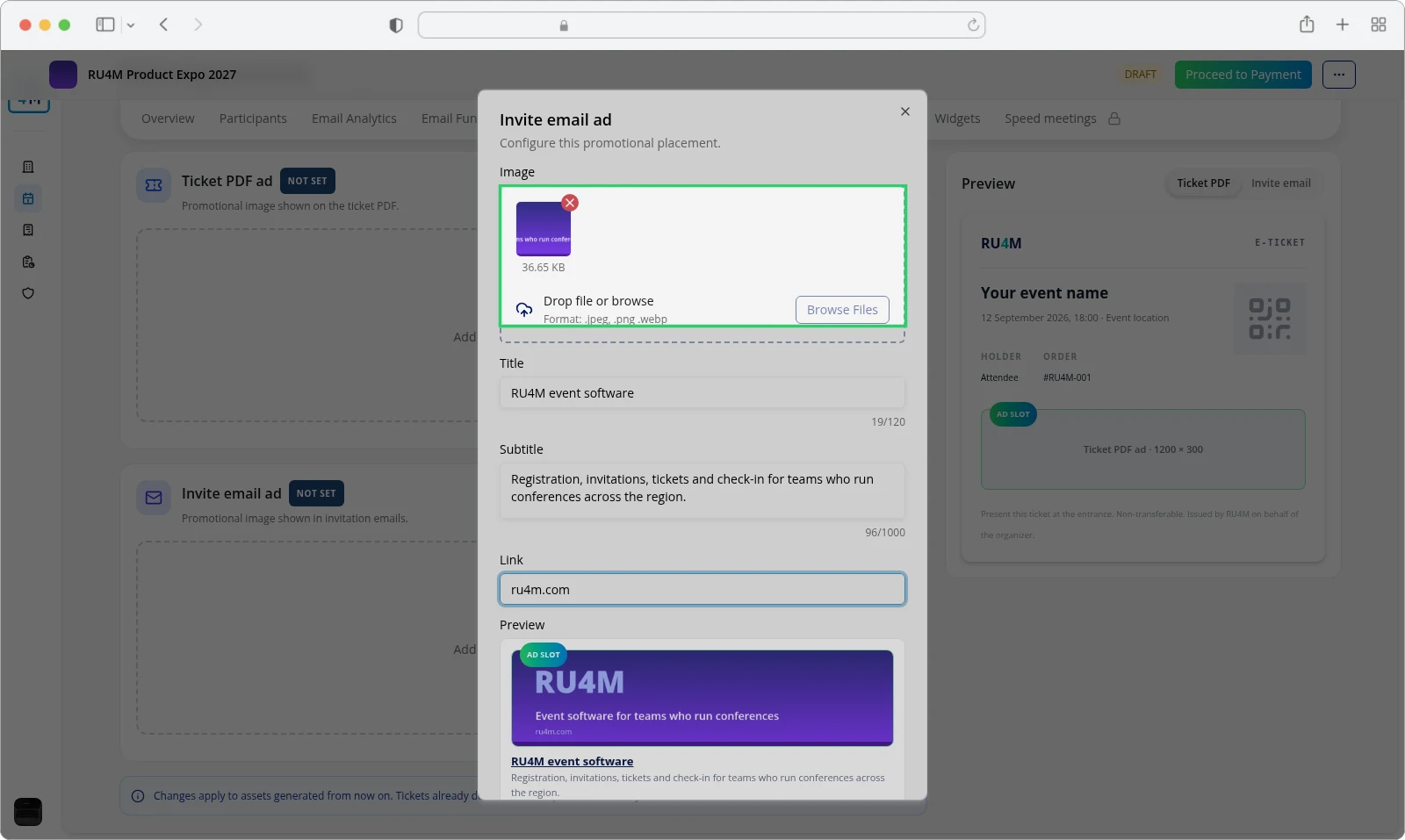
- Select Browse Files and choose your image.
- Enter a Title of up to 120 characters.
- Enter a Subtitle of up to 1000 characters.
- Enter a Link such as
ru4m.com. - Select Save.
RU4M confirms with Ad saved. and the card changes to Active.
Image rules
Keep the image a PNG or JPEG. A GIF works only in the invitation placement.
The image may be up to 2 MB and up to 4096 × 4096 pixels. A wide banner around 1200 × 300 pixels fits both placements.
RU4M completes a link for you: ru4m.com becomes https://ru4m.com/. Leave the Link field empty when the banner should not lead anywhere.
Changing or removing a banner
Select Edit under the banner, or Replace on the banner itself, to open the dialog again. Change any field and select Save.
Select Remove to delete the banner. RU4M asks Delete this ad? before it deletes anything. Confirm only when you mean to remove the banner for good.
Banners in PDF tickets
The Ticket PDF ad card works the same way, with two differences.
- The image must be a PNG or a JPEG.
- The banner appears on the ticket PDF that RU4M attaches to the automatic join and reminder emails.
Changes reach tickets generated from that moment on. Tickets a participant already downloaded keep the banner they arrived with.
The banner never appears in the body of those automatic emails. Only the PDF carries it. Read Automatic emails for the messages themselves.
Where the invitation banner appears
The Invite email ad goes into every invitation sent through the campaign composer, including invitations sent by another person who manages the event. Nothing extra is needed from the person who sends it.
Preparing and sending invitations covers choosing the mailing lists and sending the campaign.
When Marketing is locked
The event panel marks a locked Marketing entry with a short reason.
| Reason in the panel | What it means | What you can do |
|---|---|---|
| needs a higher plan | Your package does not include Sponsors. | Buy a package that includes it. |
| no access | You do not manage the event. | Ask someone who manages it. |
With needs a higher plan, the page shows an Ad placements card. Its label reads Not in your {tier} package, with your package's name in place of {tier}.
- Select Buy feature.
- Complete the upgrade in the dialog that opens.
The note on the card names the package that unlocks banners. Placements unlock as soon as that upgrade is paid. When a payment is still pending, Buy feature stays disabled until you finish it.
With no access, the page reads You don't have access to Marketing. Ask the event owner or a manager of the organizing company to give you access.
Troubleshooting
Marketing shows needs a higher plan. Your package does not include Sponsors. Select Buy feature, or read Packages and payment to compare packages.
Marketing shows no access. Only people who manage the event can place banners. Ask the person who created the event, or a manager of the organizing company.
Buy feature is disabled. Finish the pending payment first. If no package includes the feature, the card says so.
You see the message Failed to save ad. Try again. If it persists, choose a smaller image under 2 MB.
RU4M refuses your image. The two rules that catch most files are the format and the size. A ticket banner must be a PNG or JPEG, and every image must stay under 2 MB and under 4096 × 4096 pixels.
Your banner does not appear in an invitation. Check that Invite email ad shows Active on the event.
A participant's ticket still shows the old banner. Tickets already downloaded keep the banner they arrived with. New tickets carry the current one.