QR codes and event materials
Last update · 4 min read
Print the codes people scan on the day. They cover the invitation, every stand and every session.
The codes also carry the poster file you print and stick on the stand.
Before you start
Everyone who can open the event can open QR Codes. It needs no package and no extra role.
The codes are not internal. A person who knows the event code joins your event with it.
A code appears only after the event is published. Until then, the panel shows not available yet next to QR Codes, and the page shows a message instead of the codes.
Where QR Codes is
- Open your events list.
- Select the event.
- Select QR Codes under Engagement in the event panel.
The page has no heading of its own. Next to the action row (above it on a phone), one line describes it: View and download QR codes for your event and stands. Use these for promotional materials and physical displays.
Before the event is published, the page holds a single block, QR codes are ready and waiting.
The block lists what you get once you publish. The last line of the block names your package and says there is no extra cost.
If you can publish the event from the action row, the block also carries a Publish button. A paid event waiting for its package payment has no button there, because payment comes first.
Event code and access
The event code is a short code people type to reach your event. It is exactly five letters and digits, and RU4M stores it in capitals.
Leave it empty and RU4M creates one for you.
You set the code on the Privacy and code page of the event.
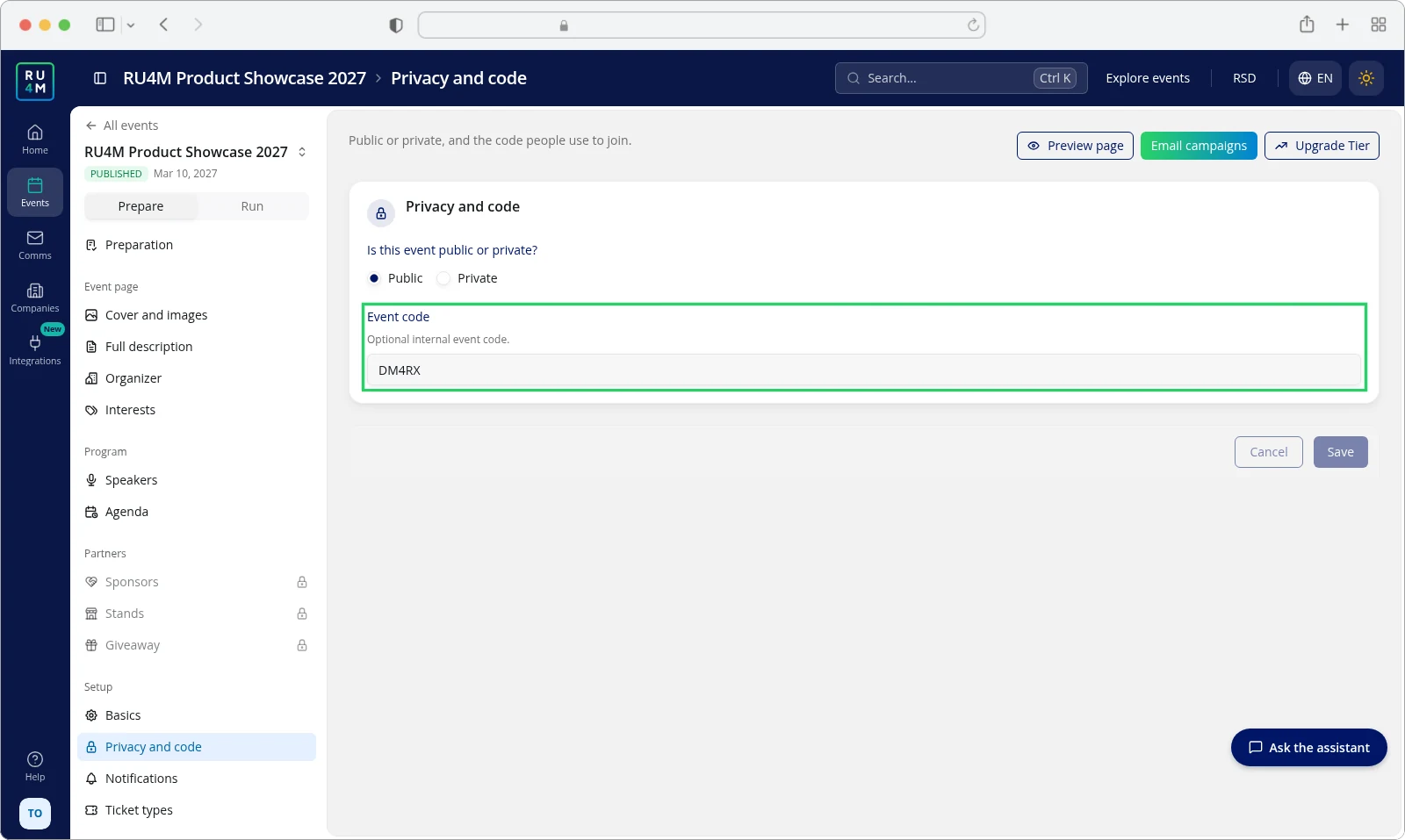
The field is called Event code and its help text reads Optional internal event code. That help text describes it wrongly. The code is the one participants use, so treat it as public.
Only the people who can edit the event see the code. It sits in the Code column of your events list, beside a button that copies it. Everybody else sees a dash.
Event, stand and session QR codes
On a published event, the page shows the codes.
Event Invite QR Code comes first. It holds the link to your event invitation, so sharing it invites people to your event.
Stand QR Codes follows. RU4M makes one code per stand, for the visitors who scan it on the expo floor. When your event has no stands, the page says No stands have been created for this event yet.
Session QR Codes comes last. RU4M makes one code per session, for the people who check in at the session entrance. When your agenda has no sessions, the page says No sessions have been added to this event's agenda yet.
Select any code to open it larger. Close the preview to return to the page.
The code that opens the questions and answers for a session lives elsewhere. See Questions and answers — Q&A.
Downloading codes and posters
Each stand and session card carries two buttons.
Download saves one PNG file for that code. The invitation code saves the same way, and its card is the only one without a poster.
Poster saves a one-page PDF in A4 landscape, with the RU4M logo and your stand or session title. Print this file for the stand or the entrance.
The section heading also carries Download All Posters. It saves one PDF per section, so stands and sessions arrive as separate files.
No button prints directly. Open the saved file and print it from there.
A warning appears when some codes are not ready yet, and it counts what is missing. If you can edit the event, the warning carries a button that generates the missing codes again.
Troubleshooting
The page only shows a message. The event is not published yet. Publish it, and the codes appear.
No stands have been created for this event yet. Your event has no stands. Add them first, and see Sponsors and stands.
No sessions have been added to this event's agenda yet. Your agenda is empty. Add sessions first, and see Program and sessions.
The app reports "Failed to download QR code. Please try again." The file did not reach you. Select Download again.
A warning says some codes are missing. RU4M has not produced every code yet. Select the retry button in the warning, and contact RU4M support if the warning stays.
The code in the list is not the one you typed. RU4M keeps the first code it receives. A second event with the same code is refused with Event with this code already exists!
Related tasks
- Create and publish — publish the event so the codes appear.
- Sponsors and stands — add the stands the codes belong to.
- Program and sessions — add the sessions the codes belong to.
- Questions and answers — Q&A — the join code for a session's questions.
- Preparing and sending invitations — the invitation the first code points to.
- Participants and attendance — who joined with your codes.