Team Management
Add and manage team members who help organize your event. Assign roles to control what each member can access and modify.
Prerequisites
- An active event where you are the owner or admin
Accessing Team Management
From your event dashboard, click Team in the sidebar navigation.
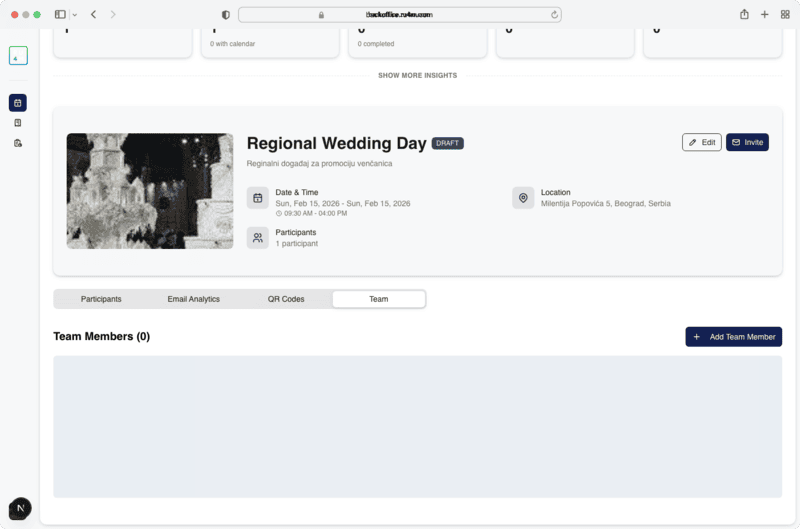
Team Roles
| Role | Permissions |
|---|---|
| HOST | Full access -- can edit event details, manage participants, view analytics, and manage the team |
| MODERATOR | Limited access -- can manage participants, view analytics, and handle check-ins, but cannot edit event details or manage the team |
Adding Team Members
1. Click Add Member
Click the Add Member button at the top of the team page.
2. Enter Details
Provide the team member's email address and select their role (HOST or MODERATOR).
3. Send Invitation
Click Invite to send an email invitation. The invited person must accept the invitation to join the team.
Removing Team Members
Click the remove icon next to a team member's name to revoke their access. They will immediately lose access to the event dashboard.
Role limitations
Only users with the HOST role can add or remove team members. MODERATORs cannot modify the team.
Pending invitations
Invited members who haven't accepted yet appear with a "Pending" status. You can resend or cancel the invitation.
Next Steps
- View transactions for payment history
- Generate QR codes for team check-in stations