Sign In to RU4M Backoffice
The RU4M Backoffice is the web application where you can create events, manage participants, view analytics, and much more. To access all of these features, you need to sign in to your account first.
You can access the backoffice by opening your web browser (such as Google Chrome, Safari, or Firefox) and navigating to app.ru4m.com.
Same account as the mobile app
You can use the same credentials that you use for your RU4M mobile app account. If you already have a RU4M account on your phone, you can use the same email and password, or the same social login (LinkedIn, Google, Apple) to sign in here.
Accessing the Sign In Page
When you first open app.ru4m.com, you will see the main landing page. This is a public page where you can browse public events, but to create or edit events and access the full admin dashboard, you need to sign in.
Find the Sign In button
Look at the top-right corner of the page. You will see a button or link that says "Sign in". It is located next to the language selector (which shows "English" or "Srpski").
Click on Sign in.
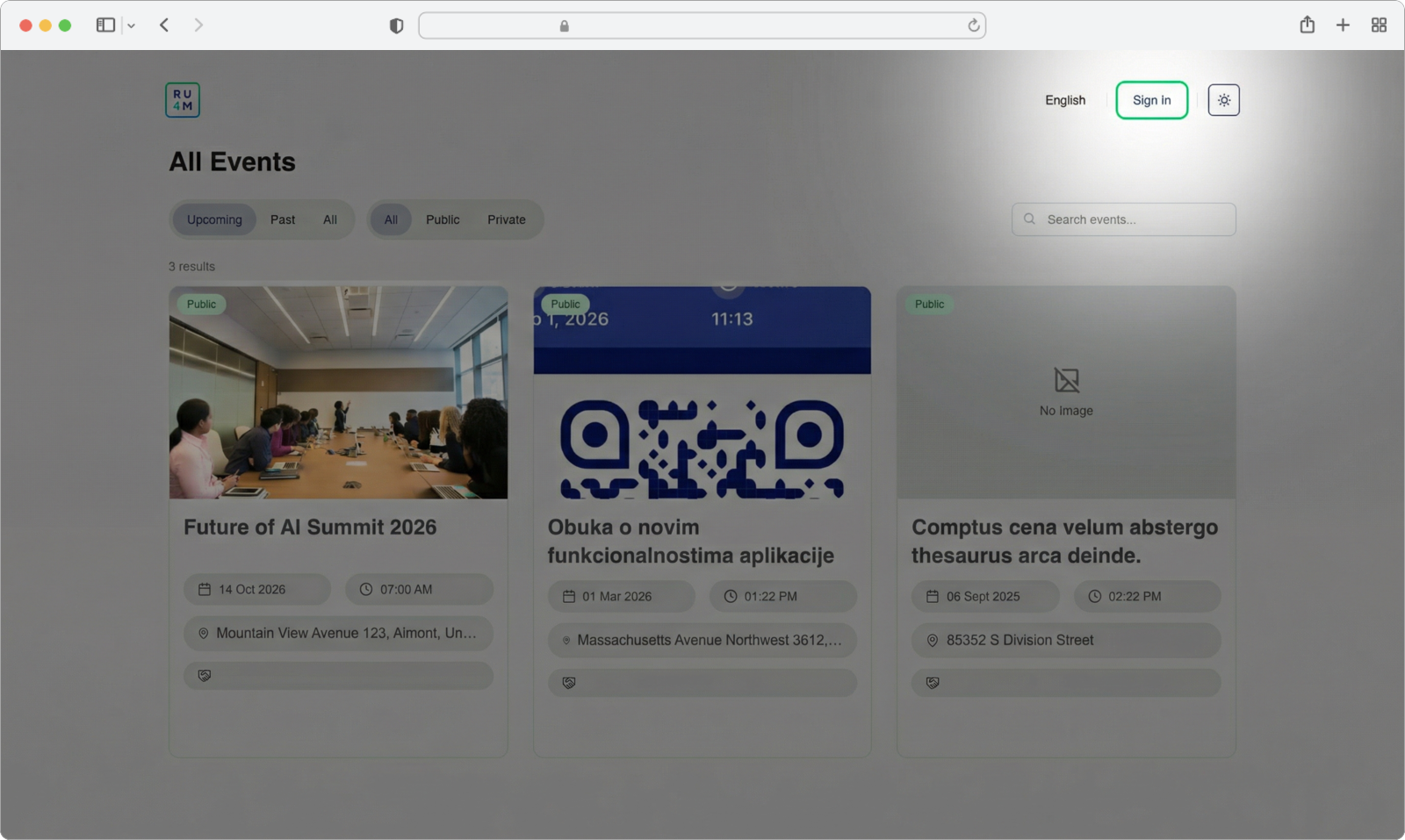
You are redirected to the Sign In page
After clicking, the page will change and you will now see a new page with the Sign in button highlighted in the header. Click on it to proceed to the login form.
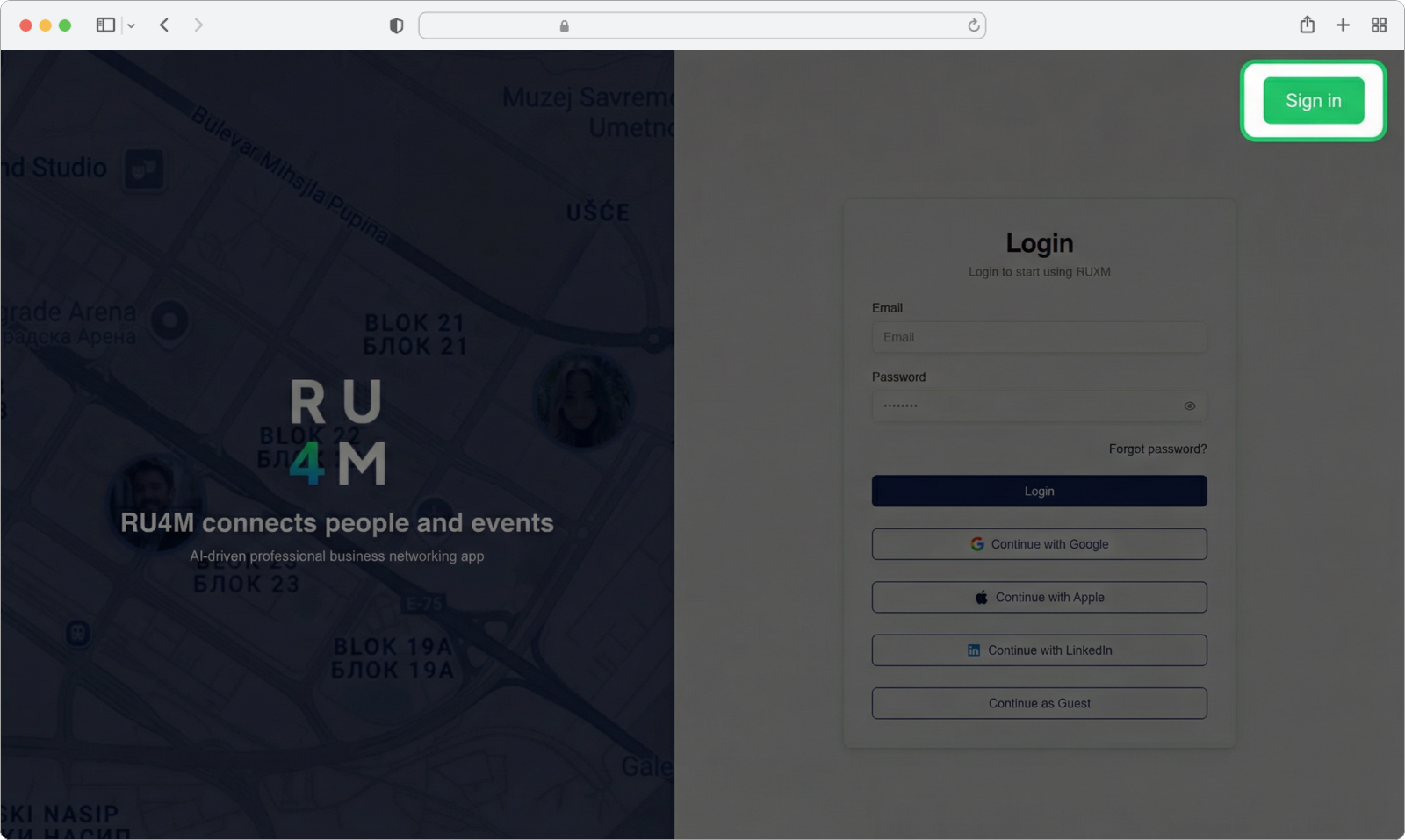
Choose your login method
You are now on the Sign In page. On the right side of the screen, you will see a login form with several options to sign in:
- Email and Password — Use your RU4M email and password
- Continue with LinkedIn — Sign in using your LinkedIn account
- Continue with Google — Sign in using your Google account
- Continue with Apple — Sign in using your Apple ID
- Continue as Guest — Browse public events without signing in
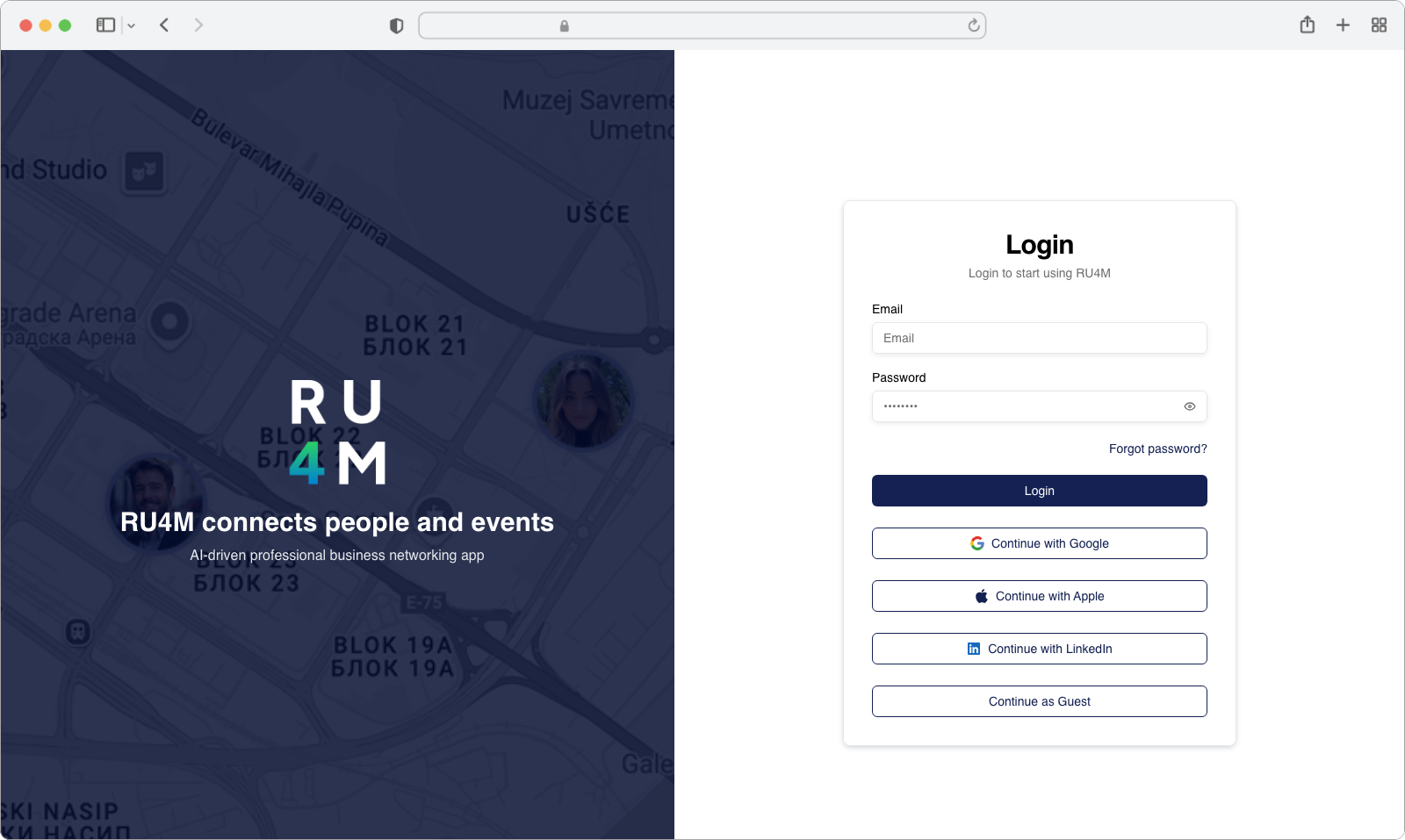
Continue as Guest — Limited Access
The "Continue as Guest" option allows you to browse public events only. You will not be able to create events, edit events, or access the admin dashboard. To get full access, you must sign in with one of the other methods. You can also use this option if you just want to quickly look at what events are available before creating an account.
Choose one of the methods below to sign in.
Sign In with Email and Password
If you already have a RU4M account and know your email and password, this is the quickest way to sign in.
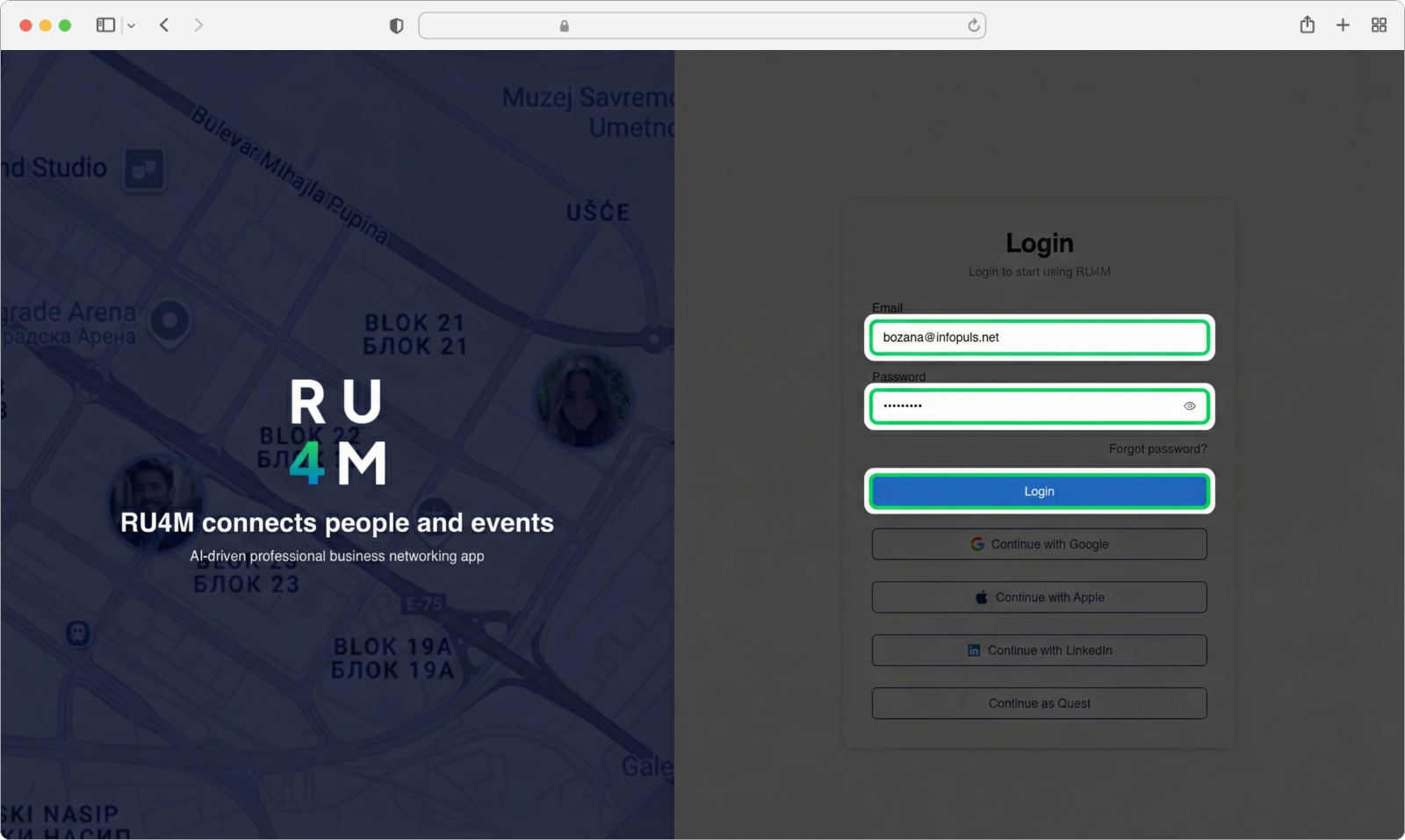
Enter your email and password
On the Sign In page, you will see two text fields on the right side of the screen:
-
Click on the first field (the one that says "Email" or shows an email icon). A blinking cursor will appear inside the field. Type the email address that you used to create your RU4M account.
-
Click on the second field (the one that says "Password" or shows a lock icon). Type your password. The characters you type will appear as dots for security.
-
After entering both your email and password, click the blue "Login" button below the password field.
Forgot your password?
If you cannot remember your password, look for a "Forgot password?" link on the login form. Click it to receive a password reset email.
After clicking Login, if your email and password are correct, you will be taken directly to the events page where you can see all public events, private events you have joined, and events you have created.
What Happens After You Sign In?
No matter which method you use to sign in, you will always end up on the Events page. This is the main page of the RU4M Backoffice where you can:
- See all public events available on the platform
- See private events that you have joined
- See events you have created yourself
- Create new events by clicking the "Add event" button
- Access the Dashboard for detailed analytics and management
Bookmark the page
To make it easy to access the backoffice in the future, you can bookmark app.ru4m.com in your browser. This way, you can open it with a single click next time. On most browsers, press Ctrl+D (Windows) or Cmd+D (Mac) to add a bookmark.