Sign In with Google
If you have a Google account (Gmail), you can use it to sign in to RU4M. This is a quick and easy method. If you do not have a RU4M account yet, signing in with Google will automatically create one for you.
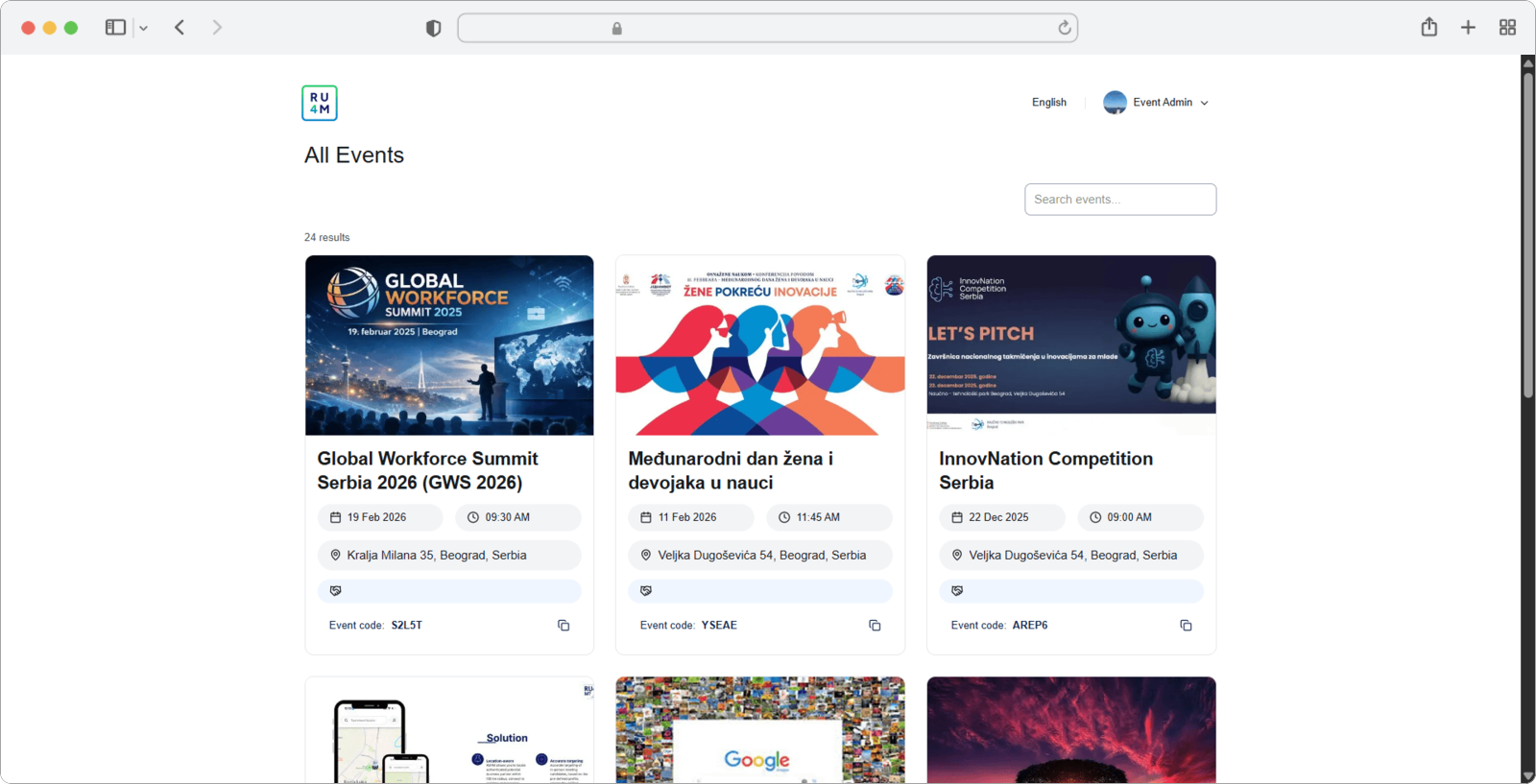
Click "Continue with Google"
On the Sign In page, look at the login form on the right side of the screen. You will see a button with the Google logo and the text "Continue with Google". Click on this button.
Choose your Google account
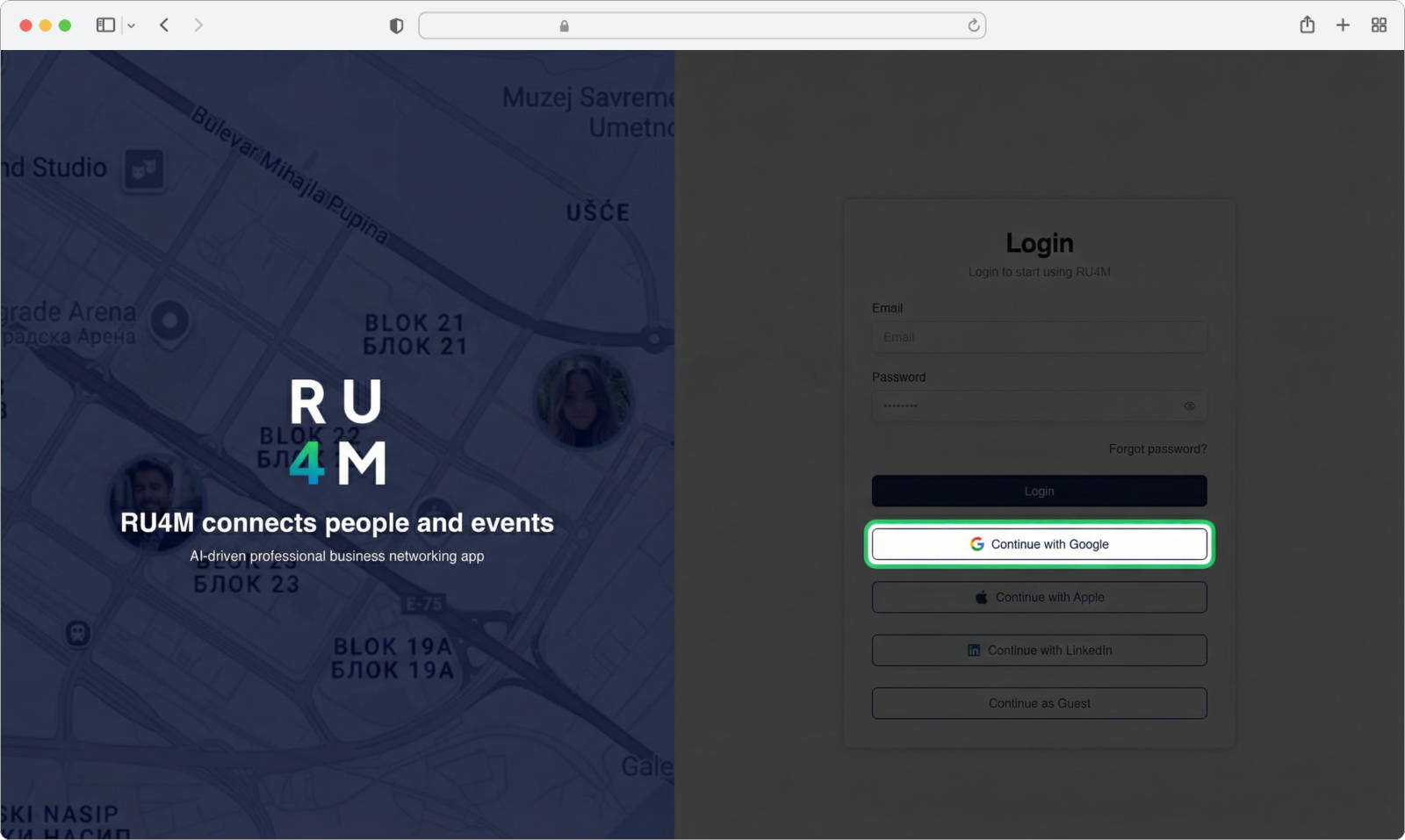
A Google account picker will appear. If you are already signed in to Google in your browser, you will see a list of your Google accounts.
- Click on the account you want to use for RU4M.
- If the account you want to use is not in the list, click "Use another account" at the bottom. You will then need to enter the email and password of that Google account.
Multiple Google accounts
If you have more than one Google account (for example, a personal and a work account), make sure you select the one that you want to associate with your RU4M profile. You can always sign out and sign in with a different account later.
You are signed in
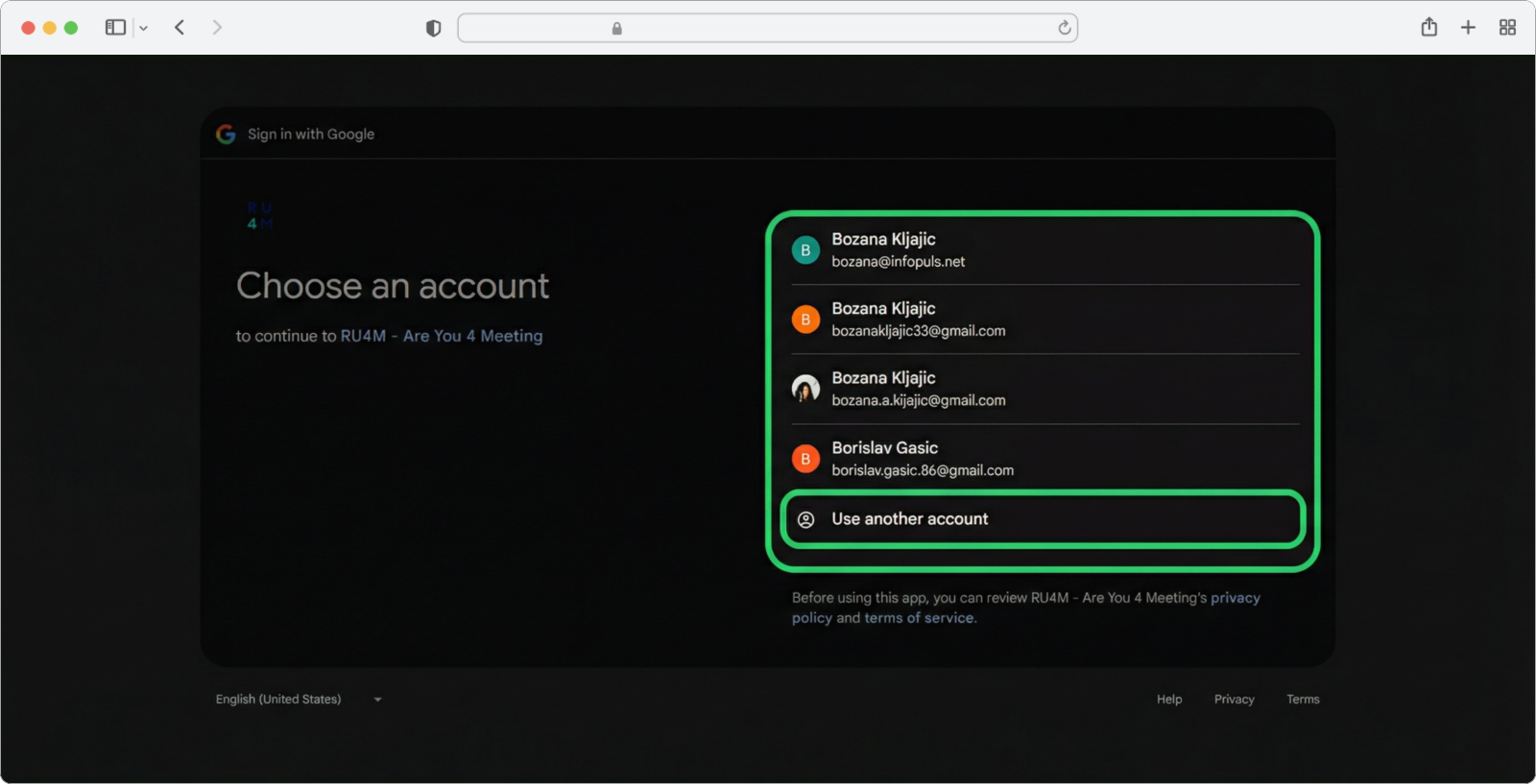
After selecting your account (and granting permissions if prompted), you will be taken directly to the main events page. Here you can see all public events, private events you have joined, and events you have created.
Congratulations — you are now signed in to the RU4M Backoffice!