Confirmation
After completing all the previous steps (whether you filled in just the three required steps or all nine), you will arrive at the final confirmation screen. This page lets you know that your event has been successfully created and saved in the system.
Congratulations — Your Event Is Created!
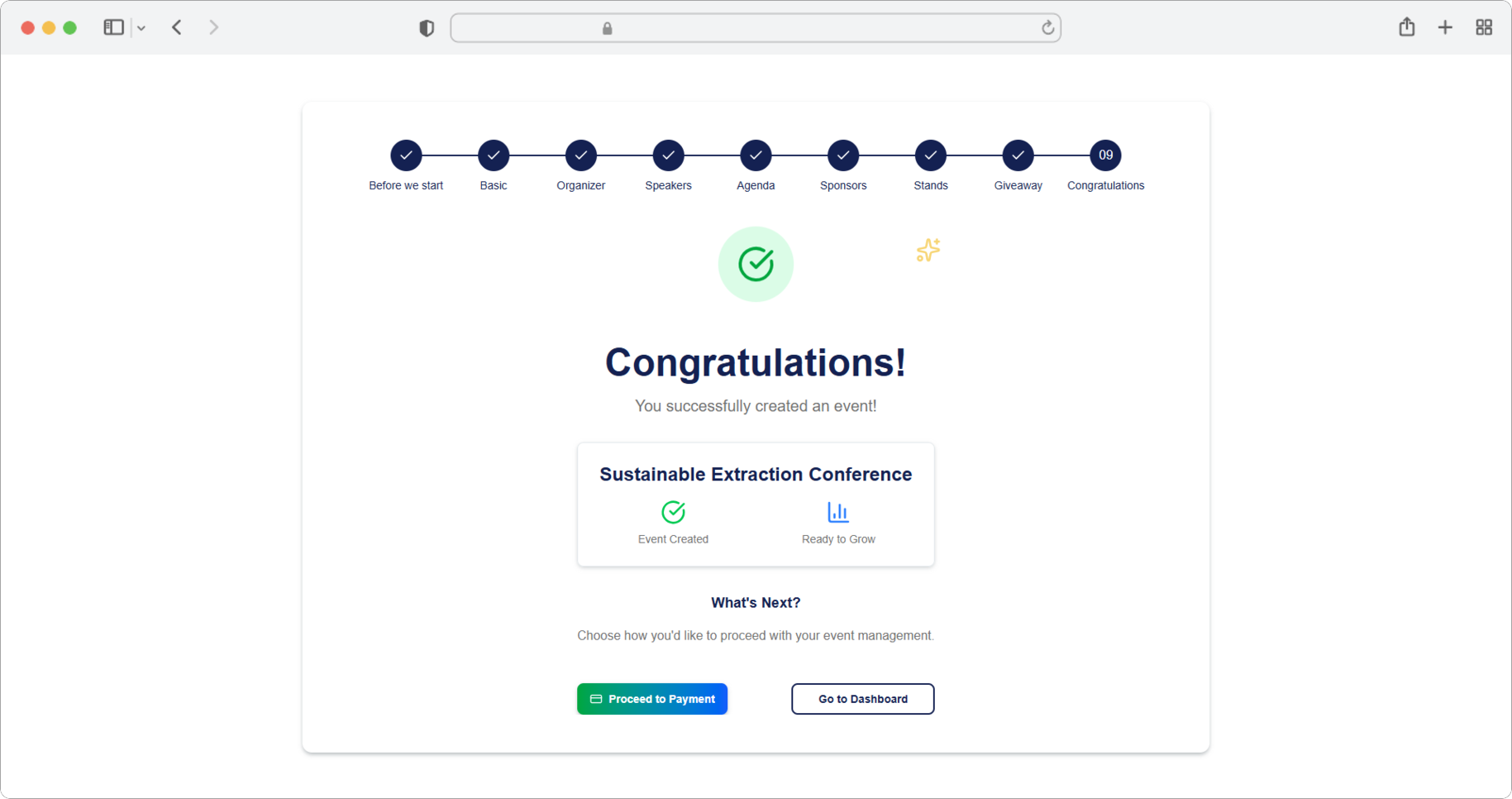
When you reach this screen, you will see a large green checkmark icon at the top of the page, followed by the word "Congratulations!" in large text. Below that, you will see the message "You successfully created an event!" along with a small card showing the name of the event you just created, a green "Event Created" badge, and a blue "Ready to Grow" badge.
At the top of the page, you will also notice the step progress bar showing all nine steps with checkmarks — this confirms that you have successfully completed the event creation process.
Your event is now saved in the system, but it is in draft status. This means the event exists in your account but is not yet visible to users of the RU4M mobile app. Nobody can see it or join it until you publish it.
Below the event card, you will see the heading "What's Next?" with the text "Choose how you'd like to proceed with your event management." There are two buttons at the bottom of the screen:
Option 1: Proceed to Payment
Look at the bottom center of the page. You will see a green button labeled "Proceed to Payment" with a small document icon next to it. Click this button if you want to publish your event right away. You will be taken to the payment page where you can complete the purchase for the tier you selected in Step 1. Once payment is complete, your event will be published and become visible to users in the RU4M mobile app.
Option 2: Go to Dashboard
To the right of the green button, you will see a button with a dark blue outline labeled "Go to Dashboard". Click this button if you are not ready to publish yet. You will be taken back to the main Dashboard page, where your event will appear in the events table with a "Draft" status. You can come back to it at any time, make edits, review all the details, and publish it whenever you are ready.
No rush to publish
Your event is safely saved as a draft. You can take as much time as you need to review everything, make changes, add more details, or share it with colleagues for feedback. Drafts are never deleted automatically — they remain on your Dashboard until you decide to publish or delete them yourself.
What does 'draft' mean?
A "draft" is like a saved document that only you can see. When an event is in draft status, it is stored in your account but completely invisible to everyone else. No one can find it, join it, or see any of its details until you complete the payment and publish it.
What happens when you publish?
Publishing an event means making it available to other people. If your event is public, it will appear on the map and in event lists for all users of the RU4M mobile app. If your event is private, only people who have the special invite code will be able to see and join it. The invite code can be found on the Dashboard in the events table, in the "Code" column next to your event.