Event Participants
This page covers the Participants tab of the Event Details page. The Participants tab gives you a complete directory of every person who has registered for your event, allowing you to browse attendee information and track registration details.
You must be signed in
You need to be signed in to the RU4M Backoffice to access the Event Details page. If you have not signed in yet, please follow the instructions in the Sign In guide first.
Participants
The Participants tab gives you a complete directory of every person who has registered for your event. It is like a guest list that automatically updates as new people sign up.
Click the Participants tab
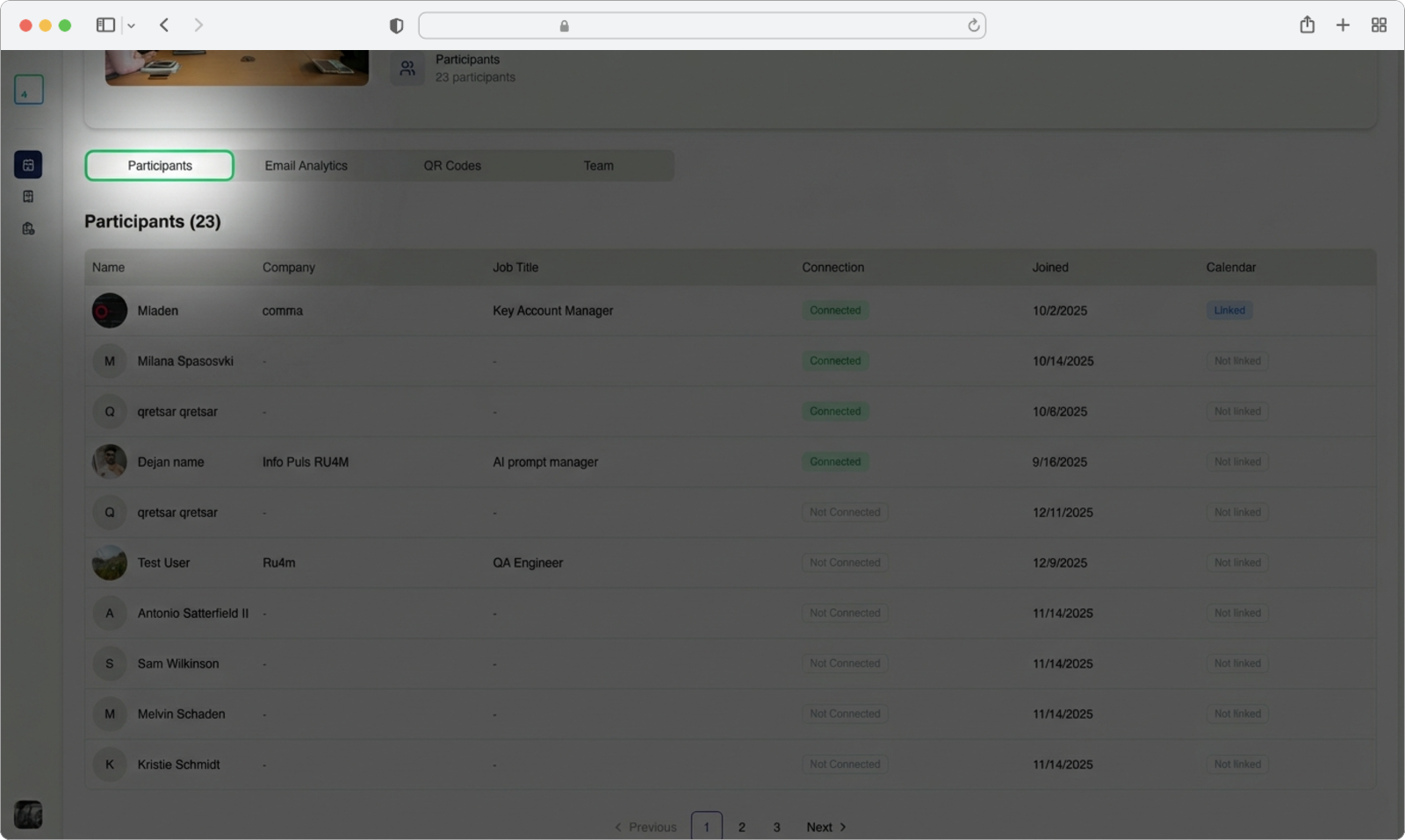
Look for the row of tabs below the Event Card. You will see tab labels such as "Participants," "Email Analytics," "QR Codes," and "Teams." Click on the tab labeled "Participants".
The page will update to show a table (a grid with rows and columns) listing all registered attendees.
Browse the attendee list
Each row in the table represents one attendee, and the columns show the following information:
- Name -- The attendee's full name
- Company -- The company or organization the attendee works for
- Job title -- The attendee's role or position at their company
- Connection status -- Whether the attendee has connected with other attendees through the app
- Join date -- The date when the attendee registered for the event
- Calendar link status -- Whether the attendee has synced their calendar with the app (this helps with scheduling meetings during the event)
Scrolling through a long list
If your event has many participants, the table may extend beyond what fits on your screen. You can scroll down the page to see more rows. Some tables also have pagination (page numbers at the bottom) that let you jump to different pages of the list.