Event Details
When you click on an individual event in the RU4M Backoffice, you are taken to the Event Details page. This is the central hub for everything related to that single event. From here, you can see real-time analytics about how your event is performing, view a list of all participants, manage QR codes for check-in and booth scanning, review email campaign results, and add or remove team members who help you run the event.
Think of this page as your event's "control room" -- everything you need to monitor and manage is right here, organized into clearly labeled tabs and sections.
You must be signed in
You need to be signed in to the RU4M Backoffice to access the Event Details page. If you have not signed in yet, please follow the instructions in the Sign In guide first.
Navigating to an Event
Before you can see the details of an event, you need to find and open it. Here is how to get there from the main Dashboard.
Find your event and click on it
On the Events page in the Dashboard, you will see a list of all your events. If you have many events, you can use the search bar at the top of the list to type the name of the event you are looking for. The list will filter as you type, showing only events that match what you entered.
Once you see the event you want, look at the event name -- it appears as a clickable link (usually displayed in a color that stands out from the rest of the text, like blue or purple). Click directly on the event name to open it.
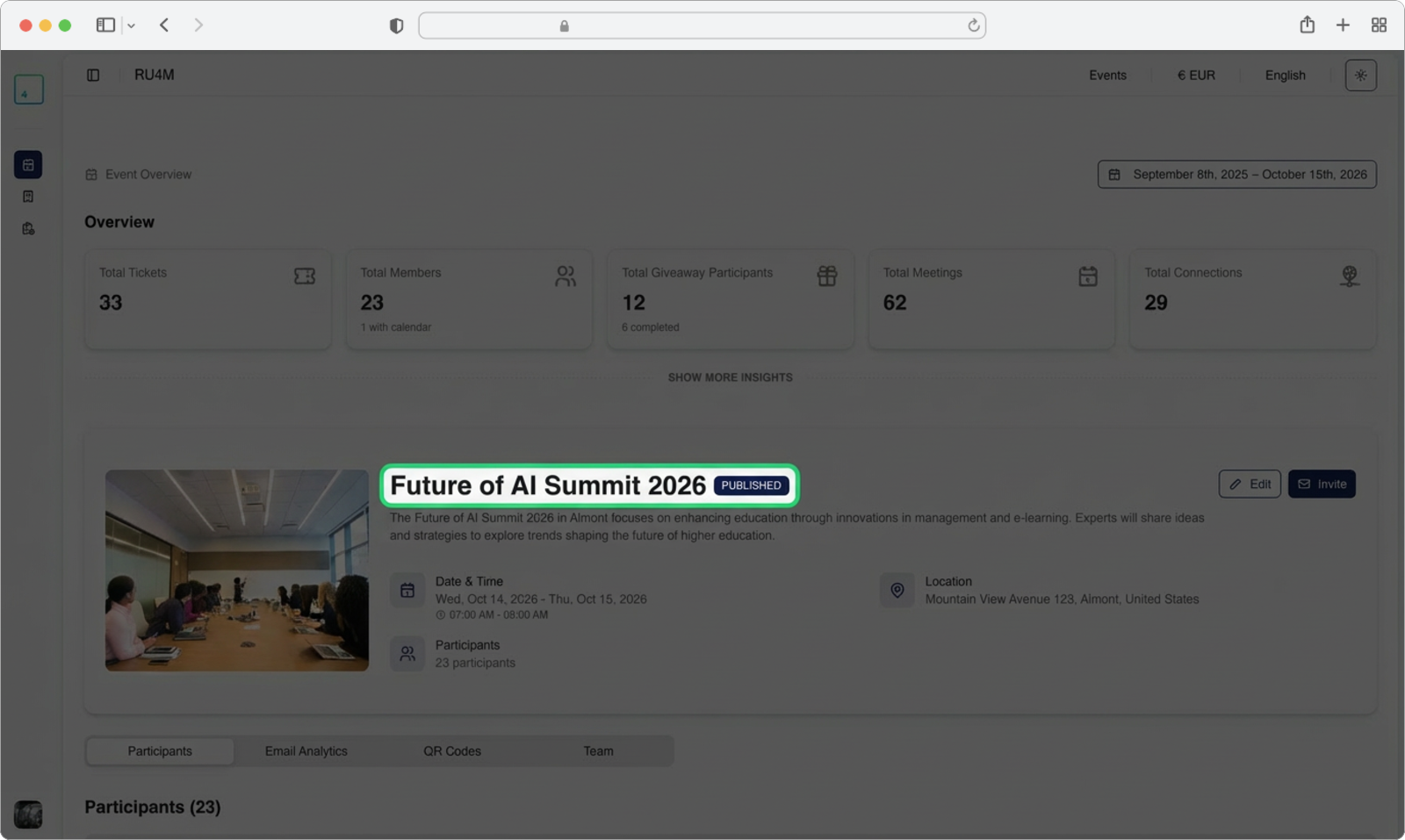
Quick shortcut
If you already know the exact name of your event, type the first few letters into the search bar. The list will immediately narrow down, making it much faster to find what you are looking for -- especially if you manage dozens of events.
After clicking on the event name, the page will change and you will now be on the Event Details page for that specific event.
Event Card
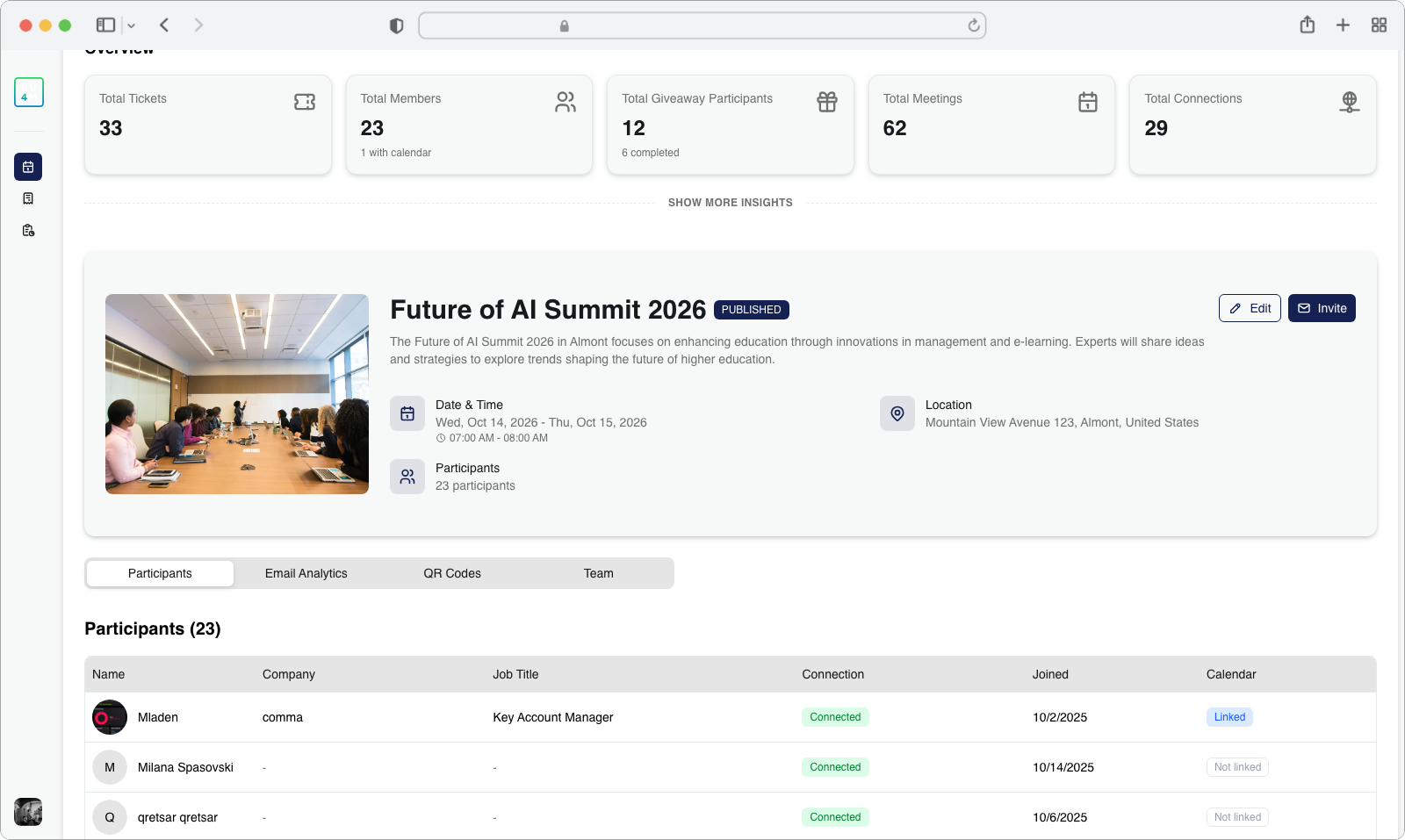
Below the Insights section (or directly below the overview cards if Insights are collapsed), you will see the Event Card. This is a large card that displays the key information about your published event at a glance.
The Event Card typically shows:
- Event name -- The title of your event, displayed prominently
- Event description -- A short summary or description of the event
- Date and time -- When the event starts and ends
- Location -- Where the event takes place (physical address or online)
- Participant count -- How many people have registered or joined
On the Event Card, you will also see two important buttons:
- Edit -- Click this button to make changes to the event (such as updating the description, changing the date, or modifying the location)
- Invite -- Click this button to send invitations to people you want to attend
Keep your event info up to date
If any details about your event change (for example, the venue moves to a different building, or the start time changes), click the Edit button immediately to update the information. Attendees rely on this information to plan their attendance, so keeping it accurate is important.
Explore More
The Event Details page contains several tabs with additional information and tools. Learn more about each one:
- Event Insights -- Real-time analytics, charts, and performance metrics for your event
- Event Participants -- A complete directory of all registered attendees
- Event Email Analytics -- Email campaign performance data for this event
- Event QR Codes -- Downloadable QR codes for event invitations and booth check-ins
- Event Teams -- Manage the staff and volunteers who help run your event