Event QR Codes
This page covers the QR Codes tab of the Event Details page. The QR Codes tab provides downloadable QR codes that you can use for event invitations and for physical booth check-ins at the event venue.
You must be signed in
You need to be signed in to the RU4M Backoffice to access the Event Details page. If you have not signed in yet, please follow the instructions in the Sign In guide first.
QR Codes
The QR Codes tab provides downloadable QR codes that you can use for event invitations and for physical booth check-ins at the event venue. QR codes are those square-shaped patterns of black and white blocks that people can scan with their phone cameras.
Event Invite QR Code
The first QR code you will see in this tab is the Event Invite QR Code. When someone scans this code with their phone's camera, they will be taken directly to your event's registration page so they can sign up.
View and download the Event Invite QR code
After clicking the "QR Codes" tab, you will see a large QR code image displayed on the screen. This is your event's invitation QR code.
Below (or beside) the QR code, there is a "Download" button. Click this button to save the QR code image to your computer. Once downloaded, you can:
- Print it and place it on flyers, posters, or brochures
- Include it in presentations or slides
- Share it digitally via email or messaging apps
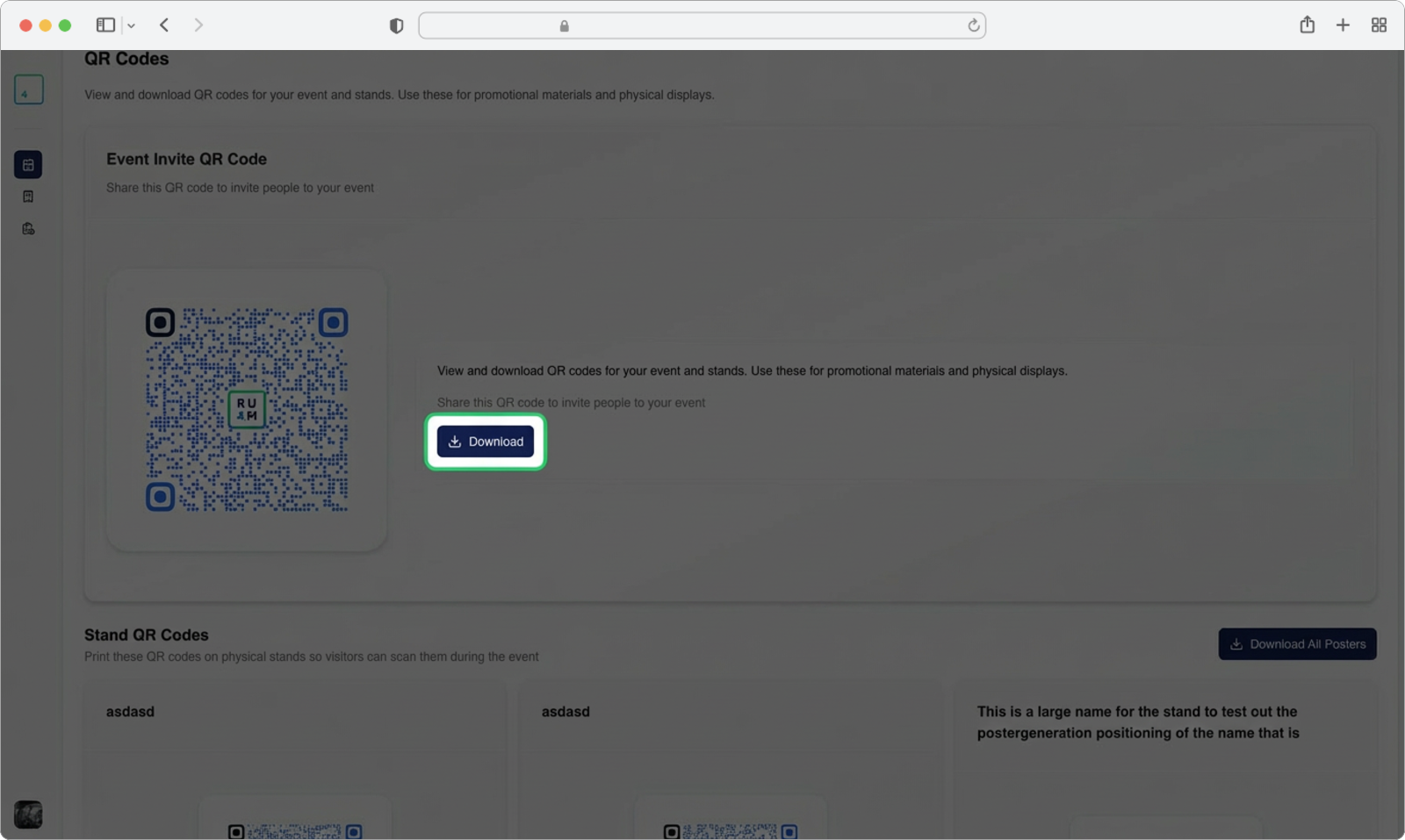
Where to use the Event Invite QR code
Place this QR code anywhere you want to promote your event. For example, you could print it on the back of your business cards, include it in a newsletter, or display it on a screen at a pre-event meetup. When people scan it with their phone, they can instantly register for your event.
Stand QR Codes
If your event has physical booths or stands (for example, at a conference or trade show), the Stand QR Codes section generates a unique QR code for each stand. These QR codes are meant to be printed and placed at the physical booths so that visitors can scan them when they visit.
View the stand QR codes
Scroll down past the Event Invite QR code and you will see the Stand QR Codes section. Here, you will see a series of cards -- one card for each stand or booth at your event. Each card shows:
- The name of the stand
- A QR code unique to that stand
- A "Download" button to save that individual QR code
- A "Poster" option to generate a print-ready poster featuring the QR code
Download individual codes or all at once
You have two options for downloading:
- Download one at a time -- Click the "Download" button on any individual stand card to save just that QR code
- Download all at once -- Look at the top-right corner of the Stand QR Codes section. You will see a "Download All Posters" button. Click this button to download a complete set of all stand QR codes in poster format, bundled together for easy printing.
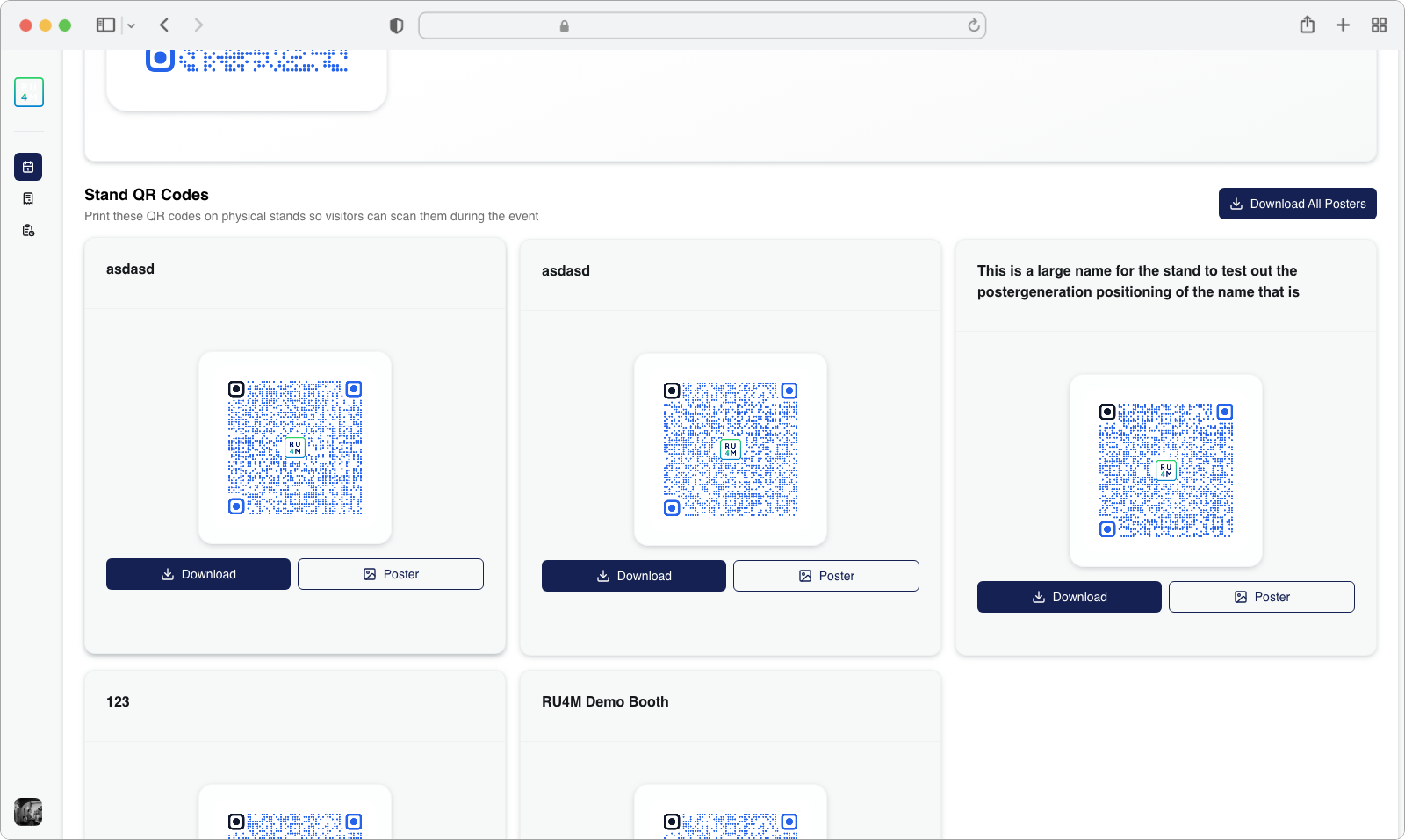
Print these before the event
Make sure you download and print all your Stand QR codes before the event day. On the day of the event, you will want to place each printed QR code at its corresponding booth or stand so that visitors can scan them as they walk around. Trying to print these on the day of the event can be stressful and may lead to delays.
What happens when someone scans a Stand QR code?
When a visitor at your event scans a Stand QR code with their phone, the app records that they visited that particular booth. This helps you track which booths were most popular and gives you engagement data for your sponsors and exhibitors.