Event Teams
This page covers the Teams tab of the Event Details page. The Teams tab lets you manage the staff and volunteers who help run your event, including viewing current team members and adding new ones.
You must be signed in
You need to be signed in to the RU4M Backoffice to access the Event Details page. If you have not signed in yet, please follow the instructions in the Sign In guide first.
Team Management
The Teams tab lets you manage the staff and volunteers who help run your event. Here you can see who is on your event team, what role each person has, and add new team members.
Viewing Team Members
Click the Teams tab
In the row of tabs below the Event Card, click on the tab labeled "Teams".
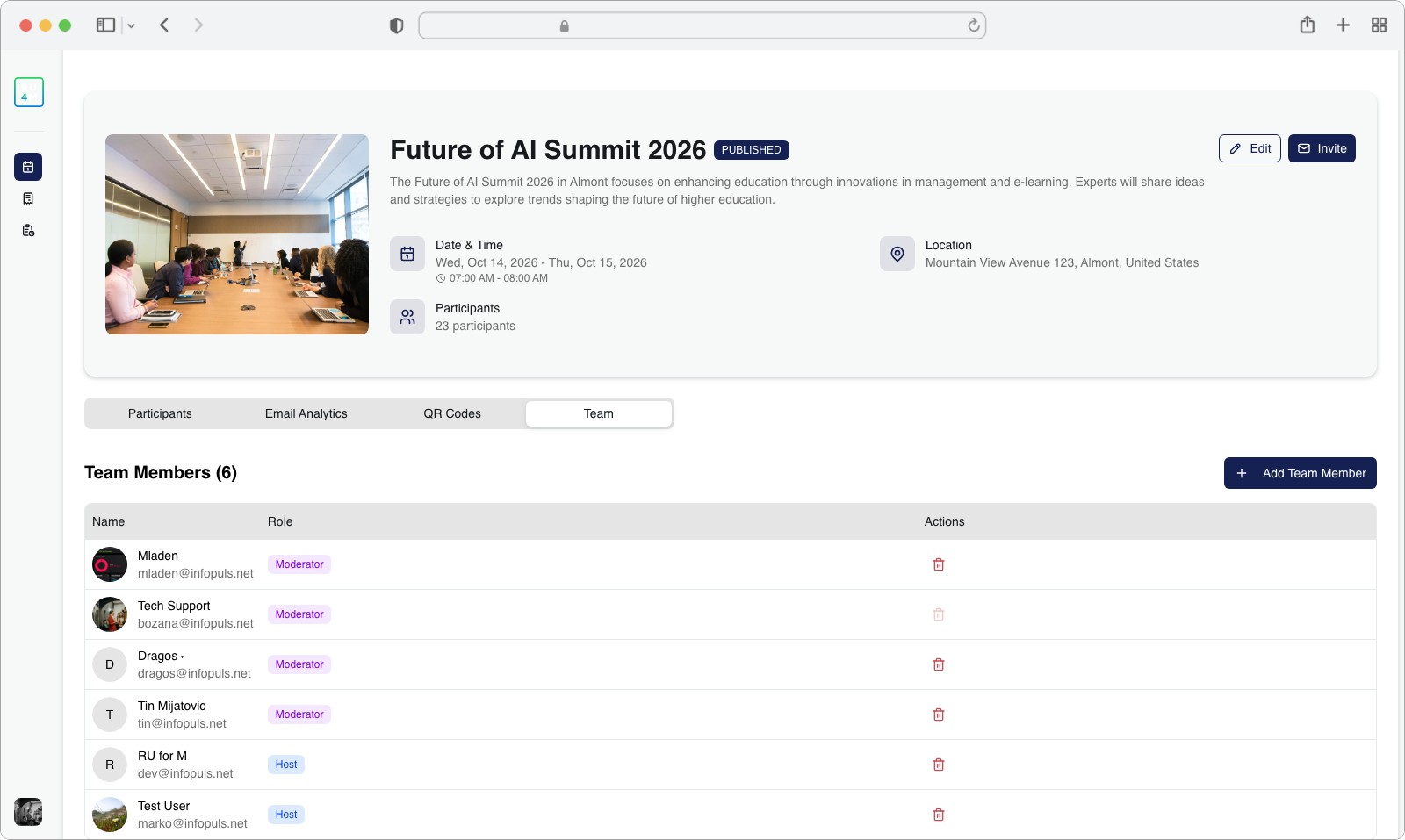
The page will update to show a list of all current team members. Each row in the list shows:
- Name -- The team member's full name
- Email -- The email address associated with their account
- Role -- The role assigned to them for this event (for example, "Admin," "Scanner," "Moderator," etc.)
In the top-right corner of this section, you will see an "Add Team Member" button.
Adding a Team Member
When you need to add someone new to your event team (for example, a volunteer who will scan tickets at the door, or a colleague who needs access to the event dashboard), follow these steps.
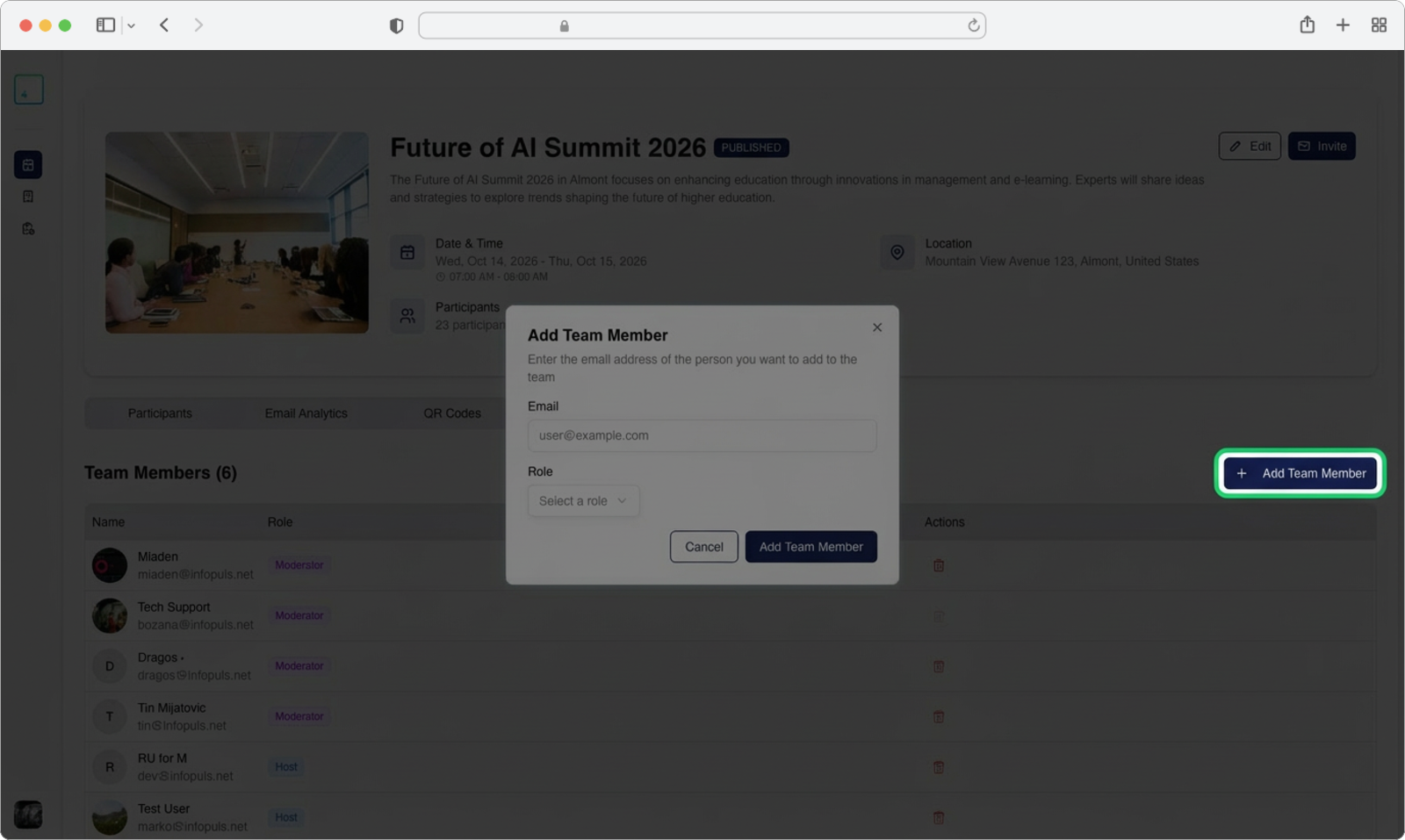
Click "Add Team Member"
Look at the top-right corner of the Teams tab. You will see a button labeled "Add Team Member". Click on this button.
A modal window (a small popup box that appears on top of the current page) will open. This modal contains a form where you will enter the new team member's information.
Enter the team member's email address
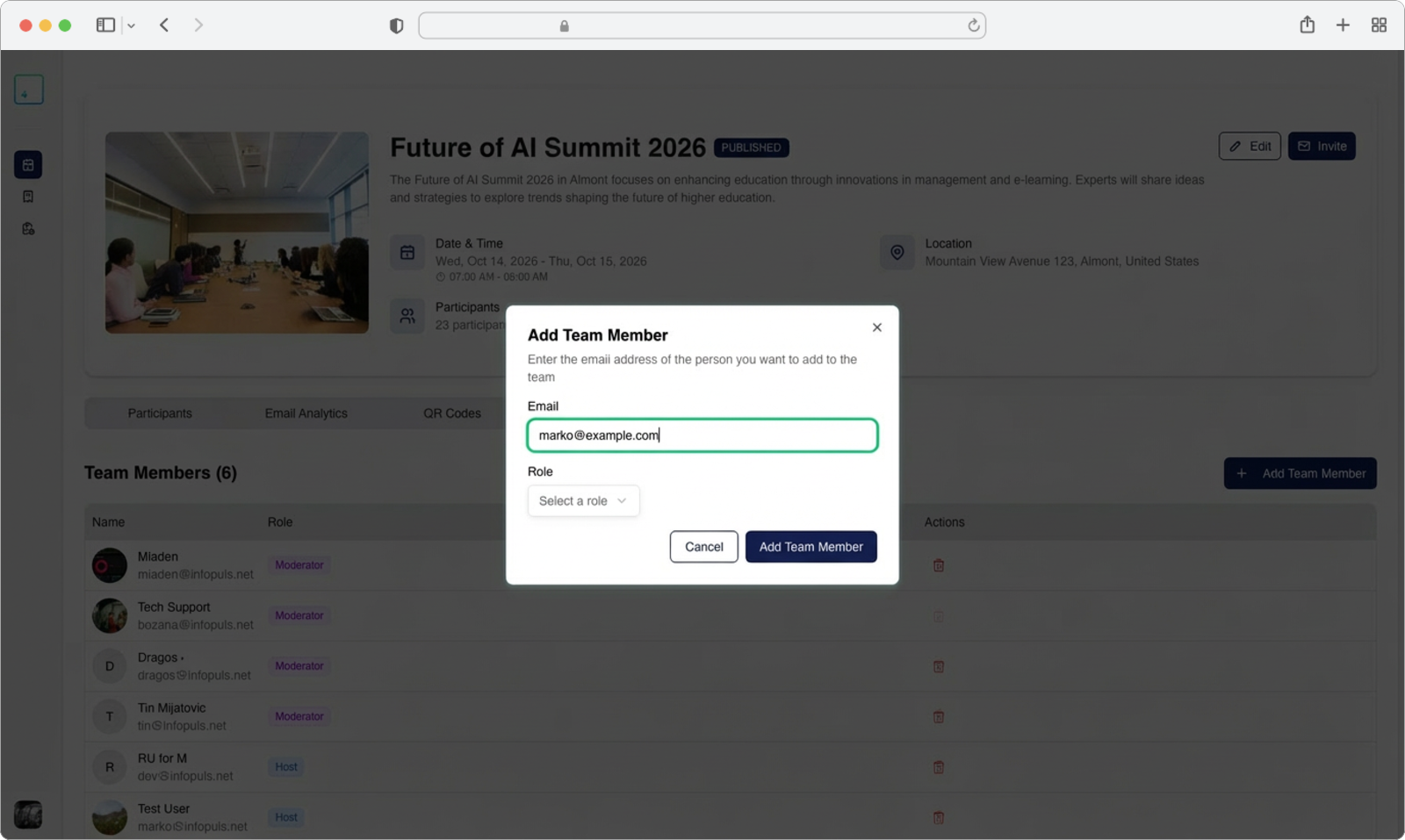
Inside the modal window, you will see an Email input field. Click on this field (a blinking cursor will appear inside it) and type the email address of the person you want to add.
Must have a RU4M account
The person you are adding must already have an existing RU4M app account registered with that email address. If they do not have an account yet, they will need to download the RU4M app and create an account first before you can add them to your event team.
Choose a role for the team member
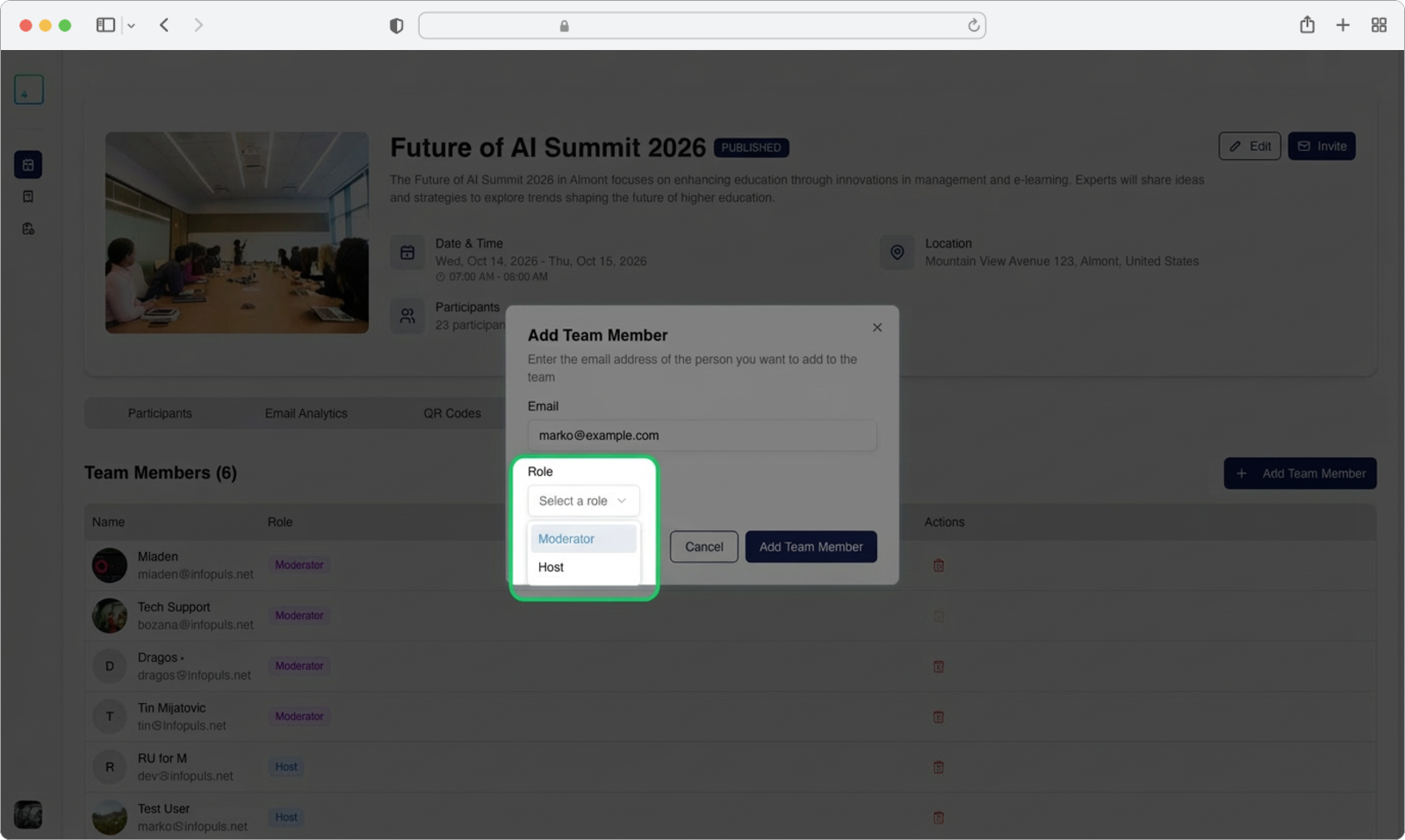
Below the email field, you will see a Role input field. Click on this field to open a dropdown menu -- this is a list of available roles that slides down when you click.
Browse the list and click on the role you want to assign to this person. The role determines what permissions and access the team member will have for this event.
After selecting the role, click the "Add Team Member" button at the bottom of the modal to confirm and add the person to your team.
Choosing the right role
Each role grants different levels of access. For example, an "Admin" can edit event details and manage other team members, while a "Scanner" can only scan tickets at the door. Choose the role carefully based on what the person needs to do at your event. If you are unsure, start with a more limited role -- you can always change it later.
After clicking "Add Team Member," the modal will close and you will see the new person appear in the team members list with their name, email, and assigned role.