Sign In with Apple
If you have an Apple ID (the account you use for your iPhone, iPad, or Mac), you can use it to sign in to RU4M. If you do not have a RU4M account yet, signing in with Apple will automatically create one for you.
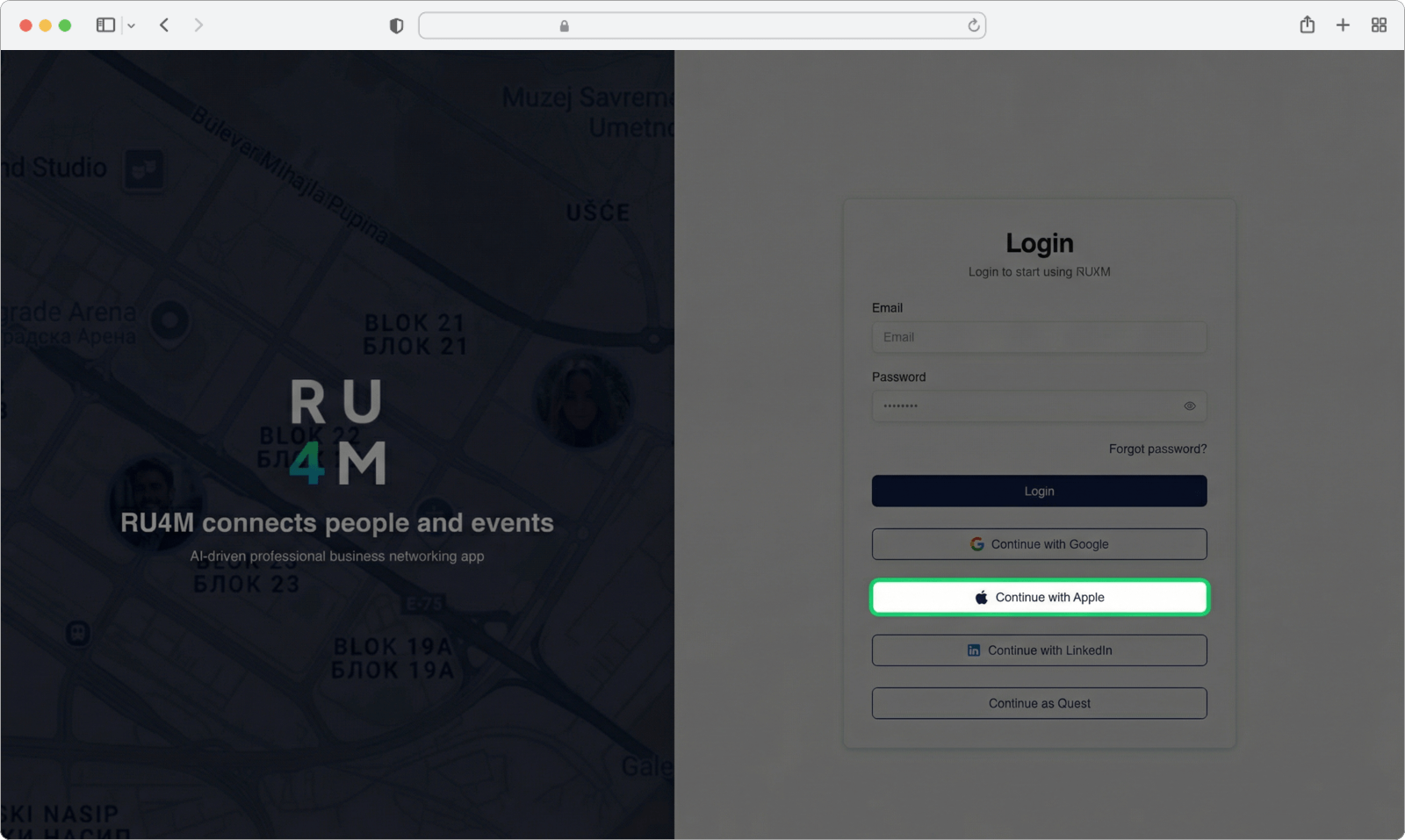
Click "Continue with Apple"
On the Sign In page, look at the login form on the right side of the screen. You will see a button with the Apple logo (a small apple icon). Click on this button.
Enter your Apple ID email
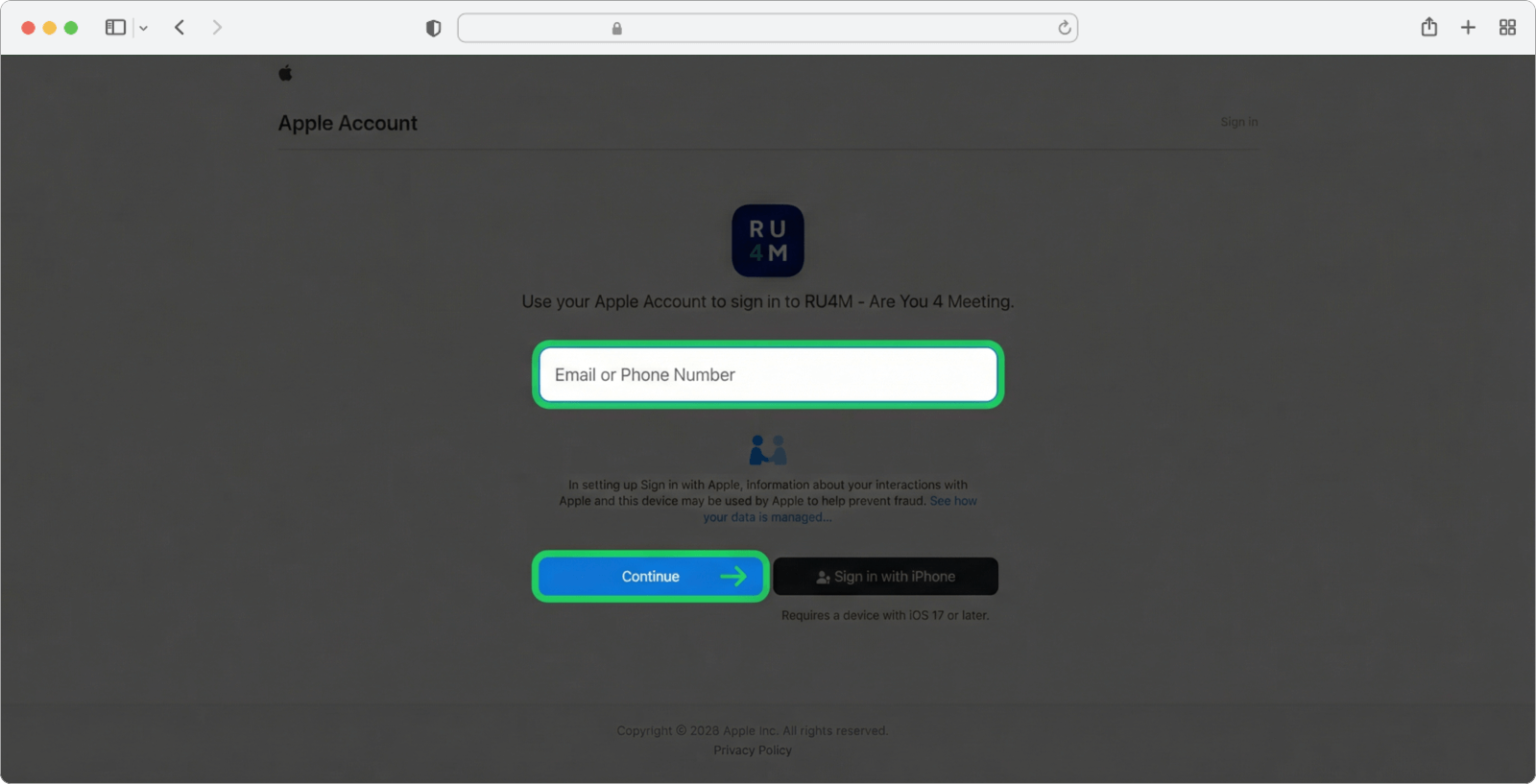
A new page will appear — this is Apple's own sign-in page. You will see a field in the center of the page asking for your email or phone number.
Click on this field and type the email address of your Apple ID. Then click the "Continue" button (shown as an arrow or the word "Continue").
Enter your Apple ID password
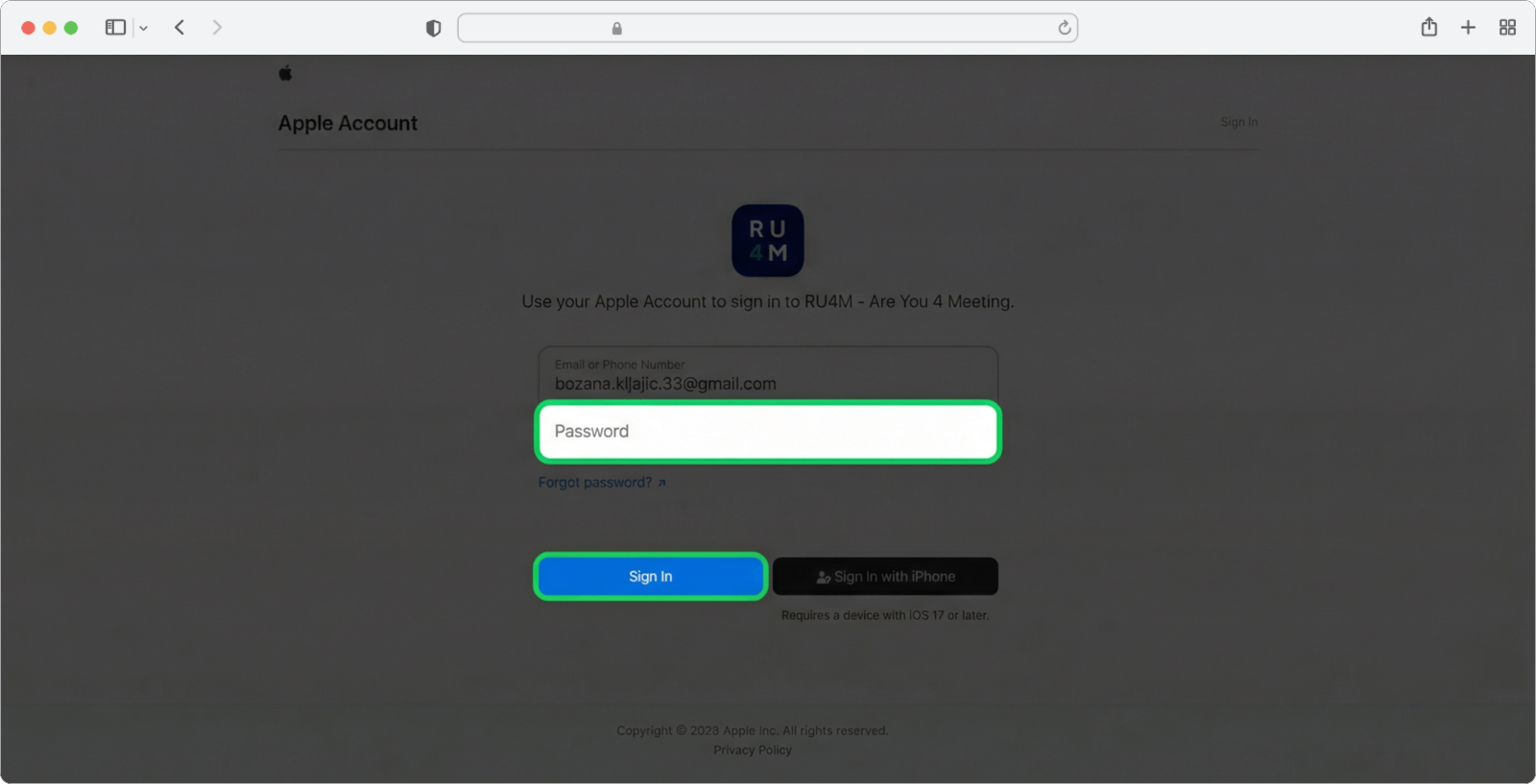
After entering your email, the page will now ask for your password.
Click on the password field and type your Apple ID password. Then click the "Sign In" button.
Two-factor authentication
Depending on your Apple account settings, Apple may send a verification code to one of your trusted devices (such as your iPhone). If this happens, you will see a screen with empty fields where you need to type the code that appeared on your phone. Enter the code to continue.
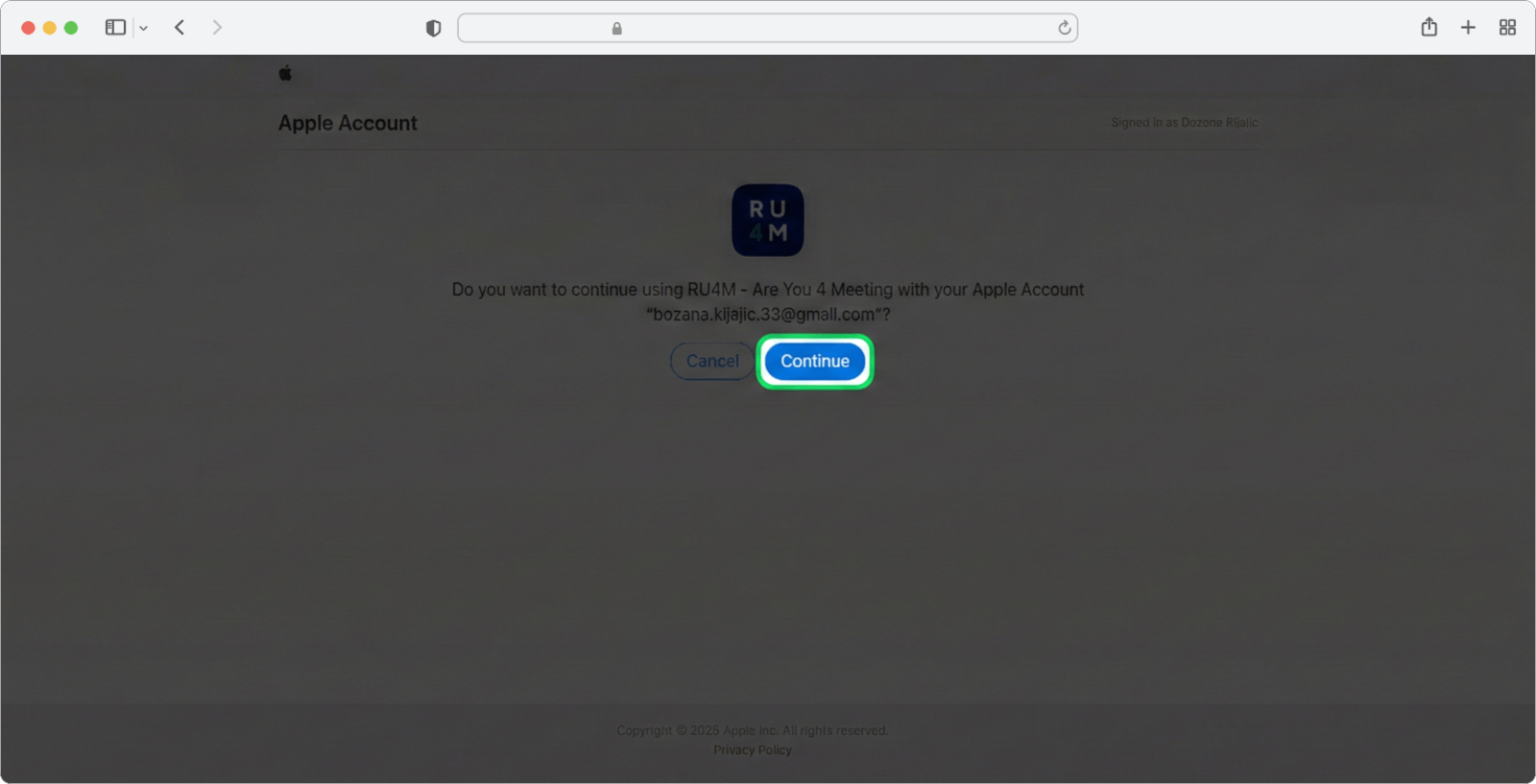
Allow permissions
Apple will ask if you want to allow RU4M to access your account information. Click the "Continue" button to grant permission and proceed.
You are signed in
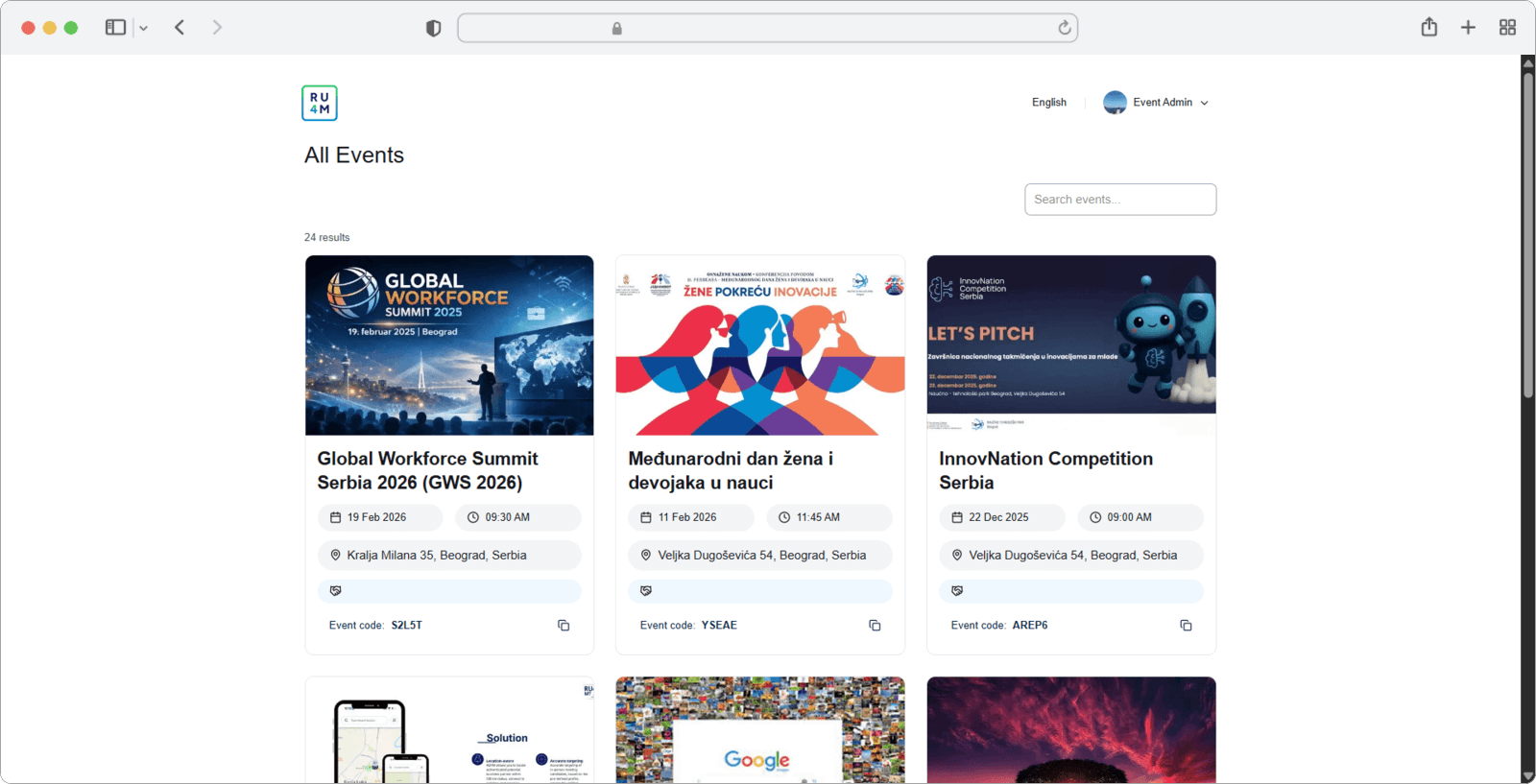
After allowing permissions, you will be taken directly to the main events page. Here you can see all public events, private events you have joined, and events you have created.
Congratulations — you are now signed in to the RU4M Backoffice!