Sponsors (Optional)
If you have sponsors, companies, or partners you want to promote, in this step you enter their information.
Add a Sponsor
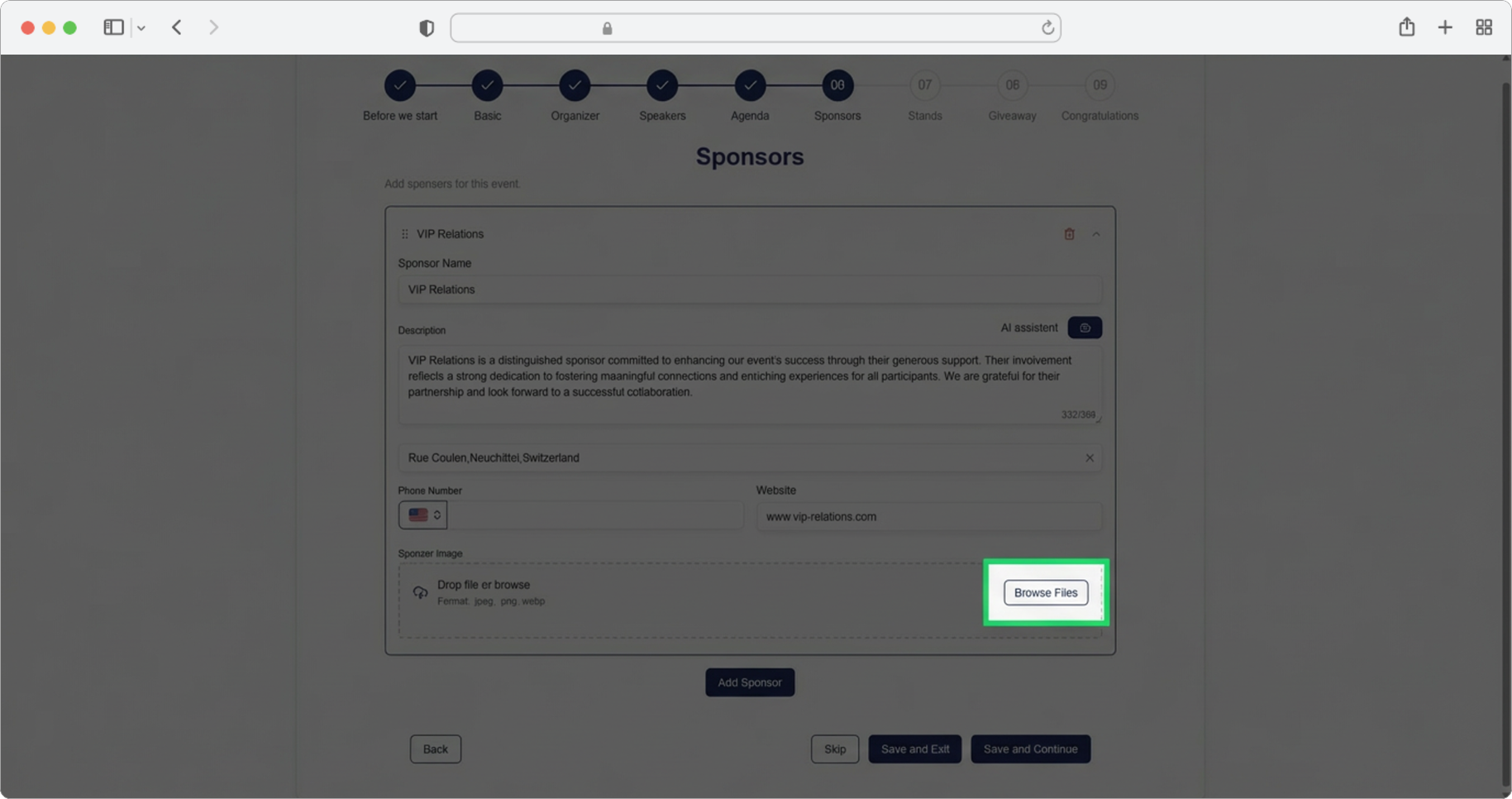
Click the "Add sponsor" button. A form for adding sponsors will open. If you want to skip the step, select the "Skip" option, and if you want to finish creating, select the "Save and Exit" option.
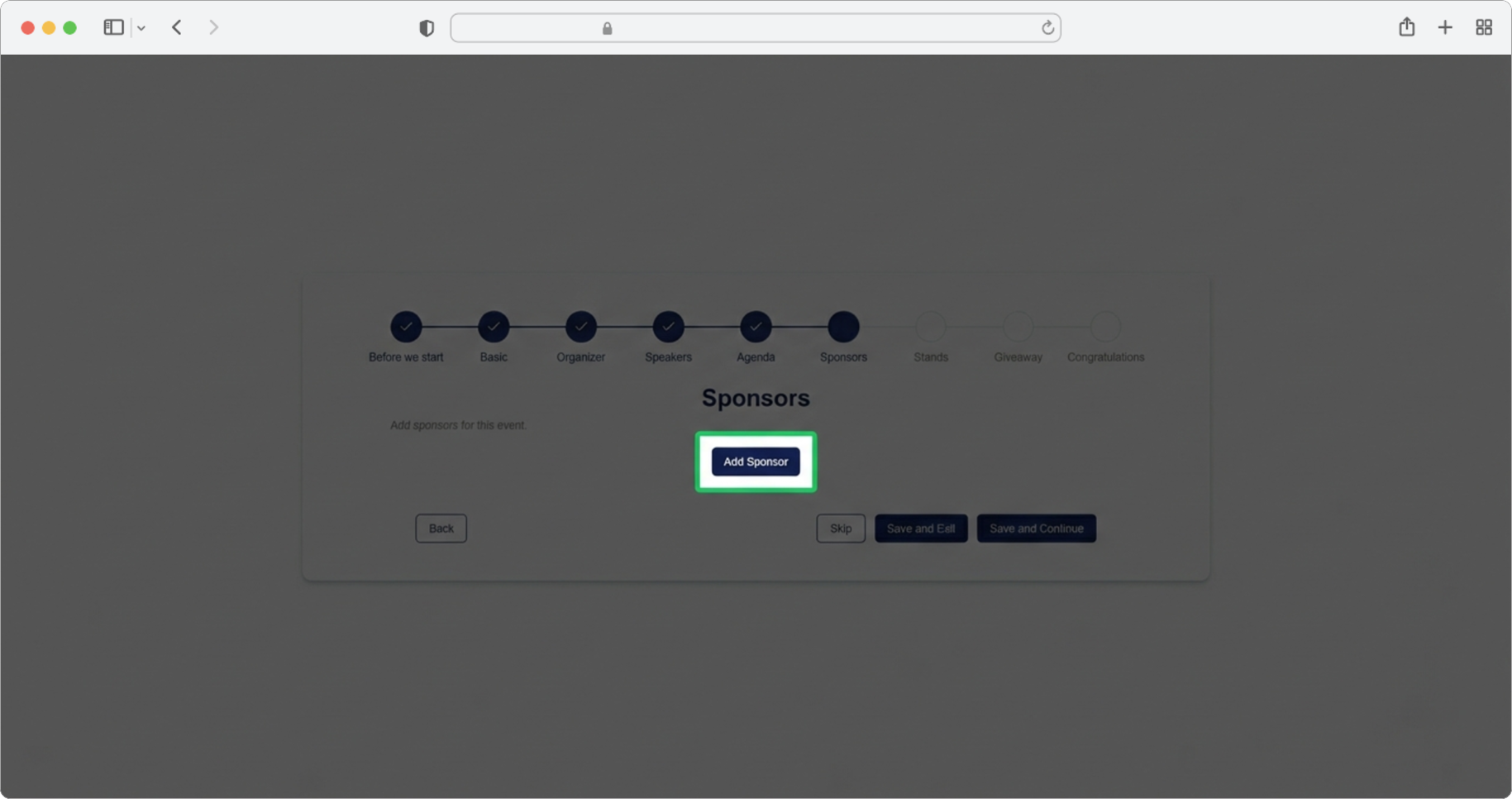
Sponsor Name
Required field (if you chose to add a sponsor). Click on the text input field labeled "Sponsor name" and enter the sponsor's name.
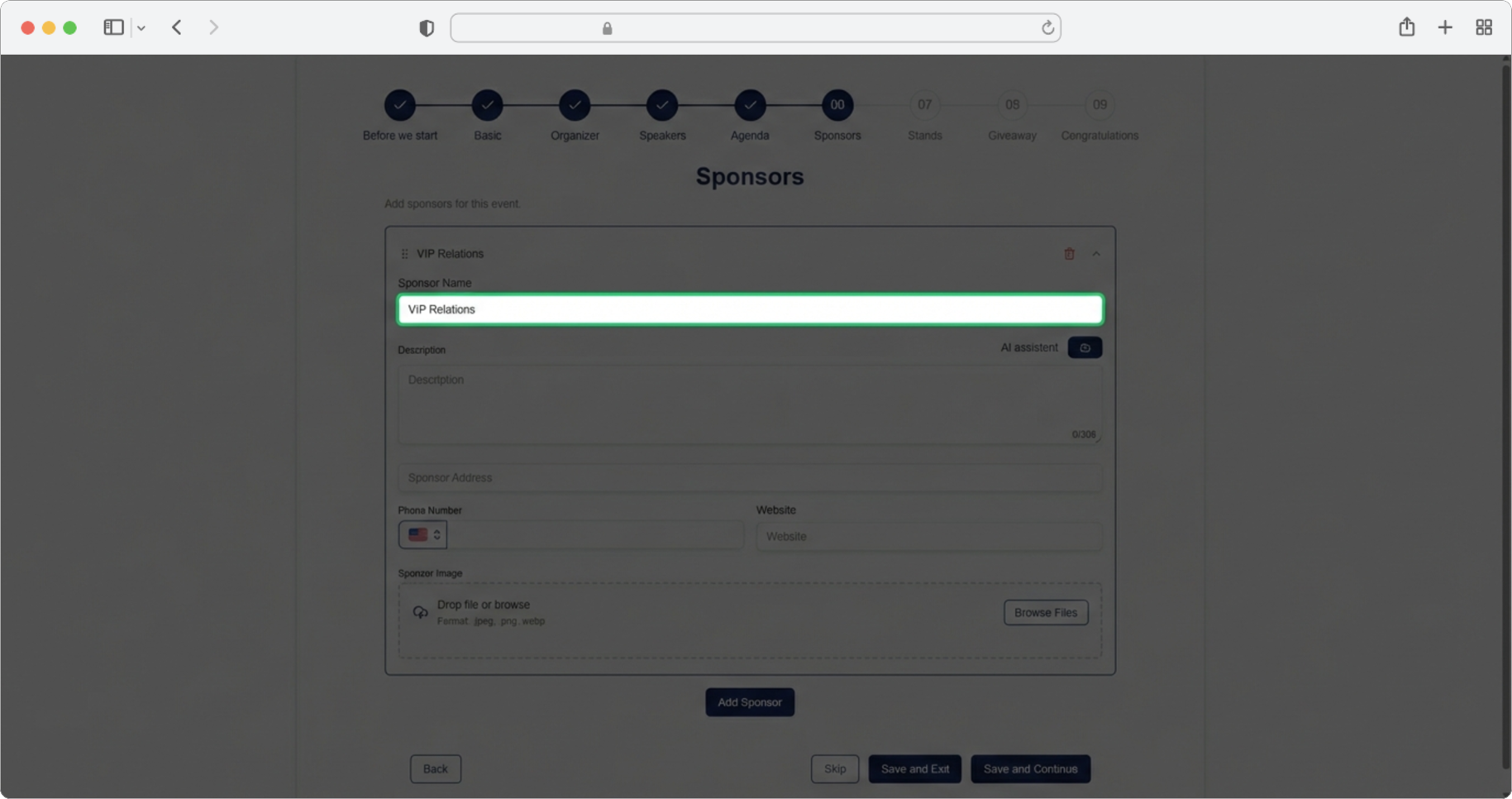
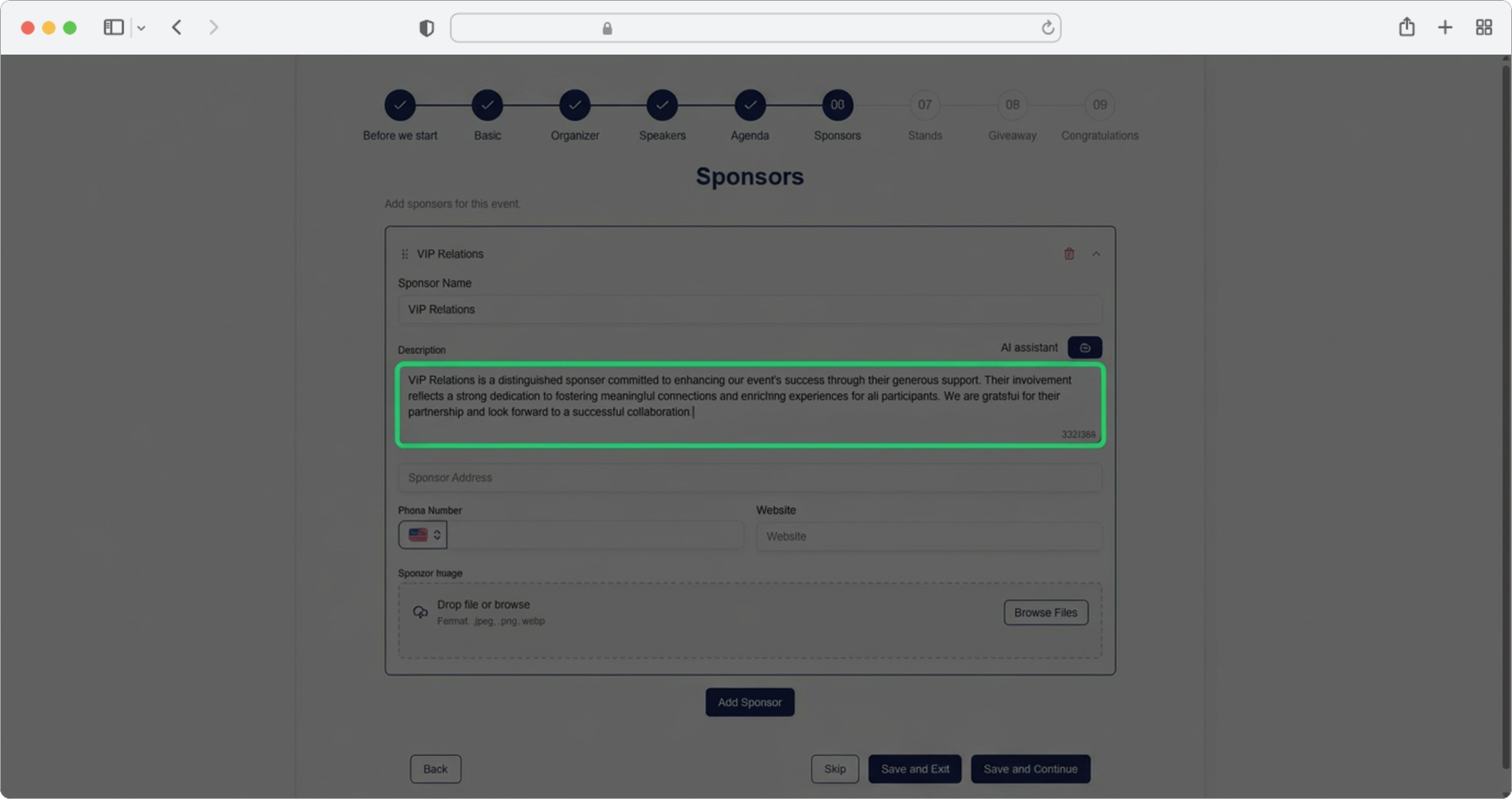
Sponsor Description
Required field. Click on the text input field labeled "Sponsor Description" and enter a short description of the sponsor, up to 300 characters. Alternatively, click on the AI assistant icon, which will generate a suggestion for you. You can edit the generated text according to your own needs.
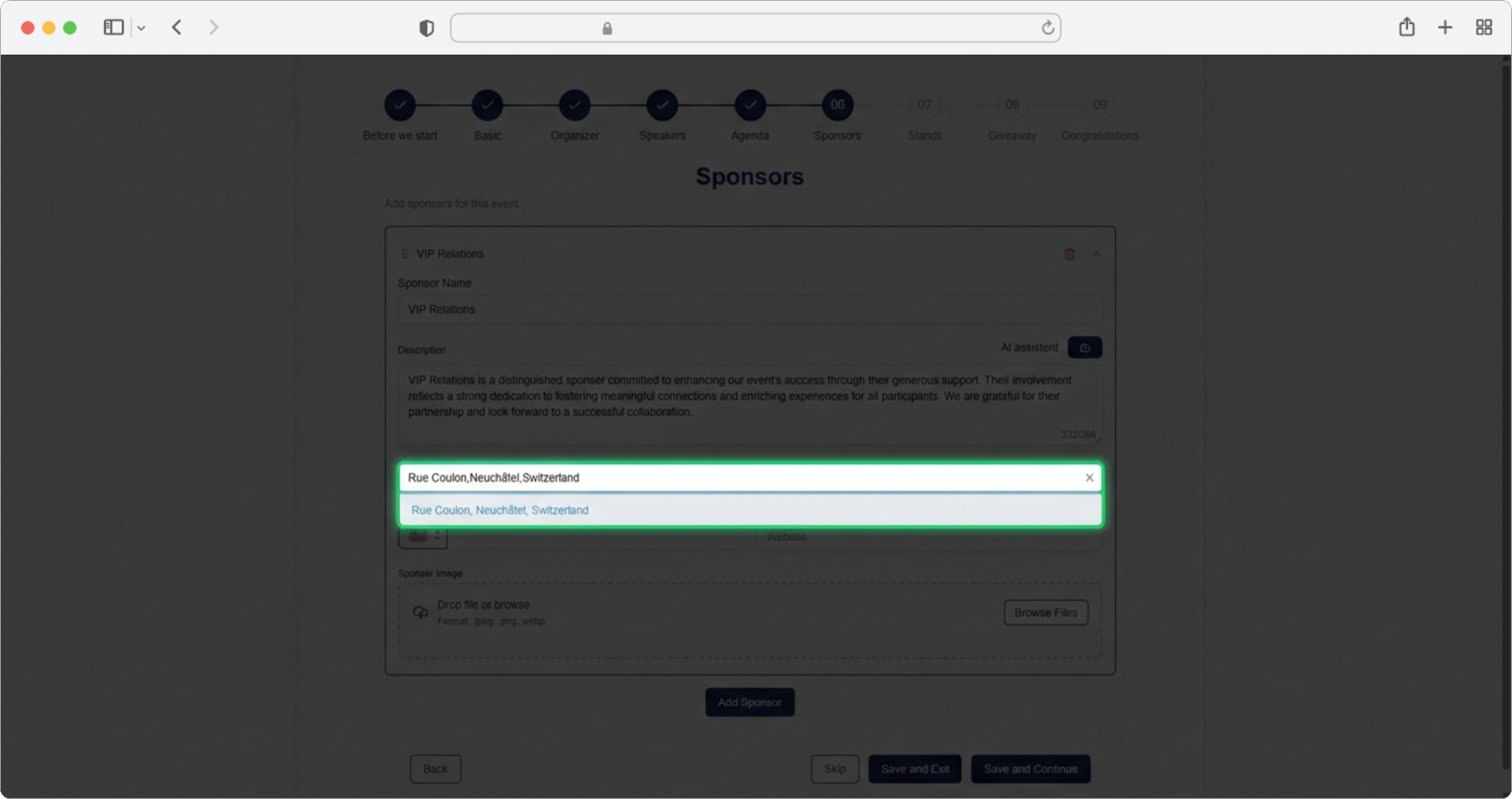
Sponsor Address
Required field. Enter the exact sponsor address by clicking on the search input field labeled "Sponsor Address". As you type, search results will update in parallel — they refresh automatically with each letter you type. Keep in mind that the address must be exact, either in the form of a street and number or a marked location on the map. Only locations offered in Google Maps search results are allowed.
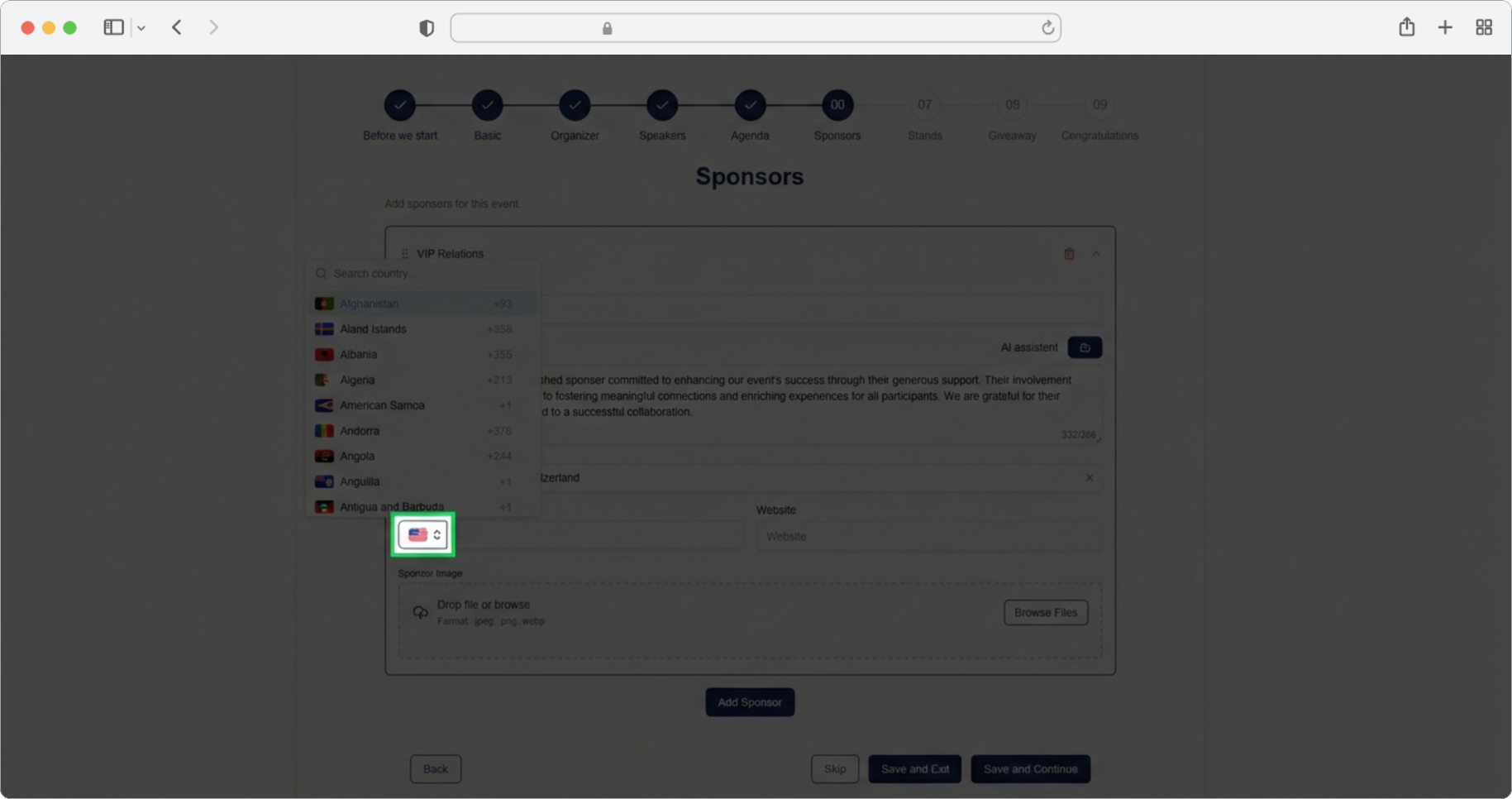
Country Code — Open Dropdown
Click on the icon with the Country code (an icon showing a small flag next to the phone number field) and a dropdown menu will open, allowing you to change the country code for the phone number.
Search for Country Code
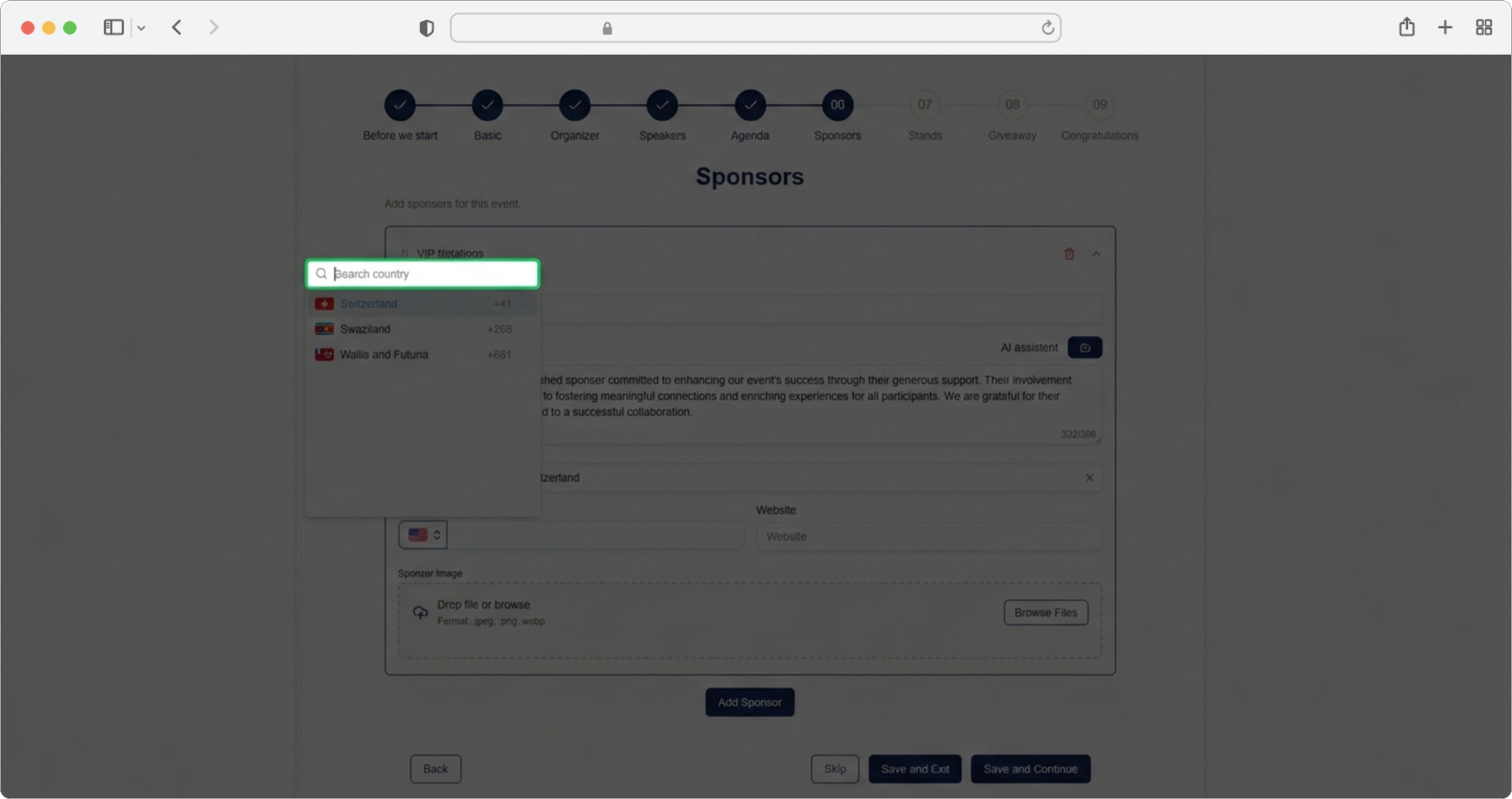
Click on the search input field labeled "Search country" and start searching by typing the country name. Search results will update in parallel as you type.
Select Country and Enter Phone Number
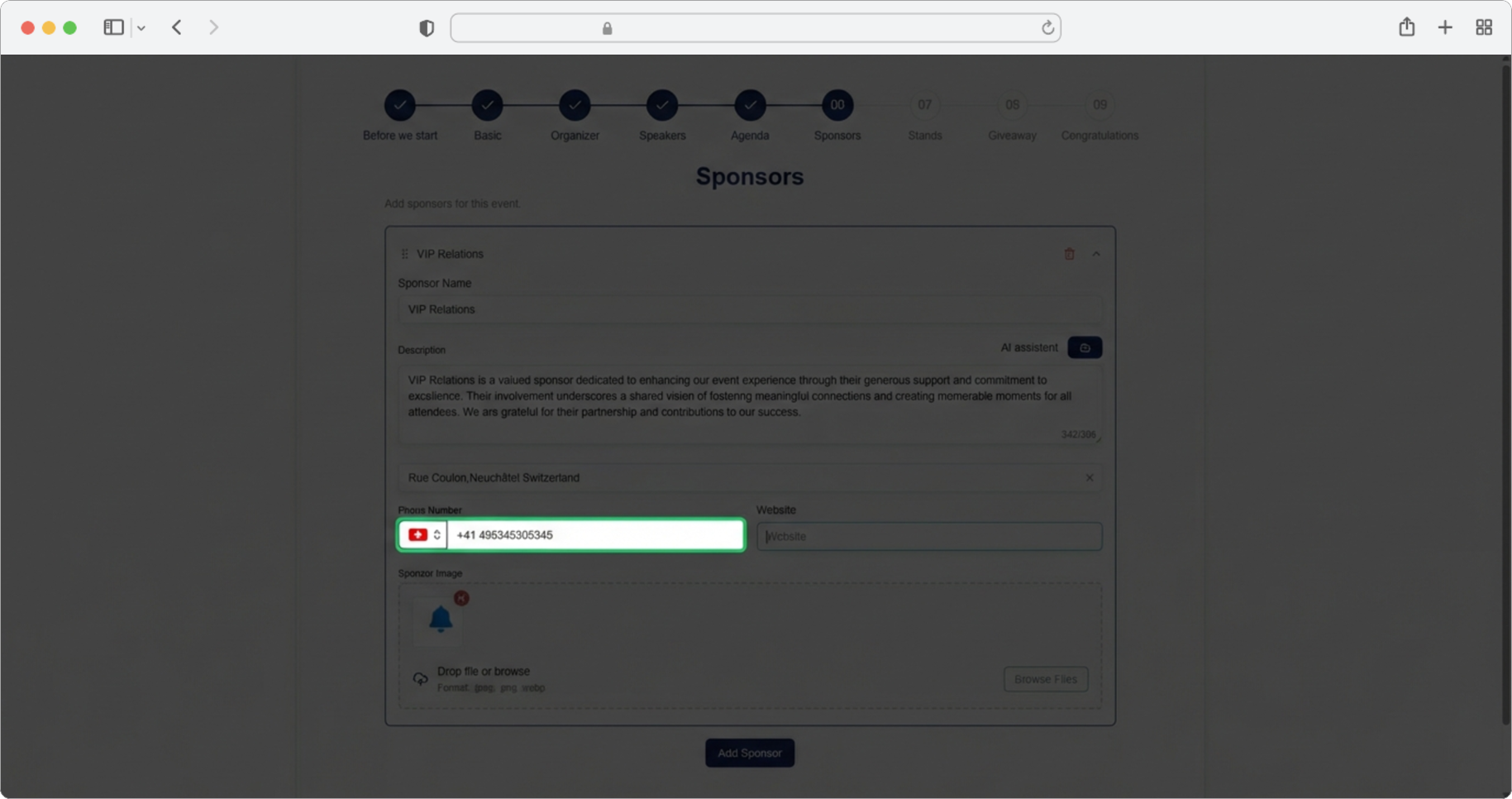
Select the appropriate country from the search results by clicking on it. The dropdown will close and the country flag and code will update. Then enter the rest of the sponsor's phone number in the phone number field next to the country code.
Sponsor Website
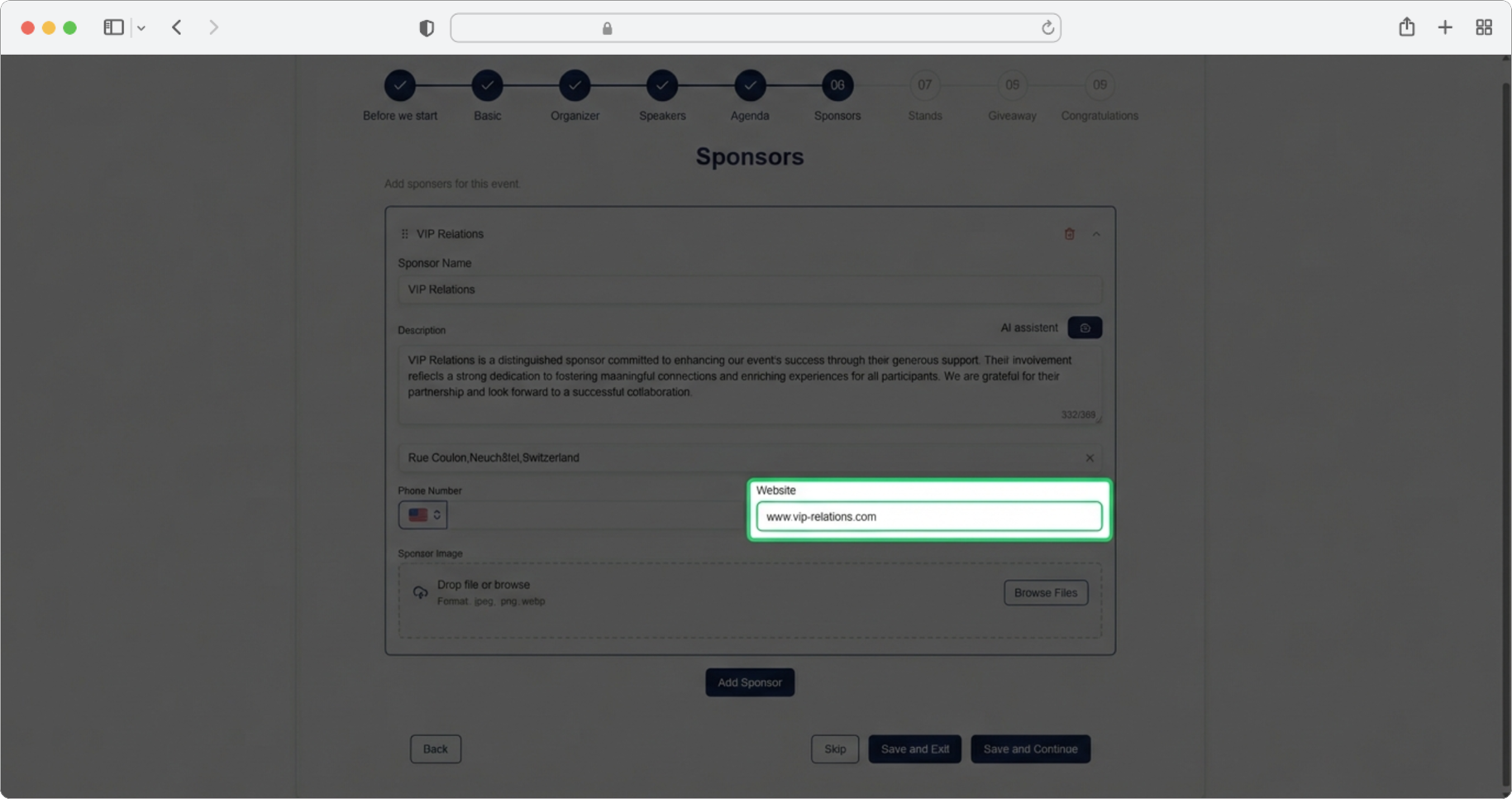
Click on the text input field labeled "Website" and enter or paste the link to the sponsor's website (for example, "https://www.example.com").
Sponsor Logo
Required field. Add the sponsor's logo. Click the "Browse" button, select the photo from your computer, and after selecting the photo, click "Add Sponsor" again if you have more sponsors, or "Save and Continue" to proceed to the next step.
Managing Multiple Sponsors
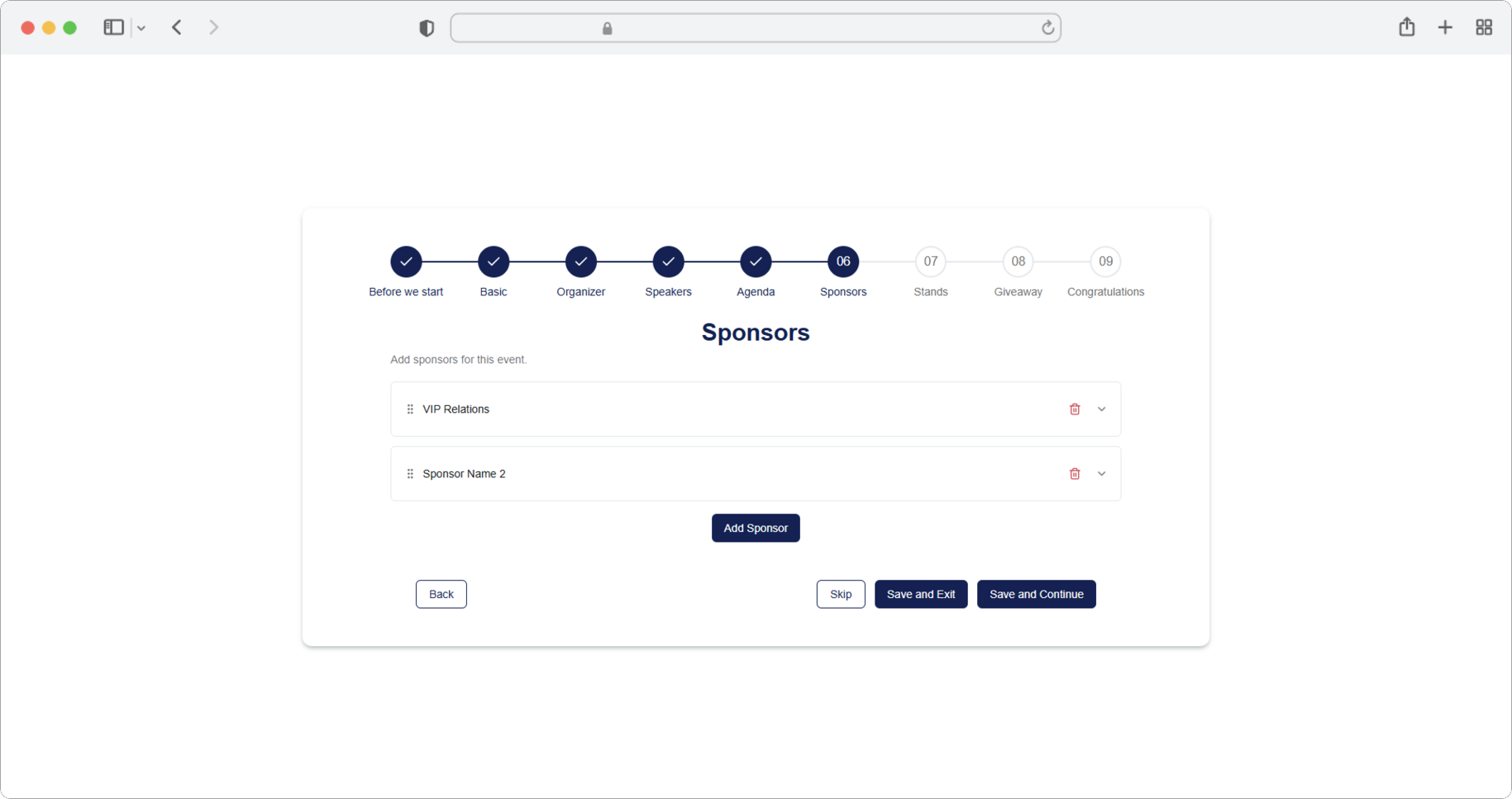
You can add as many sponsors as you want. Keep in mind that each time a new sponsor is added, the expander with their information will collapse (fold up), while the expander for entering a new sponsor will expand (open up).
Sponsors can be easily deleted by clicking the Trash icon (a small icon that looks like a trash can) to the right of each individual sponsor's name. You can also change the display order of sponsors by clicking the icon to the left of the sponsor's name and then using the drag and drop method (click and hold, move to the new position, release) to arrange sponsors in the desired position.
Sponsors in the app are always displayed in the same order as here — so arrange them in the order you want attendees to see them.
Sponsor order matters
If you have a main or title sponsor, place them first in the list. The order you set here is the exact order in which sponsors will appear in the RU4M mobile app.