Stands (Optional)
If you have stands with promotional materials, are organizing a giveaway, or have similar physical booths at your event venue, this step lets you add those stands and enter their details. Stands represent physical locations at your event — for example, a sponsor's booth, an information desk, a demo table, or a prize wheel station.
Each stand you add here will appear in the RU4M mobile app for event attendees, and if you later enable QR scanning in the Giveaway step, each stand will automatically get its own unique QR code that attendees can scan on-site.
This step is optional
If your event does not have any physical stands or booths, you can safely skip this step. Click the Skip button at the bottom of the page to move on to the next step, or click Save and Exit if you want to save your progress and finish later.
Add a Stand
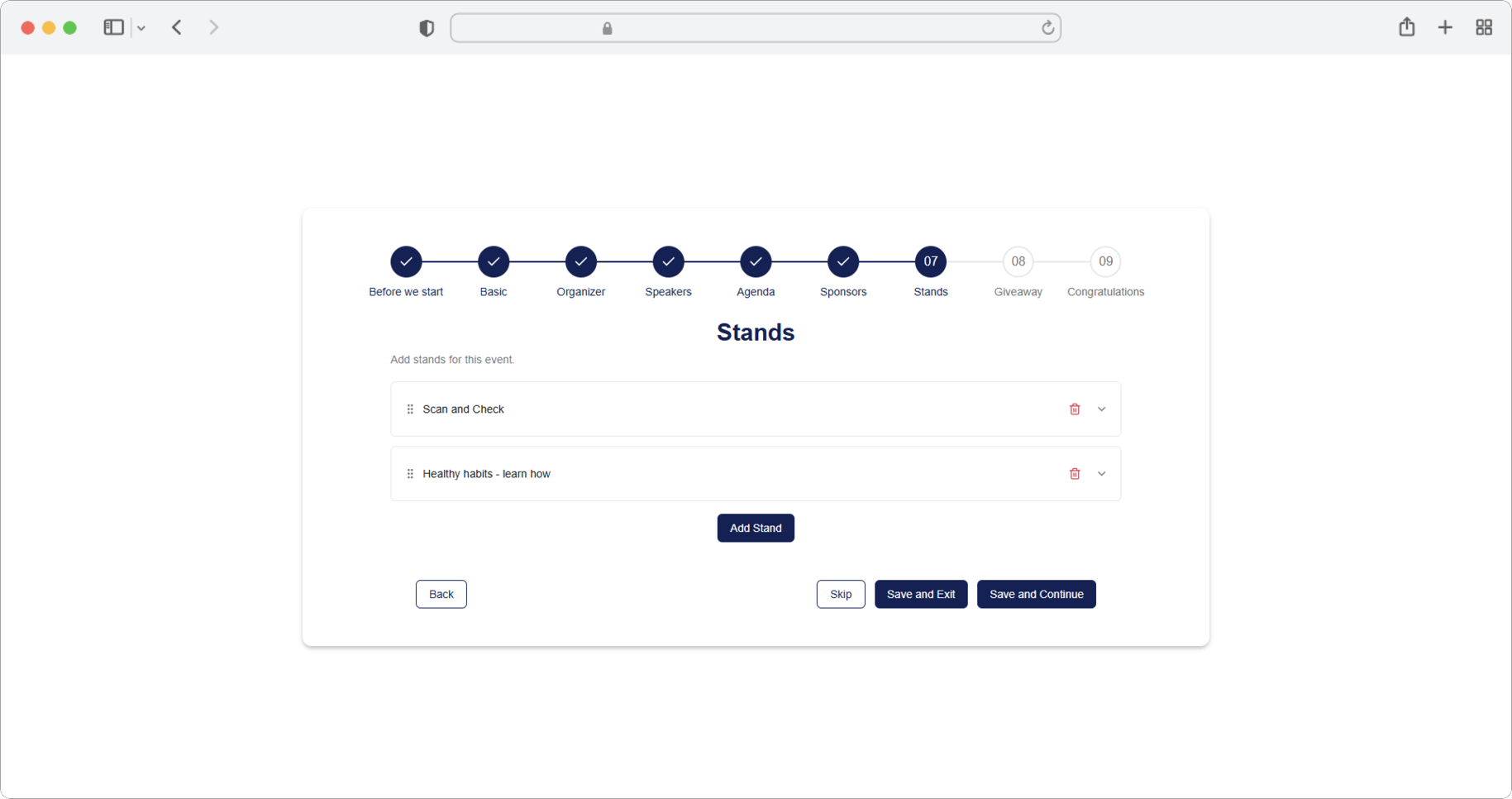
Click the "Add stands" button. A form for adding stands will open. If you want to skip the step, select the "Skip" option, and if you want to finish creating, select the "Save and Exit" option.
At the bottom of the page, you will also notice several other buttons:
- Back — takes you back to the previous step (Sponsors)
- Skip — skips this step entirely and moves to the next step (Giveaway)
- Save and Exit — saves everything you have entered so far and exits the event creation wizard. You can come back later to continue.
- Save and Continue — saves the stands you have added and moves to the next step
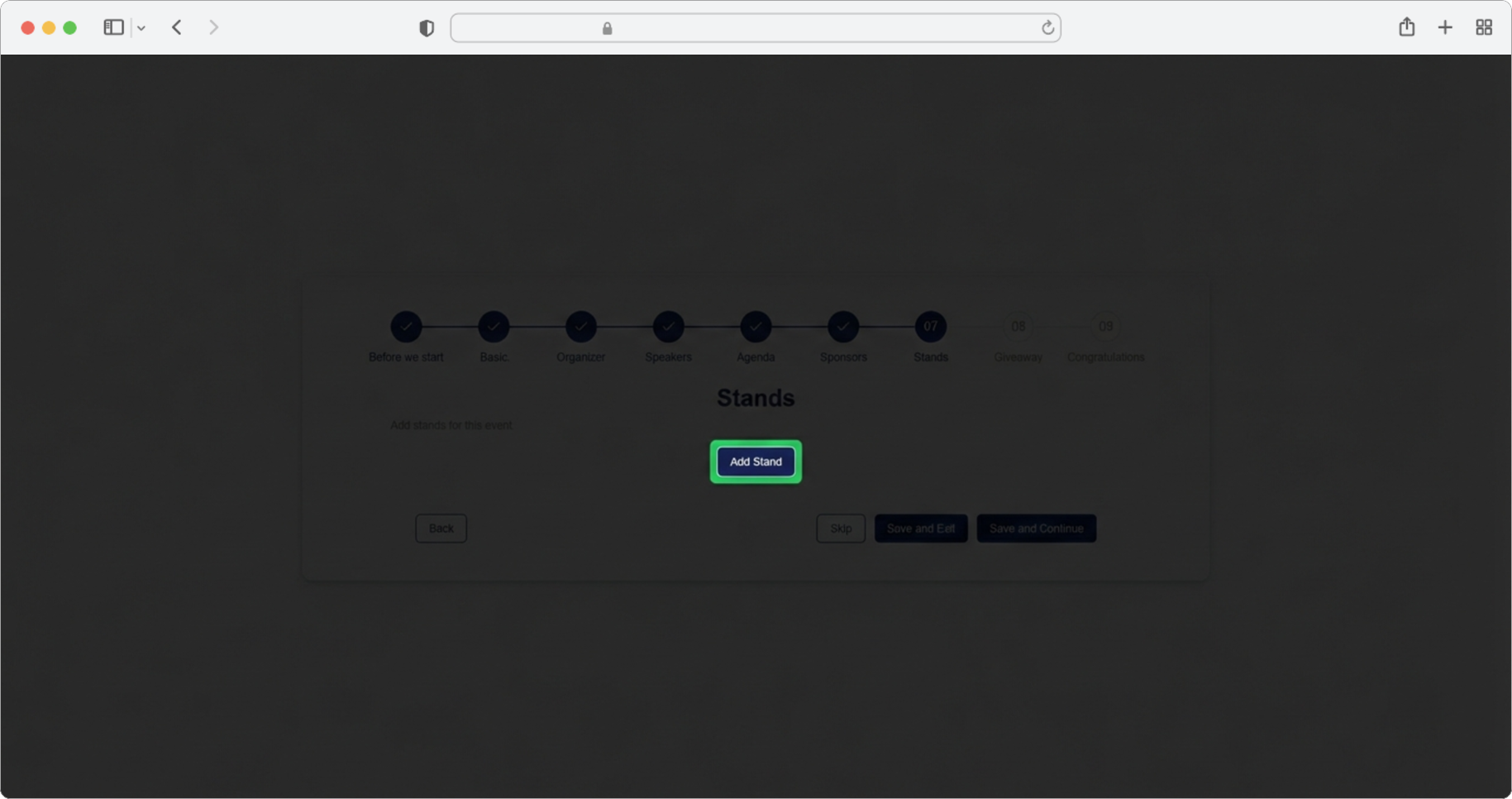
Enter the Stand Title
Required field (if you chose to add a stand). Click on the text input field labeled "Stand title" and enter the name of your stand. For example, you might enter "Innovation Corner", "Sponsor Booth A", or "Info Desk".
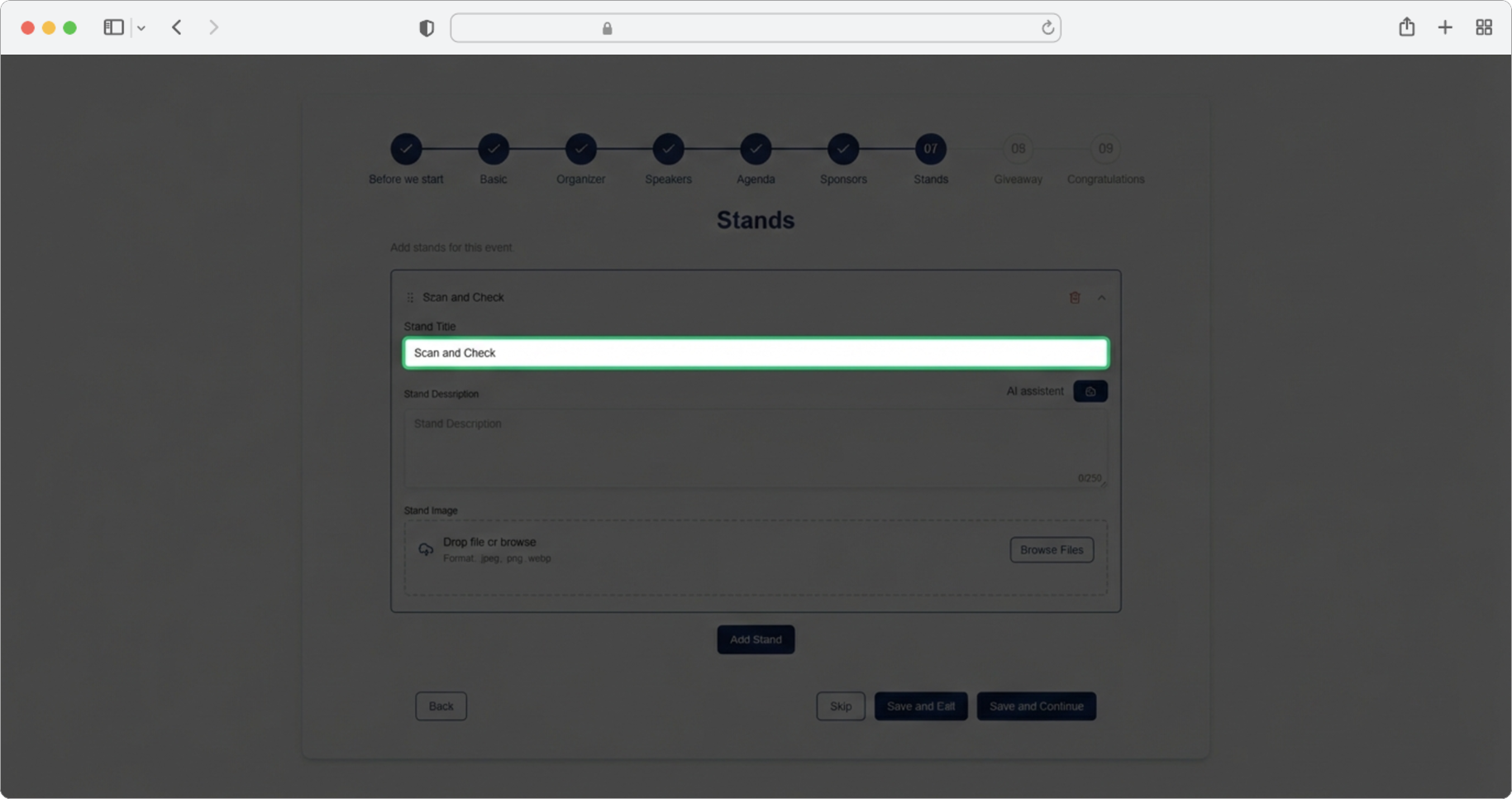
Choose a clear name
Pick a name that attendees will easily recognize. This name will appear in the RU4M mobile app, so make it descriptive enough that people know what the stand is about.
Enter the Stand Description
Click on the text input field labeled "Stand Description" and enter a short description of the stand — up to 250 characters. This describes what attendees will find at this stand.
Alternatively, click on the AI assistant icon (a small icon near the label, usually resembling a sparkle or robot) to automatically generate a description suggestion. You can then edit the generated text however you like.
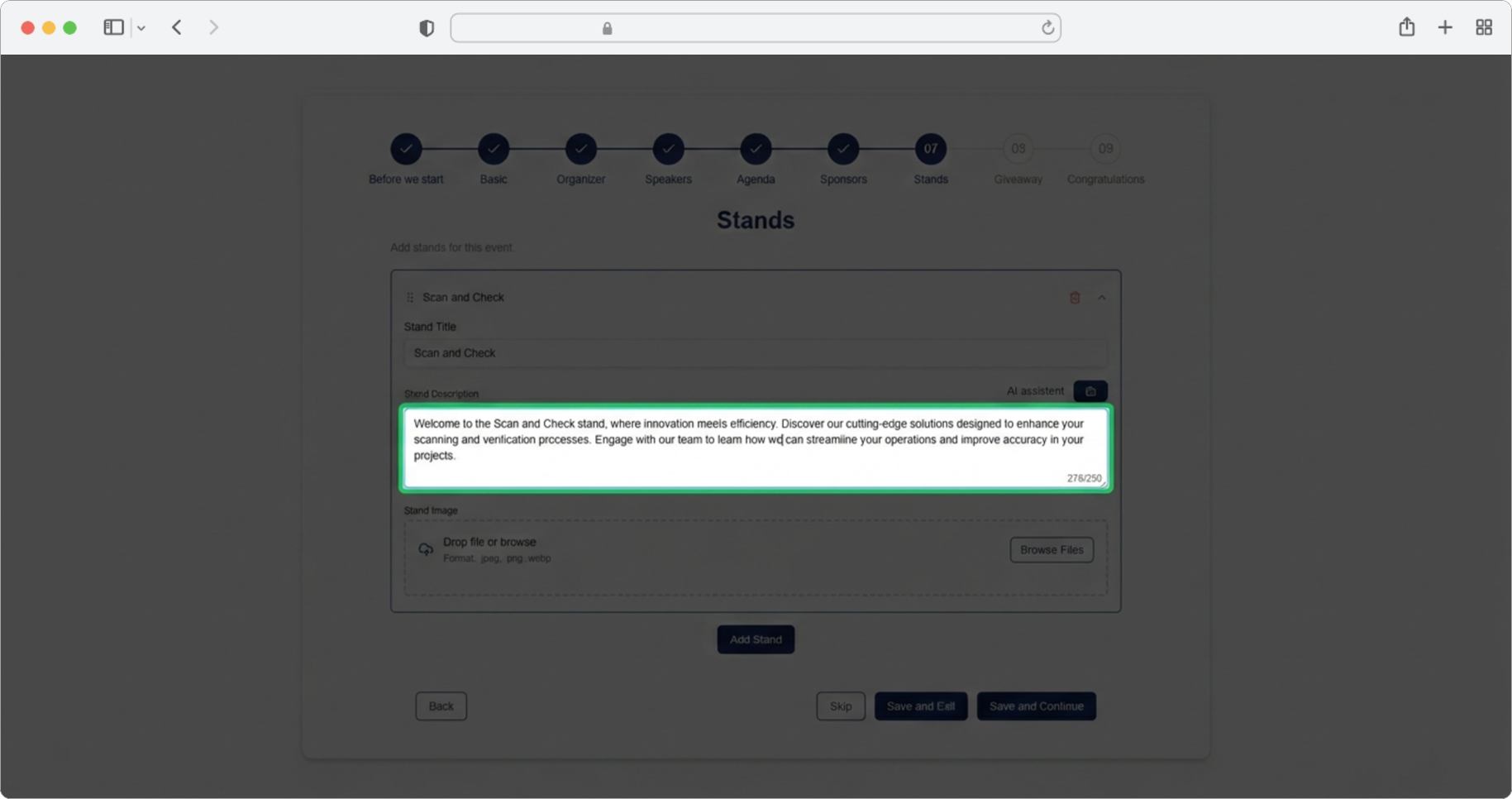
Upload a Stand Image
Add an image or logo for the stand. Click the "Browse" button to open your computer's file explorer. Navigate to the image you want to use, select it, and click "Open".
After uploading the image, you have two choices:
- Add another stand — Click the "Add Stand" button to add another stand. The current stand's form will collapse (fold up) and a new empty form will open for the next stand.
- Finish this step — Click "Save and Continue" to save all your stands and move to the next step (Giveaway).
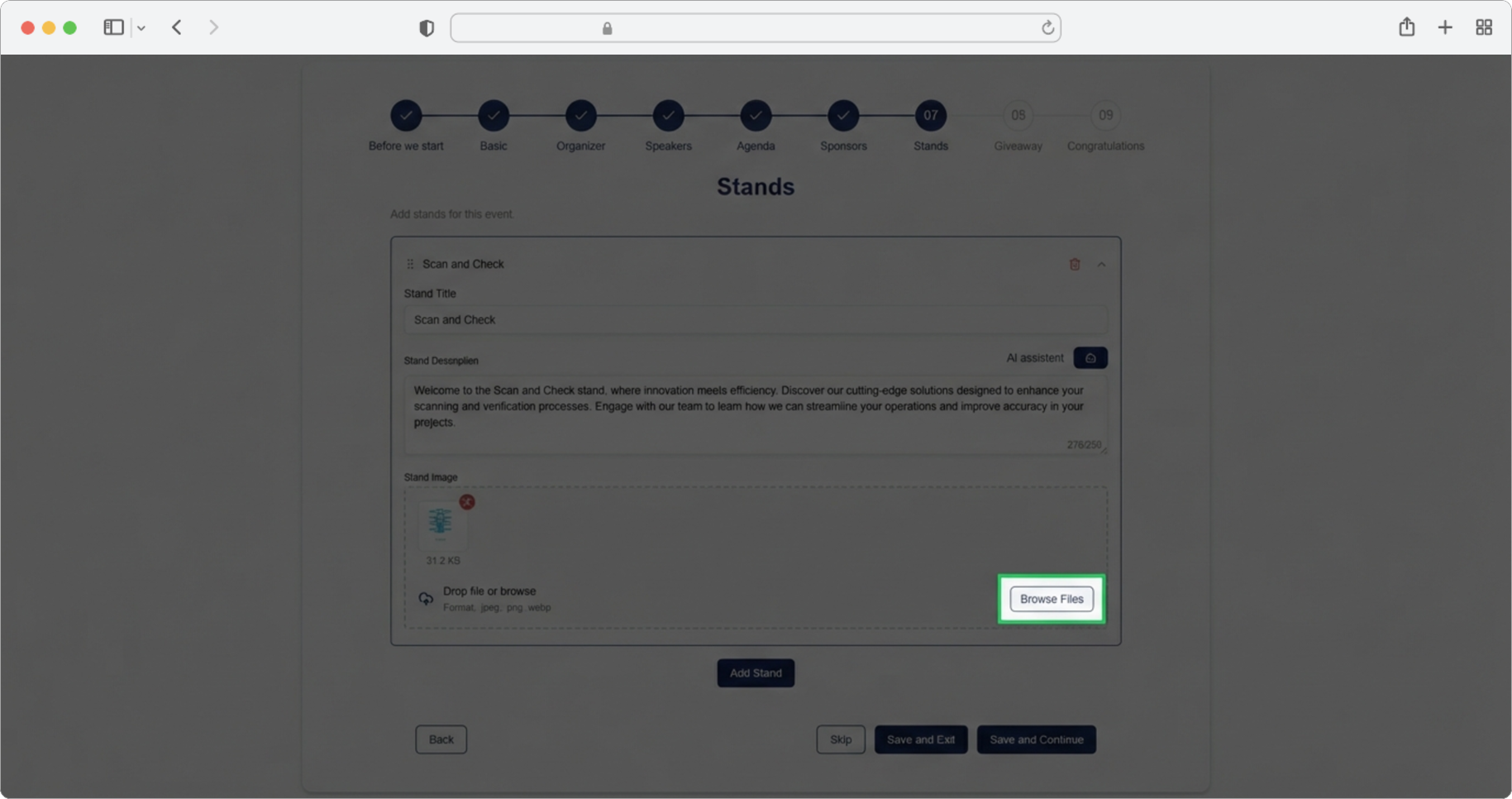
Managing Multiple Stands
You can add as many stands as you need — there is no limit. Each time you add a new stand by clicking the "Add Stand" button, the previous stand's form will automatically collapse (fold up into a single row showing just the stand name), and a new empty form will appear for your next stand.
On the overview screen, you will see all your stands listed as rows. Each row shows:
- A drag handle (a small icon with six dots or horizontal lines) on the left side of the stand name — click and hold this icon, then drag the stand up or down to rearrange the order. The order you set here is the exact order in which stands will appear in the RU4M mobile app for attendees.
- The stand name in the center of the row.
- A trash icon (a small icon that looks like a trash can) on the right side — click this to delete the stand.
Stands in the app are always displayed in the same order as here — so if you want a particular stand to appear first for attendees, drag it to the top of the list.
Stand order matters
Stands in the RU4M mobile app are always displayed in the exact same order as you arrange them here. If you want a particular stand to appear first for attendees, drag it to the top of the list.