AI Email Campaign Content
When creating an email campaign to invite or notify people about your event, the AI assistant can generate both the email subject line and the email body content. This helps you quickly compose professional emails without starting from a blank page.
Language
The AI assistant generates email content in the language you are currently using in the backoffice. Switch the interface language before generating if you need the email in a different language.
Email Subject
On the email campaign creation page, you'll see the "Enter email subject" field at the top. Next to it is the AI icon ().
Click the AI icon and the AI will generate a concise, attention-grabbing subject line for your event invitation email.
The AI uses the following data from your event:
- Event name — the title of your event
- Brief Summary — if your event has one
- Interests/Topics — categories assigned to the event
- Location — where the event takes place
- Email body — if you've already written the email content, the AI will generate a subject that matches it
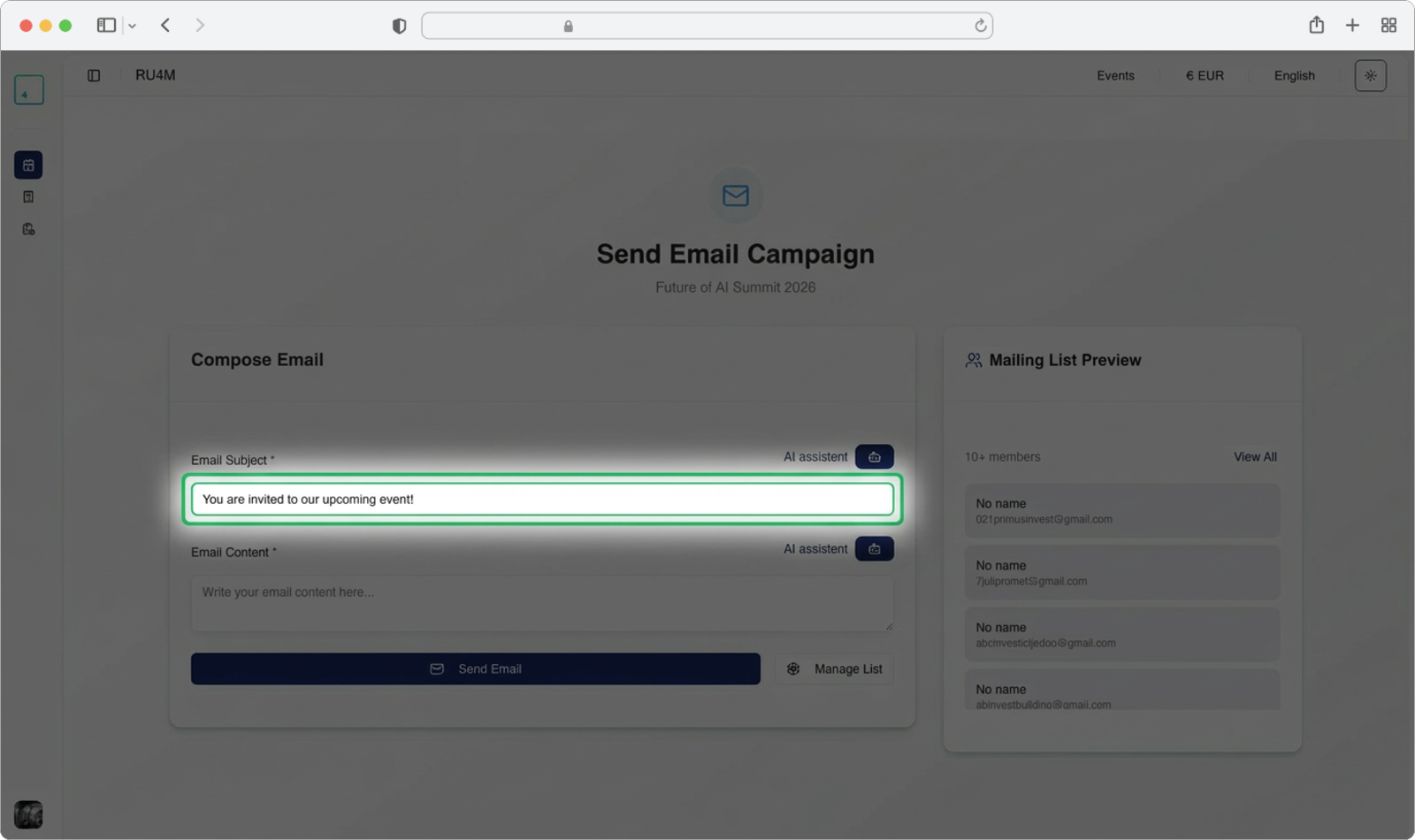
Tip
If you write the email body first, the AI will generate a subject line that matches your email content. Otherwise, it will create a subject based on the event details alone.
Email Body
Below the subject field, you'll find the "Email content" field. This is where the main message of your email goes. Click the AI icon next to this field to generate a professional email body.
The AI uses the following data from your event:
- Event name — the title of your event
- Brief Summary — if your event has one
- Interests/Topics — categories assigned to the event
- Location — where the event takes place
- Email subject — if you've already written or generated the subject, the AI will create body content that expands on it
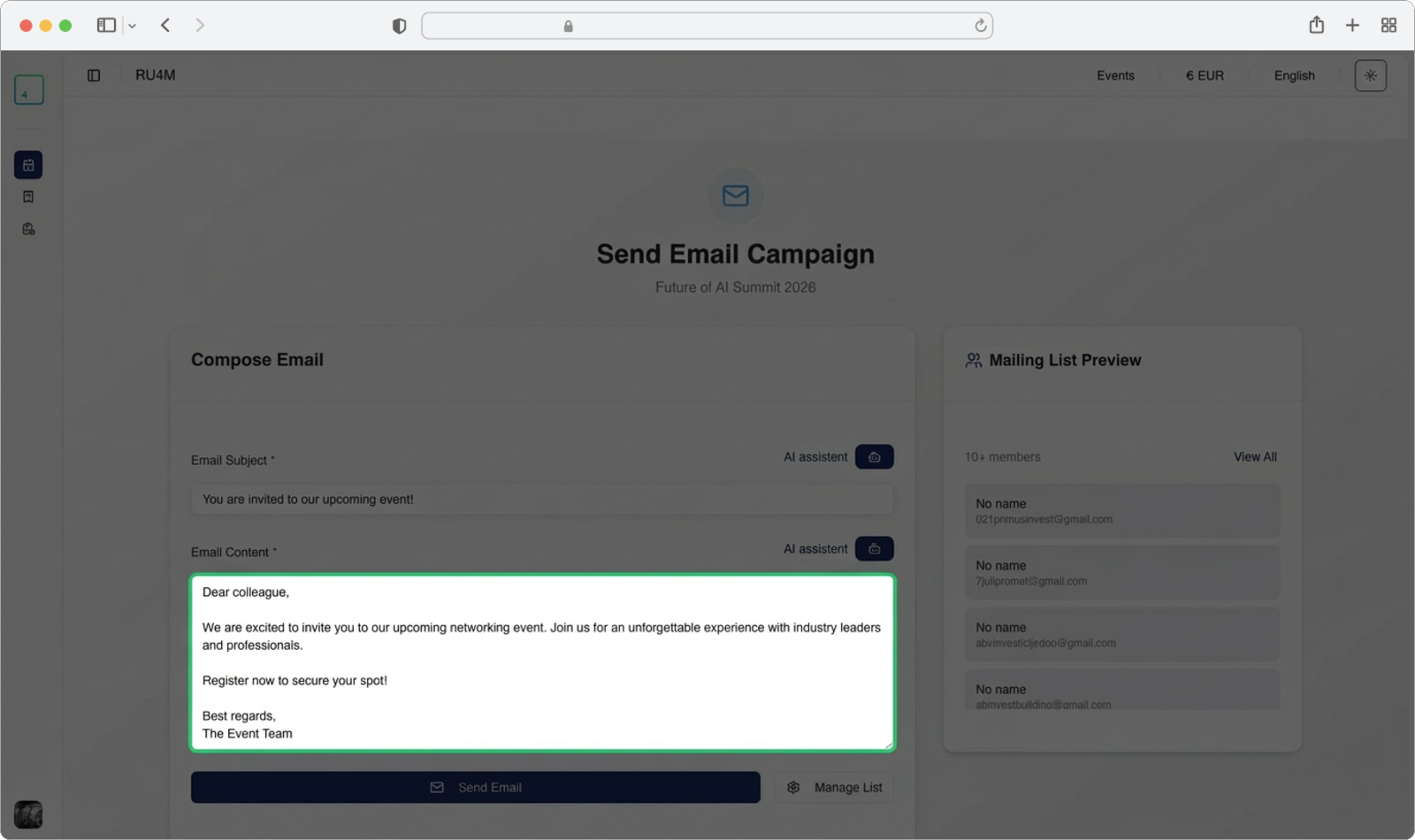
Tip
Generate the email subject first, then generate the body. The AI will create body content that naturally flows from your subject line.
After generating, you can freely edit the text — adjust the tone, add specific details about the event, or personalize the message for your audience.
How to use
- Navigate to the email campaign page for your event (Dashboard → find your event → three-dot menu → Invite)
- Click the AI icon () next to the subject field to generate a subject line
- Click the AI icon next to the email content field to generate the body
- Review and edit both the subject and body to match your needs
- Set up your mailing list and send the campaign
Summary of data used per field
| Field | Data the AI uses |
|---|---|
| Email Subject | Event name, Summary, Interests, Location, Email body (if written) |
| Email Body | Event name, Summary, Interests, Location, Email subject (if written) |