Accessing the Dashboard
The Dashboard is the central place of the RU4M Backoffice web application. From the Dashboard, you can create events, edit existing ones, view event analytics, manage transactions, and access email campaign settings. Think of it as your personal control center for everything related to your events.
To access the Dashboard, you first need to be logged in to your account. If you haven't logged in yet, please follow the steps in the Login section first.
How to Open the Dashboard
Once you are logged in, you will see the main page showing all public events. To get to the Dashboard, follow these steps:
Click on your account name
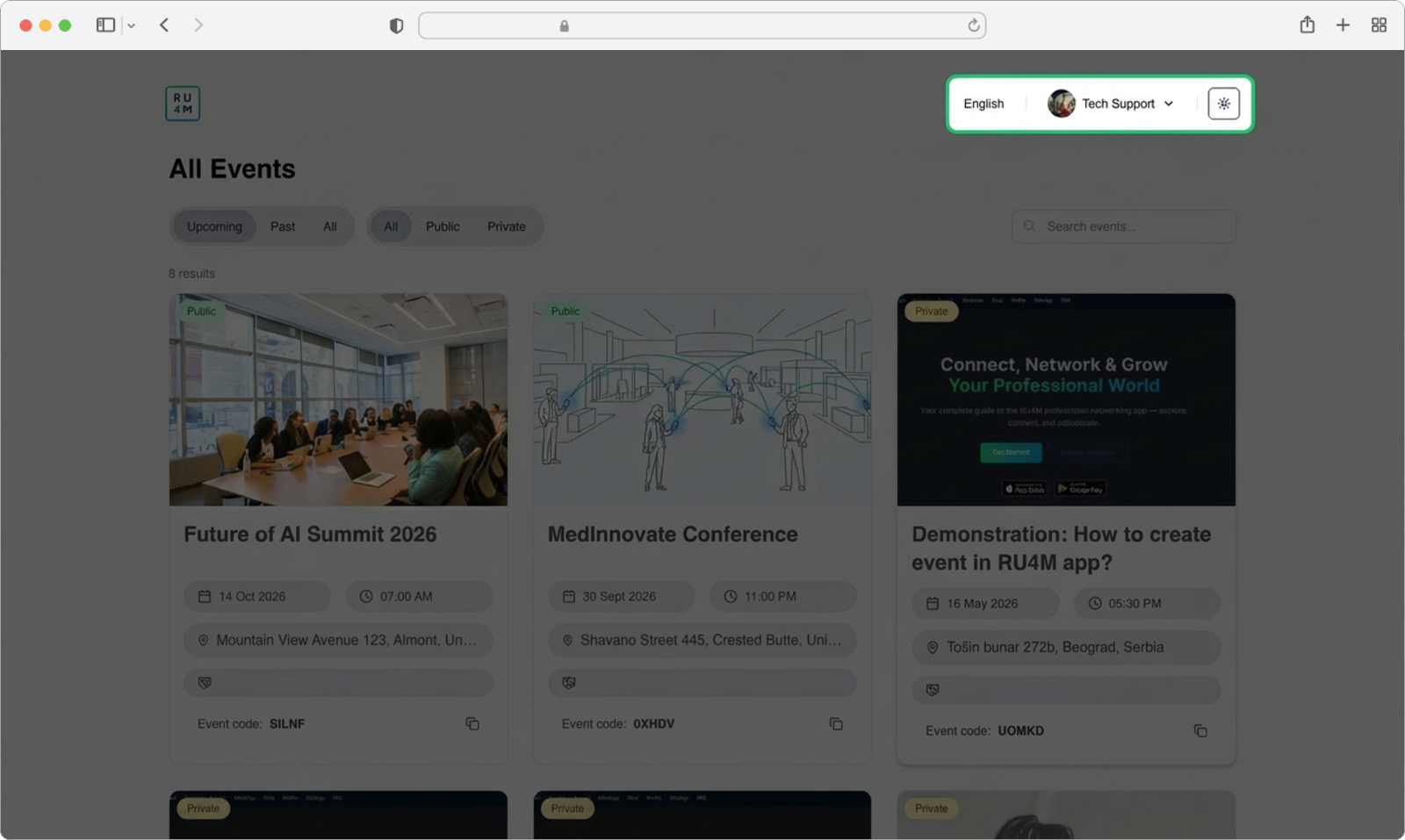
Look at the top right corner of the page. You will see your account name displayed next to a small profile icon. This is how the application shows you which account you are currently using.
Click on your account name (or the profile icon next to it). A small menu will appear below it — this is called a "dropdown menu" because it drops down from where you clicked.
Where exactly is it?
Your account name is located in the very top right area of the page, to the right of the language selector. It may show your full name or your email address, depending on your account settings.
Select "Dashboard" from the dropdown menu
After clicking your account name, a small dropdown menu will appear. You will see several options listed inside this menu.
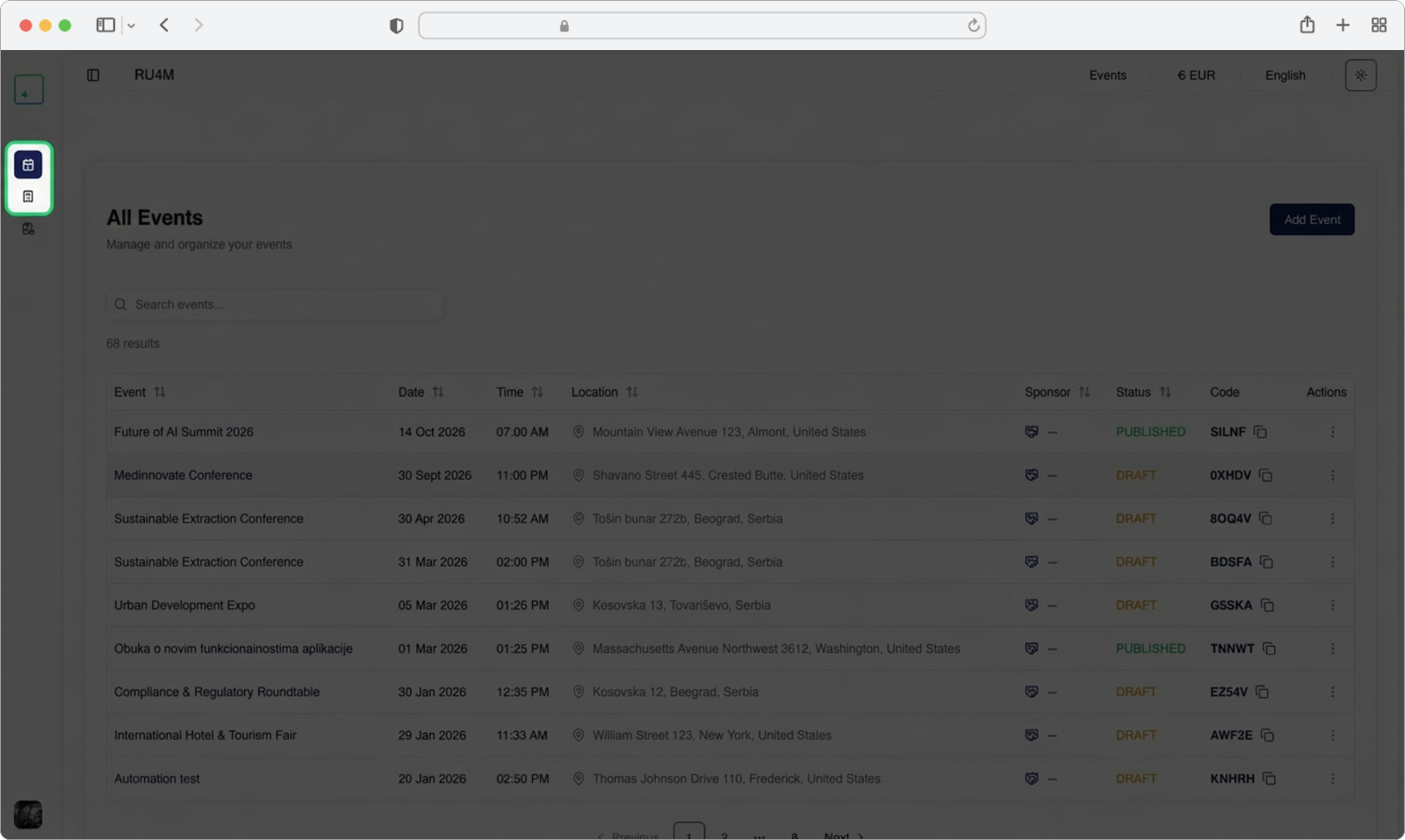
Find the option that says "Dashboard" and click on it. This will take you to your personal Dashboard page.
What is a dropdown menu?
A dropdown menu is a small list of options that appears when you click on something. It "drops down" from the element you clicked. You simply click on the option you want from the list.
You are now on the Dashboard
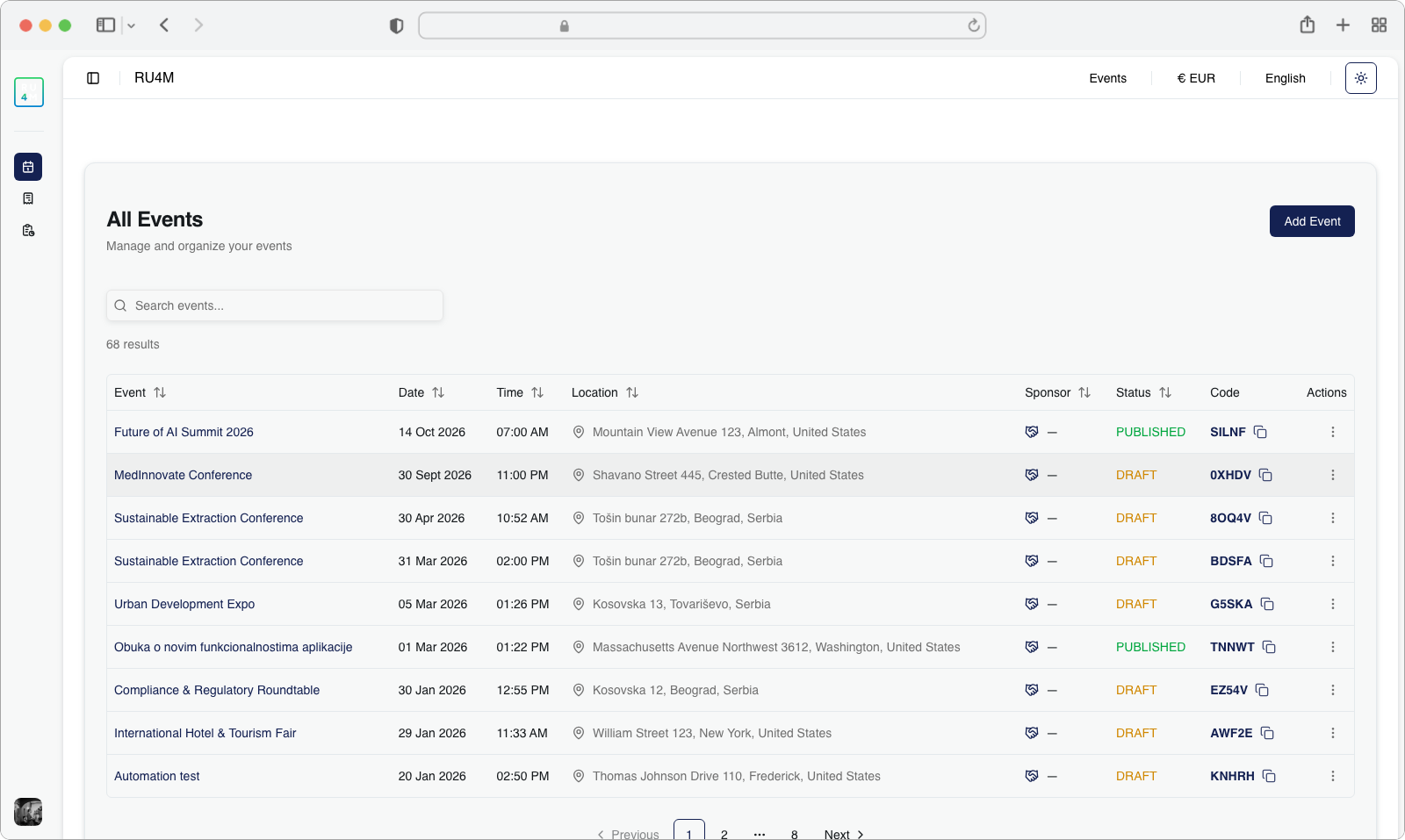
After selecting "Dashboard", you will be redirected to the main Dashboard page. This page looks different from the public events page — you will notice a dark sidebar (a vertical panel) on the left side of the screen, and the main content area on the right.
The sidebar contains links to different sections of the Dashboard: Events, Transactions, and Email Campaign Analytics. The main area shows a table with all the events you have created or have permission to moderate.
Quick access
You can also navigate directly to the Dashboard by entering the URL https://app.ru4m.com/en/dashboard/ in your browser's address bar. You will need to be logged in for this to work.
What is a sidebar?
A sidebar is a vertical panel that sits on the left (or right) side of a page. It usually contains navigation links — buttons or text that you can click to go to different sections of the application. In the Dashboard, the sidebar is the dark-colored panel on the left.