Overview, deliveries and audit
Last update · 6 min read
Check how many API keys and webhooks you use, find failed webhook deliveries and see who changed what. The Integrations panel opens on Overview. Open Deliveries to review requests or Audit to review changes.
Before you start
You need approved integration access. Read Requesting integration access if you do not have it yet.
Only the Owner or an Admin of the company can open these pages. A Manager or a Member has to ask the Owner or an Admin for help.
Where to find it
- Select Integrations in the bar on the left.
- The Integrations panel opens on Overview. To open another page, select API keys, Webhooks, Slack, Deliveries or Audit.
You can also open the Overview page directly.
The Overview page
The top line shows your primary company’s image and name, followed by the number of companies your access covers. Point at the name to see every company you can access.
At the top right you find API docs, New webhook and New key. API docs appears only when the RU4M API is set up for your company.
New webhook and New key are greyed out while your access is suspended. They are also greyed out while usage numbers load or when you reach the limit of 10.
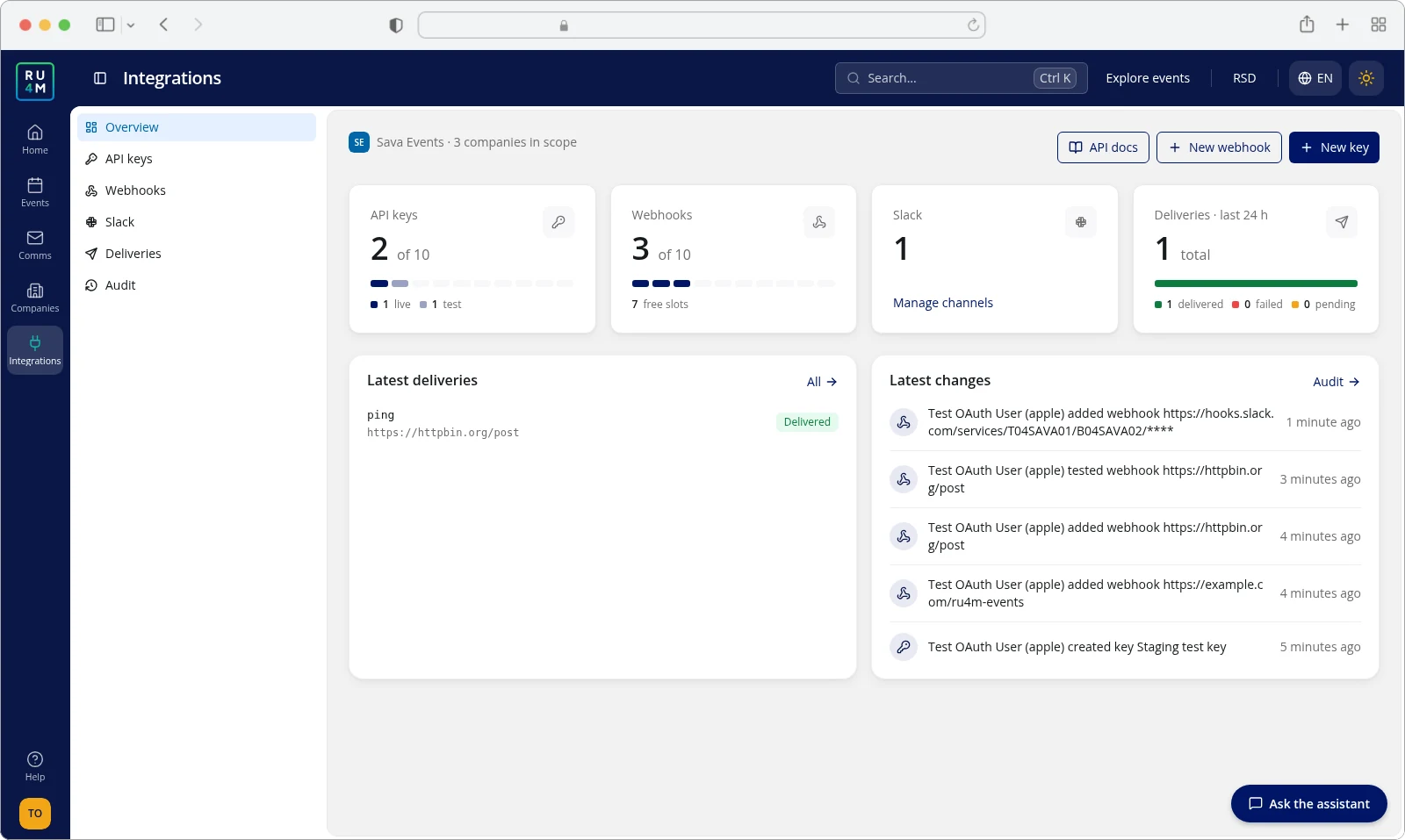
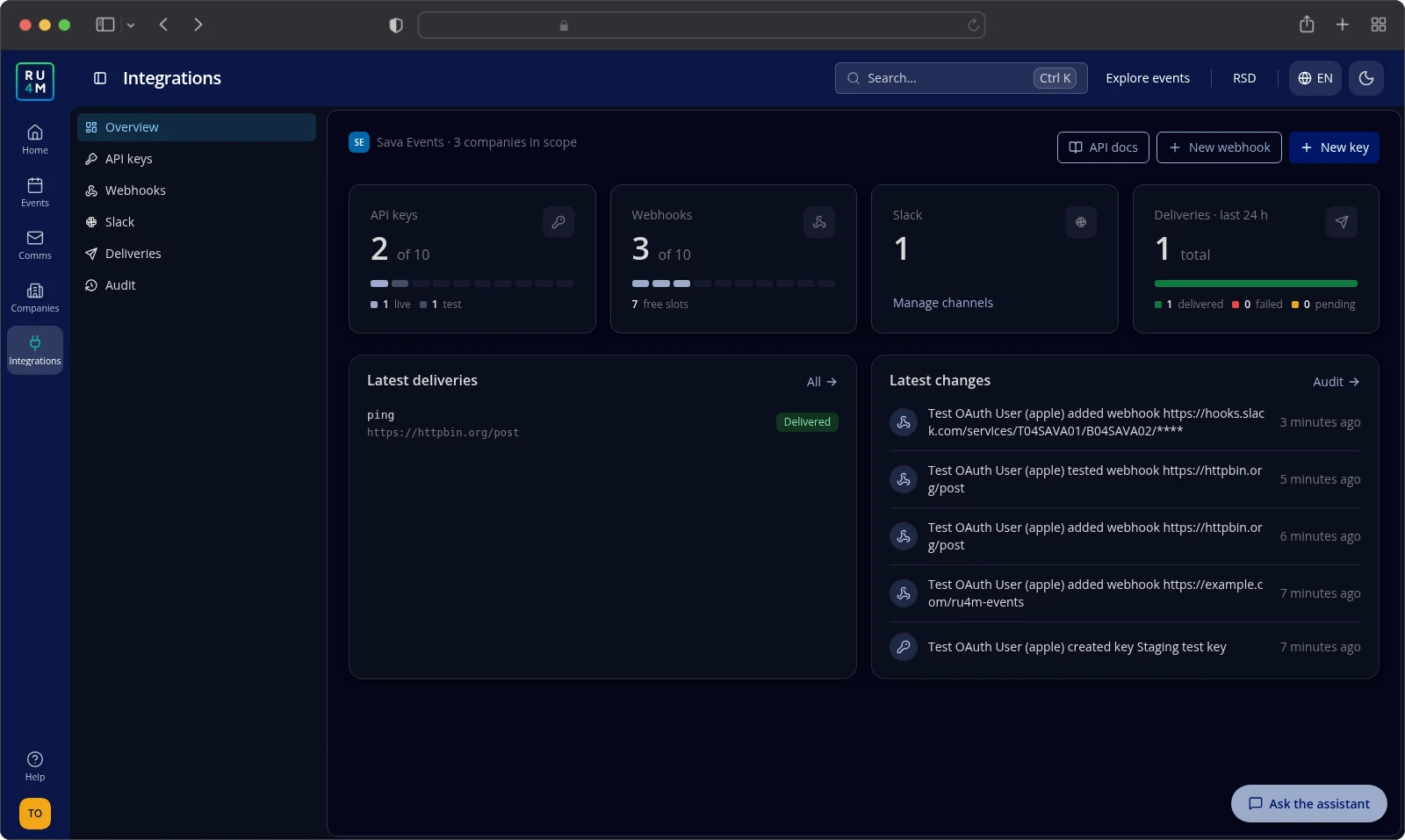
Four cards show the numbers:
- API keys — the number of keys that still work, with a limit of 10. The legend splits them into live keys and test keys.
- Webhooks — the number of webhooks you have, with a limit of 10. The legend shows how many slots are still free. Paused webhooks and Slack channels count here as well.
- Slack — the Slack channels you connected. With no connected channels, the card says Connect a Slack channel; otherwise, it says Manage channels. Read the Slack guide for the setup.
- Deliveries · last 24 h — the delivery records RU4M created in the last 24 hours. The total includes delivered, failed and pending deliveries; the legend lists each status and shows skipped deliveries only when any exist. A failed record does not always mean a request reached your webhook.
Latest deliveries lists the five newest delivery records. This list has no time filter, and a record can appear here even when RU4M never sent the request. Select All to open the Deliveries page.
Latest changes lists the five newest changes. Select Audit to open the Audit page.
Needs attention
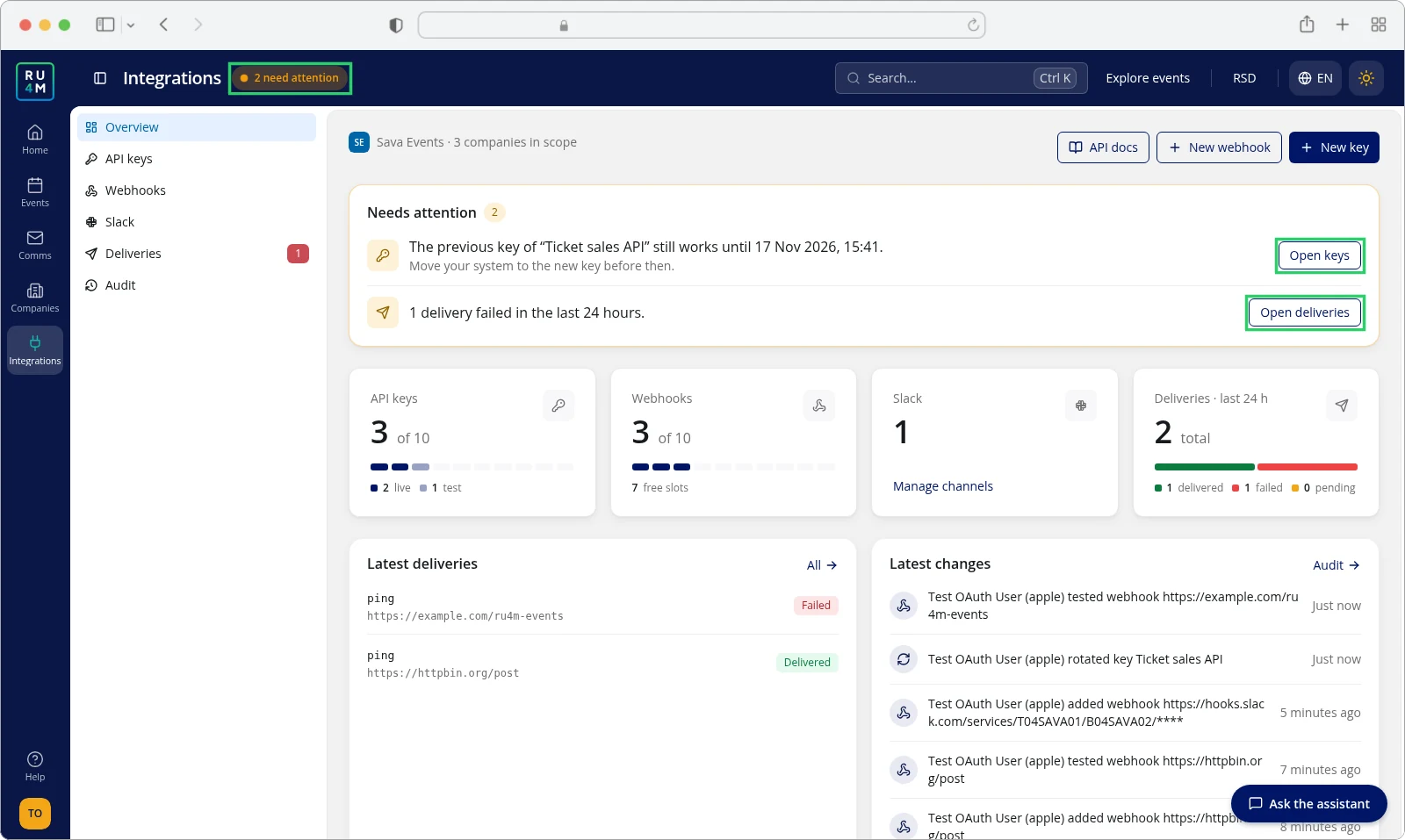
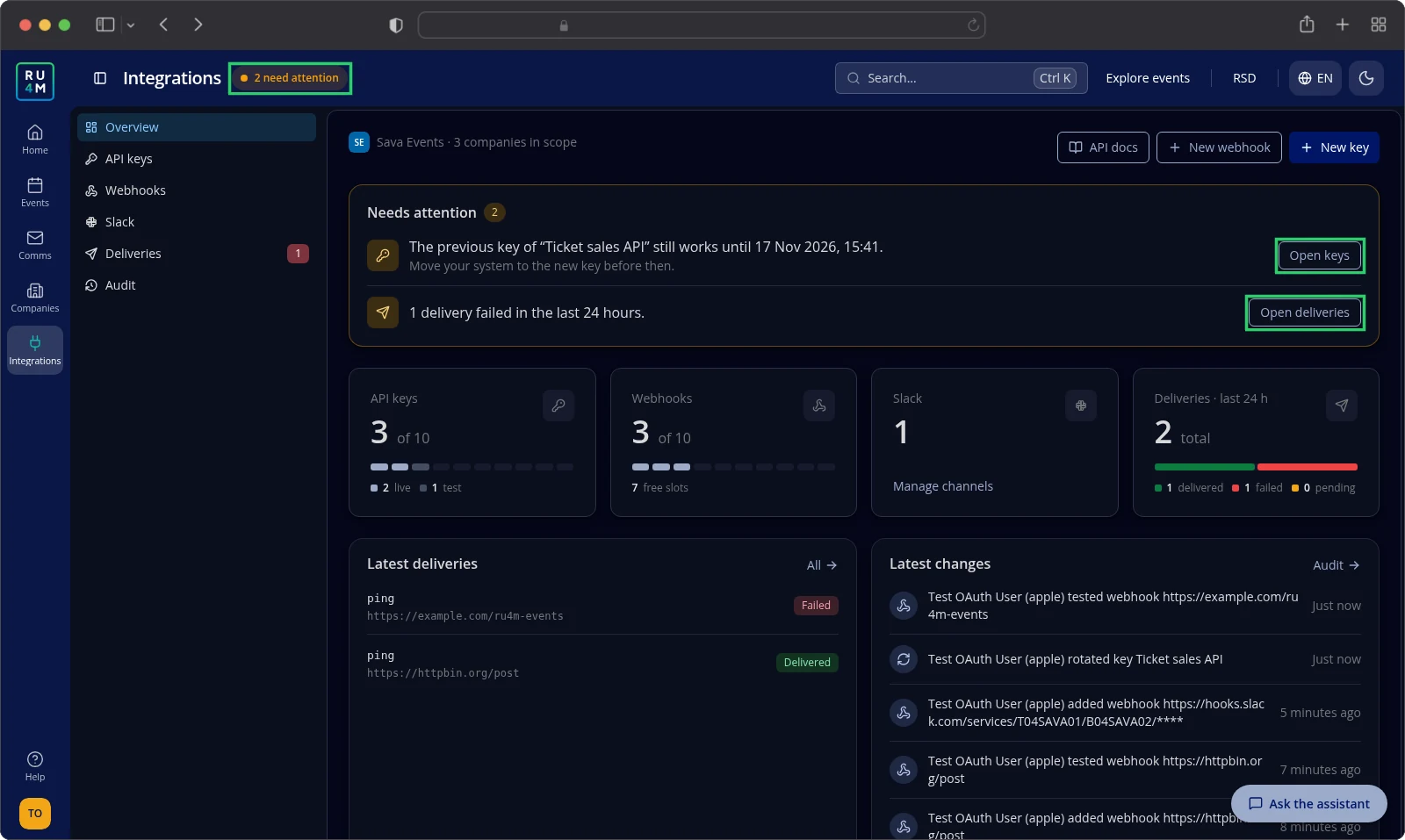
The count in the top bar shows how many items need your attention. Select the count to open Overview at the Needs attention card.
The card lists two kinds of items:
- The previous version of a key you rotated still works. The line names the key and its previous key’s expiry date; switch your system to the new key before then. Select Open keys to see the keys.
- Some deliveries failed in the last 24 hours. The line counts the failed deliveries. Select Open deliveries to open the Deliveries page with the Failed filter.
The count is a number of items, not a number of failed requests. One previous key and a failed-delivery alert make two items, even when five deliveries failed.
Checking deliveries
A delivery record describes one message for one of your webhooks. The Deliveries page lists every delivery with its status and response. Most records describe a request that reached your webhook.
The table shows Event, Endpoint, Status, Attempts, Response and Last attempt. Attempts counts how many times RU4M sent the message.
Response shows your system’s response code and any error. It can also show an error from RU4M alone, without a code from your system.
Narrow the list with the filters above the table:
- Status — Delivered, Failed, Pending or Skipped.
- Event — the type of change.
- Endpoint — one of your webhook addresses.
The Deliveries item in the Integrations panel shows how many deliveries failed in the last 24 hours.
Opening only the failed deliveries
You can reach the failed deliveries in three ways:
- Select Open deliveries under Needs attention on the Overview page.
- Select Failed webhook deliveries (24 h) under Needs attention on your home page.
- On Deliveries, select Failed in the Status filter.
When RU4M could not prepare the message
RU4M sometimes cannot prepare the message for your webhook. It records the failure and marks the delivery as failed, but it never sends the request. Your webhook receives nothing.
Such a delivery looks like this:
- Status — Failed.
- Attempts — 0, because RU4M sent nothing.
- Response —
build_failedand no response code, because your webhook never answered. - Last attempt — the time RU4M recorded the failure, not the time RU4M sent a request.
The Send again button is missing on such a row. RU4M cannot rebuild the message, so there is nothing to send again.
Sending a failed delivery again
- Find the failed delivery in the table.
- Check that the row has a Send again button.
- Select Send again.
The app confirms The delivery is queued to be sent again. Send again appears on failed deliveries, except on those whose Response shows build_failed. Even with a visible button, RU4M rejects the request if the webhook is paused or your access is suspended.
Reading the audit trail
The Audit page records every change to keys, webhooks and access. The table shows Time, Action, Actor and Subject.
These actions appear in the Action column:
| Area | Actions |
|---|---|
| Keys | Key created, Key rotated, Key revoked |
| Webhooks | Webhook added, Webhook changed, Webhook tested, Webhook deleted, Webhook secret rotated, Delivery sent again |
| Access | Access approved, Access restored, Access revoked, Settings changed |
Actor shows who made the change. People outside your companies appear as RU4M.
While access is suspended
RU4M can suspend your access without revoking it. The audit trail then shows Access revoked.
While access is suspended, you can still open every Integrations page. New key, Rotate and New webhook are disabled.
RU4M sends no deliveries to your webhooks, and Send again does not work. You can still revoke keys and edit, pause or delete webhooks.
When RU4M restores access, the audit trail shows Access restored.
Suspended access is not the same as revoked access. When RU4M revokes access, the Integrations pages lock again and you must send a new request. Read Requesting integration access.
Troubleshooting
The toolbar shows "Counts unavailable — retry". The app could not load the number of deliveries per status. Select the message to try again.
The page shows "No deliveries yet". RU4M has not sent anything to your webhooks yet. Check that at least one webhook is Active, or send a test from the Webhooks page.
A card shows "—" instead of a number. The app could not load that number. Reload the page.
A card shows a grey bar instead of a number. The app is still loading that number. Wait a moment for the number to appear.
Needs attention shows an error. The app could not load the alerts. Select Try again; alerts that already loaded stay on the card.
The Response column shows build_failed. RU4M could not prepare the message, so your webhook never received a request. The row has no Send again button, and you cannot send that message again.
For help with this delivery, see Contacting support.
Related tasks
- Webhooks — add, test and pause webhooks.
- API keys — create, rotate and revoke keys.
- Slack — connect a Slack channel.
- Requesting integration access — what happens when access is declined or revoked.